Schematik build
How to Build an ESP32 Plane Radar
Live ADS-B aircraft on a tiny round display, with Wi-Fi setup
What you'll build
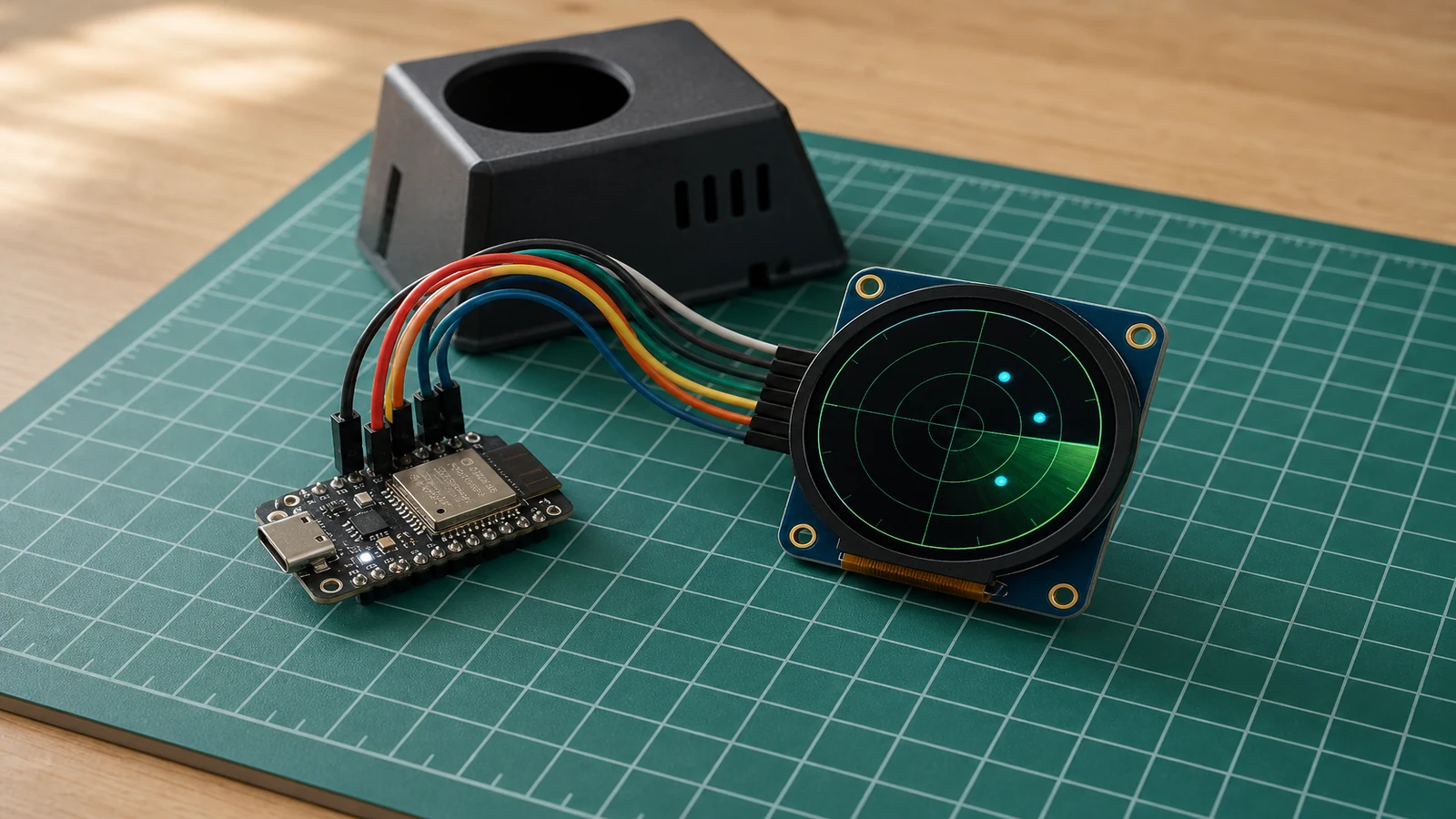
This guide builds a small desk radar that plots live aircraft on a 1.28 inch round display. An ESP32-C3 Super Mini fetches real ADS-B positions from opendata.adsb.fi every five seconds and draws each aircraft as a bearing-correct blip on the circular screen, labelled with its callsign or ICAO hex code.
The firmware is based on MatixYo's ESP32 Plane Radar. The build covers the SPI wiring, the first-boot Wi-Fi setup portal, and the two things the BOOT button on GPIO9 does: a short press cycles the radar range through 5, 10, 15, and 25 km; holding it for three seconds wipes the stored credentials and relaunches the setup portal.
Aircraft positions come over HTTPS from a public, open data API. The ESP32-C3's app partition is small enough that certificate validation is skipped (setInsecure()), which is acceptable for read-only public flight data.
What you are building
The firmware has five main jobs:
- On first boot (or after a credential wipe), start a soft-access-point named
PlaneRadar-Setupand serve a configuration page at 192.168.4.1 where you enter your Wi-Fi network, password, and your latitude and longitude, - Store those settings in NVS (non-volatile storage) using the
Preferenceslibrary and connect to your home Wi-Fi on subsequent boots, - Fetch aircraft within the current range from
opendata.adsb.fieveryFETCH_INTERVAL_MS(5000 ms) over HTTPS, - Draw the radar shell and plot each aircraft at the correct bearing and scaled distance on the GC9A01 round display using LovyanGFX,
- Handle BOOT button presses: short press cycles
radarRangeKmthrough 5 → 10 → 15 → 25 km; hold ≥HOLD_CLEAR_MS(3000 ms) to clear NVS and restart into the portal.
Multi-aircraft collision avoidance, altitude display, and route history are outside the scope of this build.
Upload and calibrate
Open the project in Schematik and click Deploy. After flashing, the display shows PlaneRadar-Setup and the board starts a soft-access-point with the same name.
On your phone or computer, join the PlaneRadar-Setup Wi-Fi network. Open a browser and go to http://192.168.4.1. The configuration page asks for your Wi-Fi network name, password, and your location as decimal latitude and longitude (for example 52.3676 and 4.9041 for Amsterdam — you can get your coordinates by right-clicking in Google Maps). Tap Save. The device restarts and connects to your home network.
Once connected, the radar rings appear on the display and aircraft start plotting every five seconds. Open Serial Monitor at 115200 baud to see how many aircraft were plotted each cycle and to confirm the board's IP address.
To change the radar range, press the BOOT button briefly. Each press steps through 5 → 10 → 15 → 25 km, then back to 5 km. The current range is shown in yellow in the bottom-right corner of the display.
To re-run the setup portal — for example after moving to a different location or changing Wi-Fi — hold the BOOT button for about three seconds until the display shows PlaneRadar-Setup again. This clears the saved credentials from NVS and reboots into the portal.
Troubleshooting
- Display stays black after boot: confirm VCC is on 3V3 (not 5 V) and that RST is on GPIO0. Check the SDA/SCL orientation — they are easy to swap with female jumper wires.
- Display shows garbled colours or a mirror image: verify the pin order matches the wiring table exactly. LovyanGFX sets
invert = trueandrgb_order = truefor this display; changing either without also adjusting wiring will cause colour or orientation problems. - Setup portal page does not load at 192.168.4.1: confirm your device is connected to
PlaneRadar-Setup, not your home Wi-Fi. The portal is only available while the board is in access-point mode. - Board connects to Wi-Fi but no aircraft appear: try increasing the range — very few aircraft fly within 5 km of most ground locations. Check Serial Monitor for HTTP error codes; a
-1usually means a timeout, which can happen if the board's Wi-Fi signal is weak. - Aircraft appear but positions look wrong: confirm that the latitude and longitude you entered are in decimal degrees (not degrees/minutes/seconds) and that north and east are positive values.
- Credentials appear correct but the board keeps reverting to the portal: if the Wi-Fi password has special characters, re-enter them carefully. NVS stores strings as-is.
Going further
The radar currently plots aircraft as simple triangles. You can extend drawAircraft() to include altitude (available in the alt_baro field from the adsb.fi API) or to colour-code blips by altitude band. If you want to run the radar at a remote site without mains power, the ESP32-C3's light-sleep mode between fetches can bring average current down considerably. Adding a small enclosure with a clear acrylic face over the round display turns the breadboard prototype into a presentable desk object.
Wiring diagram
Gather all the parts
Assemble it in 6 steps
1. Wire the GC9A01 display — power and ground
Connect the display VCC pin to the ESP32-C3 Super Mini 3V3 rail and GND to GND. The GC9A01 runs on 3.3 V; do not connect VCC to 5 V.
- Do not power the display from the 5 V pin — it will damage the display controller.
2. Wire the GC9A01 display — SPI and control signals
Connect the display SDA (MOSI) to GPIO3, SCL (SCLK) to GPIO4, CS to GPIO1, DC to GPIO10, and RST to GPIO0. Use short female-to-female jumper wires to keep the SPI signals clean.
- Keep jumper leads as short as practical — long SPI wires at 40 MHz can cause display glitches.
- Double-check the display label: SDA = MOSI, SCL = SCLK on most GC9A01 breakouts.
3. Connect the USB-C data cable
Plug a USB-C data cable (not a charge-only cable) into the ESP32-C3 Super Mini and your computer. Chrome and Edge support Web Serial; Firefox does not.
- If your cable doesn't show up as a serial port, try a different cable — many USB-C cables carry power only.
4. Flash the firmware with Schematik Deploy
Open the Schematik Deploy panel and click Deploy. Your browser will ask you to choose the board's serial port. If the upload doesn't start, hold the BOOT button on the ESP32-C3 while clicking Deploy, then release it once flashing begins.
- The ESP32-C3 Super Mini may need BOOT held during the first connection on some host machines.
5. Configure Wi-Fi and radar location
After flashing, the display shows 'PlaneRadar-Setup'. On your phone or computer, join the Wi-Fi network called PlaneRadar-Setup, then open http://192.168.4.1 in a browser. Enter your Wi-Fi name and password plus the latitude and longitude of your location (e.g. 52.3676, 4.9041 for Amsterdam). Tap Save — the device restarts and connects to your network.
- Find your latitude and longitude at maps.google.com: right-click your location and copy the coordinates.
- If you make a mistake, hold the BOOT button for 3 seconds at any time to clear credentials and relaunch the portal.
6. Test the live radar
Once connected, the radar rings appear and aircraft start plotting every five seconds. Each blip shows the callsign or ICAO hex code. Press the BOOT button briefly to cycle the range through 5, 10, 15, and 25 km. Aircraft are drawn at their correct bearing and distance from the coordinates you entered.
- If no aircraft appear, try increasing the range — very few aircraft fly below 5 km from many locations.
- Check the Serial monitor at 115200 baud to see how many aircraft were plotted each update cycle.
Review all connections
1. Connections between "round-display" and "ESP32"
Deploy the firmware
/*
* ESP32 Plane Radar
* Plots live ADS-B aircraft on a GC9A01 1.28-inch round display.
* First-boot softAP portal (192.168.4.1) stores Wi-Fi + location in NVS.
* BOOT button (GPIO9) cycles radar range 5 → 10 → 15 → 25 km.
* Hold BOOT for 3 s to clear saved credentials and relaunch the portal.
*
* Inspired by MatixYo's ESP32-Plane-Radar: https://github.com/MatixYo/ESP32-Plane-Radar
*/
#include <Arduino.h>
#include <WiFi.h>
#include <WebServer.h>
#include <Preferences.h>
#include <HTTPClient.h>
#include <WiFiClientSecure.h>
#include <ArduinoJson.h>
#include <LovyanGFX.hpp>
#include <math.h>
// ── Pin assignments ──────────────────────────────────────────────────────────
#define RADAR_RST 0
#define RADAR_CS 1
#define RADAR_DC 10
#define RADAR_MOSI 3
#define RADAR_SCLK 4
#define BOOT_BUTTON 9
// ── Radar settings ───────────────────────────────────────────────────────────
#define FETCH_INTERVAL_MS 5000
#define HOLD_CLEAR_MS 3000 // hold BOOT this long to wipe credentials
#define AP_SSID "PlaneRadar-Setup"
#define NVS_NAMESPACE "planeradar"
#define DISPLAY_SIZE 240
#define DISPLAY_CENTER 120
#define DISPLAY_RADIUS 105 // outermost radar ring
// ── Math helpers ─────────────────────────────────────────────────────────────
static const double DEG2RAD = M_PI / 180.0;
// Returns great-circle distance in kilometres between two lat/lon points.
double haversineKm(double lat1, double lon1, double lat2, double lon2) {
double dlat = (lat2 - lat1) * DEG2RAD;
double dlon = (lon2 - lon1) * DEG2RAD;
double a = sin(dlat / 2) * sin(dlat / 2)
+ cos(lat1 * DEG2RAD) * cos(lat2 * DEG2RAD)
* sin(dlon / 2) * sin(dlon / 2);
return 6371.0 * 2.0 * atan2(sqrt(a), sqrt(1.0 - a));
}
// Returns initial bearing in degrees (0 = north, clockwise) from p1 to p2.
double initialBearing(double lat1, double lon1, double lat2, double lon2) {
double dlon = (lon2 - lon1) * DEG2RAD;
double y = sin(dlon) * cos(lat2 * DEG2RAD);
double x = cos(lat1 * DEG2RAD) * sin(lat2 * DEG2RAD)
- sin(lat1 * DEG2RAD) * cos(lat2 * DEG2RAD) * cos(dlon);
double bearing = atan2(y, x) / DEG2RAD;
return fmod(bearing + 360.0, 360.0);
}
// ── LovyanGFX display class ──────────────────────────────────────────────────
class RadarDisplay : public lgfx::LGFX_Device {
lgfx::Bus_SPI _bus;
lgfx::Panel_GC9A01 _panel;
public:
RadarDisplay() {
auto busCfg = _bus.config();
busCfg.spi_host = SPI2_HOST;
busCfg.freq_write = 40000000;
busCfg.pin_sclk = RADAR_SCLK;
busCfg.pin_mosi = RADAR_MOSI;
busCfg.pin_miso = -1;
busCfg.pin_dc = RADAR_DC;
_bus.config(busCfg);
_panel.setBus(&_bus);
auto panelCfg = _panel.config();
panelCfg.pin_cs = RADAR_CS;
panelCfg.pin_rst = RADAR_RST;
panelCfg.invert = true;
panelCfg.rgb_order = true;
_panel.config(panelCfg);
setPanel(&_panel);
}
};
// ── Globals ──────────────────────────────────────────────────────────────────
RadarDisplay display;
Preferences prefs;
WebServer configServer(80);
float radarRangeKm = 10.0f;
double radarLat = 0.0;
double radarLon = 0.0;
bool configMode = false;
unsigned long lastFetchMs = 0;
unsigned long bootPressedAt = 0;
bool bootWasLow = false;
// ── Forward declarations ─────────────────────────────────────────────────────
void drawRadarShell();
void drawAircraft(float bearingDeg, float distanceKm, const char* label);
void fetchAircraft();
void startConfigPortal();
void handleConfigRoot();
void handleConfigSave();
void showMessage(const char* line1, const char* line2 = nullptr);
// ── Display helpers ──────────────────────────────────────────────────────────
void drawRadarShell() {
display.fillScreen(TFT_BLACK);
display.drawCircle(DISPLAY_CENTER, DISPLAY_CENTER, DISPLAY_RADIUS, TFT_GREEN);
display.drawCircle(DISPLAY_CENTER, DISPLAY_CENTER, 78, TFT_DARKGREEN);
display.drawCircle(DISPLAY_CENTER, DISPLAY_CENTER, 52, TFT_DARKGREEN);
display.drawCircle(DISPLAY_CENTER, DISPLAY_CENTER, 26, TFT_DARKGREEN);
display.drawLine(15, DISPLAY_CENTER, 225, DISPLAY_CENTER, TFT_DARKGREEN);
display.drawLine(DISPLAY_CENTER, 15, DISPLAY_CENTER, 225, TFT_DARKGREEN);
display.setTextColor(TFT_WHITE, TFT_BLACK);
display.setTextSize(1);
display.drawString("N", 116, 8);
display.drawString("S", 116, 221);
display.drawString("W", 6, 116);
display.drawString("E", 225, 116);
// Range label bottom-right
char rangeBuf[8];
snprintf(rangeBuf, sizeof(rangeBuf), "%dkm", (int)radarRangeKm);
display.setTextColor(TFT_YELLOW, TFT_BLACK);
display.drawString(rangeBuf, 195, 218);
}
void drawAircraft(float bearingDeg, float distanceKm, const char* label) {
if (distanceKm > radarRangeKm) return;
// bearingDeg is 0=north, rotate so north = up (subtract 90° for screen coords)
float angle = (bearingDeg - 90.0f) * DEG_TO_RAD;
float radius = (distanceKm / radarRangeKm) * (float)DISPLAY_RADIUS;
int px = DISPLAY_CENTER + (int)(cosf(angle) * radius);
int py = DISPLAY_CENTER + (int)(sinf(angle) * radius);
// Small filled triangle pointing north
display.fillTriangle(px, py - 5, px - 4, py + 4, px + 4, py + 4, TFT_RED);
display.setTextColor(TFT_WHITE, TFT_BLACK);
display.setTextSize(1);
display.drawString(label,
constrain(px + 6, 0, 190),
constrain(py - 8, 0, 230));
}
void showMessage(const char* line1, const char* line2) {
display.fillScreen(TFT_BLACK);
display.setTextColor(TFT_WHITE, TFT_BLACK);
display.setTextSize(1);
display.drawString(line1, 20, 110);
if (line2) display.drawString(line2, 20, 125);
}
// ── Config portal ────────────────────────────────────────────────────────────
// Small HTML form served over softAP — stores SSID/password/lat/lon in NVS.
// This replaces WiFiManager to keep binary size under the 1 280 KB app partition.
static const char CONFIG_HTML[] PROGMEM = R"rawhtml(
<!DOCTYPE html><html><head>
<meta name='viewport' content='width=device-width,initial-scale=1'>
<title>PlaneRadar Setup</title>
<style>body{font-family:sans-serif;max-width:380px;margin:40px auto;padding:0 16px}
input{width:100%;box-sizing:border-box;padding:8px;margin:6px 0 14px;font-size:15px}
button{width:100%;padding:10px;background:#27ae60;color:#fff;border:none;font-size:16px;cursor:pointer}
h2{margin-bottom:4px}p{color:#555;font-size:13px;margin-top:0}</style>
</head><body>
<h2>PlaneRadar Setup</h2>
<p>Enter your Wi-Fi details and the coordinates for the radar centre.</p>
<form method='POST' action='/save'>
<label>Wi-Fi Name (SSID)</label><input name='ssid' required>
<label>Wi-Fi Password</label><input name='pass' type='password'>
<label>Latitude (e.g. 52.3676)</label><input name='lat' required placeholder='52.3676'>
<label>Longitude (e.g. 4.9041)</label><input name='lon' required placeholder='4.9041'>
<button type='submit'>Save & Connect</button>
</form>
</body></html>
)rawhtml";
static const char SAVED_HTML[] PROGMEM = R"rawhtml(
<!DOCTYPE html><html><head>
<meta name='viewport' content='width=device-width,initial-scale=1'>
<title>Saved</title>
<style>body{font-family:sans-serif;max-width:380px;margin:40px auto;padding:0 16px}</style>
</head><body>
<h2>Saved!</h2>
<p>The radar is connecting to your Wi-Fi. You can close this page.</p>
</body></html>
)rawhtml";
void handleConfigRoot() {
configServer.send(200, "text/html", CONFIG_HTML);
}
void handleConfigSave() {
String ssid = configServer.arg("ssid");
String pass = configServer.arg("pass");
String lat = configServer.arg("lat");
String lon = configServer.arg("lon");
prefs.begin(NVS_NAMESPACE, false);
prefs.putString("ssid", ssid);
prefs.putString("pass", pass);
prefs.putDouble("lat", lat.toDouble());
prefs.putDouble("lon", lon.toDouble());
prefs.end();
configServer.send(200, "text/html", SAVED_HTML);
delay(1500);
ESP.restart();
}
void startConfigPortal() {
configMode = true;
WiFi.mode(WIFI_AP);
WiFi.softAP(AP_SSID);
Serial.print("Config portal at: ");
Serial.println(WiFi.softAPIP());
configServer.on("/", HTTP_GET, handleConfigRoot);
configServer.on("/save", HTTP_POST, handleConfigSave);
configServer.begin();
showMessage("PlaneRadar-Setup", "192.168.4.1");
}
// ── Aircraft fetch ────────────────────────────────────────────────────────────
void fetchAircraft() {
if (WiFi.status() != WL_CONNECTED) return;
// opendata.adsb.fi: dist is nautical miles; convert km → nm (1 nm = 1.852 km)
// adsb.fi is HTTPS-only (plain HTTP gets a 301 the ESP32 HTTPClient will
// not follow). setInsecure() skips certificate validation: this is public,
// read-only flight data, and the C3's 1.25 MB app partition has no room
// for a CA bundle on top of the TLS stack.
float nm = radarRangeKm / 1.852f;
WiFiClientSecure client;
client.setInsecure();
String url = "https://opendata.adsb.fi/api/v3/lat/"
+ String(radarLat, 5)
+ "/lon/"
+ String(radarLon, 5)
+ "/dist/"
+ String(nm, 1);
HTTPClient http;
http.begin(client, url);
http.setTimeout(4000);
int code = http.GET();
if (code == HTTP_CODE_OK) {
// Parse JSON — static allocation avoids heap fragmentation
JsonDocument doc;
DeserializationError err = deserializeJson(doc, http.getStream());
if (err) {
Serial.printf("JSON error: %s\n", err.c_str());
http.end();
return;
}
drawRadarShell();
int plotted = 0;
for (JsonObject plane : doc["ac"].as<JsonArray>()) {
if (!plane["lat"].is<double>() || !plane["lon"].is<double>()) continue;
double acLat = plane["lat"].as<double>();
double acLon = plane["lon"].as<double>();
double distKm = haversineKm(radarLat, radarLon, acLat, acLon);
double bearDeg = initialBearing(radarLat, radarLon, acLat, acLon);
if (distKm > radarRangeKm) continue; // outside current range
// Label preference: flight callsign → ICAO hex → fallback "AC"
const char* label = plane["flight"] | plane["hex"] | "AC";
drawAircraft((float)bearDeg, (float)distKm, label);
plotted++;
}
Serial.printf("Plotted %d aircraft within %.0f km\n", plotted, radarRangeKm);
} else {
Serial.printf("HTTP error: %d\n", code);
}
http.end();
}
// ── Setup ─────────────────────────────────────────────────────────────────────
void setup() {
Serial.begin(115200);
pinMode(BOOT_BUTTON, INPUT_PULLUP);
display.init();
display.setRotation(0);
display.setTextSize(1);
drawRadarShell();
// Load saved credentials from NVS
prefs.begin(NVS_NAMESPACE, true);
String savedSsid = prefs.getString("ssid", "");
String savedPass = prefs.getString("pass", "");
radarLat = prefs.getDouble("lat", 0.0);
radarLon = prefs.getDouble("lon", 0.0);
prefs.end();
if (savedSsid.length() == 0) {
Serial.println("No credentials — starting config portal");
startConfigPortal();
return;
}
showMessage("Connecting to WiFi...", savedSsid.c_str());
WiFi.mode(WIFI_STA);
WiFi.begin(savedSsid.c_str(), savedPass.c_str());
unsigned long t0 = millis();
while (WiFi.status() != WL_CONNECTED && millis() - t0 < 15000) {
delay(250);
}
if (WiFi.status() != WL_CONNECTED) {
Serial.println("Wi-Fi failed — starting config portal");
startConfigPortal();
return;
}
Serial.printf("Connected. IP: %s Lat: %.4f Lon: %.4f\n",
WiFi.localIP().toString().c_str(), radarLat, radarLon);
drawRadarShell();
}
// ── Loop ──────────────────────────────────────────────────────────────────────
void loop() {
if (configMode) {
configServer.handleClient();
return;
}
// BOOT button: short press cycles range; hold 3 s clears credentials
bool bootLow = (digitalRead(BOOT_BUTTON) == LOW);
if (bootLow && !bootWasLow) {
bootPressedAt = millis();
bootWasLow = true;
}
if (!bootLow && bootWasLow) {
unsigned long held = millis() - bootPressedAt;
bootWasLow = false;
if (held >= HOLD_CLEAR_MS) {
// Long press: wipe saved credentials and reboot into portal
Serial.println("Long press — clearing credentials");
prefs.begin(NVS_NAMESPACE, false);
prefs.clear();
prefs.end();
delay(200);
ESP.restart();
} else {
// Short press: cycle range
if (radarRangeKm == 5) radarRangeKm = 10;
else if (radarRangeKm == 10) radarRangeKm = 15;
else if (radarRangeKm == 15) radarRangeKm = 25;
else radarRangeKm = 5;
Serial.printf("Range → %.0f km\n", radarRangeKm);
drawRadarShell();
}
}
// Fetch every FETCH_INTERVAL_MS
if (millis() - lastFetchMs >= FETCH_INTERVAL_MS) {
lastFetchMs = millis();
fetchAircraft();
}
}Remix this project
Make it yours in one click
Open a full copy of this project in your own Schematik workspace — diagram, code, parts, and assembly steps included. Swap the sensor, add features, or redesign the whole thing with AI. The author's original stays untouched.
Related projects
How to Build an ESP32 Ultrasonic Parking Sensor
ESP32 · Beginner · 40 minutes · June 12, 2026Schematik
How to Build an ESP32 Weather Station with Clothing Advice
ESP32 · Intermediate · 30 minutes · June 12, 2026Schematik
How to Build a Touchscreen Chess Game on a Cheap Yellow Display
ESP32 · Advanced · 45 minutes · June 12, 2026Schematik