Schematik build
How to Build an ESP32 Weather Station with Clothing Advice
Wi-Fi forecast data, Open-Meteo, and a minimal Waveshare LCD interface
What you'll build
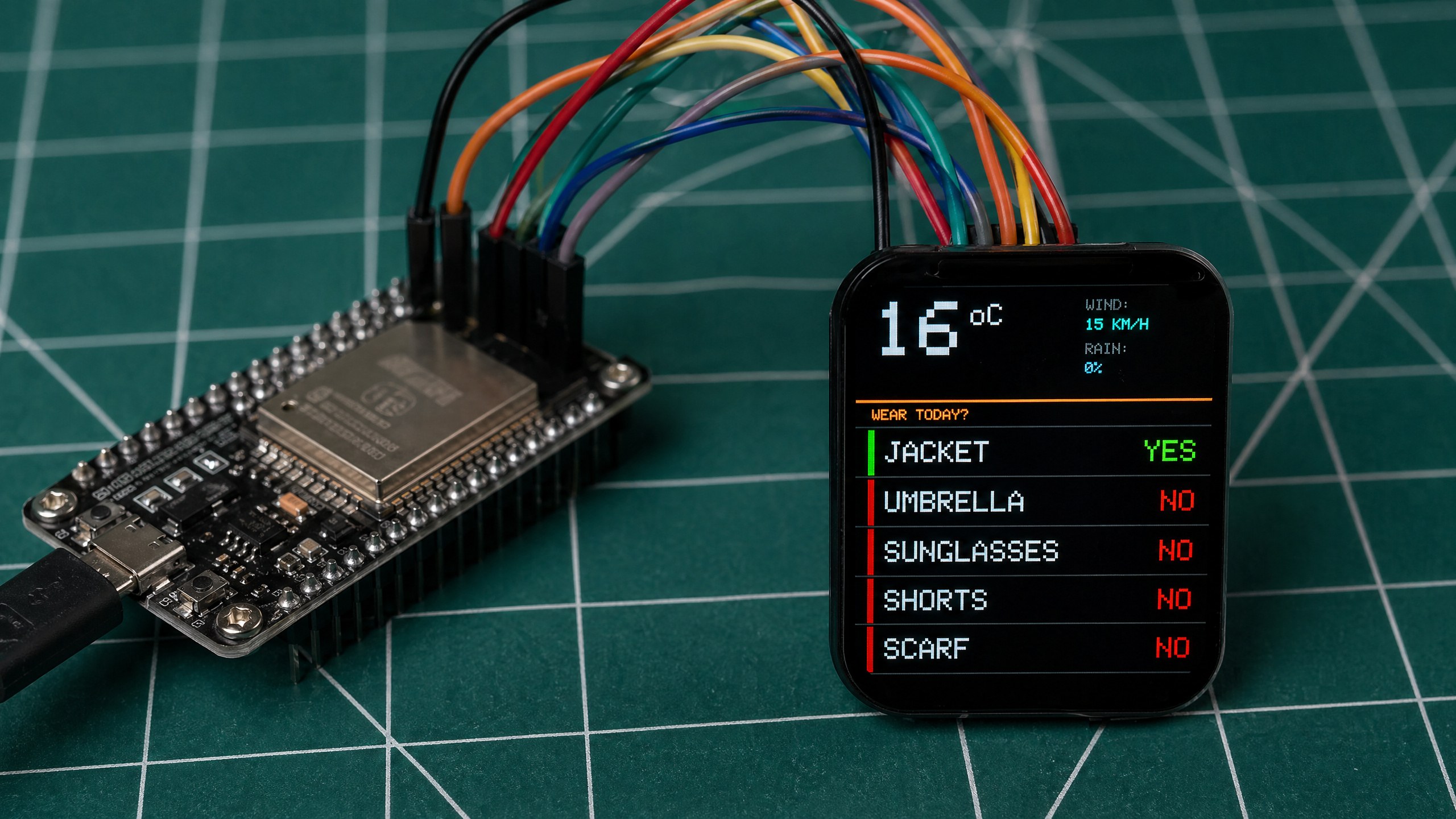
This guide takes you through building an ESP32 weather station that fetches live forecast data for Amsterdam over Wi-Fi and turns it into a simple clothing checklist. Instead of measuring the room around it, the device asks Open-Meteo for the current outdoor weather, then shows the temperature and whether you should bring a jacket, umbrella, sunglasses, shorts, or scarf on a Waveshare 1.83-inch colour LCD.
The hardware is intentionally simple: one ESP32 development board and one SPI display. There are no weather sensors, no API keys, and no separate desktop toolchain required if you deploy through Schematik. The firmware connects to Wi-Fi, calls the Open-Meteo forecast endpoint, parses the JSON response with ArduinoJson, and draws a minimal black-background interface sized for the 240×280 display.
By the end of the build you will have a working desk-sized forecast display that answers a practical question before you leave the house. The code is also easy to adapt: change the latitude and longitude for your own city, adjust the clothing thresholds, or replace the text checklist with icons once the basic version is working. This project came from Sam's Schematik workshop build, which you can watch on YouTube or read as a build diary.
What you are building
Precise scope for this build:
- Connect a Waveshare 1.83inch LCD Module (Rev2) to an ESP32 over SPI using six wires.
- Flash firmware that connects to your Wi-Fi network using the
ssidandpasswordconstants. - Fetch current weather from Open-Meteo using the
weatherURLconstant (set to Amsterdam coordinates by default) and parse the response with ArduinoJson. - Render temperature and a clothing checklist (jacket, umbrella, sunglasses, shorts, scarf) on the 240×280 display.
- Refresh the data every ten minutes using the
UPDATE_INTERVALconstant (600000 ms).
Out of scope: No physical weather sensors are used. The display shows Amsterdam data by default; adapting to another city requires changing two values in weatherURL. No cloud account or API key is required.
Upload and calibrate
Install libraries first. In the Arduino IDE Library Manager, install:
ArduinoJson(Benoit Blanchon)Adafruit ST7735 and ST7789 LibraryAdafruit GFX Library
Set your credentials. Open the sketch and update the two constants near the top:
const char* ssid     = "your-network-name";
const char* password = "your-network-password";
Check the location. The weatherURL constant is pre-set to Amsterdam (latitude 52.37, longitude 4.90). To use a different city, replace those two values with your own coordinates from any mapping service.
Check the display pins. The pin constants should already match your wiring:
#define TFT_MOSI  23
#define TFT_CLK   18
#define TFT_CS     5
#define TFT_DC     2
#define TFT_RST    4
#define TFT_BL    13
Flash the board. Select your ESP32 board and the correct COM port, then click Upload. The first compile takes a minute; subsequent uploads are faster.
Serial Monitor. Open the Serial Monitor at 115200 baud. You should see:
- A Wi-Fi connection message with the assigned IP address.
- A confirmation that the first weather fetch succeeded, followed by the temperature and weather code returned by Open-Meteo.
- Subsequent fetch messages every ten minutes (controlled by
UPDATE_INTERVAL = 600000).
If the display stays white after the sketch starts, the backlight is on but the SPI initialisation failed — check your DIN, CLK, CS, and DC wires.
Troubleshooting
- Blank white screen. The backlight is on but the display received no valid SPI data. Check that DIN is on GPIO 23, CLK on GPIO 18, and that both wires are seated. A loose CS or DC wire produces the same symptom.
- Screen stays black, backlight off. GPIO 13 (
TFT_BL) is not driving the backlight. Confirm the BL wire is on GPIO 13 and that the sketch is callingpinMode(TFT_BL, OUTPUT); digitalWrite(TFT_BL, HIGH)before initialising the display. - Wi-Fi never connects. Double-check
ssidandpassword— the constants are case-sensitive. The ESP32 only supports 2.4 GHz networks; a 5 GHz-only SSID will never appear to the board. - "HTTP error" in Serial Monitor. The board connected to Wi-Fi but could not reach Open-Meteo. Verify the
weatherURLstring is intact and that your network allows outbound HTTPS on port 443. - Temperature shows 0 or garbled text. ArduinoJson failed to parse the response, usually because the JSON buffer is too small or the response was truncated. Increase the
DynamicJsonDocumentsize in the sketch and re-flash. - Built-in LED flickers during use. GPIO 2 is shared with the built-in LED. Flickering during SPI writes to
TFT_DCis normal and harmless; it does not indicate a wiring fault.
Going further
The most useful first change is swapping the coordinates in weatherURL for your own city. Open-Meteo supports any latitude/longitude pair, returns data in the same JSON structure, and remains free with no account required. Once you have local data, you can tighten or loosen the clothing thresholds in the firmware — for example, raising the jacket cutoff from 15 °C to 18 °C if you run warm.
From there, the display has enough resolution to show a simple icon set alongside the text, or a 24-hour temperature graph using Adafruit GFX's line-drawing primitives. You could also add a physical button wired to a spare GPIO to trigger an immediate refresh without waiting for UPDATE_INTERVAL to elapse — useful if you are about to leave and want the latest data.
Wiring diagram
Gather all the parts
Assemble it in 8 steps
1. Gather components and review safety requirements
Before starting, collect your ESP32 development board (such as the ESP32-WROOM-32 or a Freenove-style ESP32 kit), the Waveshare 1.83-inch LCD Module Rev2, a USB cable for programming, and jumper wires in red, black, yellow, blue, orange, green, and white. Read the following carefully: the display runs on 3.3V logic only. The ESP32 GPIO pins are not 5V tolerant. Never connect the VCC or any signal pin on the display to a 5V source or 5V-level GPIO output. The entire project draws approximately 150mA, which is well within what a USB connection can supply, so no external power supply is needed. Note that GPIO2, which is used here for the DC signal line, is a strapping pin on many ESP32 boards. It is safe to use as an output after boot, but be aware that it is also connected to the built-in LED on most boards. Keep the display module flat on a non-conductive surface while wiring.
- Freenove ESP32 starter kits come with breadboard-friendly jumper wires ideal for this build.
- Check that your ESP32 board has clearly labeled GPIO numbers silk-screened on the PCB before connecting anything.
- The Waveshare module uses a GH1.25 8-pin connector — if your module came with a breakout adapter or pigtail cable, use that to access individual wires easily.
- Do not connect any display pin to 5V — the module is 3.3V only and will be damaged.
- GPIO6 through GPIO11 on the ESP32 are connected to internal flash memory. Do not use them for any wiring.
2. Connect power and ground between the ESP32 and the display
Start with power and ground before any signal wires. Locate the 3.3V output pin on your ESP32 board (labeled 3V3 or 3.3V) and connect it to the VCC pin on the Waveshare LCD module using a red wire. Next, connect any GND pin on the ESP32 to the GND pin on the display module using a black wire. These two connections establish a common ground reference and supply the correct 3.3V rail to the display. Double-check that you are using the 3.3V pin and not the 5V VIN or VBUS pin on the ESP32. At this stage do not power the board yet.
- Most ESP32 dev boards have multiple GND pins — any one of them is fine to use.
- Use a multimeter to verify 3.3V between VCC and GND on the display connector before connecting signal lines, if you want extra confidence.
- Connecting VCC to the 5V pin will likely destroy the display module immediately upon power-on.
- Ensure the ESP32 is not yet plugged into USB during this wiring phase.
3. Connect the SPI data lines: DIN and CLK
The display communicates over a 4-wire SPI interface using the ESP32's default VSPI bus. Connect the DIN pin on the display to GPIO23 on the ESP32 using a yellow wire. GPIO23 is the VSPI MOSI line and carries data from the ESP32 to the display. Next, connect the CLK pin on the display to GPIO18 on the ESP32 using a blue wire. GPIO18 is the VSPI clock line and synchronizes data transfers. These two wires form the core of the SPI data path. Route them away from the power wires to reduce noise, though at the low speeds used here interference is unlikely to be an issue.
- Keep jumper wires as short as reasonably possible for a cleaner build and marginally better signal integrity.
- VSPI on the ESP32 defaults to MOSI=GPIO23 and SCK=GPIO18, which matches the display pin assignments exactly — no SPI remapping is needed in firmware.
- Do not connect DIN to GPIO19 (MISO) by mistake — MISO is an input pin and this is a write-only display interface.
4. Connect the SPI chip select and control lines: CS, DC, and RST
Connect the CS pin on the display to GPIO5 on the ESP32 using an orange wire. CS is the SPI chip select and tells the display when to pay attention to incoming data. Connect the DC pin on the display to GPIO2 on the ESP32 using a green wire. DC is the data or command control line — when it is LOW the display interprets incoming bytes as commands, and when it is HIGH it treats them as pixel data. Connect the RST pin on the display to GPIO4 on the ESP32 using a white wire. RST is the hardware reset line; pulling it LOW resets the display controller. All three of these lines are standard digital outputs and will be driven by the ESP32 firmware. GPIO2 also controls the built-in LED on most ESP32 boards, so you may notice the LED toggling during reset sequences — this is normal.
- If you have the TFT_eSPI library installed, you will configure these exact pin numbers in the User_Setup.h file before compiling.
- GPIO5 is also a strapping pin but is safe to use as a chip select after boot — just ensure it starts HIGH or is left floating during boot if you notice boot issues.
- GPIO2 is a strapping pin. If it is pulled LOW externally at boot, the ESP32 may enter a special boot mode. The display should not pull DC LOW at startup, but be aware of this behavior if you encounter boot failures.
5. Connect the backlight control line: BL
Connect the BL pin on the display to GPIO13 on the ESP32 using any remaining wire, ideally purple or brown to distinguish it from the other signal lines. BL controls the display backlight. Driving this pin HIGH turns the backlight on, and pulling it LOW turns it off. In the simplest firmware setup you can tie BL directly to 3.3V to keep the backlight always on, but connecting it to GPIO13 allows you to control brightness using PWM via the ESP32's ledc peripheral. If you want full brightness at all times without any firmware control, you may alternatively connect BL directly to the 3.3V rail instead of GPIO13. For this build, using GPIO13 gives you the most flexibility. With this connection made, all eight display pins are now wired. Review your connections one final time: VCC to 3.3V (red), GND to GND (black), DIN to GPIO23 (yellow), CLK to GPIO18 (blue), CS to GPIO5 (orange), DC to GPIO2 (green), RST to GPIO4 (white), BL to GPIO13.
- To use PWM on GPIO13 for brightness control, call ledcSetup(0, 5000, 8) and ledcAttachPin(13, 0) in your setup function, then use ledcWrite(0, 200) to set brightness (0-255).
- GPIO13 is not a strapping pin and has no special boot constraints, making it a safe choice for backlight control.
- Do not leave the BL pin completely unconnected — the backlight may not illuminate and you may incorrectly suspect a wiring fault elsewhere.
6. Install required libraries in your Arduino environment
Before deploying firmware, ensure the necessary display libraries are installed. The Waveshare 1.83-inch Rev2 module uses the ST7789P controller and works with the TFT_eSPI library (recommended for best performance), the Adafruit ST7789 library, or the Adafruit GFX Library. If using TFT_eSPI, open the library manager in your IDE, search for TFT_eSPI by Bodmer, and install it. Then navigate to the TFT_eSPI folder in your Arduino libraries directory and open User_Setup.h. Comment out any existing driver definition and uncomment ST7789_DRIVER. Set the pins as follows: TFT_MOSI to 23, TFT_SCLK to 18, TFT_CS to 5, TFT_DC to 2, TFT_RST to 4, and TFT_BL to 13. Set the resolution to width 240 and height 284. Save User_Setup.h before proceeding. If using the Adafruit ST7789 library instead, install both Adafruit ST7789 and Adafruit GFX Library from the library manager — no header file editing is required, but you will pass pin numbers directly in your sketch constructor.
- TFT_eSPI generally offers faster rendering and lower memory usage on ESP32 compared to the Adafruit driver.
- If you are using Schematik, the recommended library and pin configuration may already be pre-configured in the generated sketch — review the sketch before modifying User_Setup.h.
- Skipping the User_Setup.h configuration when using TFT_eSPI will result in the display showing nothing or showing garbled output, even if all wiring is correct.
- The ST7789P used in the Rev2 board has a non-standard 240x284 resolution — make sure your driver configuration specifies 284 pixels in height, not the more common 240.
7. Deploy the firmware using Schematik
Connect your ESP32 board to your computer using a USB cable. Open the Schematik web app in Google Chrome or Microsoft Edge — these are the only browsers that support the Web Serial API required for firmware upload. Open your project in Schematik and navigate to the Deploy panel on the right side of the interface. In the Deploy panel, select your board type as ESP32 or the specific variant matching your board (for example ESP32-WROOM-32 or Freenove ESP32). Select the correct serial port from the port dropdown — it will appear as a COM port on Windows or as /dev/ttyUSB0 or /dev/cu.usbserial on macOS or Linux. If the port does not appear, try a different USB cable as some cables are charge-only and do not carry data. Click the Deploy button. Schematik will compile the sketch and upload it to the board over USB. Watch the console output at the bottom of the Deploy panel for compilation progress and upload status. On most ESP32 boards you will see the TX and RX LEDs flashing rapidly during upload.
- If the upload fails with a connection error, hold the BOOT button on the ESP32 board while clicking Deploy, then release it once the upload begins — this manually triggers download mode on boards that do not auto-reset.
- On macOS, you may need to install a CP2102 or CH340 USB-to-serial driver depending on which USB chip your ESP32 board uses.
- Safari and Firefox do not support Web Serial — you must use Chrome or Edge for Schematik Deploy to work.
- Do not disconnect the USB cable during firmware upload as this can corrupt the flash and require a full re-flash to recover.
8. Power on and verify display operation
After a successful upload, the ESP32 will automatically reset and begin running the new firmware. Watch the Waveshare display immediately. Within one to two seconds you should see the backlight illuminate and the display show either a solid color fill, a test pattern, or whatever content your sketch renders — depending on the example or custom code you deployed. If you deployed a basic initialization test, the screen should show a bright white or colored rectangle confirming that the ST7789P controller is responding correctly over SPI. Open the serial monitor in your browser or IDE at 115200 baud to see any debug output printed by the sketch. If the display backlight turns on but the screen stays white or black without any graphics, double-check your User_Setup.h pin configuration and verify the DC and CS wires are not swapped. If the display stays completely dark with no backlight, verify the BL pin connection to GPIO13 and confirm the 3.3V and GND connections. A fully working build shows bright, correctly colored graphics on a 240x284 pixel IPS screen with no flickering or tearing.
- Use the Serial.println statements in your sketch to print SPI transaction results or initialization flags to help debug a blank screen.
- The IPS panel on this display has excellent viewing angles — you should see consistent color from nearly any angle, which is a quick visual confirmation that the display type is correct.
- If the display shows inverted colors, call tft.invertDisplay(true) in your setup function — some batches of the ST7789P respond differently to the inversion register.
- A completely unresponsive display with no backlight after correct wiring usually indicates the 3.3V supply rail is not reaching VCC — re-check the red wire connection.
Review all connections
1. Connections between "waveshare-1-83inch-lcd-rev2_0" and "ESP32"
Deploy the firmware
// Weather Station for Amsterdam
// Uses open-meteo.com (no API key required)
// Displays weather decisions on Waveshare 1.83" LCD Rev2
// Simplified "what to wear" display with full screen coverage
#include <Arduino.h>
#include <WiFi.h>
#include <HTTPClient.h>
#include <ArduinoJson.h>
#include <Adafruit_GFX.h>
#include <Adafruit_ST7789.h>
#include <SPI.h>
// Pin definitions
#define TFT_MOSI 23
#define TFT_CLK 18
#define TFT_CS 5
#define TFT_DC 2
#define TFT_RST 4
#define TFT_BL 13
// Display resolution - Waveshare 1.83" Rev2 is 240x280
#define SCREEN_WIDTH 240
#define SCREEN_HEIGHT 280
// The ST7789 controller has a 320-row frame buffer.
// For a 280-row panel we need a row offset so the controller
// maps its internal RAM correctly to the visible pixels.
// We init with (240, 320) and apply PANEL_OFFSET to all drawing.
#define PANEL_OFFSET 20
// Left margin to avoid content being clipped by rounded display corners
#define LEFT_MARGIN 10
// WiFi credentials
const char* ssid = "YOUR_WIFI_SSID";
const char* password = "YOUR_WIFI_PASSWORD";
// Open-Meteo API for Amsterdam
const char* weatherURL =
"http://api.open-meteo.com/v1/forecast"
"?latitude=52.3676&longitude=4.9041"
"¤t_weather=true"
"&hourly=precipitation_probability,relativehumidity_2m"
"&timezone=Europe%2FAmsterdam"
"&forecast_days=1";
// Colors (RGB565)
#define COLOR_BLACK 0x0000
#define COLOR_WHITE 0xFFFF
#define COLOR_GRAY 0x8410
#define COLOR_DGRAY 0x3186
#define COLOR_YELLOW 0xFFE0
#define COLOR_CYAN 0x07FF
#define COLOR_RED 0xF800
#define COLOR_GREEN 0x07E0
#define COLOR_ORANGE 0xFD20
#define COLOR_LBLUE 0x5D9F
#define COLOR_AMBER 0xFBA0
// Create display object (software SPI)
Adafruit_ST7789 tft = Adafruit_ST7789(TFT_CS, TFT_DC, TFT_MOSI, TFT_CLK, TFT_RST);
// Weather data structure
struct WeatherData {
float temperature;
float windspeed;
int weathercode;
int precipProbability;
int humidity;
bool valid;
};
WeatherData currentWeather;
unsigned long lastUpdate = 0;
const unsigned long UPDATE_INTERVAL = 600000; // 10 minutes
// WMO weather code description
String getWeatherDescription(int code) {
if (code == 0) return "CLEAR SKY";
if (code <= 3) return "PARTLY CLOUDY";
if (code <= 49) return "FOGGY";
if (code <= 59) return "DRIZZLE";
if (code <= 69) return "RAIN";
if (code <= 79) return "SNOW";
if (code <= 82) return "RAIN SHOWERS";
if (code <= 86) return "SNOW SHOWERS";
if (code <= 99) return "THUNDERSTORM";
return "UNKNOWN";
}
// Items to wear
struct WearItems {
bool jacket;
bool umbrella;
bool sunglasses;
bool shorts;
bool scarf;
};
// Returns which items are needed
WearItems getAdvice(WeatherData &w) {
WearItems a = {false, false, false, false, false};
if (w.temperature < 18 || w.windspeed > 40) a.jacket = true;
if (w.temperature < 5) a.scarf = true;
if (w.temperature > 22) a.shorts = true;
if (w.temperature > 18 && w.weathercode <= 3) a.sunglasses = true;
if (w.precipProbability > 40) a.umbrella = true;
return a;
}
// Draw a wear item row: label on left, YES/NO status on right
// GREEN = need it, RED = don't need it
void drawWearItem(int x, int y, int w, int h, String label, bool active) {
uint16_t acol = active ? COLOR_GREEN : COLOR_RED;
uint16_t lcol = active ? COLOR_WHITE : COLOR_GRAY;
// Apply panel offset
int oy = y + PANEL_OFFSET;
// Row background
for (int row = oy; row < oy + h; row++) {
tft.drawFastHLine(x, row, w, COLOR_BLACK);
}
// Left accent bar - offset from left edge to avoid corner clipping
tft.fillRect(x + LEFT_MARGIN, oy + 2, 4, h - 4, acol);
// Label text - offset from left edge
tft.setTextSize(2);
tft.setTextColor(lcol);
tft.setCursor(x + LEFT_MARGIN + 12, oy + (h - 16) / 2);
tft.print(label);
// Status indicator on right
String status = active ? "YES" : "NO";
tft.setTextSize(2);
tft.setTextColor(acol);
int sw = status.length() * 12;
tft.setCursor(x + w - sw - 8, oy + (h - 16) / 2);
tft.print(status);
// Divider line at bottom of row
tft.drawFastHLine(x, oy + h - 1, w, COLOR_DGRAY);
}
// Draw large retro temperature text (with panel offset)
// x is now offset from LEFT_MARGIN to avoid corner clipping
void drawBigTemp(int x, int y, float temp) {
int oy = y + PANEL_OFFSET;
int tempInt = (int)round(temp);
String tempStr = String(tempInt);
// Shadow effect
tft.setTextSize(5);
tft.setTextColor(COLOR_DGRAY);
tft.setCursor(x + 2, oy + 2);
tft.print(tempStr);
// Main text
tft.setTextColor(COLOR_WHITE);
tft.setCursor(x, oy);
tft.print(tempStr);
// Degree + C
int tw = tempStr.length() * 30;
tft.setTextSize(2);
tft.setTextColor(COLOR_GRAY);
tft.setCursor(x + tw + 4, oy + 2);
tft.print("oC");
}
void drawUI(WeatherData &w) {
// Full screen black fill (entire controller buffer)
tft.fillScreen(COLOR_BLACK);
// ========== CITY + WEATHER INFO ==========
// "AMSTERDAM" label - offset from left to avoid corner clipping
tft.setTextColor(COLOR_AMBER);
tft.setTextSize(1);
tft.setCursor(LEFT_MARGIN + 2, 6 + PANEL_OFFSET);
tft.print("AMSTERDAM, NL");
// Weather description on same line, right side
String desc = getWeatherDescription(w.weathercode);
if (desc.length() > 12) desc = desc.substring(0, 12);
tft.setTextColor(COLOR_GRAY);
tft.setTextSize(1);
int descX = SCREEN_WIDTH - (desc.length() * 6) - 8;
tft.setCursor(descX, 6 + PANEL_OFFSET);
tft.print(desc);
// Thin separator
tft.drawFastHLine(0, 18 + PANEL_OFFSET, SCREEN_WIDTH, COLOR_DGRAY);
// ========== TEMPERATURE ==========
// Moved right by LEFT_MARGIN to avoid rounded corner clipping
drawBigTemp(LEFT_MARGIN + 4, 24, w.temperature);
// Wind + Rain info to the right of temperature
tft.setTextColor(COLOR_DGRAY);
tft.setTextSize(1);
tft.setCursor(155, 26 + PANEL_OFFSET);
tft.print("WIND:");
tft.setTextColor(COLOR_CYAN);
tft.setCursor(155, 38 + PANEL_OFFSET);
tft.print(String((int)w.windspeed) + " KM/H");
tft.setTextColor(COLOR_DGRAY);
tft.setTextSize(1);
tft.setCursor(155, 54 + PANEL_OFFSET);
tft.print("RAIN:");
tft.setTextColor(COLOR_LBLUE);
tft.setCursor(155, 66 + PANEL_OFFSET);
tft.print(String(w.precipProbability) + "%");
// ========== DIVIDER ==========
tft.drawFastHLine(0, 90 + PANEL_OFFSET, SCREEN_WIDTH, COLOR_AMBER);
tft.drawFastHLine(0, 91 + PANEL_OFFSET, SCREEN_WIDTH, COLOR_DGRAY);
// ========== WEAR TODAY HEADER ==========
tft.setTextSize(1);
tft.setTextColor(COLOR_AMBER);
tft.setCursor(LEFT_MARGIN + 2, 96 + PANEL_OFFSET);
tft.print("WEAR TODAY?");
tft.drawFastHLine(0, 108 + PANEL_OFFSET, SCREEN_WIDTH, COLOR_DGRAY);
// ========== WEAR ITEM ROWS ==========
WearItems adv = getAdvice(w);
struct WearRow {
bool active;
String label;
};
WearRow rows[5] = {
{ adv.jacket, "JACKET" },
{ adv.umbrella, "UMBRELLA" },
{ adv.sunglasses, "SUNGLASSES" },
{ adv.shorts, "SHORTS" },
{ adv.scarf, "SCARF" },
};
// 5 rows from y=109 to y=SCREEN_HEIGHT, covering every visible pixel
int rowAreaTop = 109;
int rowAreaBottom = SCREEN_HEIGHT;
int rowAreaHeight = rowAreaBottom - rowAreaTop; // 171px
int rowH = rowAreaHeight / 5; // ~34px each
for (int i = 0; i < 5; i++) {
int ry = rowAreaTop + i * rowH;
// Last row stretches all the way to the very last visible pixel row
int rh = (i == 4) ? (rowAreaBottom - ry) : rowH;
drawWearItem(0, ry, SCREEN_WIDTH, rh, rows[i].label, rows[i].active);
}
}
void drawError(String msg) {
tft.fillScreen(COLOR_BLACK);
tft.drawRect(8, 100 + PANEL_OFFSET, SCREEN_WIDTH - 16, 80, COLOR_RED);
tft.drawRect(9, 101 + PANEL_OFFSET, SCREEN_WIDTH - 18, 78, COLOR_RED);
tft.setTextColor(COLOR_RED);
tft.setTextSize(2);
tft.setCursor(LEFT_MARGIN + 4, 110 + PANEL_OFFSET);
tft.print("!! ERROR !!");
tft.setTextSize(1);
tft.setTextColor(COLOR_GRAY);
tft.setCursor(LEFT_MARGIN + 4, 132 + PANEL_OFFSET);
tft.print(msg);
}
void drawConnecting() {
tft.fillScreen(COLOR_BLACK);
tft.drawRect(8, 110 + PANEL_OFFSET, SCREEN_WIDTH - 16, 60, COLOR_DGRAY);
tft.drawRect(9, 111 + PANEL_OFFSET, SCREEN_WIDTH - 18, 58, COLOR_DGRAY);
tft.setTextColor(COLOR_AMBER);
tft.setTextSize(2);
tft.setCursor(18, 120 + PANEL_OFFSET);
tft.print("CONNECTING...");
tft.setTextSize(1);
tft.setTextColor(COLOR_GRAY);
tft.setCursor(18, 144 + PANEL_OFFSET);
tft.print(ssid);
}
void drawSplash() {
tft.fillScreen(COLOR_BLACK);
// Simple centered splash - no bars, just text blocks
tft.setTextColor(COLOR_AMBER);
tft.setTextSize(3);
// Center "WEATHER" horizontally: 7 chars * 18px = 126px wide
tft.setCursor((SCREEN_WIDTH - 126) / 2, 80 + PANEL_OFFSET);
tft.print("WEATHER");
tft.setTextColor(COLOR_DGRAY);
tft.setTextSize(3);
// Center "STATION"
tft.setCursor((SCREEN_WIDTH - 126) / 2, 112 + PANEL_OFFSET);
tft.print("STATION");
// Thin separator line
tft.drawFastHLine(40, 145 + PANEL_OFFSET, SCREEN_WIDTH - 80, COLOR_AMBER);
tft.setTextColor(COLOR_GRAY);
tft.setTextSize(1);
tft.setCursor(64, 154 + PANEL_OFFSET);
tft.print("AMSTERDAM, NL");
tft.setTextColor(COLOR_DGRAY);
tft.setTextSize(1);
tft.setCursor(40, 168 + PANEL_OFFSET);
tft.print("OPEN-METEO EDITION");
}
void drawFetching() {
// Only overwrite a small status strip at bottom of visible area
tft.fillRect(0, SCREEN_HEIGHT - 16 + PANEL_OFFSET, SCREEN_WIDTH, 16, COLOR_DGRAY);
tft.setTextColor(COLOR_AMBER);
tft.setTextSize(1);
tft.setCursor(4, SCREEN_HEIGHT - 11 + PANEL_OFFSET);
tft.print("FETCHING WEATHER...");
}
bool fetchWeather() {
if (WiFi.status() != WL_CONNECTED) {
Serial.println("WiFi not connected");
return false;
}
HTTPClient http;
http.begin(weatherURL);
http.setTimeout(10000);
int httpCode = http.GET();
if (httpCode != 200) {
Serial.print("HTTP error: ");
Serial.println(httpCode);
http.end();
return false;
}
String payload = http.getString();
http.end();
DynamicJsonDocument doc(8192);
DeserializationError err = deserializeJson(doc, payload);
if (err) {
Serial.print("JSON error: ");
Serial.println(err.c_str());
return false;
}
JsonObject cw = doc["current_weather"];
currentWeather.temperature = cw["temperature"].as<float>();
currentWeather.windspeed = cw["windspeed"].as<float>();
currentWeather.weathercode = cw["weathercode"].as<int>();
currentWeather.valid = true;
JsonArray precipArr = doc["hourly"]["precipitation_probability"];
JsonArray humidArr = doc["hourly"]["relativehumidity_2m"];
currentWeather.precipProbability = precipArr[0].as<int>();
currentWeather.humidity = humidArr[0].as<int>();
// Use hour 8 (8am) as morning reference
if (!precipArr[8].isNull()) {
currentWeather.precipProbability = precipArr[8].as<int>();
}
if (!humidArr[8].isNull()) {
currentWeather.humidity = humidArr[8].as<int>();
}
Serial.print("Temp: "); Serial.println(currentWeather.temperature);
Serial.print("Wind: "); Serial.println(currentWeather.windspeed);
Serial.print("Code: "); Serial.println(currentWeather.weathercode);
Serial.print("Precip%: "); Serial.println(currentWeather.precipProbability);
return true;
}
void setup() {
Serial.begin(115200);
delay(100);
// Backlight ON
pinMode(TFT_BL, OUTPUT);
digitalWrite(TFT_BL, HIGH);
// Init display with full controller buffer height (320)
// Panel is 280px tall at offset of PANEL_OFFSET (20) rows inside the controller.
tft.init(240, 320);
tft.setRotation(0);
// Fill the entire controller frame buffer black (all 320 rows)
tft.fillScreen(COLOR_BLACK);
// ---- Splash Screen ----
drawSplash();
delay(1800);
// ---- Connect WiFi ----
drawConnecting();
WiFi.begin(ssid, password);
WiFi.setAutoReconnect(true);
int attempts = 0;
while (WiFi.status() != WL_CONNECTED && attempts < 40) {
delay(500);
Serial.print(".");
tft.setTextColor(COLOR_DGRAY);
tft.setTextSize(2);
int dotX = 18 + (attempts % 18) * 8;
tft.fillRect(18, 162 + PANEL_OFFSET, SCREEN_WIDTH - 36, 14, COLOR_BLACK);
tft.setCursor(dotX, 162 + PANEL_OFFSET);
tft.print(".");
attempts++;
}
if (WiFi.status() != WL_CONNECTED) {
Serial.println("\nWiFi failed");
drawError("WIFI CONNECTION FAILED");
currentWeather.valid = false;
return;
}
Serial.println("\nWiFi connected: " + WiFi.localIP().toString());
// Fetch initial weather
drawFetching();
delay(300);
if (fetchWeather()) {
lastUpdate = millis();
drawUI(currentWeather);
} else {
drawError("COULD NOT FETCH DATA");
}
}
void loop() {
// Reconnect WiFi if needed
if (WiFi.status() != WL_CONNECTED) {
Serial.println("WiFi lost, reconnecting...");
WiFi.reconnect();
delay(5000);
return;
}
unsigned long now = millis();
if (now - lastUpdate >= UPDATE_INTERVAL || lastUpdate == 0) {
Serial.println("Updating weather...");
drawFetching();
if (fetchWeather()) {
lastUpdate = now;
drawUI(currentWeather);
} else {
if (currentWeather.valid) {
drawUI(currentWeather);
// Show stale data warning - small text at very top, no bar
tft.fillRect(0, 0 + PANEL_OFFSET, SCREEN_WIDTH, 14, COLOR_BLACK);
tft.setTextColor(COLOR_RED);
tft.setTextSize(1);
tft.setCursor(LEFT_MARGIN + 2, 4 + PANEL_OFFSET);
tft.print("STALE - UPDATE FAILED");
} else {
drawError("WEATHER FETCH FAILED");
}
}
}
delay(5000);
}Remix this project
Make it yours in one click
Open a full copy of this project in your own Schematik workspace — diagram, code, parts, and assembly steps included. Swap the sensor, add features, or redesign the whole thing with AI. The author's original stays untouched.
Related projects
How to Build a Gesture-Controlled Mood Lamp with ESP32
ESP32 · Beginner · 45 minutes · July 22, 2026Schematik
How to Build a Rocket Launch Alarm Clock with ESP32
ESP32 · Beginner · 40 minutes · July 22, 2026Schematik
How to Build a Plant Disco Guardian with ESP32
ESP32 · Beginner · 35 minutes · July 22, 2026Schematik