Community project
MIVB Departures Display
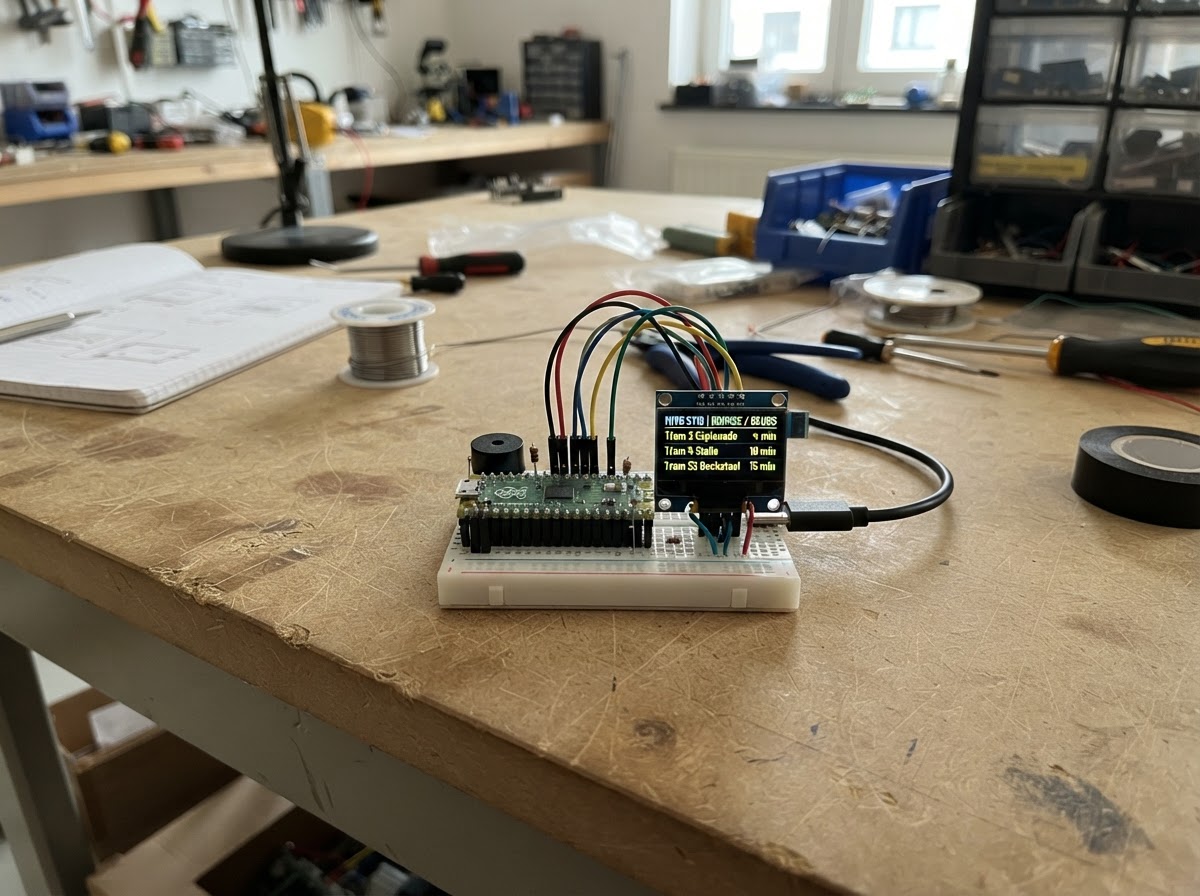
This project turns an M5Paper e-ink display into a real-time transit departures board for Brussels MIVB stops. The ESP32-based device fetches live waiting time data from the public STIB/MIVB API and displays upcoming departures, refreshing every minute over WiFi.
Builders will receive a complete parts list, wiring diagram, and step-by-step assembly instructions. The guide includes pre-written firmware that handles WiFi configuration, API calls, and e-ink rendering, so the display is ready to show departures as soon as power is applied.
Wiring diagram
Assemble it in 3 steps
1. Prepare the M5Paper
Use the M5Paper as supplied: its 4.7-inch e-paper display, touch controller, buttons, battery monitor, and Wi-Fi are built in. No external sensor, display, or jumper wires are part of this project.
- Keep the e-paper surface clean and avoid pressing it with sharp objects.
- Use a known-good USB cable when powering or deploying the project.
- Do not connect anything to the internal display, touch, or power-control pins; they are already reserved by the M5Paper.
2. Power the display
Connect the M5Paper to a USB power source or its USB data cable. The board uses its normal onboard USB power path.
- For a permanent desk display, leave it on a stable USB supply.
- The 60-second refresh interval reduces e-paper flicker and network traffic.
- Only use the M5Paper USB power input; do not feed power into exposed GPIO connectors.
3. Configure and deploy
In main.cpp, replace the Wi-Fi name, Wi-Fi password, STIB/MIVB API key, and the official numeric stop-point ID lists for Ysaye and Veeweyde. Then use Schematik’s Deploy button. The centre button requests an immediate screen refresh after deployment.
- Include every platform ID you want at each station, separated by commas; this keeps both directions visible.
- Obtain the free STIB/MIVB Open Data subscription key and confirm platform IDs in its Stops dataset before entering them.
- Treat the API key and Wi-Fi password as private credentials; do not share a project export containing real values.
Deploy the firmware
#include <Arduino.h>
#include <M5EPD.h>
#include <WiFi.h>
#include <HTTPClient.h>
#include <ArduinoJson.h>

// Enter the Wi-Fi network the M5Paper will use.

// Forward declarations
bool configured();
String fieldText(JsonObject row, const char *key);
void render();
String firstDeparture(JsonObject row);
String parseWaits(const String &body, bool metroOnly);
bool fetchPanel(const char *stopId, bool metroOnly, String &panel);
void updateBoard();

static const char *WIFI_SSID = "YOUR_WIFI_NAME";
static const char *WIFI_PASSWORD = "YOUR_WIFI_PASSWORD";

// STIB/MIVB public Opendatasoft WaitingTimes dataset; no API key is needed.
static const char *WAITING_TIME_API =
  "https://api-management-opendata-production.azure-api.net/api/datasets/stibmivb/rt/WaitingTimes";
static const char *YSAYE_STOP_POINT_ID = "6856B";
static const char *VEEWEYDE_STOP_POINT_ID = "6";
static const uint32_t REFRESH_INTERVAL_MS = 60000UL;

M5EPD_Canvas canvas(&M5.EPD);
uint32_t lastRefreshMs = 0;
String ysayeLines = "Not updated";
String veeweydeLines = "Not updated";
String footer = "Starting";

bool configured() {
  return String(WIFI_SSID) != "YOUR_WIFI_NAME" &&
         String(WIFI_PASSWORD) != "YOUR_WIFI_PASSWORD";
}

String fieldText(JsonObject row, const char *key) {
  JsonVariant value = row[key];
  return value.is<const char *>() ? String(value.as<const char *>()) : String();
}

void render() {
  canvas.fillCanvas(0);
  canvas.setTextColor(15);
  canvas.setTextSize(3);
  canvas.drawString("STIB/MIVB departures", 18, 18);
  canvas.drawLine(18, 60, 522, 60, 15);

  canvas.setTextSize(2);
  canvas.drawString("Ysaye  |  tram & bus", 18, 82);
  canvas.drawString(ysayeLines, 18, 120);

  canvas.drawLine(18, 390, 522, 390, 15);
  canvas.drawString("Veeweyde  |  metro 5", 18, 412);
  canvas.drawString(veeweydeLines, 18, 450);

  canvas.drawLine(18, 720, 522, 720, 15);
  canvas.setTextSize(1);
  canvas.drawString(footer, 18, 742);
  canvas.drawString("Centre button: update now", 18, 766);
  canvas.pushCanvas(0, 0, UPDATE_MODE_GC16);
}

String firstDeparture(JsonObject row) {
  String rawTimes = fieldText(row, "passingtimes");
  if (!rawTimes.length()) return String();

  DynamicJsonDocument times(2048);
  if (deserializeJson(times, rawTimes) != DeserializationError::Ok ||
      !times.is<JsonArray>() || times.size() == 0) return String();

  JsonObject departure = times[0].as<JsonObject>();
  String minutes = fieldText(departure, "waitingTime");
  if (!minutes.length()) minutes = fieldText(departure, "waitingtime");
  if (!minutes.length()) return String();

  String text = minutes + " min";
  String destination = fieldText(departure, "destination");
  if (destination.length()) text += "  " + destination;
  return text;
}

String parseWaits(const String &body, bool metroOnly) {
  DynamicJsonDocument doc(32768);
  if (deserializeJson(doc, body) != DeserializationError::Ok) return "Could not read live response";

  JsonArray rows;
  if (doc["results"].is<JsonArray>()) rows = doc["results"].as<JsonArray>();
  else if (doc["data"].is<JsonArray>()) rows = doc["data"].as<JsonArray>();
  else if (doc.is<JsonArray>()) rows = doc.as<JsonArray>();
  else return "No departures returned";

  String out;
  uint8_t shown = 0;
  for (JsonVariant item : rows) {
    JsonObject row = item.as<JsonObject>();
    if (row["fields"].is<JsonObject>()) row = row["fields"].as<JsonObject>();
    String line = fieldText(row, "lineid");
    if (!line.length()) line = fieldText(row, "line");
    if (metroOnly && line != "5") continue;
    String departure = firstDeparture(row);
    if (!line.length() || !departure.length()) continue;
    if (!out.isEmpty()) out += "\n";
    out += line + "  " + departure;
    if (++shown == 5) break;
  }
  return out.length() ? out : "No imminent departures";
}

bool fetchPanel(const char *stopId, bool metroOnly, String &panel) {
  // Opendatasoft query: where pointid="<the selected physical stop point>".
  String url = String(WAITING_TIME_API) +
               "?where=pointid%3D%22" + String(stopId) + "%22&limit=30";
  HTTPClient http;
  http.begin(url);
  http.setTimeout(15000);
  const int status = http.GET();
  if (status != HTTP_CODE_OK) {
    panel = "Live service error: HTTP " + String(status);
    http.end();
    return false;
  }
  panel = parseWaits(http.getString(), metroOnly);
  http.end();
  return !panel.startsWith("Could not") && !panel.startsWith("No departures returned");
}

void updateBoard() {
  if (!configured()) {
    ysayeLines = "Set Wi-Fi name and password";
    veeweydeLines = "in main.cpp, then Deploy.";
    footer = "Wi-Fi configuration required";
    render();
    return;
  }

  if (WiFi.status() != WL_CONNECTED) {
    WiFi.mode(WIFI_STA);
    WiFi.begin(WIFI_SSID, WIFI_PASSWORD);
    uint32_t began = millis();
    while (WiFi.status() != WL_CONNECTED && millis() - began < 15000UL) delay(250);
  }
  if (WiFi.status() != WL_CONNECTED) {
    ysayeLines = "Wi-Fi connection failed";
    veeweydeLines = "Wi-Fi connection failed";
    footer = "Check Wi-Fi credentials";
    render();
    return;
  }

  bool ysayeOk = fetchPanel(YSAYE_STOP_POINT_ID, false, ysayeLines);
  bool veeweydeOk = fetchPanel(VEEWEYDE_STOP_POINT_ID, true, veeweydeLines);
  footer = (ysayeOk || veeweydeOk)
    ? "Live data updated; automatic refresh every 60 seconds"
    : "Could not update live data";
  lastRefreshMs = millis();
  render();
}

void setup() {
  M5.begin();
  M5.EPD.SetRotation(90);
  canvas.createCanvas(540, 960);
  updateBoard();
}

void loop() {
  M5.update();
  if (M5.BtnP.wasPressed() || millis() - lastRefreshMs >= REFRESH_INTERVAL_MS) updateBoard();
  delay(30);
}
Remix this project
Make it yours in one click
Open a full copy of this project in your own Schematik workspace — diagram, code, parts, and assembly steps included. Swap the sensor, add features, or redesign the whole thing with AI. The author's original stays untouched.