Community project
Victron Stats Display
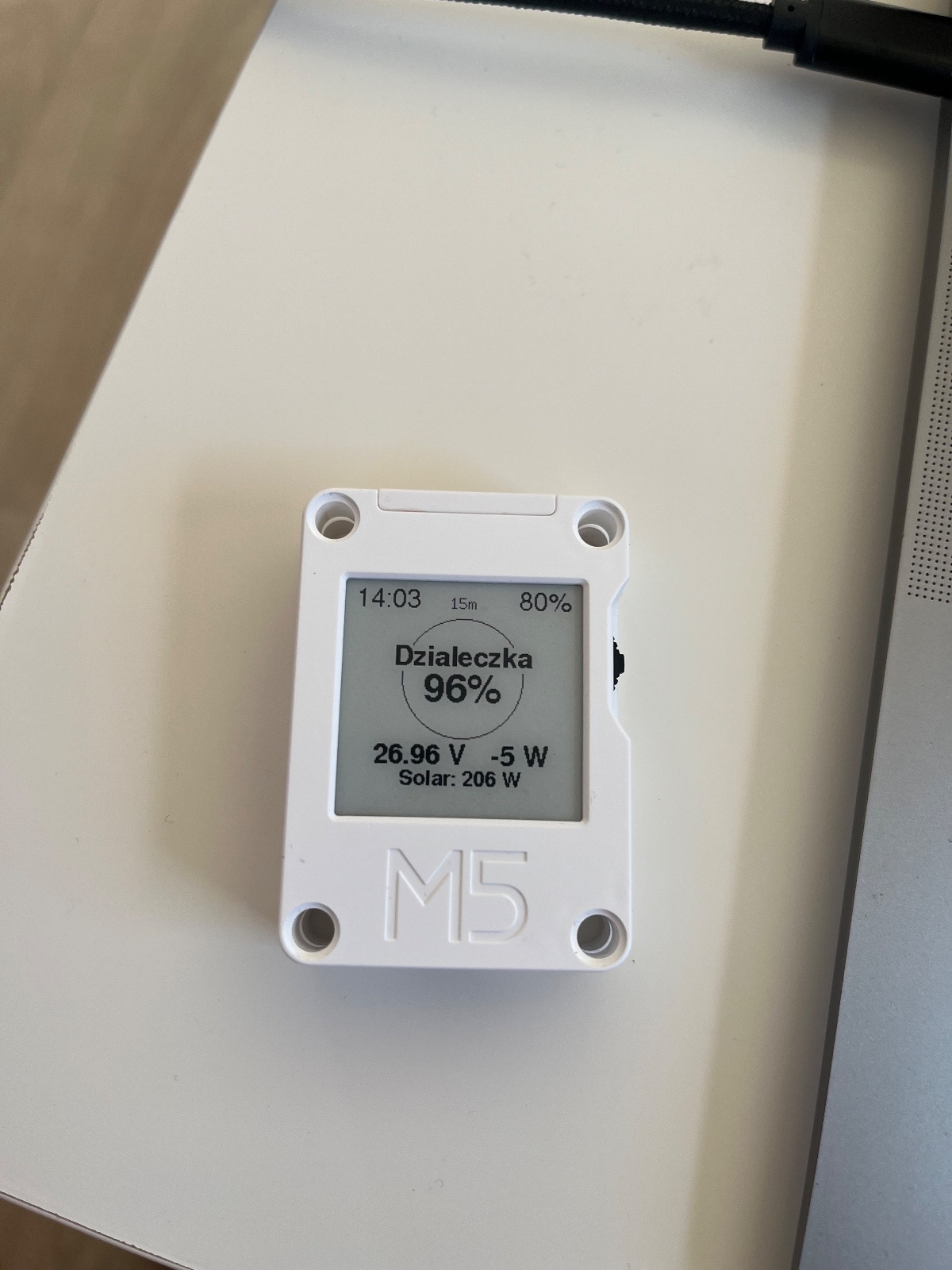
This project displays real-time battery and solar statistics from a Victron Venus OS system on an ESP32-based e-ink display. The guide covers wiring the display to the ESP32, configuring WiFi connectivity, and setting up MQTT communication with the Venus OS gateway to pull live data like battery state of charge, voltage, and power flow.
Builders will receive a complete parts list, wiring diagram, and ready-to-flash firmware that automatically connects to the home network and begins streaming Victron metrics. The display updates on a schedule and shows battery percentage, voltage, and solar/battery power in watts, making it easy to monitor energy systems at a glance from anywhere in the home.
Wiring diagram
Gather all the parts
Assemble it in 5 steps
1. Podłącz Core Ink przez USB
Podłącz M5Stack Core Ink do Maca przewodem USB z przesyłaniem danych. Kabel zasila urządzenie podczas wgrywania i pozwala Arduino IDE wysłać program.
- Jeżeli komputer nie widzi portu urządzenia, spróbuj innego przewodu USB — część przewodów służy tylko do ładowania.
- Nie odłączaj przewodu podczas wgrywania programu, bo wgrywanie może zostać przerwane.
2. Wgraj nowy program
W Arduino IDE wybierz płytkę M5CoreInk, wybierz port USB urządzenia i wgraj aktualny program. Po restarcie ekran najpierw połączy się z zapisanym Wi‑Fi, pobierze dane Victron, a potem pokaże zegar.
- Po pierwszym uruchomieniu zegar może pokazać --:-- przez kilka sekund, zanim urządzenie pobierze czas z internetu.
- Nie wybieraj portu macOS o nazwie Debugger — to nie jest Core Ink.
3. Otwórz ustawienia Wi‑Fi po resecie
Gdy urządzenie już pracuje, naciśnij raz mały fizyczny przycisk RST. Po restarcie ekran pokaże Wi-Fi setup, a Core Ink utworzy sieć Victron-Ink-Setup na 3 minuty.
- Na telefonie połącz się z siecią Victron-Ink-Setup, a potem w przeglądarce otwórz 192.168.4.1.
- Podczas tych 3 minut nie naciskaj RST ponownie — drugi reset przerwie stronę konfiguracji.
4. Wybierz domową sieć
Na stronie konfiguracji wybierz swoją sieć Wi‑Fi, wpisz hasło i zapisz. Core Ink uruchomi się ponownie oraz połączy z nową siecią.
- Po całkowitym rozładowaniu baterii zapisana nazwa sieci i hasło pozostają w pamięci.
- Wpisz hasło dokładnie, ponieważ błędne hasło uniemożliwi połączenie z Venus MQTT.
5. Pozostaw urządzenie do pracy
Ekran pokazuje dane z Victron o pełnych kwadransach: :00, :15, :30 i :45. Między aktualizacjami Wi‑Fi jest wyłączone, a urządzenie śpi, aby oszczędzać baterię.
- Napis 15m między zegarem a procentem baterii przypomina, że dane są odświeżane co 15 minut.
- Dane na ekranie mogą być do 15 minut stare — jest to celowy kompromis, który wydłuża pracę na baterii.
Review all connections
1. Connections between "venus_mqtt" and "ESP32"
Deploy the firmware
#include <Arduino.h>
#include <WiFi.h>
#include <WiFiManager.h>
#include <PubSubClient.h>
#include <M5Unified.h>
#include <time.h>

// Victron Venus OS MQTT-on-LAN settings.

// Forward declarations
float readPayloadValue(const byte *payload, unsigned int length);
void mqttCallback(char *topic, byte *payload, unsigned int length);
int coreInkBatteryPercent();
void drawCentered(const char *text, int y, const lgfx::IFont *font);
void drawPage();
bool connectSavedWifi();
void collectVictronData();
uint32_t msToNextQuarter();

static const char *MQTT_HOST = "venus.local";
static const uint16_t MQTT_PORT = 1883;
static const char *VRM_PORTAL_ID = "88a29ee84b0a";

static const uint32_t WIFI_TIMEOUT_MS = 15000;
static const uint32_t MQTT_WINDOW_MS = 6000;

WiFiClient wifiClient;
PubSubClient mqtt(wifiClient);

float batterySoc = NAN;
float batteryVoltage = NAN;
float batteryWatts = NAN;
float solarWatts = NAN;

bool pageNeedsDrawing = true;
uint32_t nextUpdateAt = 0;

float readPayloadValue(const byte *payload, unsigned int length) {
  String message;
  message.reserve(length + 1);
  for (unsigned int i = 0; i < length; ++i) message += char(payload[i]);

  int key = message.indexOf("\"value\"");
  if (key >= 0) {
    int colon = message.indexOf(':', key);
    if (colon >= 0) return message.substring(colon + 1).toFloat();
  }
  return message.toFloat();
}

void mqttCallback(char *topic, byte *payload, unsigned int length) {
  const float value = readPayloadValue(payload, length);
  if (!isfinite(value)) return;

  const String path(topic);
  if (path.endsWith("/system/0/Dc/Battery/Soc")) {
    batterySoc = value;
  } else if (path.endsWith("/system/0/Dc/Battery/Voltage")) {
    batteryVoltage = value;
  } else if (path.endsWith("/system/0/Dc/Battery/Power")) {
    batteryWatts = value;
  } else if (path.indexOf("/solarcharger/") >= 0 &&
             (path.endsWith("/Yield/Power") || path.endsWith("/Pv/Power"))) {
    // Venus normally exposes the charger output as Yield/Power. Pv/Power is
    // also accepted for installations that publish that variant.
    solarWatts = value;
  }
}

int coreInkBatteryPercent() {
  // The library battery-percent reading is unreliable on this board, so use
  // measured cell voltage and clamp the result to a real 0-100 percent value.
  const float volts = M5.Power.getBatteryVoltage() / 1000.0f;
  int percent;
  if (volts >= 4.15f) percent = 100;
  else if (volts >= 4.00f) percent = 75 + int((volts - 4.00f) * 166.0f);
  else if (volts >= 3.85f) percent = 45 + int((volts - 3.85f) * 200.0f);
  else if (volts >= 3.70f) percent = 15 + int((volts - 3.70f) * 200.0f);
  else if (volts >= 3.45f) percent = int((volts - 3.45f) * 60.0f);
  else percent = 0;
  return constrain(percent, 0, 100);
}

void drawCentered(const char *text, int y, const lgfx::IFont *font) {
  M5.Display.setTextDatum(top_center);
  M5.Display.drawString(text, 100, y, font);
}

void drawPage() {
  // IMPORTANT: This function performs exactly one complete e-ink transfer.
  // It does not call waitDisplay(), partial refresh, or another display call.
  M5.Display.fillScreen(TFT_WHITE);
  M5.Display.setTextColor(TFT_BLACK, TFT_WHITE);

  struct tm timeInfo;
  char clockText[6] = "--:--";
  if (getLocalTime(&timeInfo, 10)) {
    strftime(clockText, sizeof(clockText), "%H:%M", &timeInfo);
  }
  M5.Display.setTextDatum(top_left);
  M5.Display.drawString(clockText, 4, 2, &fonts::FreeSans12pt7b);

  M5.Display.setTextDatum(top_center);
  M5.Display.drawString("15m", 100, 7, &fonts::Font2);

  const int deviceBattery = coreInkBatteryPercent();
  char deviceText[8];
  snprintf(deviceText, sizeof(deviceText), "%d%%", deviceBattery);
  M5.Display.setTextDatum(top_right);
  M5.Display.drawString(deviceText, 196, 2, &fonts::FreeSans12pt7b);

  M5.Display.drawCircle(100, 82, 53, TFT_BLACK);
  char socText[12];
  if (isnan(batterySoc)) snprintf(socText, sizeof(socText), "--%%");
  else snprintf(socText, sizeof(socText), "%.0f%%", constrain(batterySoc, 0.0f, 100.0f));
  drawCentered("Dzialeczka", 54, &fonts::FreeSansBold12pt7b);
  drawCentered(socText, 78, &fonts::FreeSansBold18pt7b);

  char batteryLine[32];
  if (isnan(batteryVoltage) || isnan(batteryWatts)) {
    snprintf(batteryLine, sizeof(batteryLine), "--.-- V   -- W");
  } else {
    snprintf(batteryLine, sizeof(batteryLine), "%.2f V   %.0f W", batteryVoltage, batteryWatts);
  }
  drawCentered(batteryLine, 140, &fonts::FreeSansBold12pt7b);

  char solarLine[24];
  if (isnan(solarWatts)) snprintf(solarLine, sizeof(solarLine), "Solar: -- W");
  else snprintf(solarLine, sizeof(solarLine), "Solar: %.0f W", solarWatts);
  drawCentered(solarLine, 162, &fonts::FreeSansBold9pt7b);

  if (deviceBattery <= 10) {
    drawCentered("NALADUJ", 176, &fonts::FreeSansBold9pt7b);
    drawCentered("MNIE", 188, &fonts::FreeSansBold9pt7b);
  }

  M5.Display.display();
}

bool connectSavedWifi() {
  WiFi.mode(WIFI_STA);
  WiFi.begin();
  const uint32_t started = millis();
  while (WiFi.status() != WL_CONNECTED && millis() - started < WIFI_TIMEOUT_MS) {
    delay(50);
  }
  return WiFi.status() == WL_CONNECTED;
}

void collectVictronData() {
  if (!connectSavedWifi()) return;

  configTzTime("UTC-2", "pool.ntp.org", "time.nist.gov");
  struct tm unused;
  const uint32_t timeStarted = millis();
  while (!getLocalTime(&unused, 10) && millis() - timeStarted < 4000) delay(100);

  mqtt.setServer(MQTT_HOST, MQTT_PORT);
  mqtt.setCallback(mqttCallback);
  const String clientId = "victron-ink-" + String((uint32_t)ESP.getEfuseMac(), HEX);
  if (mqtt.connect(clientId.c_str())) {
    const String root = String("N/") + VRM_PORTAL_ID;
    mqtt.subscribe((root + "/system/0/Dc/Battery/#").c_str());
    // Most Venus OS installations publish solar output on Yield/Power.
    // Subscribe to both known paths so the dashboard works with either form.
    mqtt.subscribe((root + "/solarcharger/+/Yield/Power").c_str());
    mqtt.subscribe((root + "/solarcharger/+/Pv/Power").c_str());
    const String keepalive = String("R/") + VRM_PORTAL_ID + "/keepalive";
    mqtt.publish(keepalive.c_str(), "{\"value\":null}");

    const uint32_t started = millis();
    while (millis() - started < MQTT_WINDOW_MS) {
      mqtt.loop();
      delay(10);
    }
    mqtt.disconnect();
  }
  WiFi.disconnect(false);
  WiFi.mode(WIFI_OFF);
}

uint32_t msToNextQuarter() {
  time_t now = time(nullptr);
  if (now > 1700000000) {
    uint32_t remaining = 900U - (uint32_t(now) % 900U);
    return remaining * 1000UL;
  }
  return 15UL * 60UL * 1000UL;
}

void setup() {
  auto config = M5.config();
  M5.begin(config);
  M5.Display.setRotation(0);
  M5.Display.setColorDepth(1);

  // Network work is deliberately completed before the ONLY initial display
  // transfer. A Wi-Fi or MQTT delay cannot overlap an e-ink refresh.
  collectVictronData();
  drawPage();
  pageNeedsDrawing = false;
  nextUpdateAt = millis() + msToNextQuarter();
}

void loop() {
  if (int32_t(millis() - nextUpdateAt) >= 0) {
    collectVictronData();
    pageNeedsDrawing = true;
    nextUpdateAt = millis() + msToNextQuarter();
  }

  if (pageNeedsDrawing) {
    drawPage();
    pageNeedsDrawing = false;
  }

  // No display access between quarter-hour updates.
  delay(250);
}
Remix this project
Make it yours in one click
Open a full copy of this project in your own Schematik workspace — diagram, code, parts, and assembly steps included. Swap the sensor, add features, or redesign the whole thing with AI. The author's original stays untouched.