Schematik build
How to Build a Morning Thermal Printer with ESP32
CSN-A2 on GPIO 4/5, separate 5 V printer supply, and a Wi-Fi daily briefing slip
What you'll build
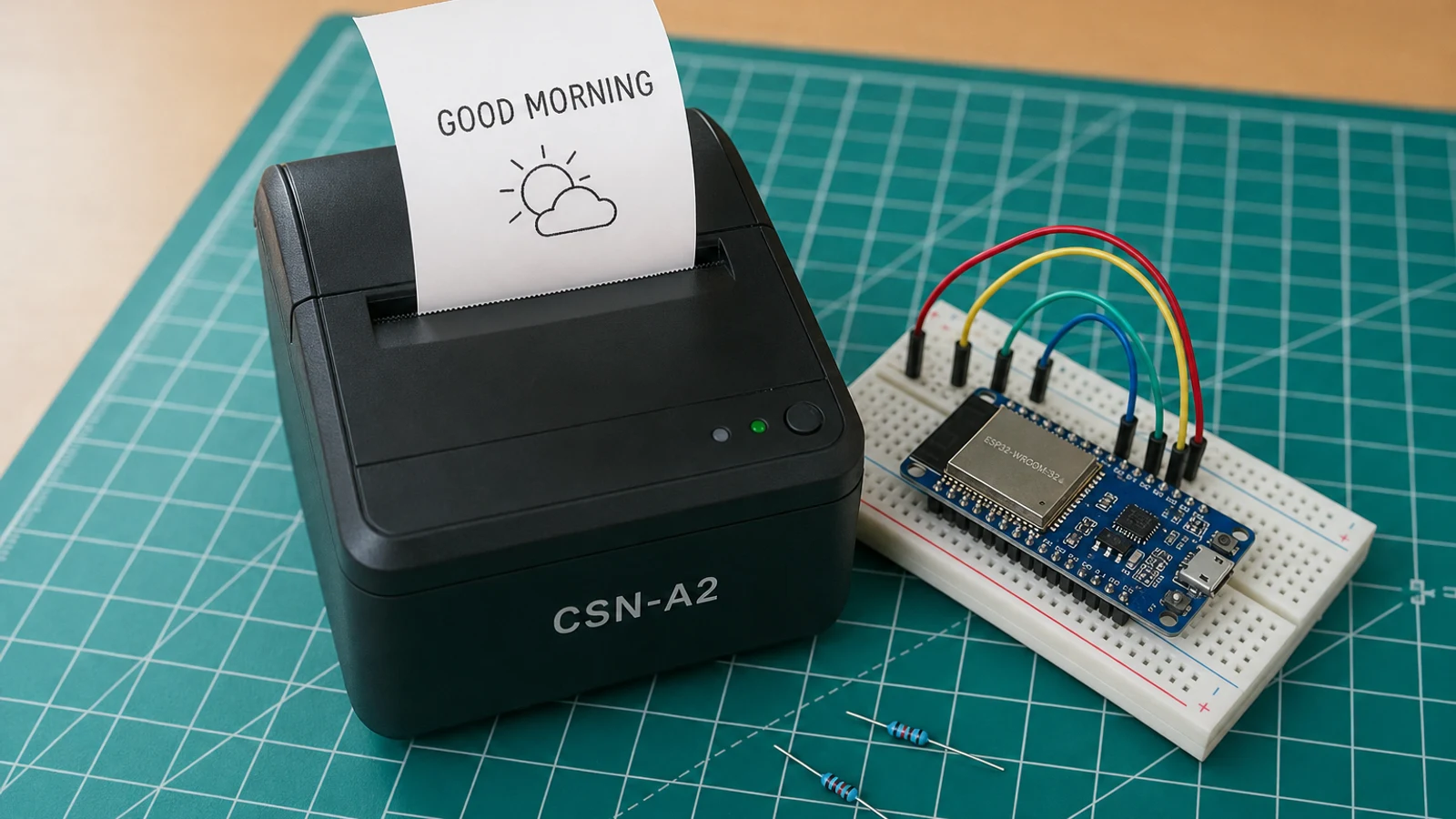
This guide walks through a daily briefing printer: an ESP32 that connects to Wi-Fi once per boot, syncs the clock over NTP, fetches today's weather from Open-Meteo (no API key required), optionally reads Google Calendar events, and prints a receipt-sized slip with the date, forecast, appointments, and blank to-do lines. After printing, the ESP32 calls esp_deep_sleep_start() and powers off. Each power cycle or reset produces a fresh slip.
You can watch the original build on YouTube or read the workshop write-up.
The hardware side has one rule that matters most: the thermal print head needs its own power supply. The ESP32 and the printer share a ground but use separate sources.
What you are building
This guide produces a single-shot boot-and-print device. The firmware has four jobs:
- connect to Wi-Fi and sync the clock via SNTP,
- fetch a one-day weather forecast from Open-Meteo using
WEATHER_LATandWEATHER_LON, - optionally fetch today's Google Calendar events using
GOOGLE_API_KEYandCALENDAR_ID, - print the briefing slip over UART2 (GPIO 4 as TX) using the Adafruit Thermal Printer library, then enter deep sleep.
Out of scope: wake-on-schedule from the ESP32 side (the simplest approach is a plug-in outlet timer), push notifications, multi-printer setups, and receipt paper cutting. TODO_LINES controls how many blank to-do lines appear at the bottom of the slip.
Upload and calibrate
Flash the starter sketch from Schematik. Before flashing, edit these constants:
WIFI_SSIDandWIFI_PASSWORD— your network credentials.WEATHER_LATandWEATHER_LON— decimal-degree coordinates for the weather fetch. The defaults are Amsterdam (52.3676, 4.9041).TZ_OFFSET_SEC— UTC offset in seconds (UTC+1 = 3600). Adjust for your timezone.TZ_DST_SEC— additional daylight-saving offset (3600 during summer if your region observes DST, 0 otherwise).GOOGLE_API_KEYandCALENDAR_ID— leave as placeholders if you do not want calendar events on the slip. The sketch skips the calendar fetch if the key is the default placeholder string.TODO_LINES— number of blank to-do lines at the bottom of the slip (default 5).
After flashing, open Serial Monitor at 115200 baud. You should see Wi-Fi connect, SNTP sync, weather fetch, and calendar fetch (if configured) logged in order. A test slip then prints automatically. If Serial shows Wi-Fi connected and time output but no print follows, check VH power and the GPIO 4 to printer RX wire. If the printer feeds blank paper, increase VH voltage toward 9 V — some CSN-A2 units need more than 5 V for reliable printing.
Troubleshooting
- Printer feeds blank paper: the print head is firing but contrast is too low. Try a 7–9 V supply on VH rather than 5 V; most CSN-A2 units accept this range and print darker.
- Nothing prints, printer makes no sound: check VH power is connected to the dedicated 5 V supply, not the ESP32 5 V pin. Confirm GPIO 4 is wired to the printer RX (pin 5), and that GND is shared.
- ESP32 resets or upload fails when the printer is wired: the printer power supply and the ESP32 USB supply grounds are not joined. Add a GND jumper between the two supplies.
- Wi-Fi connects but time never syncs: SNTP needs internet access. Confirm the network is not a captive-portal Wi-Fi. The sketch waits up to 10 seconds; if
getLocalTime()fails, the slip is printed without a date. - Calendar section is blank even with a valid API key: the Google Calendar API requires the calendar to be shared publicly (view only). Confirm the sharing setting in Google Calendar settings, and that
CALENDAR_IDis the full calendar email address or"primary". - ESP32 never wakes again after deep sleep: the sketch uses
esp_deep_sleep_start()with no timed wake. To wake it, press the EN (reset) button or use an outlet timer on the USB power supply.
Going further
The single-print-per-boot pattern is easy to combine with an outlet timer: set the timer to power on at 07:00 and the ESP32 wakes, prints, and sleeps. For a more integrated setup, replace the outlet timer with esp_sleep_enable_timer_wakeup() in the sketch and set PRINT_HOUR and PRINT_MINUTE to wake at a specific local time. The slip content is also easy to extend: the Open-Meteo API returns hourly data, so an hourly rain forecast for the morning commute is a few extra JSON fields away, and the Adafruit Thermal library supports bold, invert, and double-height text for visual hierarchy on the slip.
Wiring diagram
Gather all the parts
Assemble it in 4 steps
1. Power the CSN-A2 safely
Connect the printer VH input (power-side pin 3) to a dedicated 5 V power supply rated for about 1.5–2 A during printing (a 5 V / 2 A wall adapter is a common choice). Tie the printer power GND (pin 1) and TTL GND (pin 4) to the same ground as your ESP32. Power the ESP32 separately over USB.
- A 5 V / 2 A phone-style wall adapter with a barrel jack or screw terminals is the most common choice. A 5 V buck module from a USB wall brick also works on the bench.
- Do not power VH from the ESP32 3.3 V or 5 V regulator — the inrush current will brown out the MCU.
2. Wire TTL serial on UART2
Connect the printer TTL RX (pin 5) to ESP32 GPIO 4 (UART2 TX). Share ground between the printer TTL side and the ESP32. Leave the printer TX pin unwired unless you need status read-back (its 5 V level needs a divider or level shifter for an ESP32 RX).
- Using UART2 keeps GPIO1/GPIO3 free for USB serial upload and Serial Monitor debugging.
- This sketch uses 9600 baud; confirm with the printer self-test slip if yours was reconfigured.
3. Set Wi-Fi credentials and print time
Edit WIFI_SSID and WIFI_PASSWORD in the sketch, then adjust PRINT_HOUR and PRINT_MINUTE to the local clock time you want a ticket each day. Flash over USB from Schematik or the Arduino IDE.
- The sketch uses SNTP after Wi-Fi connects; allow a few seconds after boot before the first print on cold start.
4. Verify the morning slip
Open Serial Monitor at 115200 baud. After Wi-Fi and time sync you should see a test slip print once, then a matching slip each day at the configured hour. If nothing prints, re-check VH power, RX to GPIO 4, and shared ground.
- If the printer only buzzes or feeds blank paper, power VH closer to 9 V often improves contrast.
Review all connections
1. Connections between "5v-printer-power-supply_0" and "ESP32"
2. Connections between "csn-a2-thermal-printer_0" and "ESP32"
Deploy the firmware
// ESP32 Daily Briefing Printer
// Connects to Wi-Fi, fetches weather from Open-Meteo, fetches Google Calendar events,
// then prints a daily briefing with date, weather, appointments, and to-do lines.

#include <Arduino.h>
#include <WiFi.h>
#include <HTTPClient.h>
#include <ArduinoJson.h>
#include "Adafruit_Thermal.h"
#include <time.h>
#include <esp_sleep.h>

// ─── USER CONFIGURATION ──────────────────────────────────────────────────────
#define WIFI_SSID        "YOUR_WIFI_SSID"
#define WIFI_PASSWORD    "YOUR_WIFI_PASSWORD"

// Google Calendar API
// 1. Create a project at console.cloud.google.com
// 2. Enable the Calendar API
// 3. Create an API key (restricted to Calendar API)
// 4. Share your calendar publicly (view only) or use OAuth (beyond MVP scope)
#define GOOGLE_API_KEY   "YOUR_GOOGLE_API_KEY"
#define CALENDAR_ID      "YOUR_CALENDAR_ID"   // e.g. "primary" or full email

// Open-Meteo — Amsterdam coordinates (no API key required)
#define WEATHER_LAT      "52.3676"
#define WEATHER_LON      "4.9041"

// NTP
#define NTP_SERVER       "pool.ntp.org"
#define TZ_OFFSET_SEC    3600   // UTC+1 (Amsterdam CET); adjust for DST manually or use TZ string
#define TZ_DST_SEC       3600   // additional DST offset (1 h in summer)

// Number of to-do lines to print
#define TODO_LINES       5
// ─────────────────────────────────────────────────────────────────────────────

// Pin definitions
#define PRINTER_RX_PIN   4    // ESP32 TX → Printer RX
#define PRINTER_TX_PIN   5    // Printer TX → ESP32 RX (optional / status)

// Printer baud rate
#define PRINTER_BAUD     9600

// Hoisted type definitions
struct WeatherData {
    float tempMin;
    float tempMax;
    float precipitation;
    int   weatherCode;
    bool  valid;
};

struct CalEvent {
    char summary[64];
    char timeStr[32];   // "HH:MM" or "All day"
};

HardwareSerial printerSerial(2);
Adafruit_Thermal printer(&printerSerial);

// ─── WMO weather code → short description ────────────────────────────────────
const char* weatherDescription(int code) {
    if (code == 0)              return "Clear sky";
    if (code == 1)              return "Mainly clear";
    if (code == 2)              return "Partly cloudy";
    if (code == 3)              return "Overcast";
    if (code >= 45 && code <= 48) return "Foggy";
    if (code >= 51 && code <= 55) return "Drizzle";
    if (code >= 61 && code <= 65) return "Rain";
    if (code >= 71 && code <= 75) return "Snow";
    if (code >= 80 && code <= 82) return "Rain showers";
    if (code >= 95 && code <= 99) return "Thunderstorm";
    return "Unknown";
}

bool connectWifi() {
    Serial.printf("Connecting to %s", WIFI_SSID);
    WiFi.begin(WIFI_SSID, WIFI_PASSWORD);
    int attempts = 0;
    while (WiFi.status() != WL_CONNECTED && attempts < 30) {
        delay(500);
        Serial.print(".");
        attempts++;
    }
    if (WiFi.status() == WL_CONNECTED) {
        Serial.println(" connected!");
        return true;
    }
    Serial.println(" FAILED.");
    return false;
}

void syncTime() {
    configTime(TZ_OFFSET_SEC, TZ_DST_SEC, NTP_SERVER);
    Serial.print("Syncing time");
    struct tm ti;
    int attempts = 0;
    while (!getLocalTime(&ti) && attempts < 20) {
        delay(500);
        Serial.print(".");
        attempts++;
    }
    Serial.println(getLocalTime(&ti) ? " done." : " FAILED.");
}

WeatherData fetchWeather() {
    WeatherData wd = {0, 0, 0, 0, false};
    if (WiFi.status() != WL_CONNECTED) return wd;

    HTTPClient http;
    String url = "https://api.open-meteo.com/v1/forecast"
                 "?latitude=" WEATHER_LAT
                 "&longitude=" WEATHER_LON
                 "&daily=temperature_2m_max,temperature_2m_min,precipitation_sum,weathercode"
                 "&timezone=Europe%2FAmsterdam"
                 "&forecast_days=1";

    http.begin(url);
    int httpCode = http.GET();
    if (httpCode != 200) {
        Serial.printf("Weather HTTP error: %d\n", httpCode);
        http.end();
        return wd;
    }

    String payload = http.getString();
    http.end();

    DynamicJsonDocument doc(2048);
    DeserializationError err = deserializeJson(doc, payload);
    if (err) {
        Serial.print("Weather JSON error: ");
        Serial.println(err.c_str());
        return wd;
    }

    JsonObject daily = doc["daily"];
    wd.tempMax       = daily["temperature_2m_max"][0].as<float>();
    wd.tempMin       = daily["temperature_2m_min"][0].as<float>();
    wd.precipitation = daily["precipitation_sum"][0].as<float>();
    wd.weatherCode   = daily["weathercode"][0].as<int>();
    wd.valid         = true;

    Serial.printf("Weather: code=%d  min=%.1f  max=%.1f  precip=%.1f\n",
                  wd.weatherCode, wd.tempMin, wd.tempMax, wd.precipitation);
    return wd;
}

#define MAX_EVENTS 10

int fetchCalendarEvents(CalEvent events[], int maxEvents) {
    if (WiFi.status() != WL_CONNECTED) return 0;

    struct tm ti;
    if (!getLocalTime(&ti)) return 0;

    char timeMin[32], timeMax[32];
    struct tm startDay = ti;
    startDay.tm_hour = 0; startDay.tm_min = 0; startDay.tm_sec = 0;
    struct tm endDay   = ti;
    endDay.tm_hour   = 23; endDay.tm_min = 59; endDay.tm_sec = 59;

    strftime(timeMin, sizeof(timeMin), "%Y-%m-%dT00:00:00Z", &startDay);
    strftime(timeMax, sizeof(timeMax), "%Y-%m-%dT23:59:59Z", &endDay);

    String calId = String(CALENDAR_ID);
    calId.replace("@", "%40");

    String url = "https://www.googleapis.com/calendar/v3/calendars/";
    url += calId;
    url += "/events?key=";
    url += GOOGLE_API_KEY;
    url += "&timeMin=";
    url += timeMin;
    url += "&timeMax=";
    url += timeMax;
    url += "&singleEvents=true&orderBy=startTime&maxResults=";
    url += maxEvents;

    HTTPClient http;
    http.begin(url);
    int httpCode = http.GET();
    if (httpCode != 200) {
        Serial.printf("Calendar HTTP error: %d\n", httpCode);
        http.end();
        return 0;
    }

    String payload = http.getString();
    http.end();

    DynamicJsonDocument doc(8192);
    DeserializationError err = deserializeJson(doc, payload);
    if (err) {
        Serial.print("Calendar JSON error: ");
        Serial.println(err.c_str());
        return 0;
    }

    JsonArray items = doc["items"].as<JsonArray>();
    int count = 0;
    for (JsonObject item : items) {
        if (count >= maxEvents) break;

        const char* sum = item["summary"] | "(No title)";
        strncpy(events[count].summary, sum, 63);
        events[count].summary[63] = '\0';

        const char* startDt = item["start"]["dateTime"] | "";
        if (strlen(startDt) >= 16) {
            snprintf(events[count].timeStr, sizeof(events[count].timeStr),
                     "%c%c:%c%c", startDt[11], startDt[12], startDt[14], startDt[15]);
        } else {
            strncpy(events[count].timeStr, "All day", sizeof(events[count].timeStr));
        }
        count++;
    }

    Serial.printf("Calendar: %d event(s) fetched.\n", count);
    return count;
}

void printBriefing(WeatherData& wd, CalEvent events[], int eventCount) {
    struct tm ti;
    getLocalTime(&ti);
    char dateStr[32];
    strftime(dateStr, sizeof(dateStr), "%A, %d %B %Y", &ti);

    printer.wake();
    printer.setDefault();

    printer.justify('C');
    printer.boldOn();
    printer.setSize('L');
    printer.println("DAILY BRIEFING");
    printer.setSize('S');
    printer.boldOff();
    printer.println(dateStr);
    printer.feed(1);

    printer.justify('L');
    printer.boldOn();
    printer.println("--- WEATHER (Amsterdam) ---");
    printer.boldOff();

    if (wd.valid) {
        char line[64];
        printer.println(weatherDescription(wd.weatherCode));
        snprintf(line, sizeof(line), "High: %.1f C   Low: %.1f C", wd.tempMax, wd.tempMin);
        printer.println(line);
        snprintf(line, sizeof(line), "Precipitation: %.1f mm", wd.precipitation);
        printer.println(line);
    } else {
        printer.println("(Weather unavailable)");
    }
    printer.feed(1);

    printer.boldOn();
    printer.println("--- TODAY'S APPOINTMENTS ---");
    printer.boldOff();

    if (eventCount == 0) {
        printer.println("No events today.");
    } else {
        for (int i = 0; i < eventCount; i++) {
            char line[80];
            snprintf(line, sizeof(line), "[%s] %s", events[i].timeStr, events[i].summary);
            if (strlen(line) <= 32) {
                printer.println(line);
            } else {
                char l1[48], l2[48];
                snprintf(l1, sizeof(l1), "[%s]", events[i].timeStr);
                snprintf(l2, sizeof(l2), "  %s", events[i].summary);
                printer.println(l1);
                printer.println(l2);
            }
        }
    }
    printer.feed(1);

    printer.boldOn();
    printer.println("--- TO DO TODAY ---");
    printer.boldOff();

    for (int i = 0; i < TODO_LINES; i++) {
        printer.println("[ ] ____________________________");
    }
    printer.feed(3);

    printer.sleep();
    Serial.println("Print complete.");
}

void setup() {
    Serial.begin(115200);
    delay(500);

    Serial.println("=== Daily Briefing Printer ===");

    printerSerial.begin(PRINTER_BAUD, SERIAL_8N1, PRINTER_TX_PIN, PRINTER_RX_PIN);
    printer.begin();

    if (!connectWifi()) {
        printer.wake();
        printer.println("Wi-Fi connection failed!");
        printer.feed(2);
        printer.sleep();
        Serial.println("Halting.");
        while (true) delay(1000);
    }

    syncTime();

    WeatherData wd = fetchWeather();

    CalEvent events[MAX_EVENTS];
    int eventCount = fetchCalendarEvents(events, MAX_EVENTS);

    printBriefing(wd, events, eventCount);

    WiFi.disconnect(true);
    WiFi.mode(WIFI_OFF);
    Serial.println("Done. Deep sleeping...");
    esp_deep_sleep_start();
}

void loop() {
}
Remix this project
Make it yours in one click
Open a full copy of this project in your own Schematik workspace — diagram, code, parts, and assembly steps included. Swap the sensor, add features, or redesign the whole thing with AI. The author's original stays untouched.
Related projects
How to Build a Rocket Launch Alarm Clock with ESP32
ESP32 · Beginner · 40 minutes · July 22, 2026Schematik
How to Build a Scrolling LED Matrix Message Board with ESP32
ESP32 · Beginner · 30 minutes · June 12, 2026Schematik
How to Build an ESP32 Pomodoro Focus Timer
ESP32 · Beginner · 45 minutes · July 22, 2026Schematik