Community project
ESP32 Flight Radar
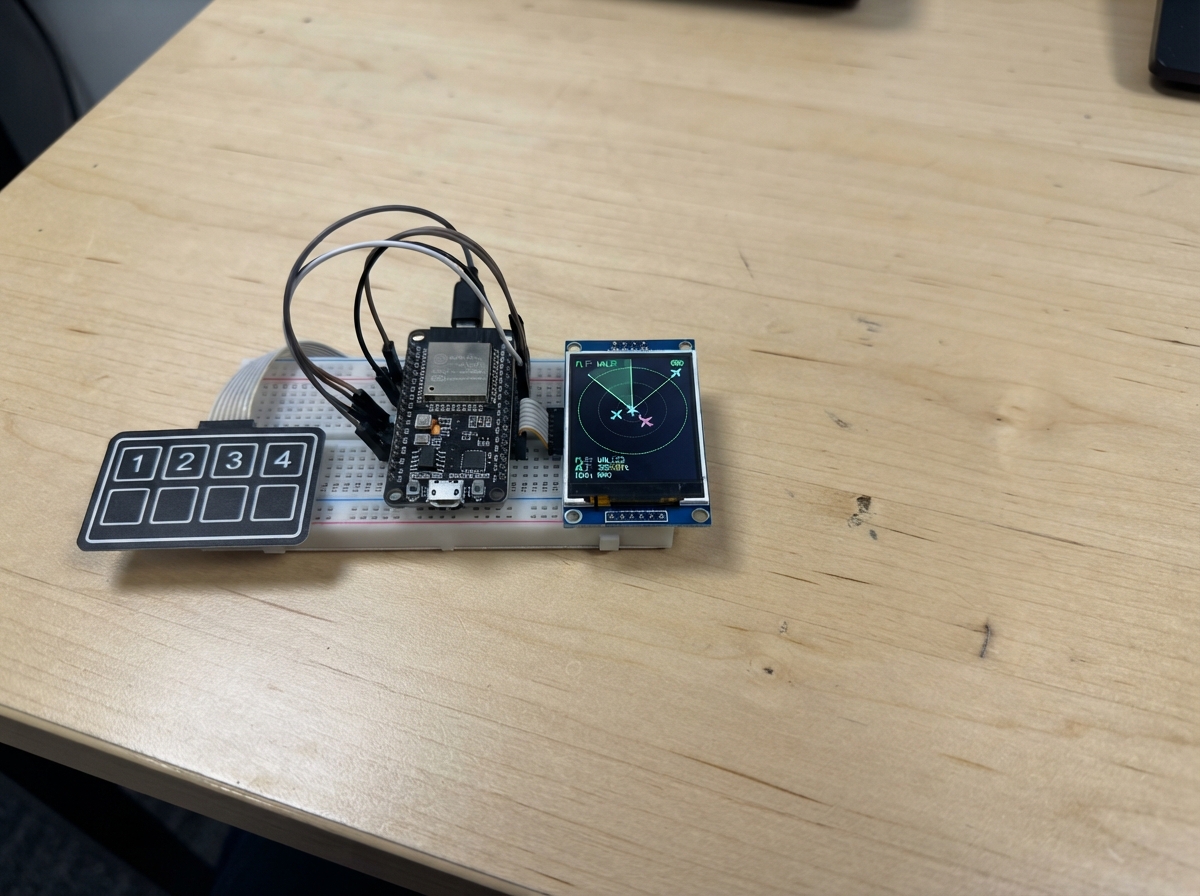
This project builds a real-time flight radar display on an ESP32 microcontroller. The radar connects to the OpenSky Network API to fetch live aircraft data and renders a circular radar view on a small TFT screen, showing nearby aircraft positions by bearing and distance. A four-button keypad lets you navigate and select aircraft to view their callsigns and details.
The guide includes a complete wiring diagram for connecting the ST7735 display and membrane keypad to the ESP32, a full parts list, and ready-to-flash firmware. Assembly takes just a few minutes—mount the components, wire the display power and SPI signals, connect the keypad buttons, then configure your WiFi credentials and OpenSky API keys to start tracking live flights overhead.
Wiring diagram

Gather all the parts
Assemble it in 6 steps
1. Place the board, screen, and keypad
Put the ESP32 DevKit V1, the 1.8-inch ST7735 screen, and the 1×4 keypad on a non-metal table with their pin labels facing up. Leave room for the jumper wires between all three parts.
- Use female-to-female jumper wires if both parts have exposed male pins.
- Keep the ESP32 unplugged while you make or move wires so a loose wire cannot touch the wrong pin.
2. Connect the screen power
Connect the screen VCC pin to the ESP32 3V3 pin (power). Connect the screen GND pin to any ESP32 GND pin (ground). These wires give the screen safe power and a shared electrical reference.
- Many screens label the power pin VCC and the ground pin GND.
- Make sure VCC and GND are not swapped — swapped power can damage the screen. Do not use the ESP32 5V pin for this display.
3. Connect the screen signal wires
Connect screen SCK or CLK to ESP32 GPIO18 (clock). Connect screen MOSI, SDA, or DIN to ESP32 GPIO23 (data). Connect screen CS to GPIO4 (screen select). Connect screen DC, A0, or RS to GPIO25 (command/data choice). Connect screen RST or RESET to GPIO26 (screen reset). Do not connect the display MISO pin (not used).
- The printed screen labels vary: SCK may say CLK, MOSI may say SDA or DIN, and DC may say A0 or RS.
- Do not connect two screen pins to one ESP32 pin; each named signal needs its own wire.
4. Connect the screen light
Connect screen BLK, LED, or LIGHT to ESP32 GPIO27 (backlight control). If your display has no BLK, LED, or LIGHT pin, leave this wire out.
- This program turns GPIO27 on so the screen light is enabled.
- If the display has a BLK pin and stays dark, make sure it goes to GPIO27 rather than GND.
5. Connect the four-button keypad
Find the five keypad connector labels or ribbon positions for R1, C1, C2, C3, and C4. Connect R1 to ESP32 GPIO13 (the shared button-check wire). Connect C1 to GPIO32 (button 1 signal), C2 to GPIO33 (button 2 signal), C3 to GPIO14 (button 3 signal), and C4 to GPIO16 (button 4 signal). The keypad does not need separate VCC or GND wires.
- If the keypad ribbon has no labels, use its supplied pinout or the seller’s listing to identify the row and four column contacts before connecting it.
- Do not connect the keypad to 3V3 or 5V — its five wires go only to the listed ESP32 GPIO pins. A different ribbon order will make the buttons select the wrong flight or not respond.
6. Power and use the radar controls
Check every wire against the printed labels, then plug the ESP32 into your computer with USB. After you press Deploy, a green ring marks the currently highlighted aircraft. Press 2 to move the ring forward through the available aircraft and press 3 to move it backward. Press 1 to select the aircraft inside the ring. Press 4 to cycle through the three zoom sizes; aircraft beyond the edge are hidden at closer zoom levels.
- The bottom of the screen shows the highlighted callsign and Z1, Z2, or Z3 for the current zoom size.
- Disconnect USB before moving any wire so a loose wire cannot short two pins together.
Review all connections
1. Connections between "tft_1" and "ESP32"
2. Connections between "keypad_1" and "ESP32"
Deploy the firmware
#include <Arduino.h>
#include <SPI.h>
#include <WiFi.h>
#include <WiFiClientSecure.h>
#include <HTTPClient.h>
#include <ArduinoJson.h>
#include <Adafruit_GFX.h>
#include <Adafruit_ST7735.h>
#include <Keypad.h>

// Fill in these six values when you are ready to use live OpenSky data.

// Hoisted type definitions
struct Aircraft {
  char callsign[10];
  float bearingDeg;
  float rangeFraction;
  uint16_t color;
};


// Forward declarations
bool configReady();
void drawHeader();
void drawRadarBackground();
void drawOneAircraft(size_t index, bool highlighted, bool selected);
void drawRadar();
String getAccessToken();
void loadLiveAircraft();
void handleKey(char key);

constexpr char WIFI_SSID[] = "YOUR_WIFI_NAME";
constexpr char WIFI_PASSWORD[] = "YOUR_WIFI_PASSWORD";
constexpr char OPENSKY_CLIENT_ID[] = "YOUR_OPENSKY_CLIENT_ID";
constexpr char OPENSKY_CLIENT_SECRET[] = "YOUR_OPENSKY_CLIENT_SECRET";
constexpr float RADAR_LATITUDE = 0.0f;
constexpr float RADAR_LONGITUDE = 0.0f;


constexpr int TFT_CS = 4;
constexpr int TFT_DC = 25;
constexpr int TFT_RST = 26;
constexpr int TFT_BLK = 27;
constexpr int TFT_SCK = 18;
constexpr int TFT_MOSI = 23;
constexpr int KEYPAD_ROW = 13;
constexpr int KEY_1_COL = 32;
constexpr int KEY_2_COL = 33;
constexpr int KEY_3_COL = 14;
constexpr int KEY_4_COL = 16;
constexpr int SCREEN_W = 128;
constexpr int SCREEN_H = 160;
constexpr int RADAR_X = 64;
constexpr int RADAR_Y = 88;
constexpr int RADAR_R = 48;
constexpr float SEARCH_HALF_SPAN_DEG = 0.25f;
constexpr uint32_t LIVE_REFRESH_MS = 60000;
constexpr uint32_t DEMO_UPDATE_MS = 250;
constexpr float ZOOM_LEVELS[] = {1.0f, 1.75f, 2.5f};
constexpr size_t ZOOM_COUNT = sizeof(ZOOM_LEVELS) / sizeof(ZOOM_LEVELS[0]);
constexpr size_t MAX_AIRCRAFT = 12;

Adafruit_ST7735 tft(TFT_CS, TFT_DC, TFT_RST);
char keypadLayout[1][4] = {{'1', '2', '3', '4'}};
byte rowPins[1] = {KEYPAD_ROW};
byte colPins[4] = {KEY_1_COL, KEY_2_COL, KEY_3_COL, KEY_4_COL};
Keypad keypad = Keypad(makeKeymap(keypadLayout), rowPins, colPins, 1, 4);

Aircraft aircraft[MAX_AIRCRAFT] = {
  {"SKY 218", 18.0f, 0.62f, ST77XX_CYAN},
  {"JET 507", 145.0f, 0.38f, ST77XX_YELLOW},
  {"AIR 812", 274.0f, 0.83f, ST77XX_MAGENTA}
};
size_t aircraftCount = 3;
int highlightedAircraft = 0;
int selectedAircraft = -1;
size_t zoomLevel = 0;
bool liveMode = false;
uint32_t lastDemoUpdate = 0;
uint32_t lastLiveRefresh = 0;

bool configReady() {
  return strcmp(WIFI_SSID, "YOUR_WIFI_NAME") != 0 &&
         strcmp(WIFI_PASSWORD, "YOUR_WIFI_PASSWORD") != 0 &&
         strcmp(OPENSKY_CLIENT_ID, "YOUR_OPENSKY_CLIENT_ID") != 0 &&
         strcmp(OPENSKY_CLIENT_SECRET, "YOUR_OPENSKY_CLIENT_SECRET") != 0 &&
         RADAR_LATITUDE != 0.0f && RADAR_LONGITUDE != 0.0f;
}

void drawHeader() {
  tft.fillRect(0, 0, SCREEN_W, 14, ST77XX_BLACK);
  tft.setTextSize(1);
  tft.setTextColor(ST77XX_WHITE);
  tft.setCursor(2, 3);
  if (selectedAircraft >= 0 && selectedAircraft < static_cast<int>(aircraftCount)) {
    tft.print(aircraft[selectedAircraft].callsign);
    tft.print(" SELECTED");
  } else if (liveMode) {
    tft.print("OPEN SKY RADAR");
  } else {
    tft.print("FLIGHT RADAR DEMO");
  }
  tft.drawFastHLine(0, 13, SCREEN_W, ST77XX_BLUE);
}

void drawRadarBackground() {
  tft.fillRect(0, 15, SCREEN_W, 130, ST77XX_BLACK);
  tft.drawCircle(RADAR_X, RADAR_Y, RADAR_R, ST77XX_DARKGREEN);
  tft.drawCircle(RADAR_X, RADAR_Y, 32, ST77XX_DARKGREEN);
  tft.drawCircle(RADAR_X, RADAR_Y, 16, ST77XX_DARKGREEN);
  tft.drawFastHLine(RADAR_X - RADAR_R, RADAR_Y, RADAR_R * 2, ST77XX_DARKGREEN);
  tft.drawFastVLine(RADAR_X, RADAR_Y - RADAR_R, RADAR_R * 2, ST77XX_DARKGREEN);
  tft.fillCircle(RADAR_X, RADAR_Y, 3, ST77XX_GREEN);
  tft.setTextSize(1);
  tft.setTextColor(ST77XX_GREEN);
  tft.setCursor(61, 18); tft.print("N");
  tft.setCursor(113, 85); tft.print("E");
  tft.setCursor(61, 137); tft.print("S");
  tft.setCursor(9, 85); tft.print("W");
}

void drawOneAircraft(size_t index, bool highlighted, bool selected) {
  const float scaledRange = aircraft[index].rangeFraction * ZOOM_LEVELS[zoomLevel];
  if (scaledRange > 1.0f) return;
  const float radians = aircraft[index].bearingDeg * DEG_TO_RAD;
  const int x = RADAR_X + static_cast<int>(sin(radians) * RADAR_R * scaledRange);
  const int y = RADAR_Y - static_cast<int>(cos(radians) * RADAR_R * scaledRange);
  const uint16_t color = selected ? ST77XX_WHITE : aircraft[index].color;
  if (highlighted) tft.drawCircle(x, y, 6, ST77XX_GREEN);
  tft.fillCircle(x, y, selected ? 5 : 3, color);
  tft.drawLine(x, y, x + static_cast<int>(sin(radians) * 7), y - static_cast<int>(cos(radians) * 7), color);
}

void drawRadar() {
  drawHeader();
  drawRadarBackground();
  for (size_t i = 0; i < aircraftCount; ++i) {
    drawOneAircraft(i, highlightedAircraft == static_cast<int>(i), selectedAircraft == static_cast<int>(i));
  }
  tft.fillRect(0, 145, SCREEN_W, 15, ST77XX_BLACK);
  tft.setTextSize(1);
  tft.setTextColor(ST77XX_CYAN);
  tft.setCursor(2, 147);
  if (aircraftCount == 0) {
    tft.print("NO AIRCRAFT FOUND");
  } else {
    tft.print("1:"); tft.print(aircraft[highlightedAircraft].callsign);
    tft.print(" Z"); tft.print(zoomLevel + 1);
  }
  tft.setCursor(2, 153);
  tft.print("2/3:SCROLL 4:ZOOM");
}

String getAccessToken() {
  WiFiClientSecure client;
  client.setInsecure();
  HTTPClient http;
  http.begin(client, "https://auth.opensky-network.org/auth/realms/opensky-network/protocol/openid-connect/token");
  http.addHeader("Content-Type", "application/x-www-form-urlencoded");
  const String body = "grant_type=client_credentials&client_id=" + String(OPENSKY_CLIENT_ID) +
                      "&client_secret=" + String(OPENSKY_CLIENT_SECRET);
  const int result = http.POST(body);
  if (result != HTTP_CODE_OK) { http.end(); return ""; }
  JsonDocument doc;
  const DeserializationError error = deserializeJson(doc, http.getString());
  http.end();
  if (error) return "";
  return doc["access_token"].as<String>();
}

void loadLiveAircraft() {
  const String token = getAccessToken();
  if (token.isEmpty()) return;
  const float lamin = RADAR_LATITUDE - SEARCH_HALF_SPAN_DEG;
  const float lamax = RADAR_LATITUDE + SEARCH_HALF_SPAN_DEG;
  const float lomin = RADAR_LONGITUDE - SEARCH_HALF_SPAN_DEG;
  const float lomax = RADAR_LONGITUDE + SEARCH_HALF_SPAN_DEG;
  const String url = "https://opensky-network.org/api/states/all?lamin=" + String(lamin, 5) +
                     "&lomin=" + String(lomin, 5) + "&lamax=" + String(lamax, 5) +
                     "&lomax=" + String(lomax, 5);
  WiFiClientSecure client;
  client.setInsecure();
  HTTPClient http;
  http.begin(client, url);
  http.addHeader("Authorization", "Bearer " + token);
  if (http.GET() != HTTP_CODE_OK) { http.end(); return; }
  JsonDocument doc;
  const DeserializationError error = deserializeJson(doc, http.getStream());
  http.end();
  if (error || !doc["states"].is<JsonArray>()) return;

  size_t count = 0;
  for (JsonVariant state : doc["states"].as<JsonArray>()) {
    if (count >= MAX_AIRCRAFT) break;
    JsonArray row = state.as<JsonArray>();
    if (row.size() < 11 || row[5].isNull() || row[6].isNull()) continue;
    const float longitude = row[5].as<float>();
    const float latitude = row[6].as<float>();
    const float north = latitude - RADAR_LATITUDE;
    const float east = (longitude - RADAR_LONGITUDE) * cos(RADAR_LATITUDE * DEG_TO_RAD);
    const float distance = sqrt(north * north + east * east);
    const float bearing = atan2(east, north) * RAD_TO_DEG;
    const char *name = row[1] | "UNKNOWN";
    snprintf(aircraft[count].callsign, sizeof(aircraft[count].callsign), "%.9s", name);
    aircraft[count].bearingDeg = bearing < 0 ? bearing + 360.0f : bearing;
    aircraft[count].rangeFraction = constrain(distance / SEARCH_HALF_SPAN_DEG, 0.0f, 1.0f);
    aircraft[count].color = ST77XX_CYAN;
    ++count;
  }
  aircraftCount = count;
  highlightedAircraft = 0;
  selectedAircraft = -1;
  liveMode = true;
  drawRadar();
}

void handleKey(char key) {
  if (aircraftCount == 0) return;
  if (key == '1') selectedAircraft = highlightedAircraft;
  else if (key == '2') highlightedAircraft = (highlightedAircraft + 1) % aircraftCount;
  else if (key == '3') highlightedAircraft = (highlightedAircraft + aircraftCount - 1) % aircraftCount;
  else if (key == '4') zoomLevel = (zoomLevel + 1) % ZOOM_COUNT;
  else return;
  drawRadar();
}

void setup() {
  pinMode(TFT_BLK, OUTPUT);
  digitalWrite(TFT_BLK, HIGH);
  SPI.begin(TFT_SCK, -1, TFT_MOSI, TFT_CS);
  tft.initR(INITR_BLACKTAB);
  tft.setRotation(0);
  tft.fillScreen(ST77XX_BLACK);
  drawRadar();
  if (configReady()) {
    WiFi.mode(WIFI_STA);
    WiFi.begin(WIFI_SSID, WIFI_PASSWORD);
  }
}

void loop() {
  const char key = keypad.getKey();
  if (key != NO_KEY) handleKey(key);
  const uint32_t now = millis();
  if (configReady() && WiFi.status() == WL_CONNECTED && now - lastLiveRefresh >= LIVE_REFRESH_MS) {
    lastLiveRefresh = now;
    loadLiveAircraft();
  }
  if (!liveMode && now - lastDemoUpdate >= DEMO_UPDATE_MS) {
    lastDemoUpdate = now;
    for (size_t i = 0; i < aircraftCount; ++i) {
      aircraft[i].bearingDeg += (i == 1 ? -4.0f : 3.0f);
      if (aircraft[i].bearingDeg >= 360.0f) aircraft[i].bearingDeg -= 360.0f;
      if (aircraft[i].bearingDeg < 0.0f) aircraft[i].bearingDeg += 360.0f;
    }
    drawRadar();
  }
}
Remix this project
Make it yours in one click
Open a full copy of this project in your own Schematik workspace — diagram, code, parts, and assembly steps included. Swap the sensor, add features, or redesign the whole thing with AI. The author's original stays untouched.