Community project
Project 4
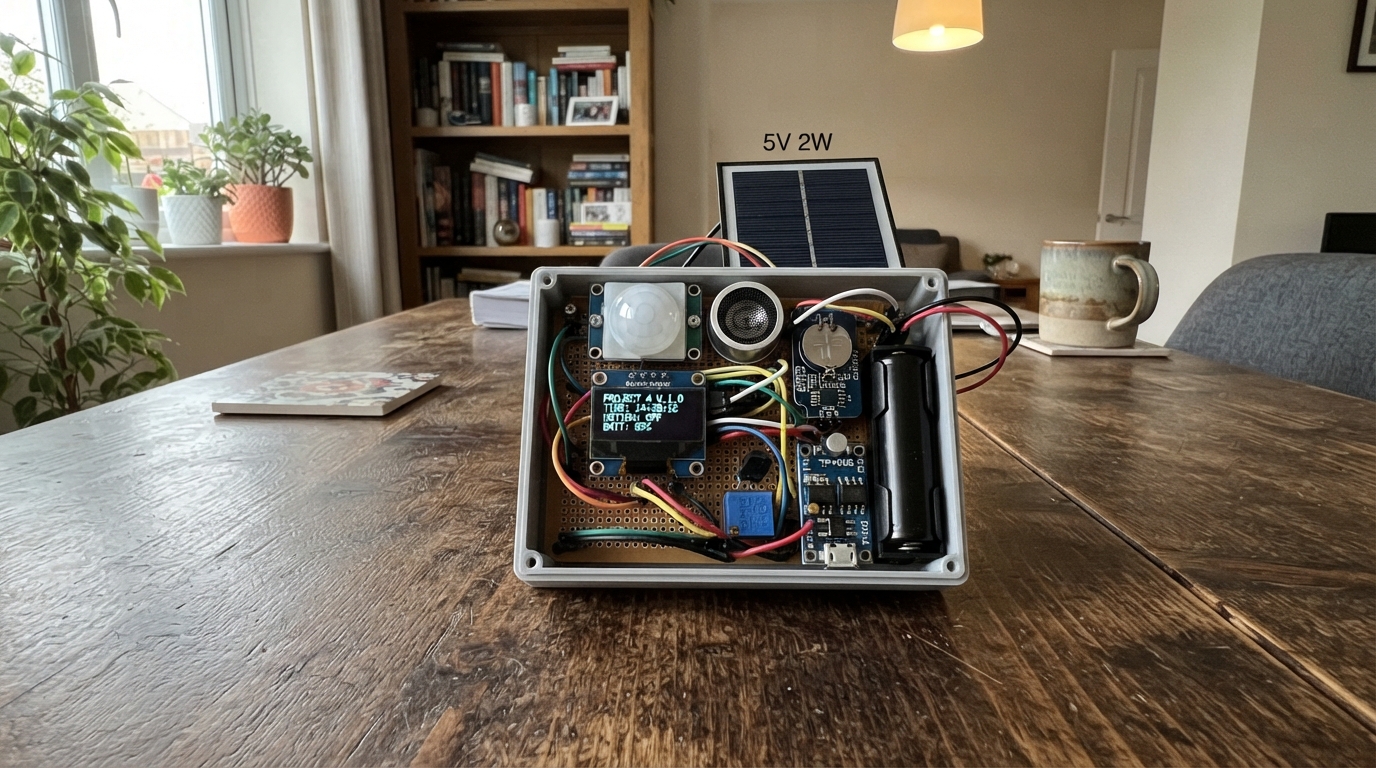
This project builds a solar-powered motion-activated sound emitter that combines real-time clock scheduling with PIR motion detection. The system uses an Arduino Uno to coordinate a DS3231 precision RTC module, HC-SR501 motion sensor, and ultrasonic speaker driver, all powered by a rechargeable 18650 battery charged through a solar panel and managed by dedicated charging and boost conversion modules.
The guide provides a complete wiring diagram for the 400-point breadboard, a full parts list with component specifications, ready-to-deploy firmware, and step-by-step assembly instructions. Builders will learn how to integrate solar power management, time-based control logic, and sensor-driven audio output into a single autonomous system.
Wiring diagram

Gather all the parts
Assemble it in 9 steps
1. Gather components and prepare the breadboard
Before making any connections, insert the 18650 battery into the 18650 battery holder but do not connect anything else yet. Place the breadboard on a flat static-free surface. Identify the two horizontal power rails running along each long edge of the breadboard — one will be your 5V rail (red) and the other will be your GND rail (black). All power and ground connections throughout the build will tie back to these two rails. Keep all components nearby: DS3231 RTC module, HC-SR501 PIR sensor, Ultrasonic Speaker, 2N2222 NPN transistor, 1kΩ resistor, TP4056 module, MT3608 boost converter, 18650 battery holder, 5V 2W solar panel, and the Arduino Uno. Do not plug the Arduino into USB or connect the battery yet.
- Discharge any static by touching a grounded metal object before handling components.
- Label the top rail '+5V' and the bottom rail 'GND' with a small piece of tape to avoid confusion.
- Arduino Uno starter kits often include a breadboard, jumper wires, and resistors — check yours before buying separately.
- Do NOT insert the 18650 cell backwards — check polarity markings on the holder before inserting.
- Do not connect power from any source to the breadboard rails until instructed in a later step.
2. Build the solar charging and boost power chain
This project uses a solar-powered supply chain: the 5V solar panel feeds the TP4056 lithium charger module, which charges the 18650 cell. The MT3608 boost converter then takes the cell output and steps it up to a regulated 5V for the Arduino and all 5V components. First, connect the solar panel VCC (red wire) to the IN+ pin of the TP4056 module, and the solar panel GND (black wire) to the IN- pin of the TP4056. Next, connect the TP4056 OUT+ pin to the VCC pin of the 18650 battery holder, and TP4056 OUT- to the 18650 battery holder GND pin. Now connect the 18650 battery holder VCC (red wire) to the IN+ of the MT3608 boost converter, and the battery holder GND (black wire) to the MT3608 IN- pin. Before connecting the MT3608 output to anything, insert the 18650 battery and use a small flathead screwdriver to adjust the MT3608 onboard potentiometer while measuring the OUT+ and OUT- terminals with a multimeter — turn the pot slowly until the output reads exactly 5.0V. Once confirmed at 5.0V, connect the MT3608 OUT+ to the breadboard positive (red) rail and MT3608 OUT- to the breadboard GND (black) rail. The TP4056 DATA pin connects to Arduino digital pin 7 (D7) via a yellow wire for optional charge status monitoring. The MT3608 DATA pin connects to Arduino digital pin 9 (D9) via a yellow wire if boost enable or feedback monitoring is used.
- Always verify the MT3608 output is exactly 5V with a multimeter before connecting it to the Arduino — an over-voltage will permanently damage the Uno.
- The TP4056 red LED indicates charging; the blue LED indicates charge complete — this is a useful visual status indicator.
- The MT3608 potentiometer is very sensitive; turn it in tiny increments and wait a second for the voltage to settle before reading.
- Never connect the solar panel directly to the Arduino — it must pass through the TP4056 and MT3608 regulation chain.
- Do not draw power from the Arduino's own 5V pin for external components — only use the breadboard rail fed by the MT3608.
- MT3608 output MUST be confirmed at 5V before connecting to Arduino VIN — over-voltage will destroy the board.
3. Connect the Arduino Uno to the regulated 5V power rail
With the MT3608 confirmed to output exactly 5V, power the Arduino Uno from the breadboard rail rather than USB. Connect a red wire from the breadboard positive rail to the Arduino VIN pin. Connect a black wire from the breadboard GND rail to one of the Arduino GND pins. This allows the solar-battery system to power the Uno. Also run a black wire from the Arduino GND pin back to the breadboard GND rail to ensure a common ground between the Arduino and all peripheral components — this is critical for reliable digital signal references. Do not connect USB power at this stage unless you are uploading firmware.
- A common ground shared between all components is the single most important rule in mixed-component circuits — never skip this connection.
- When uploading firmware via USB, the Arduino will be powered by USB; the external power chain can remain connected as long as the voltage is correct.
- Connecting both USB and external VIN simultaneously is generally safe on the Uno since the board has a protection diode, but confirm your MT3608 output is exactly 5V first.
- Never connect a voltage higher than 5V to the 5V pin — use VIN for voltages up to 12V.
4. Connect the DS3231 Precision RTC module
The DS3231 communicates over I2C. On the Arduino Uno, I2C SDA is pin A4 (board pin 18) and I2C SCL is pin A5 (board pin 19) — these cannot be remapped. First, connect a red wire from the DS3231 VIN pin to the breadboard 5V rail. The DS3231 supports 2.3V–5.5V so 5V is safe. Connect a black wire from the DS3231 GND pin to the breadboard GND rail. Connect a blue wire from the DS3231 SDA pin to Arduino A4. Connect a white wire from the DS3231 SCL pin to Arduino A5. If your DS3231 module does not have built-in I2C pull-up resistors, add 4.7kΩ resistors from SDA to 5V and SCL to 5V — many breakout boards include these. Optionally, connect the DS3231 SQW pin to Arduino digital pin 2 (D2) using an orange wire; D2 supports hardware external interrupts so the RTC alarm can wake the Arduino. The 32K pin can connect to Arduino D3 if you need a 32kHz reference. The RST pin can connect to Arduino D4 if you want software reset control. Install a CR1220 coin cell into the DS3231 module's battery socket to maintain timekeeping when main power is removed.
- The DS3231 I2C address is fixed at 0x68 — you can confirm it appears on the bus by running an I2C scanner sketch after wiring.
- Install the RTClib or Adafruit RTClib library from the Arduino Library Manager before writing your sketch.
- A CR1220 coin cell in the RTC module will keep time accurate even when the system is off or the battery is charging.
- SDA must connect to A4 and SCL to A5 on the Uno — these I2C pins cannot be reassigned in software.
- Do not connect SCL or SDA without a common ground established first, or the I2C bus may behave erratically.
5. Connect the HC-SR501 PIR motion sensor
The HC-SR501 operates at 5V and outputs a 3.3V TTL HIGH signal when motion is detected. Connect a red wire from the HC-SR501 VCC pin to the breadboard 5V rail. Connect a black wire from the HC-SR501 GND pin to the breadboard GND rail. Connect a yellow wire from the HC-SR501 OUT pin to Arduino digital pin 8 (D8). The Arduino Uno's digital inputs are 5V tolerant and will correctly read the 3.3V HIGH signal from the sensor as logic HIGH. On the HC-SR501 module, locate the two orange potentiometers: the left one adjusts sensitivity (turn clockwise to increase range up to ~7m), and the right one adjusts the time-delay for how long the output stays HIGH after motion is detected (1 second to 3 minutes). Also check the jumper between the two signal pins near the bottom of the module — set it to single-trigger mode (H position) for one-shot detection or multi-trigger mode (L position) for continuous re-triggering. Allow the PIR sensor at least 30–60 seconds to warm up and stabilize before expecting reliable motion detection after power-on.
- The HC-SR501 needs 30–60 seconds of warm-up time after power-on before it begins detecting motion accurately — account for this in your firmware startup delay.
- No library is required; simply use digitalRead(8) in your sketch to read motion state.
- Aim the Fresnel lens dome away from direct sunlight and heat sources to avoid false triggers.
- Do not short the OUT pin to GND or 5V — always route it only to a digital input pin.
- Keep the PIR sensor away from the DS3231 or any component that generates heat, as thermal interference causes false positives.
6. Wire the 2N2222 transistor with base resistor to drive the ultrasonic speaker
The 2N2222 NPN transistor in TO-92 package is used as a switch to drive the ultrasonic speaker. Hold the flat face of the transistor toward you — from left to right the pins are Emitter, Base, Collector. Insert the transistor into the breadboard. Connect the Emitter pin to the breadboard GND rail using a black wire. Now take the 1kΩ resistor and connect one lead (PIN1) to Arduino digital pin 6 (D6) — note the resistor spec sheet places this between D9 and the base, but per the pin mapping in this project, the transistor Base connects to Arduino D6; use one lead of the 1kΩ resistor at D6 and the other lead at the transistor Base pin using a green wire. This 1kΩ resistor limits base current to approximately 4mA (with 5V output), which is well within the 2N2222's base drive requirements. Connect the Collector pin of the 2N2222 (using a yellow wire) to the ultrasonic speaker's GND side or negative terminal, depending on your speaker wiring. Connect the ultrasonic speaker VCC pin to the breadboard 5V rail using a red wire, and the speaker GND to the 2N2222 Collector. The speaker DATA pin connects to Arduino digital pin 5 (D5) using a yellow wire for any data or PWM signal input the speaker accepts. When the Arduino drives D6 HIGH, the transistor switches on, completing the speaker's ground path.
- Always use a base resistor with a BJT — without it you risk excessive base current that can destroy both the transistor and the Arduino GPIO pin.
- The 2N2222 can switch up to 600mA at the collector, which is ample for most small speakers and ultrasonic transducers.
- To test the transistor switch independently, briefly connect the base resistor to 5V rail instead of D6 — the speaker should activate.
- Never connect the Base directly to the Arduino GPIO without the 1kΩ resistor — this will exceed the 20mA safe GPIO current limit.
- Ensure the Emitter is connected to GND, not VCC — reversing Emitter and Collector will prevent the transistor from switching correctly.
- Keep total collector current below 600mA to stay within the 2N2222's safe operating area.
7. Final wiring review and wire dressing
Before applying power, perform a complete continuity and connection review. Verify the 5V power rail connects to: DS3231 VIN, HC-SR501 VCC, Ultrasonic Speaker VCC, Arduino VIN, and MT3608 OUT+. Verify the GND rail connects to: DS3231 GND, HC-SR501 GND, 2N2222 Emitter, Arduino GND, MT3608 OUT-, and TP4056 IN-. Confirm I2C wiring: blue wire from DS3231 SDA to Arduino A4, white wire from DS3231 SCL to Arduino A5. Confirm the 1kΩ resistor sits between Arduino D6 and the 2N2222 Base. Confirm the HC-SR501 OUT is on Arduino D8, DS3231 SQW on D2, TP4056 DATA on D7, MT3608 DATA on D9, Ultrasonic Speaker DATA on D5, and 2N2222 Collector to Speaker GND. Neatly fold or route wires so they do not cross sensitive signal lines. Double-check that the 18650 cell is seated correctly in the holder with correct polarity.
- Use different wire colors consistently — red for power, black for ground, blue for SDA, white for SCL, yellow for data, green for transistor base — to make debugging much easier.
- A continuity beep on a multimeter is the fastest way to verify each connection without powering up.
- Do not skip the pre-power review — a miswired power rail can instantly destroy the Arduino, RTC module, or transistor.
- Confirm the MT3608 is still outputting 5V before energizing the full circuit.
8. Flash firmware using Schematik Deploy
Connect the Arduino Uno to your computer using a USB-A to USB-B cable. Open your Schematik project in a Chrome or Edge browser — Web Serial is required and is not supported in Firefox or Safari. In your sketch, initialize the Wire library for I2C, use RTClib or Adafruit RTClib to communicate with the DS3231 at address 0x68, set the DS3231 time if needed, and use digitalRead(8) to poll the HC-SR501 PIR sensor. Use digitalWrite(6, HIGH) or LOW to switch the 2N2222 transistor and activate or deactivate the ultrasonic speaker via the Collector circuit, and analogWrite(5, value) on D5 if PWM control of the speaker DATA line is needed. Open the Schematik Deploy panel on the right side of the editor. Select 'Arduino Uno' as the target board and choose the correct COM port (Windows) or /dev/ttyACM0 or /dev/ttyUSB0 port (Linux/Mac) corresponding to your connected Uno. Click the Deploy button to compile and upload the sketch. The IDE status bar will show 'Done uploading' when complete. The Arduino will reset automatically and begin running your sketch immediately after upload.
- Use Chrome or Edge for Schematik Deploy — Web Serial API is not available in Firefox or Safari.
- If the COM port does not appear, install the CH340 or ATmega16U2 USB driver for your operating system.
- Open the Arduino Serial Monitor at 9600 baud after upload to read debug output from Serial.print() statements.
- Remove USB power before reconnecting the external 5V rail if you uploaded via USB — wait one second between switching power sources.
- If upload fails with a 'port busy' error, close any open Serial Monitor windows before retrying.
9. Power on and verify system operation
With firmware uploaded, disconnect USB if using the external solar-battery supply. Confirm the 18650 cell is inserted and the MT3608 is outputting 5V. Apply power by connecting the MT3608 OUT+ to the breadboard rail if not already done. Observe the TP4056 module LEDs — a red LED indicates the solar panel is charging the 18650 cell, and a blue LED indicates the cell is fully charged. The Arduino Uno's green power LED should illuminate immediately. Open the Serial Monitor in Chrome or Edge at 9600 baud if USB is also connected. You should see the DS3231 RTC printing the current date and time once per second if your sketch includes Serial.print() calls. Wave your hand in front of the HC-SR501 PIR sensor — after its 30–60 second warm-up period, the OUT pin should go HIGH and your sketch should respond by activating the ultrasonic speaker via the 2N2222 transistor switch. Confirm the transistor switching by measuring voltage across the speaker terminals with a multimeter when D6 goes HIGH. The DS3231 SQW pin on D2 should toggle at your configured alarm interval if RTC alarms are enabled in the sketch.
- If the RTC reports an incorrect time, use the RTClib adjust() function with the compile timestamp RTC.adjust(DateTime(F(__DATE__), F(__TIME__))) to sync it to your computer's clock.
- If the PIR does not trigger, ensure the 30–60 second initialization window has passed and that the sensitivity pot is turned at least halfway clockwise.
- A successful system will show: Arduino power LED on, RTC time in Serial Monitor, PIR response to motion, and speaker activation through the transistor switch.
- If the Arduino resets unexpectedly, the MT3608 output may be sagging under load — recheck the output voltage under full load with a multimeter.
- If no Serial output appears, confirm baud rate in Serial Monitor matches Serial.begin() in your sketch.
Review all connections
1. Connections between "ds3231_0" and "Arduino"
2. Connections between "hc-sr501_1" and "Arduino"
3. Connections between "ultrasonic-speaker_2" and "Arduino"
4. Connections between "2n2222-npn-transistor_3" and "Arduino"
5. Connections between "tp4056-module_4" and "Arduino"
6. Connections between "mt3608-boost-converter_5" and "Arduino"
7. Connections between "18650-battery-holder_6" and "Arduino"
8. Connections between "5v-2w-solar-panel_7" and "Arduino"
9. Connections between "resistor-1k-ohm_8" and "Arduino"
Deploy the firmware
// High Frequency Sound Emitter with Solar/Battery Power, PIR Motion Sensor, and RTC Time Control
// Platform: Arduino Nano Type-C (ATmega328P compatible)
//
// ═══════════════════════════════════════════════════════════════════════════════
// BREADBOARD WIRING GUIDE — 400-Point Breadboard
// ═══════════════════════════════════════════════════════════════════════════════
//
// The 400-point breadboard has 30 rows, two power rails, and columns a–e (left)
// and f–j (right). The Arduino Nano Type-C is seated across the center gap,
// occupying columns d and g, rows 1–15 (adjust starting row to suit your build).
//
// ── ARDUINO NANO TYPE-C PIN LAYOUT ───────────────────────────────────────────
//
//   USB-C connector faces upward (top of board).
//   D13 is the first pin on the LEFT, D12 is the first pin on the RIGHT.
//
//   LEFT SIDE (column d)          RIGHT SIDE (column g)
//   ─────────────────────         ──────────────────────
//   d1  = D13  (built-in LED)     g1  = D12
//   d2  = D11  (PWM)              g2  = 3V3
//   d3  = D10  (PWM/SS)           g3  = REF  (AREF)
//   d4  = D9   (PWM)              g4  = A0
//   d5  = D8                      g5  = A1
//   d6  = D7                      g6  = A2
//   d7  = D6   (PWM)              g7  = A3
//   d8  = D5   (PWM)              g8  = A4   / SDA  ← DS3231 SDA
//   d9  = D4                      g9  = A5   / SCL  ← DS3231 SCL
//   d10 = D3   (PWM / INT1)       g10 = A6   (analog input only)
//   d11 = D2   (INT0)             g11 = A7   (analog input only)
//   d12 = GND                     g12 = 5V   output rail
//   d13 = RST                     g13 = RST  (second reset pin)
//   d14 = RX0  (D0) ← do not use  g14 = GND
//   d15 = VIN  (power in)         g15 = TX1  (D1) ← do not use
//
//   NOTE: RX0 = d14, TX1 = g15 on this board. Do NOT wire components to these
//         rows while Serial is active (USB communication uses them).
//
// ── POWER CHAIN ──────────────────────────────────────────────────────────────
//
//   [5V Solar Panel +] ──→ TP4056 IN+
//   [5V Solar Panel −] ──→ TP4056 IN−  (also connect to breadboard GND rail)
//   TP4056 B+          ──→ 18650 battery (+)
//   TP4056 B−          ──→ 18650 battery (−)
//   TP4056 OUT+        ──→ MT3608 IN+
//   TP4056 OUT−        ──→ MT3608 IN−   (GND rail)
//   MT3608 OUT+        ──→ Breadboard (+) power rail  [adjust pot to 5V]
//   MT3608 OUT−        ──→ Breadboard (−) power rail  (GND)
//   Arduino VIN (d15)  ──→ Breadboard (+) power rail
//   Arduino GND (d12)  ──→ Breadboard (−) power rail
//
// ── DS3231 RTC MODULE ────────────────────────────────────────────────────────
//
//   DS3231 VCC  ──→ (+) power rail
//   DS3231 GND  ──→ (−) power rail
//   DS3231 SDA  ──→ g8  (A4 / SDA)
//   DS3231 SCL  ──→ g9  (A5 / SCL)
//   DS3231 SQW  ──→ d11 (D2 — interrupt-capable INT0)
//   DS3231 RST  ──→ d9  (D4)
//   DS3231 32K  ──→ leave UNCONNECTED (not used in this sketch)
//
// ── HC-SR501 PIR SENSOR ──────────────────────────────────────────────────────
//
//   HC-SR501 VCC  ──→ (+) power rail
//   HC-SR501 GND  ──→ (−) power rail
//   HC-SR501 OUT  ──→ d5  (D8)
//
//   Tip: mount the PIR away from the breadboard using jumper wires for the
//        best field of view. The dome must face the detection area.
//
// ── ULTRASONIC SPEAKER + 2N2222 TRANSISTOR ───────────────────────────────────
//
//   Place the 2N2222 (TO-92 package, flat side facing you) on free rows:
//
//     Emitter  (left leg)   ──→ (−) power rail (GND)
//     Base     (middle leg) ──→ one end of 1kΩ resistor
//                               other end of 1kΩ ──→ d7 (D6, PWM)
//     Collector (right leg) ──→ Speaker (−) terminal
//
//   Speaker wiring:
//     Speaker (+) / VCC ──→ (+) power rail (5V)
//     Speaker (−)       ──→ 2N2222 Collector
//     Speaker DATA/SIG  ──→ d10 (D3, PWM tone output)
//
// ── TP4056 STATUS PIN ────────────────────────────────────────────────────────
//
//   TP4056 CHRG (open-drain) ──→ d4 (D9, internal pullup enabled)
//     LOW  = battery is actively charging
//     HIGH = battery full, or no solar input present
//
// ── COMPLETE PIN SUMMARY ─────────────────────────────────────────────────────
//
//   Breadboard | Arduino Pin | Function
//   ───────────┼─────────────┼────────────────────────────────────────
//   d1         | D13         | Built-in LED (avoid for user circuits)
//   d4         | D9  (PWM)   | TP4056 CHRG status (INPUT_PULLUP)
//   d5         | D8          | HC-SR501 PIR output (INPUT)
//   d6         | D7          | Push button — manual tone test (INPUT_PULLUP)
//   d7         | D6  (PWM)   | 2N2222 Base via 1kΩ resistor (OUTPUT)
//   d8         | D5  (PWM)   | (spare)
//   d9         | D4          | DS3231 RST — keep HIGH (OUTPUT)
//   d10        | D3  (PWM)   | Speaker DATA — tone() output (OUTPUT)
//   d11        | D2  (INT0)  | DS3231 SQW interrupt (INPUT_PULLUP)
//   d12        | GND         | Ground
//   d15        | VIN         | Power input from MT3608
//   g8         | A4 / SDA    | DS3231 SDA (I2C)
//   g9         | A5 / SCL    | DS3231 SCL (I2C)
//   g12        | 5V          | 5V output (for sensor power)
//
// ═══════════════════════════════════════════════════════════════════════════════

#include <Wire.h>
#include <RTClib.h>

// ── Pin Definitions ───────────────────────────────────────────────────────────

#define DS3231_SQW_PIN           2   // DS3231 SQW  → d11 (INT0, interrupt-capable)
#define SPEAKER_PWM_PIN          3   // Speaker DATA → d10 (PWM tone output)
#define DS3231_RST_PIN           4   // DS3231 RST  → d9  (keep HIGH)
#define TP4056_STATUS_PIN        9   // TP4056 CHRG → d4  (open-drain, INPUT_PULLUP)
#define PIR_PIN                  8   // HC-SR501 OUT → d5 (digital motion output)
#define BUTTON_PIN               7   // Push button  → d6 (active LOW, INPUT_PULLUP)
#define TRANSISTOR_BASE_PIN      6   // 2N2222 Base  → d7 (via 1kΩ resistor)
// A4 (g8) = SDA  — hardware I2C, no #define needed
// A5 (g9) = SCL  — hardware I2C, no #define needed
// D0 (d14) / D1 (g15) — reserved for USB Serial, do NOT wire components here

// ── Time Window Configuration ─────────────────────────────────────────────────
// 24-hour format. Edit these four values to set the PIR active window.
// Example below: active from 20:00 (8 PM) to 23:59 (midnight).
// For an overnight window (e.g. 22:00–06:00) the code handles the wraparound.
int activeStartHour   = 20;
int activeStartMinute =  0;
int activeEndHour     = 23;
int activeEndMinute   = 59;

// ── Tone / Timing Settings ────────────────────────────────────────────────────
#define TONE_FREQUENCY    20000UL   // Hz — upper edge of human hearing range
#define TONE_DURATION_MS   5000UL   // ms — how long the tone plays per trigger
#define PIR_COOLDOWN_MS   10000UL   // ms — quiet period after tone before re-arming

// ── RTC Object ────────────────────────────────────────────────────────────────
RTC_DS3231 rtc;

// ── Runtime State ─────────────────────────────────────────────────────────────
bool          speakerActive   = false;
unsigned long toneStartTime   = 0;
unsigned long lastTriggerTime = 0;
bool          pirArmed        = false;
bool          rtcAvailable    = false;

// Button debounce
bool          lastButtonState  = HIGH;  // HIGH = not pressed (pullup)
unsigned long lastDebounceTime = 0;
const unsigned long DEBOUNCE_DELAY = 50; // ms

// Periodic status print
unsigned long lastStatusPrint    = 0;
const unsigned long STATUS_INTERVAL = 30000; // ms

// ── Helper: is current time within the active window? ─────────────────────────
bool isWithinActiveWindow() {
    if (!rtcAvailable) {
        return true; // Failsafe: always active when RTC is unavailable
    }
    DateTime now = rtc.now();
    int current = (int)now.hour() * 60 + (int)now.minute();
    int start   = activeStartHour * 60 + activeStartMinute;
    int end     = activeEndHour   * 60 + activeEndMinute;

    if (start <= end) {
        // Same-day window  (e.g. 20:00 – 23:59)
        return (current >= start && current <= end);
    } else {
        // Overnight window (e.g. 22:00 – 06:00)
        return (current >= start || current <= end);
    }
}

// ── Helper: start emitting the high-frequency tone ────────────────────────────
void startTone() {
    if (!speakerActive) {
        speakerActive = true;
        toneStartTime = millis();
        digitalWrite(TRANSISTOR_BASE_PIN, HIGH); // Switch transistor ON
        tone(SPEAKER_PWM_PIN, TONE_FREQUENCY);   // Begin tone on D3
        Serial.print(F("Motion detected! Emitting "));
        Serial.print(TONE_FREQUENCY);
        Serial.println(F(" Hz tone."));
    }
}

// ── Helper: stop the tone and begin cooldown ──────────────────────────────────
void stopTone() {
    if (speakerActive) {
        speakerActive   = false;
        lastTriggerTime = millis();
        noTone(SPEAKER_PWM_PIN);
        digitalWrite(SPEAKER_PWM_PIN,      LOW); // Ensure D3 is LOW
        digitalWrite(TRANSISTOR_BASE_PIN,  LOW); // Switch transistor OFF
        Serial.println(F("Tone stopped. Cooldown started."));
    }
}

// ── Helper: print current RTC time and window status ──────────────────────────
void printCurrentTime() {
    if (!rtcAvailable) {
        Serial.println(F("RTC not available."));
        return;
    }
    DateTime now = rtc.now();
    Serial.print(F("Time: "));
    if (now.hour()   < 10) Serial.print('0');
    Serial.print(now.hour());   Serial.print(':');
    if (now.minute() < 10) Serial.print('0');
    Serial.print(now.minute()); Serial.print(':');
    if (now.second() < 10) Serial.print('0');
    Serial.print(now.second());
    Serial.print(F("  Window: "));
    if (activeStartHour   < 10) Serial.print('0');
    Serial.print(activeStartHour);   Serial.print(':');
    if (activeStartMinute < 10) Serial.print('0');
    Serial.print(activeStartMinute);
    Serial.print(F(" – "));
    if (activeEndHour   < 10) Serial.print('0');
    Serial.print(activeEndHour);     Serial.print(':');
    if (activeEndMinute < 10) Serial.print('0');
    Serial.print(activeEndMinute);
    Serial.print(F("  Active: "));
    Serial.println(isWithinActiveWindow() ? F("YES") : F("NO"));
}

// ── Helper: print TP4056 charge status ────────────────────────────────────────
void printPowerStatus() {
    // CHRG pin is open-drain: LOW = charging, HIGH = full / no solar input
    bool charging = (digitalRead(TP4056_STATUS_PIN) == LOW);
    Serial.print(F("Battery: "));
    Serial.println(charging ? F("CHARGING") : F("FULL / NOT CHARGING"));
}

// ── setup() ──────────────────────────────────────────────────────────────────
void setup() {
    Serial.begin(9600);
    Serial.println(F("=========================================="));
    Serial.println(F("  High Frequency Pest Deterrent System   "));
    Serial.println(F("  Solar + 18650 + PIR + DS3231 Time Gate "));
    Serial.println(F("=========================================="));
    Serial.println();

    // DS3231 SQW is open-drain output — internal pullup prevents floating input
    pinMode(DS3231_SQW_PIN,          INPUT_PULLUP);

    // DS3231 RST: drive HIGH to keep the RTC running
    pinMode(DS3231_RST_PIN,          OUTPUT);
    digitalWrite(DS3231_RST_PIN,     HIGH);

    // PIR sensor: 3.3V TTL output, safe for 5V Arduino input
    pinMode(PIR_PIN,                 INPUT);

    // Speaker tone output and transistor switch — both LOW at startup
    pinMode(SPEAKER_PWM_PIN,         OUTPUT);
    pinMode(TRANSISTOR_BASE_PIN,     OUTPUT);
    digitalWrite(SPEAKER_PWM_PIN,    LOW);
    digitalWrite(TRANSISTOR_BASE_PIN,LOW);
    noTone(SPEAKER_PWM_PIN);

    // TP4056 CHRG is open-drain — internal pullup reads HIGH when not charging
    pinMode(TP4056_STATUS_PIN,       INPUT_PULLUP);

    // Push button: active LOW, internal pullup (no external resistor needed)
    pinMode(BUTTON_PIN,              INPUT_PULLUP);

    // ── DS3231 initialisation ─────────────────────────────────────────────
    Wire.begin();
    if (!rtc.begin()) {
        Serial.println(F("WARNING: DS3231 not found on I2C bus!"));
        Serial.println(F("  SDA → g8 (A4)   SCL → g9 (A5)"));
        Serial.println(F("  Running in failsafe mode — PIR always active."));
        rtcAvailable = false;
    } else {
        rtcAvailable = true;
        Serial.println(F("DS3231 found and initialised."));

        if (rtc.lostPower()) {
            Serial.println(F("RTC lost power — setting clock to compile time."));
            rtc.adjust(DateTime(F(__DATE__), F(__TIME__)));
        }

        // Disable SQW square-wave output (saves power, reduces I2C noise)
        rtc.writeSqwPinMode(DS3231_OFF);

        printCurrentTime();
    }

    printPowerStatus();

    // Print the configured active window
    Serial.println();
    Serial.println(F("PIR active window (24-hour format):"));
    Serial.print(F("  Start : "));
    if (activeStartHour   < 10) Serial.print('0');
    Serial.print(activeStartHour);   Serial.print(':');
    if (activeStartMinute < 10) Serial.print('0');
    Serial.println(activeStartMinute);
    Serial.print(F("  End   : "));
    if (activeEndHour   < 10) Serial.print('0');
    Serial.print(activeEndHour);     Serial.print(':');
    if (activeEndMinute < 10) Serial.print('0');
    Serial.println(activeEndMinute);
    Serial.println(F("  Edit activeStartHour / activeEndHour in code to change."));
    Serial.println();

    // HC-SR501 warm-up (30–60 s recommended in the field; 10 s for bench testing)
    Serial.println(F("PIR warm-up: 10 s (use 30-60 s for field deployment)"));
    for (int i = 10; i > 0; i--) {
        Serial.print(i);
        Serial.print(F("s "));
        delay(1000);
    }
    Serial.println();
    Serial.println(F("System ready. Monitoring for motion..."));
    Serial.println(F("Press button on D7 (breadboard d6) to manually test tone."));
    Serial.println();
}

// ── loop() ───────────────────────────────────────────────────────────────────
void loop() {
    unsigned long now = millis();

    // ── Periodic status output (every 30 s) ──────────────────────────────
    if (now - lastStatusPrint >= STATUS_INTERVAL) {
        lastStatusPrint = now;
        printCurrentTime();
        printPowerStatus();
        Serial.print(F("PIR armed: "));
        Serial.print(pirArmed ? F("YES") : F("NO"));
        Serial.print(F("  Speaker: "));
        Serial.println(speakerActive ? F("ON") : F("OFF"));
    }

    // ── Debounced push button (active LOW) ────────────────────────────────
    // Press to manually test the tone regardless of time window or PIR state.
    {
        bool reading = digitalRead(BUTTON_PIN);
        if (reading != lastButtonState) {
            lastDebounceTime = now;
        }
        if ((now - lastDebounceTime) >= DEBOUNCE_DELAY) {
            if (reading == LOW && lastButtonState == HIGH) {
                Serial.println(F("Button pressed — manual tone test."));
                startTone();
            }
        }
        lastButtonState = reading;
    }

    // ── Manage tone duration ──────────────────────────────────────────────
    if (speakerActive) {
        if (now - toneStartTime >= TONE_DURATION_MS) {
            stopTone();
        }
        // Skip PIR check while tone is playing to avoid immediate re-trigger
        return;
    }

    // ── Enforce time window ───────────────────────────────────────────────
    if (!isWithinActiveWindow()) {
        if (pirArmed) {
            pirArmed = false;
            Serial.println(F("Outside active window. PIR disarmed."));
        }
        return;
    }

    // ── Cooldown management ───────────────────────────────────────────────
    if (lastTriggerTime > 0) {
        if (now - lastTriggerTime < PIR_COOLDOWN_MS) {
            // Still cooling down — keep PIR disarmed
            pirArmed = false;
            return;
        } else {
            // Cooldown expired — re-arm
            if (!pirArmed) {
                pirArmed = true;
                Serial.println(F("Cooldown complete. PIR re-armed."));
            }
        }
    } else {
        // First pass after startup — arm immediately
        if (!pirArmed) {
            pirArmed = true;
        }
    }

    // ── PIR motion detection ──────────────────────────────────────────────
    // HC-SR501 OUT is HIGH when motion is detected
    if (pirArmed && digitalRead(PIR_PIN) == HIGH) {
        startTone();
    }
}
Remix this project
Make it yours in one click
Open a full copy of this project in your own Schematik workspace — diagram, code, parts, and assembly steps included. Swap the sensor, add features, or redesign the whole thing with AI. The author's original stays untouched.