Community project
Autonomous Line-Following Robot
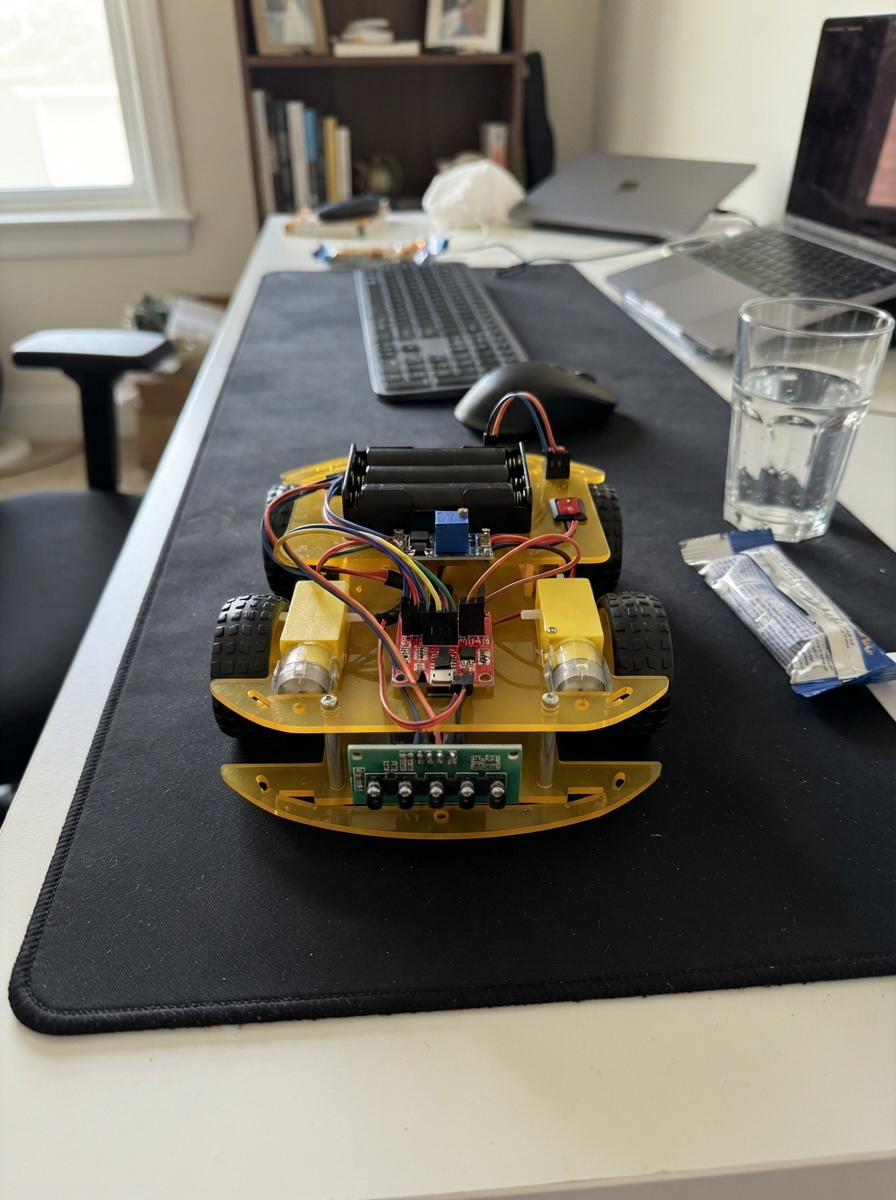
This autonomous line-following robot uses two infrared sensors to detect and track a black line on a light surface, steering itself by adjusting motor speeds in real time. Built around an Arduino Uno, dual TT gearmotors, and an MX1508 motor driver, the robot responds to sensor input with a proportional control algorithm that keeps it centered on the track.
This guide provides a complete wiring diagram, parts list, and step-by-step assembly instructions to build a working robot from scratch. The included firmware handles sensor reading, motor control, and line-following logic with tunable parameters for speed and turning sensitivity. Builders will learn how to integrate power management, motor drivers, and feedback sensors into a coordinated autonomous system.
Wiring diagram

Gather all the parts
Assemble it in 8 steps
1. Place and orient the main parts
Put the Arduino Nano across the center gap of the breadboard-style prototyping area so its two pin rows are on separate sides. Mount the MX1508, buck converter, rocker switch, battery holder, and both motors on the chassis rather than forcing the motor parts into the breadboard.
- Keep the motor driver close to the motors so its high-current wires stay short.
- Do not insert AA cells or connect USB power while building the power wiring.
2. Make the common ground bus
Use a black wire rail as the shared ground line. Connect battery_4xaa GND to it (ground), buck_5v IN- and OUT- to it (ground), MX1508 GND to it (ground), Nano GND to it (ground), and each sensor GND to it (ground).
- Every module must reach this same black rail; it is the shared reference that lets the Nano control the motor driver.
- A missing shared ground can make the motors run unpredictably or not respond at all.
3. Wire the switched battery supply
Connect battery_4xaa +6V to power_switch T1 (battery power). Connect power_switch T2 to buck_5v IN+ (switched battery power) and also to MX1508 V+ (motor power). This is a branch: both wires leave the same switched terminal.
- Use thicker red wire for the path from the battery holder to the MX1508 because the motors draw the most current.
- Make sure the switch is OFF before fitting the AA cells; a short between the red wire and ground can heat wires and batteries.
4. Set the safe 5 V rail
Before connecting the Nano, turn the switch on and measure buck_5v OUT+ to OUT- with a multimeter. Turn its adjustment screw until it reads 5.0 V. Turn the switch off, then connect OUT+ to the breadboard red 5 V rail (power) and OUT- to the black ground rail (ground). Connect that 5 V rail to the Nano 5V pin, not VIN.
- A tiny turn of the adjustment screw can change the output noticeably; measure again after every adjustment.
- Do not connect the buck output to the Nano until it is 5.0 V — an excessive voltage on the 5V pin can damage the Nano.
5. Connect both line sensors
Mount left_sensor and right_sensor at the front underside of the chassis with their sensing faces equally close to the floor, about 3–8 mm above it. Connect each VCC to the 5 V rail (power) and each GND to the ground rail (ground). Connect left_sensor DO to Nano D2 (signal) and right_sensor DO to Nano D3 (signal). Leave each AO pin unconnected.
- Aim the two sensor windows straight down and space them so a black tape line can sit under either one independently.
- Do not swap VCC and GND on either sensor — swapped power can damage the module.
6. Connect the Nano to the motor driver
Connect Nano D5 to MX1508 IN1 (left motor forward signal), D6 to IN2 (left motor reverse signal), D9 to IN3 (right motor forward signal), and D10 to IN4 (right motor reverse signal). The MX1508 GND must already be on the shared ground rail.
- Use four different wire colors or label the wires so D5/D6 stay with the left motor and D9/D10 stay with the right motor.
- Do not connect the 6 V motor supply to the Nano 5V rail; only the driver receives the raw switched battery voltage.
7. Attach the motors
Connect MX1508 MOTOR-A+ to left_motor M+ (motor output) and MOTOR-A- to left_motor M- (motor output). Connect MX1508 MOTOR-B+ to right_motor M+ (motor output) and MOTOR-B- to right_motor M- (motor output). Fit the wheels so both motors drive the robot forward when the code commands forward.
- If one wheel spins backward during the first test, turn the switch off and swap only that motor’s two wires.
- Keep motor wires away from the sensor faces and the wheels so they cannot snag while the robot moves.
8. Adjust and test on the track
Make a matte black tape line on a light, non-shiny surface. With the robot lifted so the wheels cannot drive away, switch it on and turn each sensor’s small adjustment screw until its indicator changes reliably as black tape moves under it. Then place the robot on the line and use Schematik’s Deploy button to load the firmware before the first floor test.
- Start slowly on a wide curved line. If the robot steers away from the line, first swap the left and right sensor plugs in the wiring, or change LINE_IS_LOW in the code if both sensors report the opposite color.
- Keep fingers and loose clothing away from the wheels during the lifted test; the motors can start as soon as power is switched on.
Review all connections
1. Connections between "battery_4xaa" and "Arduino"
2. Connections between "power_switch" and "Arduino"
3. Connections between "buck_5v" and "Arduino"
4. Connections between "mx1508" and "Arduino"
5. Connections between "left_sensor" and "Arduino"
6. Connections between "right_sensor" and "Arduino"
Deploy the firmware
#include <Arduino.h>

// Exact wiring pins.
const uint8_t LEFT_SENSOR_PIN = 2;
const uint8_t RIGHT_SENSOR_PIN = 3;
const uint8_t LEFT_IN1_PIN = 5;
const uint8_t LEFT_IN2_PIN = 6;
const uint8_t RIGHT_IN3_PIN = 9;
const uint8_t RIGHT_IN4_PIN = 10;

// Most TCRT5000 LM393 modules read LOW over black tape. Change to false if yours reads HIGH over black.
const bool LINE_IS_LOW = true;
const uint8_t BASE_SPEED = 155;
const uint8_t TURN_AMOUNT = 80;
const uint8_t SEARCH_SPEED = 145;
const uint16_t CONTROL_PERIOD_MS = 10;

int8_t lastLineSide = 1;  // -1 = line was left, +1 = line was right.
uint32_t lastControlMs = 0;

bool sensorSeesLine(uint8_t pin) {
  const bool level = digitalRead(pin);
  return LINE_IS_LOW ? !level : level;
}

// A positive speed drives forward; a negative speed drives backward.
void setMotor(int speed, uint8_t forwardPin, uint8_t reversePin) {
  speed = constrain(speed, -255, 255);
  if (speed > 0) {
    analogWrite(forwardPin, speed);
    analogWrite(reversePin, 0);
  } else if (speed < 0) {
    analogWrite(forwardPin, 0);
    analogWrite(reversePin, -speed);
  } else {
    analogWrite(forwardPin, 0);
    analogWrite(reversePin, 0);
  }
}

void drive(int leftSpeed, int rightSpeed) {
  setMotor(leftSpeed, LEFT_IN1_PIN, LEFT_IN2_PIN);
  setMotor(rightSpeed, RIGHT_IN3_PIN, RIGHT_IN4_PIN);
}

void followLine() {
  const bool leftOnLine = sensorSeesLine(LEFT_SENSOR_PIN);
  const bool rightOnLine = sensorSeesLine(RIGHT_SENSOR_PIN);

  if (leftOnLine && rightOnLine) {
    // Centered on a wide line or crossing: travel straight.
    drive(BASE_SPEED, BASE_SPEED);
  } else if (leftOnLine) {
    // The line is under the left sensor: curve left without stopping.
    lastLineSide = -1;
    drive(BASE_SPEED - TURN_AMOUNT, BASE_SPEED + TURN_AMOUNT);
  } else if (rightOnLine) {
    // The line is under the right sensor: curve right without stopping.
    lastLineSide = 1;
    drive(BASE_SPEED + TURN_AMOUNT, BASE_SPEED - TURN_AMOUNT);
  } else {
    // Both sensors missed the line. Pivot toward the last side that saw it.
    if (lastLineSide < 0) {
      drive(-SEARCH_SPEED, SEARCH_SPEED);
    } else {
      drive(SEARCH_SPEED, -SEARCH_SPEED);
    }
  }
}

void setup() {
  pinMode(LEFT_SENSOR_PIN, INPUT);
  pinMode(RIGHT_SENSOR_PIN, INPUT);
  pinMode(LEFT_IN1_PIN, OUTPUT);
  pinMode(LEFT_IN2_PIN, OUTPUT);
  pinMode(RIGHT_IN3_PIN, OUTPUT);
  pinMode(RIGHT_IN4_PIN, OUTPUT);
  drive(0, 0);
}

void loop() {
  const uint32_t now = millis();
  const uint32_t elapsed = now - lastControlMs;
  if (elapsed >= CONTROL_PERIOD_MS) {
    lastControlMs = now;
    followLine();
    return;
  }

  // Sleep until the next control sample instead of spinning the CPU continuously.
  delay(CONTROL_PERIOD_MS - elapsed);
}
Remix this project
Make it yours in one click
Open a full copy of this project in your own Schematik workspace — diagram, code, parts, and assembly steps included. Swap the sensor, add features, or redesign the whole thing with AI. The author's original stays untouched.