Community project
QR Code Scanner
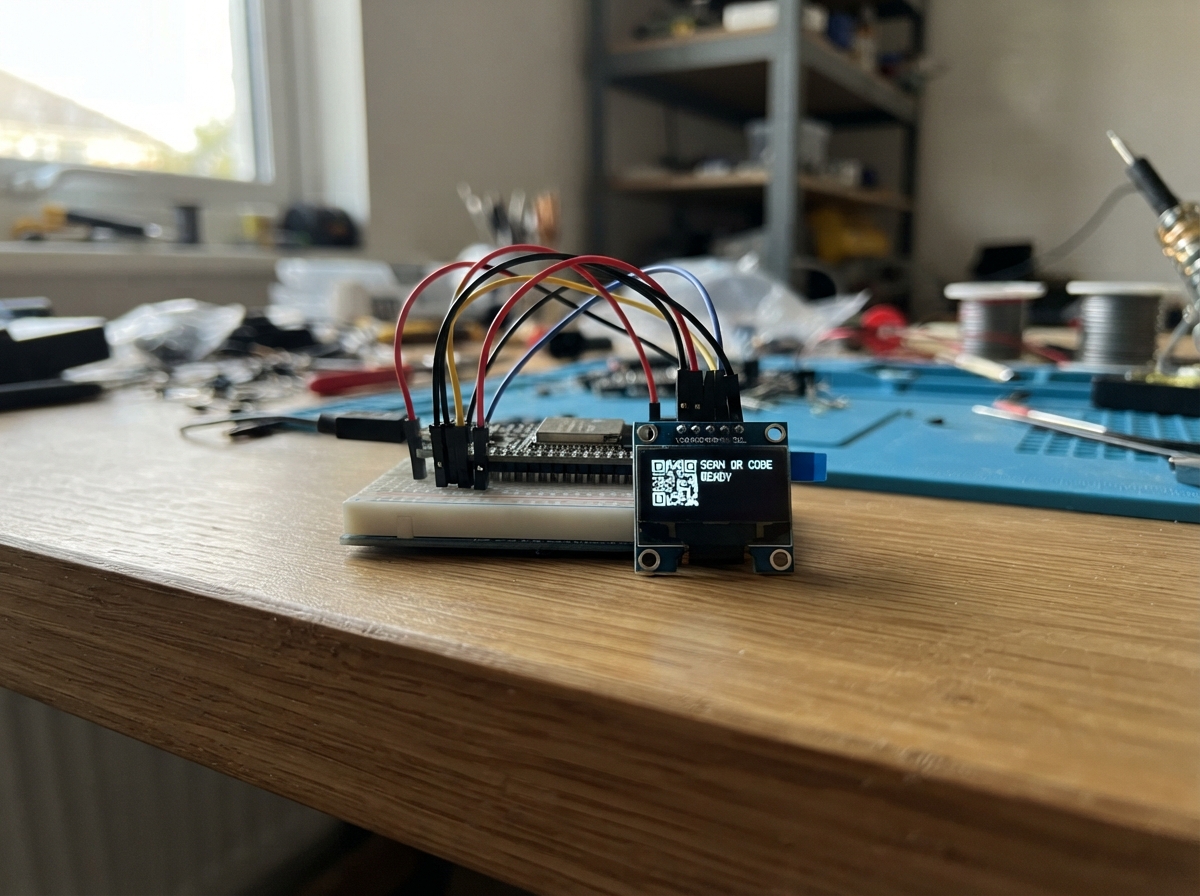
This project uses an ESP32 microcontroller paired with an SSD1306 OLED display to create an interactive QR code scanner interface. The compact 128x64 pixel display provides real-time visual feedback, making it ideal for embedded scanning applications where space is limited.
The guide includes a complete wiring diagram showing how to connect the OLED display to the ESP32 via I2C, a full parts list, and ready-to-use firmware based on the Arduino framework. Assembly takes just minutes—power down before connecting cables, link the display power and data lines, then upload the firmware to start scanning.
Wiring diagram

Gather all the parts
Assemble it in 4 steps
1. Matikan daya sebelum memasang kabel
Cabut kabel USB dari ESP32. Letakkan ESP32 dan modul OLED di meja dengan tulisan pin terlihat agar Anda tidak salah memasukkan kabel.
- Jangan memasang atau memindahkan kabel saat papan masih tersambung USB.
2. Sambungkan daya layar
Pasang kabel dari pin VCC OLED ke pin 3V3 ESP32 (power), lalu pasang kabel dari pin GND OLED ke pin GND ESP32 (ground).
- Gunakan kabel merah untuk 3V3 dan hitam untuk GND agar mudah diperiksa.
- Pastikan VCC dan GND tidak tertukar — daya yang tertukar dapat merusak layar.
3. Sambungkan dua kabel data
Pasang SDA OLED ke GPIO21 ESP32 (data), lalu SCL OLED ke GPIO22 ESP32 (clock). Kedua kabel ini dipakai ESP32 untuk menemukan perangkat I2C dan menampilkan alamatnya.
- Pada sebagian papan ESP32, pin bertuliskan 21 dan 22 juga disebut GPIO21 dan GPIO22.
4. Nyalakan dan jalankan pemindai
Periksa kembali empat kabel, lalu hubungkan ESP32 ke komputer dengan USB. Tekan Deploy di Schematik untuk memasang program; layar akan menampilkan alamat I2C yang ditemukan, termasuk OLED biasanya sebagai 0x3C.
- Jika layar tetap gelap, cabut USB dahulu lalu periksa VCC ke 3V3, GND ke GND, SDA ke GPIO21, dan SCL ke GPIO22.
Review all connections
1. Connections between "oled_1" and "ESP32"
Deploy the firmware
#include <Arduino.h>
#include <Wire.h>
#include <Adafruit_GFX.h>
#include <Adafruit_SSD1306.h>

constexpr int I2C_SDA_PIN = 21;
constexpr int I2C_SCL_PIN = 22;
constexpr uint8_t OLED_ADDRESS = 0x3C;
constexpr int SCREEN_WIDTH = 128;
constexpr int SCREEN_HEIGHT = 64;
constexpr int OLED_RESET_PIN = -1;
constexpr uint32_t FRAME_INTERVAL_MS = 50;

Adafruit_SSD1306 display(SCREEN_WIDTH, SCREEN_HEIGHT, &Wire, OLED_RESET_PIN);
uint8_t frame = 0;
uint32_t lastFrameAt = 0;

void drawDot(int x, int y, uint16_t color) {
  display.fillCircle(x, y, 5, color);
}

void drawFrame(uint8_t nextFrame) {
  const int oldX = 34 + frame * 30;
  const int newX = 34 + nextFrame * 30;
  drawDot(oldX, 32, SSD1306_BLACK);
  drawDot(newX, 32, SSD1306_WHITE);
  display.display();
}

void setup() {
  Wire.begin(I2C_SDA_PIN, I2C_SCL_PIN);
  if (!display.begin(SSD1306_SWITCHCAPVCC, OLED_ADDRESS)) {
    while (true) {
      delay(1000);
    }
  }

  display.clearDisplay();
  display.setTextColor(SSD1306_WHITE);
  display.setTextSize(1);
  display.setCursor(31, 12);
  display.print("ANIMASI OLED");
  drawDot(34, 32, SSD1306_WHITE);
  display.display();
  lastFrameAt = millis();
}

void loop() {
  const uint32_t now = millis();
  const uint32_t elapsed = now - lastFrameAt;
  if (elapsed >= FRAME_INTERVAL_MS) {
    const uint8_t nextFrame = (frame + 1) % 3;
    drawFrame(nextFrame);
    frame = nextFrame;
    lastFrameAt = now;
  }

  const uint32_t remaining = FRAME_INTERVAL_MS - (millis() - lastFrameAt);
  if (remaining > 0) {
    delay(remaining);
  }
}
Download project files
Remix this project
Make it yours in one click
Open a full copy of this project in your own Schematik workspace — diagram, code, parts, and assembly steps included. Swap the sensor, add features, or redesign the whole thing with AI. The author's original stays untouched.