Community project
Wi-Fi E-Book Reader
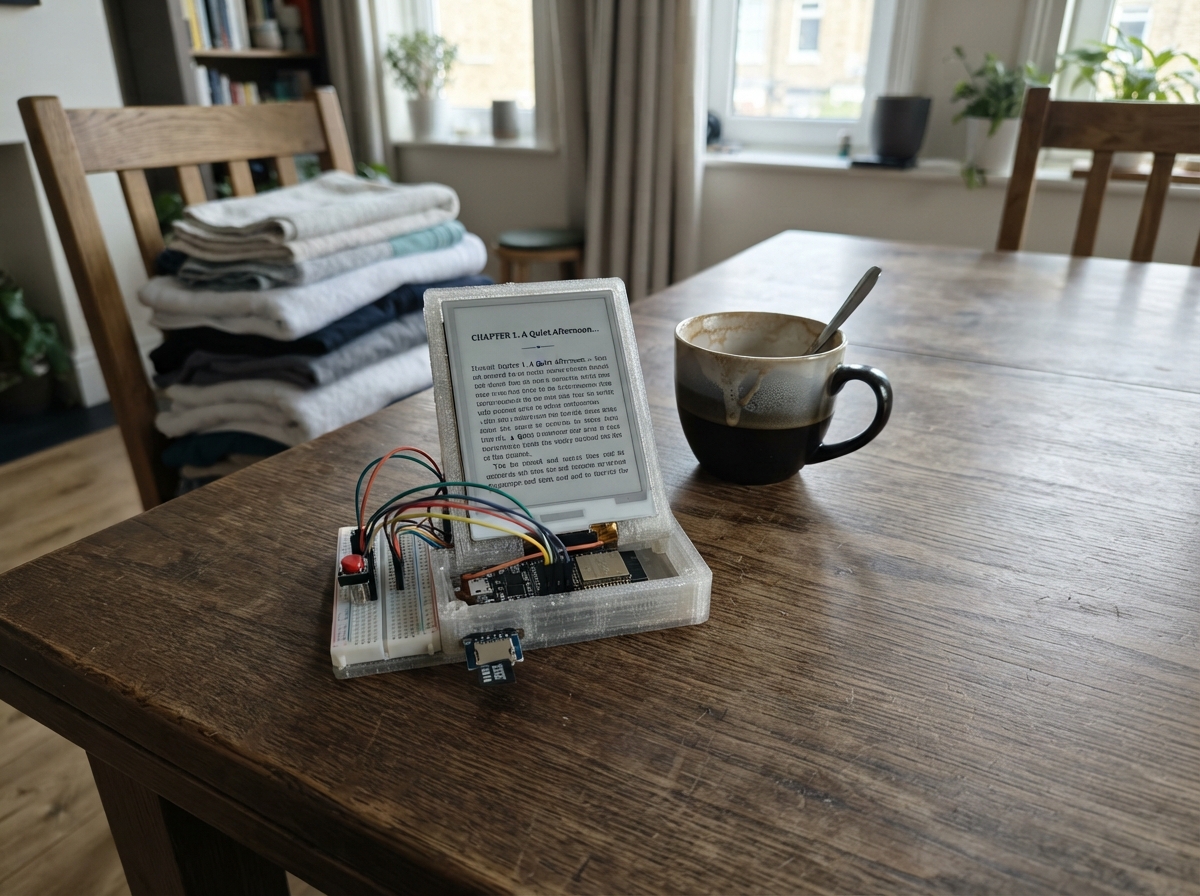
Build a Wi-Fi-enabled e-book reader powered by an ESP32 that displays EPUB files on an e-ink display. Store books on a microSD card and manage your library wirelessly through a web interface—upload new titles, delete old ones, and browse your collection without draining battery like a backlit screen would.
This guide provides a complete wiring diagram, parts list, and step-by-step assembly instructions to connect the e-paper screen, microSD module, and three navigation buttons to your ESP32. You'll also get the firmware needed to create a local Wi-Fi access point, serve a web-based book manager, and render EPUB content on the display with page-turning controls.
Wiring diagram

Gather all the parts
Assemble it in 6 steps
1. Prepare the reader parts
Use an ESP32-S3 DevKitC-1 board with 8 MB flash and 8 MB PSRAM, a 4.2-inch 400 × 300 monochrome e-paper module using the GDEY042T81 controller, a 3.3 V microSD module, a FAT32-formatted 16 GB or larger microSD card, and three momentary pushbuttons. With the board unplugged, insert the card into the microSD module.
- The e-paper controller name must be GDEY042T81. Similar-looking e-paper screens can have different wiring and need different firmware.
- Choose a microSD module made for 3.3 V electronics.
- Do not plug or unplug the e-paper screen while powered; a loose power wire can damage it.
- A card formatted as exFAT will not be found. Format it as FAT32.
2. Connect the power wires
Connect e-paper VCC to the board 3V3 pin (power) and e-paper GND to GND (ground). Connect microSD VCC to 3V3 (power) and microSD GND to GND (ground).
- Use red wire for 3V3 and black wire for GND to make an accidental swap easy to spot.
- Do not connect either module to the board's 5V pin. The display, card module, and ESP32-S3 data pins must use 3.3 V.
- Make sure VCC and GND are not swapped — swapped power can damage the screen or card module.
3. Wire the e-paper screen
Connect e-paper DIN to GPIO11 (data), CLK to GPIO12 (clock), CS to GPIO14 (screen select), DC to GPIO4 (screen command/data signal), RST to GPIO5 (screen reset), and BUSY to GPIO6 (screen ready signal).
- Some panels label DIN as MOSI; connect that pin to GPIO11.
- Follow the labels printed on the connector of your own panel rather than relying on its physical position.
- Do not put 5 V on any display signal pin. The ESP32-S3 uses 3.3 V signals.
4. Wire the microSD card module
Connect microSD MOSI to GPIO11 (data), SCK or CLK to GPIO12 (clock), MISO to GPIO13 (data from card), and CS to GPIO10 (card select). GPIO11 and GPIO12 are shared with the display, while the separate CS wires choose which device is being used.
- Keep the microSD CS wire on GPIO10 and the display CS wire on GPIO14; they must not be joined.
- A misplaced card wire can stop both the card and screen because they share the data and clock wires.
5. Add the three buttons
For each pushbutton, connect one leg to GND (ground). Connect the other leg of the previous button to GPIO1 (signal), the next button to GPIO2 (signal), and the home button to GPIO3 (signal). On a four-leg breadboard button, use legs on opposite sides of its middle gap.
- The board supplies the needed pull-up connection in firmware, so each button works by connecting its GPIO to GND when pressed.
- Do not connect a button signal leg to 3V3 in this design; each signal must go to GND only when pressed.
6. Deploy and transfer books
Inspect the wiring, plug the ESP32-S3 into your computer over USB, then press Deploy in Schematik. Connect the computer to the reader's Wi-Fi network named My-EReader. Open http://192.168.4.1, then sign in with username reader and password reader-upload. Upload DRM-free EPUB files; they are stored in the card's books folder. Press Home on the reader after upload to refresh its library list.
- Change both passwords in the firmware before using it in a shared area.
- The browser page provides upload and delete controls for the books saved on the card.
- The current Wi-Fi password is "change-this-password" and the web-page password is "reader-upload". Change both before using the reader around other people.
- DRM-protected commercial EPUB files cannot be opened by a DIY reader unless it implements that store's licensed DRM system.
Review all connections
1. Connections between "epaper_1" and "ESP32"
2. Connections between "microsd_1" and "ESP32"
3. Connections between "button_prev" and "ESP32"
4. Connections between "button_next" and "ESP32"
5. Connections between "button_home" and "ESP32"
Deploy the firmware
#include <Arduino.h>
#include <WiFi.h>
#include <WebServer.h>
#include <SPI.h>
#include <SD.h>
#include <GxEPD2_BW.h>
#include <GxEPD2_420_GDEY042T81.h>
// Forward declarations
String htmlEscape(const String &in);
bool isEpubName(const String &name);
void scanBooks();
void drawLibrary();
bool webLogin();
void sendLibraryPage();
void handleUpload();
void finishUpload();
void deleteBook();
bool pressed(const int pin);
constexpr int EPD_MOSI = 11;
constexpr int EPD_SCK = 12;
constexpr int EPD_CS = 14;
constexpr int EPD_DC = 4;
constexpr int EPD_RST = 5;
constexpr int EPD_BUSY = 6;
constexpr int SD_CS = 10;
constexpr int SD_MISO = 13;
constexpr int BUTTON_PREV = 1;
constexpr int BUTTON_NEXT = 2;
constexpr int BUTTON_HOME = 3;
const char *AP_NAME = "My-EReader";
const char *AP_PASSWORD = "change-this-password";
const char *WEB_USER = "reader";
const char *WEB_PASSWORD = "reader-upload";
SPIClass storageSPI(FSPI);
GxEPD2_BW<GxEPD2_420_GDEY042T81, GxEPD2_420_GDEY042T81::HEIGHT> display(
GxEPD2_420_GDEY042T81(EPD_CS, EPD_DC, EPD_RST, EPD_BUSY));
WebServer server(80);
String books[80];
size_t bookCount = 0;
int selectedBook = 0;
bool libraryVisible = true;
uint32_t lastButtonMs = 0;
String htmlEscape(const String &in)
{
String out;
for (size_t i = 0; i < in.length(); ++i)
{
const char c = in[i];
if (c == '&') out += "&";
else if (c == '<') out += "<";
else if (c == '>') out += ">";
else if (c == '\"') out += """;
else out += c;
}
return out;
}
bool isEpubName(const String &name)
{
String lower = name;
lower.toLowerCase();
return lower.endsWith(".epub");
}
void scanBooks()
{
bookCount = 0;
if (!SD.exists("/books")) SD.mkdir("/books");
File root = SD.open("/books");
if (!root) return;
File entry = root.openNextFile();
while (entry && bookCount < 80)
{
if (!entry.isDirectory() && isEpubName(String(entry.name())))
{
String name = String(entry.name());
const int slash = name.lastIndexOf('/');
books[bookCount++] = slash >= 0 ? name.substring(slash + 1) : name;
}
entry.close();
entry = root.openNextFile();
}
root.close();
if (selectedBook >= int(bookCount)) selectedBook = 0;
}
void drawLibrary()
{
display.setFullWindow();
display.firstPage();
do
{
display.fillScreen(GxEPD_WHITE);
display.setTextColor(GxEPD_BLACK);
display.setFont(&FreeMonoBold9pt7b);
display.setCursor(12, 25);
display.print("MY E-READER");
display.drawLine(10, 34, 390, 34, GxEPD_BLACK);
display.setFont(&FreeMono9pt7b);
if (bookCount == 0)
{
display.setCursor(12, 70);
display.print("No EPUB books yet.");
display.setCursor(12, 98);
display.print("Connect computer to Wi-Fi:");
display.setCursor(12, 120);
display.print(AP_NAME);
display.setCursor(12, 148);
display.print("Open 192.168.4.1 in a browser.");
}
else
{
const int first = (selectedBook / 7) * 7;
for (int row = 0; row < 7 && first + row < int(bookCount); ++row)
{
const int index = first + row;
const int y = 62 + row * 31;
if (index == selectedBook)
{
display.fillRect(8, y - 18, 384, 25, GxEPD_BLACK);
display.setTextColor(GxEPD_WHITE);
}
else display.setTextColor(GxEPD_BLACK);
String shown = books[index];
if (shown.length() > 37) shown = shown.substring(0, 34) + "...";
display.setCursor(14, y);
display.print(shown);
}
display.setTextColor(GxEPD_BLACK);
display.setCursor(12, 286);
display.print("Prev/Next browse Home refreshes list");
}
} while (display.nextPage());
libraryVisible = true;
}
bool webLogin()
{
if (server.authenticate(WEB_USER, WEB_PASSWORD)) return true;
server.requestAuthentication();
return false;
}
void sendLibraryPage()
{
if (!webLogin()) return;
scanBooks();
String page = "<!doctype html><html><head><meta name='viewport' content='width=device-width,initial-scale=1'><title>My E-Reader</title><style>body{font-family:Arial;max-width:760px;margin:32px auto;padding:0 16px}li{margin:8px 0}input,button{font-size:16px;padding:9px}</style></head><body><h1>My E-Reader library</h1><p>Upload DRM-free EPUB files. They are saved to the microSD card.</p><form method='POST' action='/upload' enctype='multipart/form-data'><input type='file' name='book' accept='.epub,application/epub+zip' required><button type='submit'>Upload book</button></form><h2>Stored books</h2><ul>";
if (bookCount == 0) page += "<li>No EPUB files found.</li>";
for (size_t i = 0; i < bookCount; ++i)
{
String encoded = books[i];
encoded.replace(" ", "%20");
page += "<li>" + htmlEscape(books[i]) + " <a href='/delete?name=" + encoded + "'>delete</a></li>";
}
page += "</ul><p>Press the reader's Home button after uploading to refresh its book list.</p></body></html>";
server.send(200, "text/html", page);
}
void handleUpload()
{
if (!webLogin()) return;
HTTPUpload &upload = server.upload();
static File uploadedFile;
if (upload.status == UPLOAD_FILE_START)
{
String filename = upload.filename;
filename.replace("/", "_");
filename.replace("\\", "_");
if (!isEpubName(filename)) return;
if (!SD.exists("/books")) SD.mkdir("/books");
uploadedFile = SD.open("/books/" + filename, FILE_WRITE);
}
else if (upload.status == UPLOAD_FILE_WRITE && uploadedFile)
{
uploadedFile.write(upload.buf, upload.currentSize);
}
else if (upload.status == UPLOAD_FILE_END && uploadedFile)
{
uploadedFile.close();
}
}
void finishUpload()
{
if (!webLogin()) return;
scanBooks();
server.sendHeader("Location", "/");
server.send(303, "text/plain", "Uploaded");
}
void deleteBook()
{
if (!webLogin()) return;
const String name = server.arg("name");
if (name.indexOf("..") < 0 && name.indexOf('/') < 0 && name.indexOf('\\') < 0 && isEpubName(name)) SD.remove("/books/" + name);
scanBooks();
server.sendHeader("Location", "/");
server.send(303, "text/plain", "Deleted");
}
bool pressed(const int pin)
{
if (digitalRead(pin) != LOW || millis() - lastButtonMs < 220) return false;
lastButtonMs = millis();
return true;
}
void setup()
{
Serial.begin(115200);
pinMode(BUTTON_PREV, INPUT_PULLUP);
pinMode(BUTTON_NEXT, INPUT_PULLUP);
pinMode(BUTTON_HOME, INPUT_PULLUP);
storageSPI.begin(EPD_SCK, SD_MISO, EPD_MOSI, SD_CS);
const bool cardReady = SD.begin(SD_CS, storageSPI, 16000000);
display.init(115200, true, 50, false);
if (cardReady) scanBooks();
drawLibrary();
WiFi.mode(WIFI_AP);
WiFi.softAP(AP_NAME, AP_PASSWORD);
server.on("/", HTTP_GET, sendLibraryPage);
server.on("/upload", HTTP_POST, finishUpload, handleUpload);
server.on("/delete", HTTP_GET, deleteBook);
server.begin();
}
void loop()
{
server.handleClient();
if (pressed(BUTTON_HOME))
{
scanBooks();
drawLibrary();
}
else if (bookCount && pressed(BUTTON_PREV))
{
selectedBook = (selectedBook + int(bookCount) - 1) % int(bookCount);
drawLibrary();
}
else if (bookCount && pressed(BUTTON_NEXT))
{
selectedBook = (selectedBook + 1) % int(bookCount);
drawLibrary();
}
}Remix this project
Make it yours in one click
Open a full copy of this project in your own Schematik workspace — diagram, code, parts, and assembly steps included. Swap the sensor, add features, or redesign the whole thing with AI. The author's original stays untouched.