Community project
ESP32 Control Hub
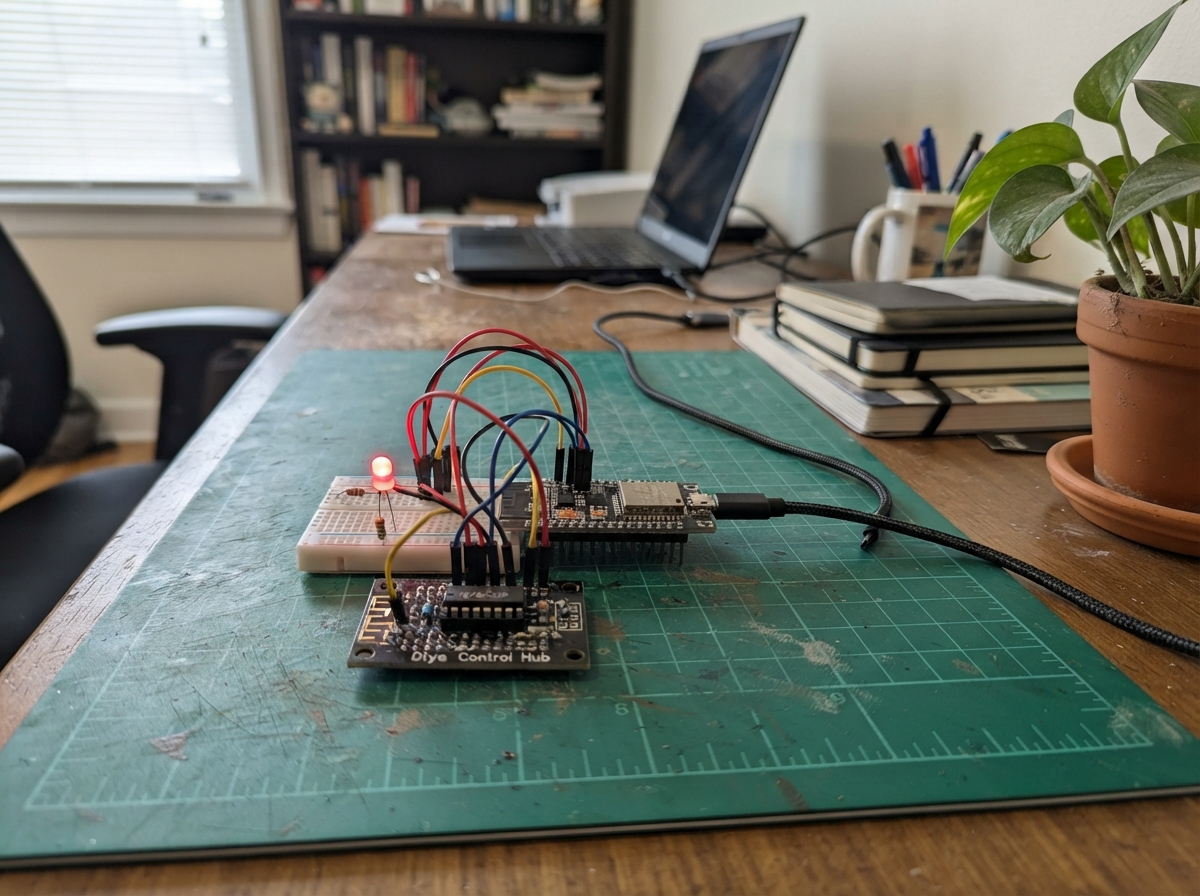
The ESP32 Control Hub demonstrates how to interface a microcontroller with digital logic gates to control external components. This project combines an ESP32 microcontroller with a Diya Labs OR-gate board featuring the HD74AC32P logic IC and an LED to create a simple but practical control circuit.
Builders will receive a complete wiring diagram, a full parts list, step-by-step assembly instructions, and Arduino firmware that generates a rapid blink pattern on the LED by toggling the OR gate's input. The guide covers safe power sequencing, proper component connections, and how to upload and verify the firmware on the ESP32.
Wiring diagram

Gather all the parts
Assemble it in 4 steps
1. Unplug the ESP32 first
Unplug the USB cable before moving any wires. Make sure the HD74AC32P chip is seated in the Diya board socket in the direction shown by the board markings.
- Do not power the OR-gate board from 5V — its VCC must use the ESP32 3V3 pin, or a 5V output could damage the ESP32.
2. Power the OR-gate board
Connect the Diya board VCC terminal to ESP32 3V3 (power). Connect the Diya board GND terminal to ESP32 GND (ground). Both wires can share the ESP32 pins with the other ground connection; use a proper screw terminal or a soldered, insulated Y-joint if one connector cannot fit.
- Make sure VCC and GND are not swapped — swapped power can damage the logic chip.
3. Connect the first OR gate
Connect ESP32 GPIO18 to Diya board A1 (blinking signal). Connect Diya board B1 to ESP32 GND (second input held off). Connect Diya board O1 to one end of resistor_1 (OR-gate output).
- A1 and B1 are the two inputs; O1 is the result. When A1 turns on, O1 turns on because B1 is held off.
4. Finish the LED connection
Connect the free end of resistor_1 to led_1 `+` (current-limited LED positive connection). Connect led_1 `−` to ESP32 GND (ground).
- Keep the 220 Ω resistor in series with the LED — connecting the LED straight to the OR-gate output can damage the LED or logic chip.
Review all connections
1. Connections between "or_gate_1" and "ESP32"
2. Connections between "resistor_1" and "ESP32"
3. Connections between "led_1" and "ESP32"
Deploy the firmware
#include <Arduino.h>

#define GATE_A1_PIN 18

// 50 ms on and 50 ms off: the fastest clearly visible blink rate.
constexpr unsigned long BLINK_INTERVAL_MS = 50;

bool ledIsOn = false;
unsigned long lastChangeMs = 0;

void setup() {
  pinMode(GATE_A1_PIN, OUTPUT);
  digitalWrite(GATE_A1_PIN, LOW);
}

void loop() {
  const unsigned long now = millis();

  if (now - lastChangeMs >= BLINK_INTERVAL_MS) {
    ledIsOn = !ledIsOn;
    digitalWrite(GATE_A1_PIN, ledIsOn ? HIGH : LOW);
    lastChangeMs = now;
  }

  delay(1);
}
Remix this project
Make it yours in one click
Open a full copy of this project in your own Schematik workspace — diagram, code, parts, and assembly steps included. Swap the sensor, add features, or redesign the whole thing with AI. The author's original stays untouched.