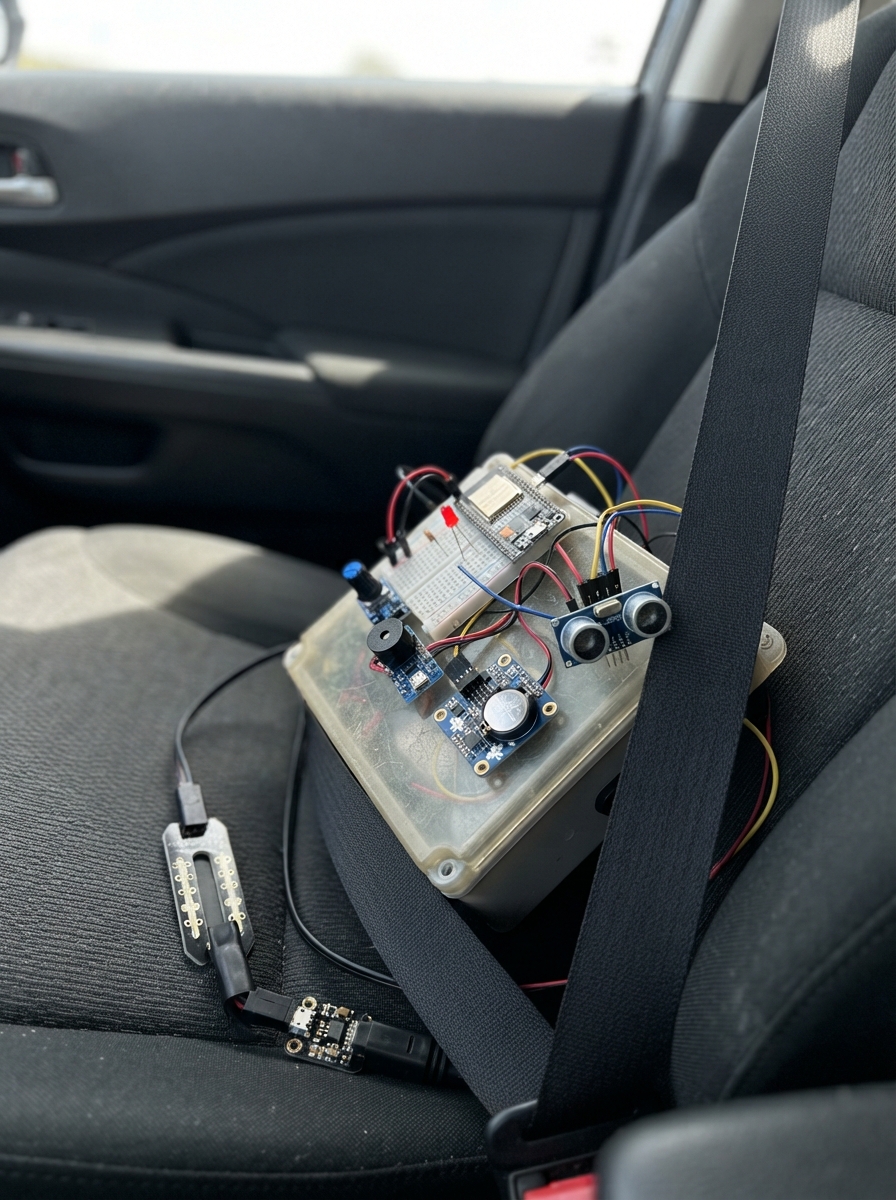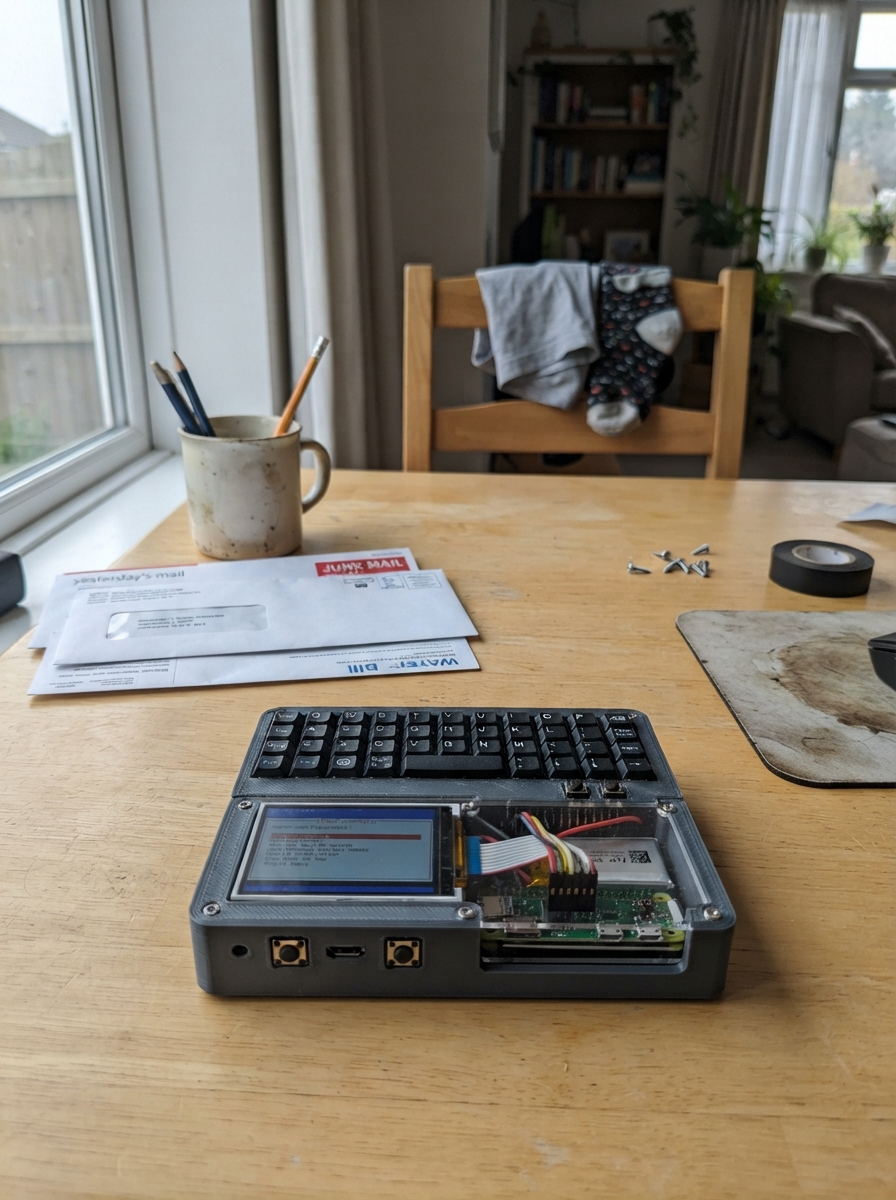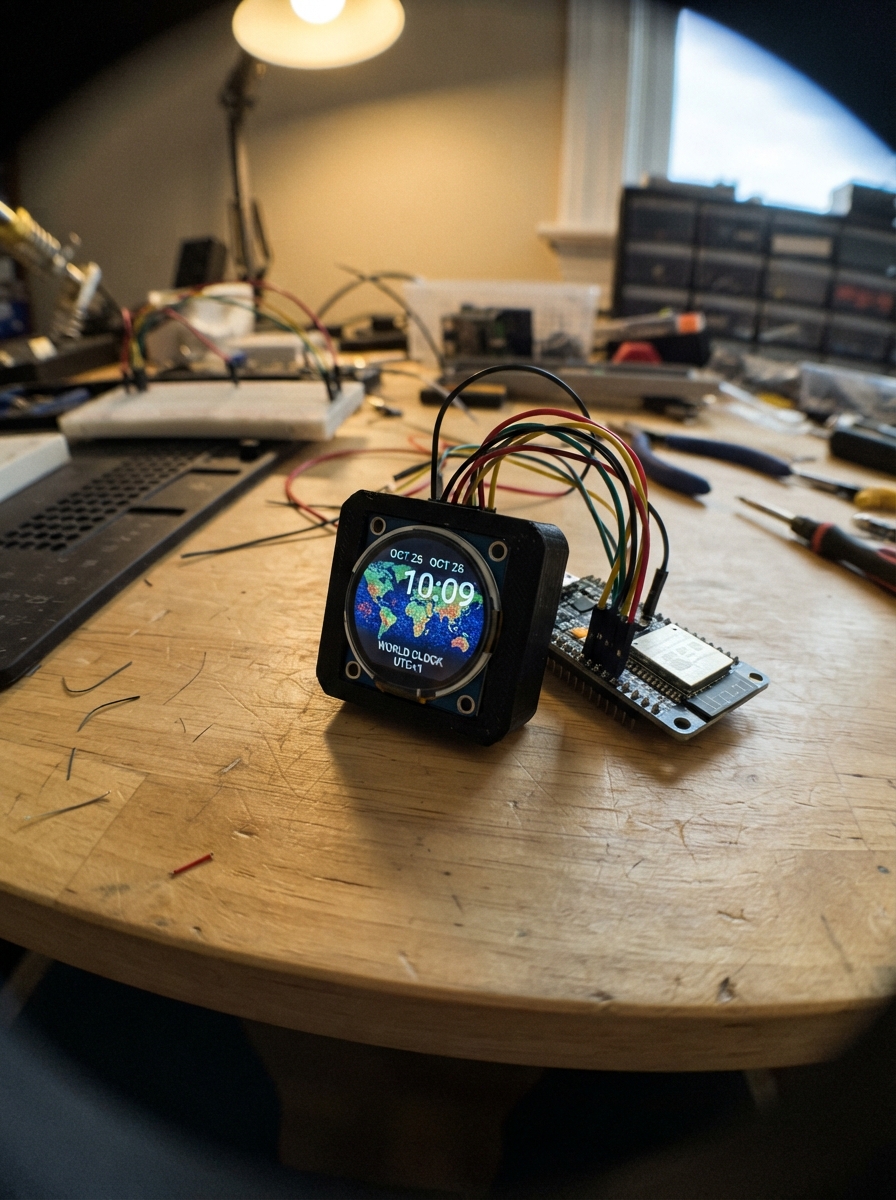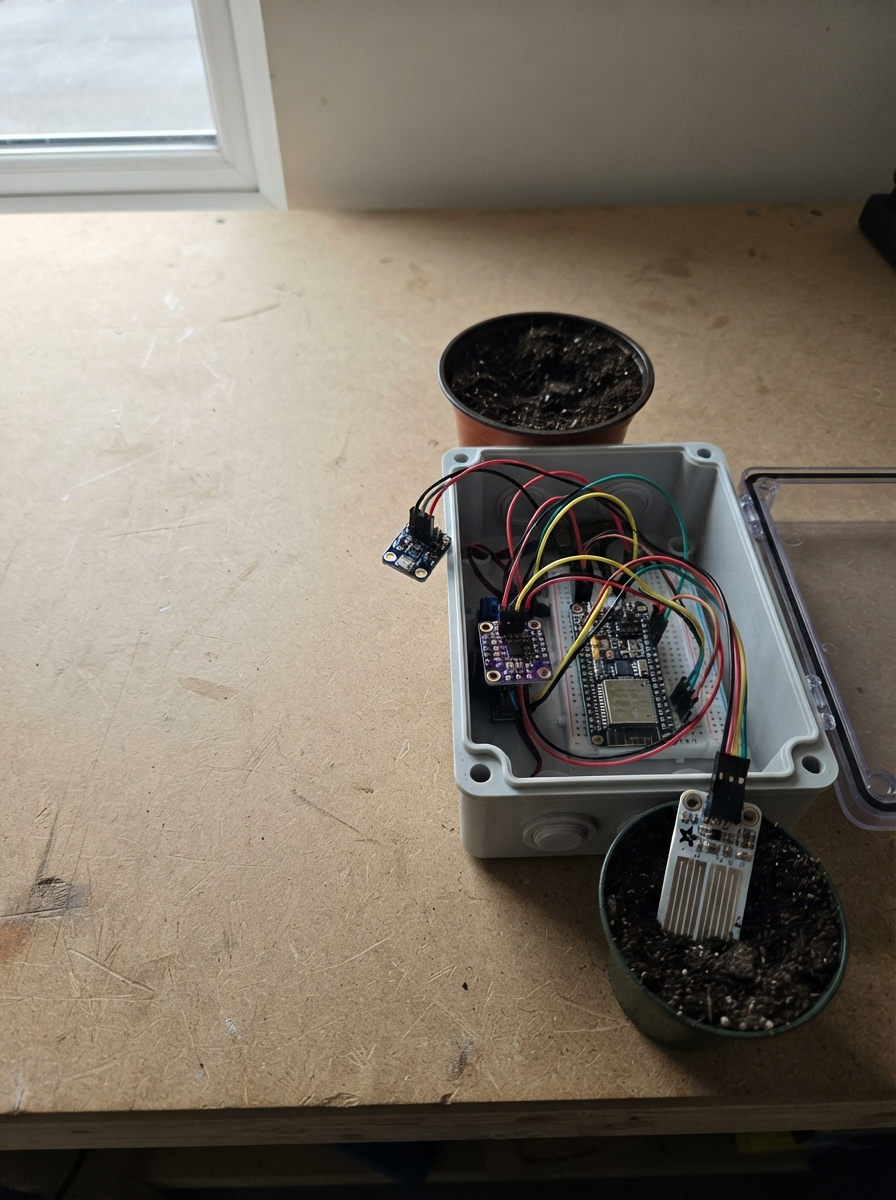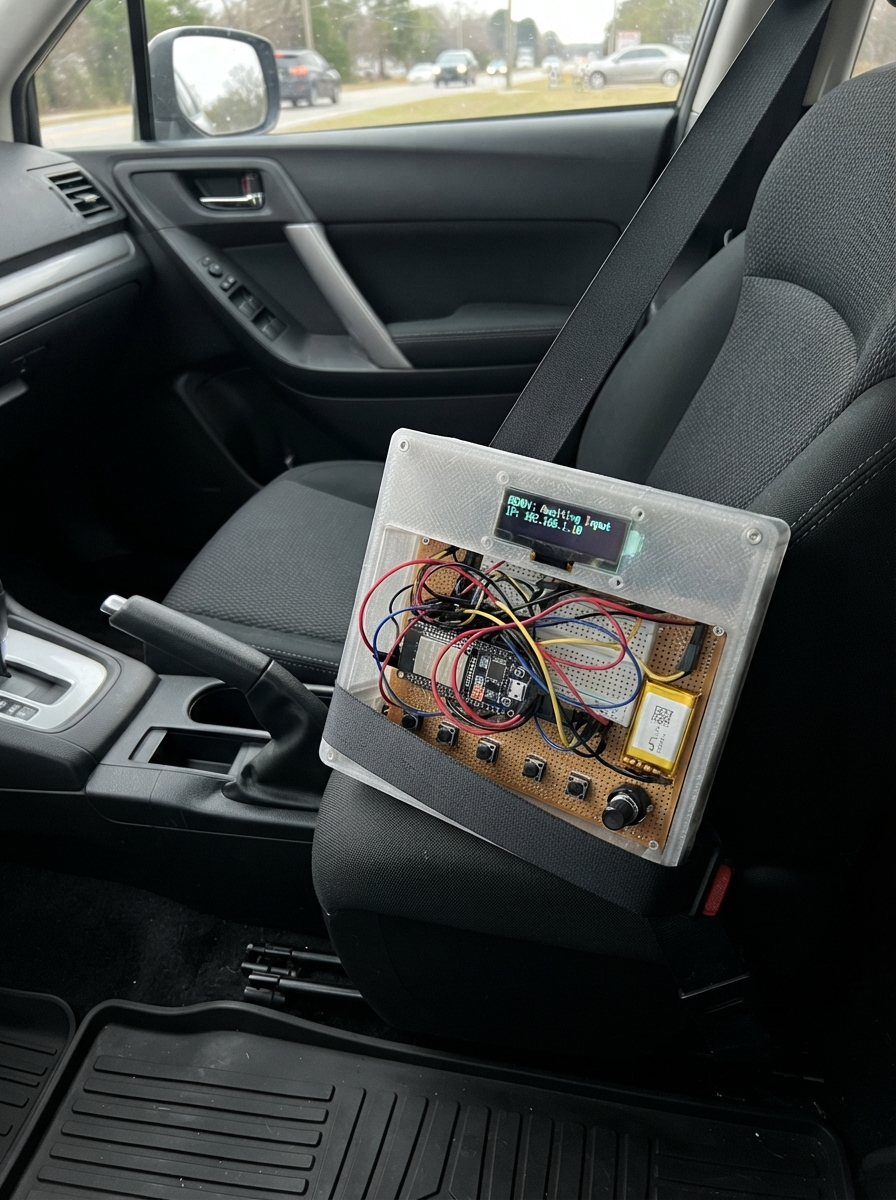
The ESP32 Interactive Controller brings a touchscreen interface to your projects using the UNIHIKER K10 platform. This compact device combines the powerful ESP32 microcontroller with a built-in display, making it ideal for creating interactive dashboards, control panels, and visual applications.
This guide provides everything needed to get started: a complete parts list, wiring diagram, step-by-step assembly instructions, and ready-to-use firmware based on LVGL graphics library. Simply place the K10 on a clear surface, power it via USB, and begin building custom interfaces with buttons, text, and graphics.
Wiring diagram
Assemble it in 2 steps
1. Set the K10 on a clear surface
Place the UNIHIKER K10 where you can clearly see its built-in screen. This conference picture uses the screen already inside the board, so do not connect any extra wires.
- Keep the screen facing upward so the people and meeting table are easy to see.
- Do not push wires into the board while it is powered; no extra wiring is needed for this drawing.
2. Power the board by USB
Connect a USB cable from the UNIHIKER K10 to your computer. The cable powers the board and lets Schematik send the conference drawing to it.
- Use a USB cable that carries data as well as power.
- Pull the plug by its plastic or metal connector, not by the cable itself.
Deploy the firmware
#include <Arduino.h>
#include <unihiker_k10.h>
#include <lvgl.h>


// Forward declarations
static void official(lv_obj_t *screen, int x, int y, uint32_t jacket, uint32_t skin, uint32_t hair);

UNIHIKER_K10 k10;

static lv_obj_t *box(lv_obj_t *parent, int x, int y, int w, int h,
                     uint32_t color, int radius = 0) {
  lv_obj_t *item = lv_obj_create(parent);
  lv_obj_remove_style_all(item);
  lv_obj_set_pos(item, x, y);
  lv_obj_set_size(item, w, h);
  lv_obj_set_style_bg_color(item, lv_color_hex(color), LV_PART_MAIN);
  lv_obj_set_style_bg_opa(item, LV_OPA_COVER, LV_PART_MAIN);
  lv_obj_set_style_radius(item, radius, LV_PART_MAIN);
  lv_obj_set_style_border_width(item, 0, LV_PART_MAIN);
  return item;
}

static lv_obj_t *text(lv_obj_t *parent, const char *words, int x, int y,
                      uint32_t color,
                      const lv_font_t *font = &lv_font_montserrat_14) {
  lv_obj_t *label = lv_label_create(parent);
  lv_label_set_text(label, words);
  lv_obj_set_pos(label, x, y);
  lv_obj_set_style_text_color(label, lv_color_hex(color), LV_PART_MAIN);
  lv_obj_set_style_text_font(label, font, LV_PART_MAIN);
  return label;
}

static void official(lv_obj_t *screen, int x, int y, uint32_t jacket,
                     uint32_t skin, uint32_t hair) {
  // A seated conference delegate: head, hair, jacket, tie, and chair.
  box(screen, x + 10, y, 24, 24, skin, 12);
  box(screen, x + 8, y - 3, 28, 9, hair, 5);
  box(screen, x + 4, y + 23, 36, 42, jacket, 5);
  box(screen, x + 20, y + 25, 5, 22, 0xE7C55B, 1);
  box(screen, x, y + 62, 44, 9, 0x4A5A68, 3);
  box(screen, x + 3, y + 69, 6, 20, 0x34424D, 2);
  box(screen, x + 35, y + 69, 6, 20, 0x34424D, 2);
}

void setup() {
  k10.begin();
  k10.initScreen();

  lv_obj_t *screen = lv_scr_act();
  lv_obj_set_style_bg_color(screen, lv_color_hex(0xEAF0F4), LV_PART_MAIN);
  lv_obj_set_style_bg_opa(screen, LV_OPA_COVER, LV_PART_MAIN);

  // Bright conference-room wall, window, and floor.
  box(screen, 0, 0, 240, 320, 0xEAF0F4);
  box(screen, 0, 236, 240, 84, 0xB88463);
  box(screen, 0, 236, 240, 7, 0x8E6249);
  box(screen, 16, 28, 54, 72, 0x9DD4E6, 3);
  box(screen, 20, 32, 46, 64, 0xD8F4FA, 1);
  box(screen, 41, 32, 4, 64, 0xFFFFFF, 0);
  box(screen, 20, 62, 46, 4, 0xFFFFFF, 0);

  // Presentation screen.
  box(screen, 82, 18, 140, 94, 0x4B5664, 4);
  box(screen, 88, 24, 128, 82, 0xFFFFFF, 2);
  text(screen, "COUNCIL MEETING", 100, 33, 0x2C4A63,
       &lv_font_montserrat_14);
  box(screen, 102, 60, 98, 6, 0x5C9BD0, 2);
  box(screen, 102, 72, 72, 6, 0x78B982, 2);
  box(screen, 102, 84, 88, 6, 0xE0A04D, 2);
  box(screen, 148, 112, 6, 18, 0x4B5664, 1);
  box(screen, 124, 128, 55, 5, 0x4B5664, 2);

  // Name plaque and a large conference table.
  box(screen, 77, 144, 86, 23, 0xD9C27C, 3);
  text(screen, "OFFICIALS", 88, 148, 0x3E4A52, &lv_font_montserrat_14);
  box(screen, 10, 211, 220, 34, 0x774B37, 7);
  box(screen, 14, 211, 212, 9, 0xA56C49, 5);
  box(screen, 26, 242, 12, 51, 0x5B382B, 2);
  box(screen, 202, 242, 12, 51, 0x5B382B, 2);

  // Microphones and papers on the table.
  box(screen, 57, 194, 3, 19, 0x293C4A, 1);
  box(screen, 51, 191, 15, 5, 0x293C4A, 2);
  box(screen, 178, 194, 3, 19, 0x293C4A, 1);
  box(screen, 172, 191, 15, 5, 0x293C4A, 2);
  box(screen, 101, 199, 31, 10, 0xFFFDF5, 1);
  box(screen, 105, 202, 23, 2, 0x7B94A2, 1);

  // Five people gathered for the meeting.
  official(screen, 12, 130, 0x557EAB, 0xE8B28B, 0x4A3029);
  official(screen, 55, 135, 0x8A667E, 0xBF805D, 0x342C2B);
  official(screen, 99, 132, 0x4D737A, 0xF0BE99, 0x6A493B);
  official(screen, 143, 135, 0x6B799E, 0x8E5D43, 0x252525);
  official(screen, 186, 130, 0x6C8A65, 0xE0A37D, 0x74472F);

  // A small potted plant makes the room feel welcoming.
  box(screen, 15, 277, 22, 18, 0xB56842, 2);
  box(screen, 18, 262, 8, 18, 0x57955B, 5);
  box(screen, 26, 258, 9, 22, 0x6CA967, 5);
}

void loop() {
  // This is a still illustration, so it is drawn once rather than refreshed.
  lv_timer_handler();
  delay(5);
}
Remix this project
Make it yours in one click
Open a full copy of this project in your own Schematik workspace, diagram, code, parts, and assembly steps included. Swap the sensor, add features, or redesign the whole thing with AI. The author's original stays untouched.