Community project
Indoor Air Quality Monitor
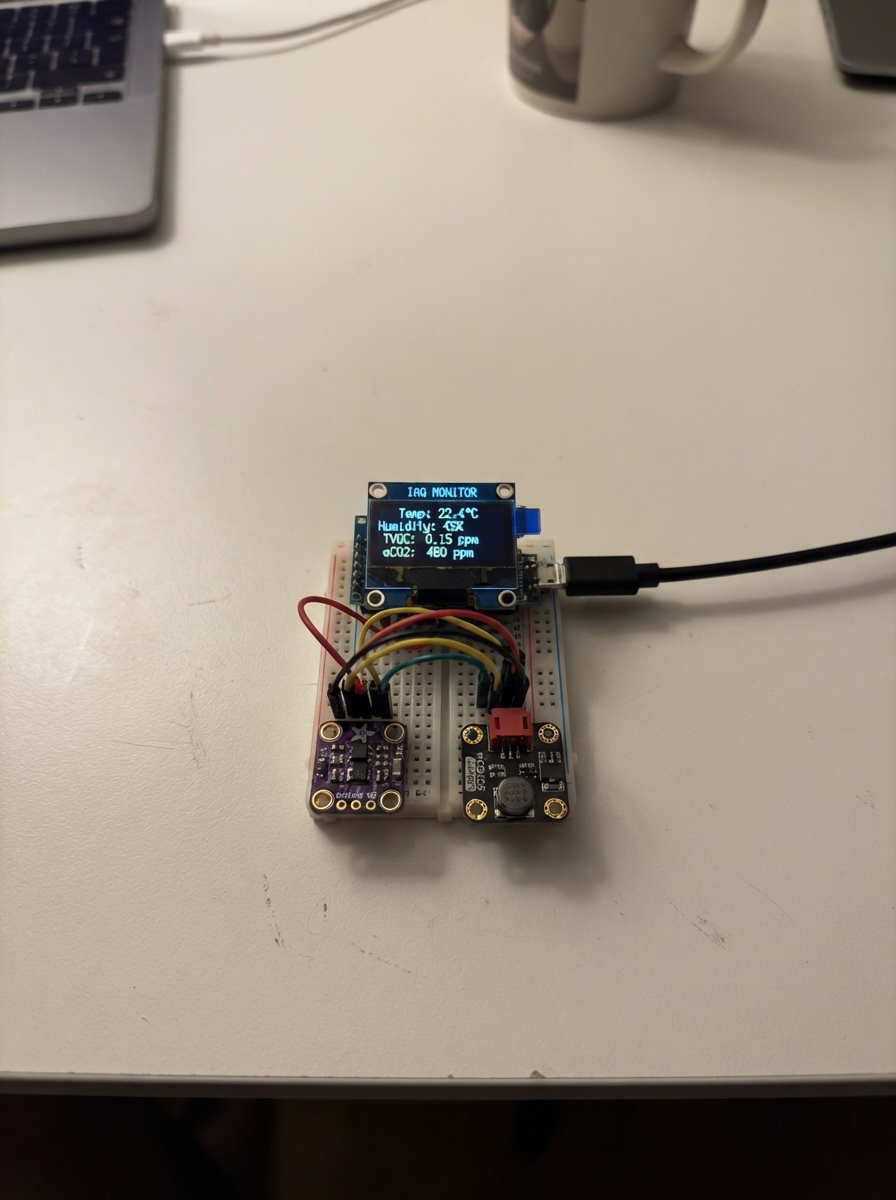
This project builds a real-time indoor air quality monitor using a Raspberry Pi Pico to read temperature, humidity, pressure, and volatile organic compound (VOC) levels. Data from the BME280 environmental sensor and SGP40 air quality sensor displays on a small OLED screen, updating every two seconds to show current conditions at a glance.
The guide provides a complete wiring diagram, parts list, and step-by-step assembly instructions. Firmware is included to initialize the sensors over I2C, handle the OLED display, and continuously refresh readings. Builders will learn sensor integration, I2C communication, and display rendering on the Pico platform.
Wiring diagram

Gather all the parts
Assemble it in 5 steps
1. Keep the power off while wiring
Leave the Pico unplugged from USB. Put the Pico, OLED, BME280, and SGP40 on the breadboard with enough space to reach their printed pin labels.
- Use only the Pico's 3V3(OUT) pin for these modules; the Pico signal pins use 3.3 V.
- Do not connect a 5 V supply to any Pico signal pin; it can damage the Pico.
2. Make one shared power and ground row
Run a red wire from Pico 3V3(OUT) to a breadboard positive row and a black wire from any Pico GND pin to a ground row. Connect OLED VCC, BME280 VIN, and SGP40 VCC to the 3.3 V row (power). Connect OLED GND, BME280 GND, and SGP40 GND to the ground row (ground).
- All three modules need the same ground wire as the Pico or their data signals cannot be read.
- Make sure VCC and GND are not swapped — swapped power can damage a module.
3. Join the two shared sensor wires
Run a wire from Pico GP4 to BME280 SDI, then continue that same row to SGP40 SDA and OLED DIN (data). Run another wire from Pico GP5 to BME280 SCK, then continue that same row to SGP40 SCL and OLED CLK (clock). These are shared wires, so each named pin connects to the same matching breadboard row.
- Read GP4 and GP5 from the labels printed on the Pico; do not count breadboard holes.
- If the OLED has a hardware selector or solder pads for SPI versus I2C, set it to I2C before powering the circuit.
- Do not cross GP4 and GP5; crossed data and clock wires prevent all three modules from communicating.
4. Set the BME280 address and OLED reset
Connect the BME280 SDO pin to the ground row (address selection). This makes the BME280 answer at its alternate address so the firmware can find it. Connect OLED RES to Pico GP6 (reset signal). Leave the BME280 CS pin unconnected because this build uses the two shared I2C wires, not the OLED's SPI mode.
- Some BME280 boards label SDO as ADDR; use that pin if yours does.
- The OLED's unused SPI-only pins, if present, stay unconnected in I2C mode.
- Do not connect the BME280 3Vo pin to the 3.3 V row; it is an output from the BME280 board, not its power input.
5. Power it and check the screen
Look over every power and ground wire once more, then plug the Pico into your computer with USB. The screen should first say that it is starting, then show temperature, humidity, pressure, and a VOC air-quality number after the SGP40 has warmed up.
- Place the SGP40 where room air can reach it. Its first readings take about ten seconds to settle after power is applied.
- Avoid breathing directly onto the sensors while judging normal readings; warm, humid breath temporarily changes their values.
Review all connections
1. Connections between "oled_1" and "Raspberry Pi Pico"
2. Connections between "bme280_1" and "Raspberry Pi Pico"
3. Connections between "sgp40_1" and "Raspberry Pi Pico"
Deploy the firmware
#include <Wire.h>
#include <U8g2lib.h>
#include <Adafruit_BME280.h>
#include <DFRobot_SGP40.h>

const uint8_t I2C_SDA_PIN = 4;
const uint8_t I2C_SCL_PIN = 5;
const uint8_t OLED_RESET_PIN = 6;
const unsigned long UPDATE_INTERVAL_MS = 2000;

U8G2_SSD1306_128X64_NONAME_F_HW_I2C display(U8G2_R0, OLED_RESET_PIN, U8X8_PIN_NONE);
Adafruit_BME280 bme;
DFRobot_SGP40 sgp40(&Wire);

bool bmeReady = false;
bool sgp40Ready = false;
unsigned long lastUpdateMs = 0;

void drawReadings(float temperatureC, float humidity, float pressureHpa, uint16_t vocIndex) {
  char line[24];

  display.clearBuffer();
  display.setFont(u8g2_font_6x12_tf);
  display.drawStr(0, 11, "Indoor air monitor");
  display.drawHLine(0, 14, 128);

  snprintf(line, sizeof(line), "Temp: %.1f C", temperatureC);
  display.drawStr(0, 28, line);
  snprintf(line, sizeof(line), "Humidity: %.0f %%", humidity);
  display.drawStr(0, 40, line);
  snprintf(line, sizeof(line), "Pressure: %.0f hPa", pressureHpa);
  display.drawStr(0, 52, line);
  snprintf(line, sizeof(line), "VOC index: %u", vocIndex);
  display.drawStr(0, 64, line);
  display.sendBuffer();
}

void drawError(const char *message) {
  display.clearBuffer();
  display.setFont(u8g2_font_6x12_tf);
  display.drawStr(0, 14, "Indoor air monitor");
  display.drawHLine(0, 17, 128);
  display.drawStr(0, 36, message);
  display.drawStr(0, 52, "Check wiring and power.");
  display.sendBuffer();
}

void setup() {
  Serial.begin(115200);
  delay(100);

  Wire.setSDA(I2C_SDA_PIN);
  Wire.setSCL(I2C_SCL_PIN);
  Wire.begin();

  display.begin();
  drawError("Starting sensors...");

  bmeReady = bme.begin(0x76, &Wire);
  sgp40Ready = sgp40.begin(10000);

  if (!bmeReady) {
    Serial.println("BME280 was not found at address 0x76.");
    drawError("BME280 not found");
  } else if (!sgp40Ready) {
    Serial.println("SGP40 did not start.");
    drawError("SGP40 not found");
  } else {
    Serial.println("Air monitor ready.");
  }
}

void loop() {
  const unsigned long now = millis();
  if (now - lastUpdateMs < UPDATE_INTERVAL_MS) {
    delay(10);
    return;
  }
  lastUpdateMs = now;

  if (!bmeReady || !sgp40Ready) {
    delay(10);
    return;
  }

  const float temperatureC = bme.readTemperature();
  const float humidity = bme.readHumidity();
  const float pressureHpa = bme.readPressure() / 100.0F;

  if (isnan(temperatureC) || isnan(humidity) || isnan(pressureHpa)) {
    Serial.println("BME280 read failed.");
    drawError("BME280 read failed");
    delay(10);
    return;
  }

  sgp40.setRhT((uint16_t)humidity, (int16_t)temperatureC);
  const uint16_t vocIndex = sgp40.getVoclndex();

  Serial.print("Temperature: ");
  Serial.print(temperatureC, 1);
  Serial.print(" C, humidity: ");
  Serial.print(humidity, 0);
  Serial.print(" %, pressure: ");
  Serial.print(pressureHpa, 0);
  Serial.print(" hPa, VOC index: ");
  Serial.println(vocIndex);

  drawReadings(temperatureC, humidity, pressureHpa, vocIndex);
  delay(10);
}
Remix this project
Make it yours in one click
Open a full copy of this project in your own Schematik workspace, diagram, code, parts, and assembly steps included. Swap the sensor, add features, or redesign the whole thing with AI. The author's original stays untouched.