Community project
Car Multi-Use Display
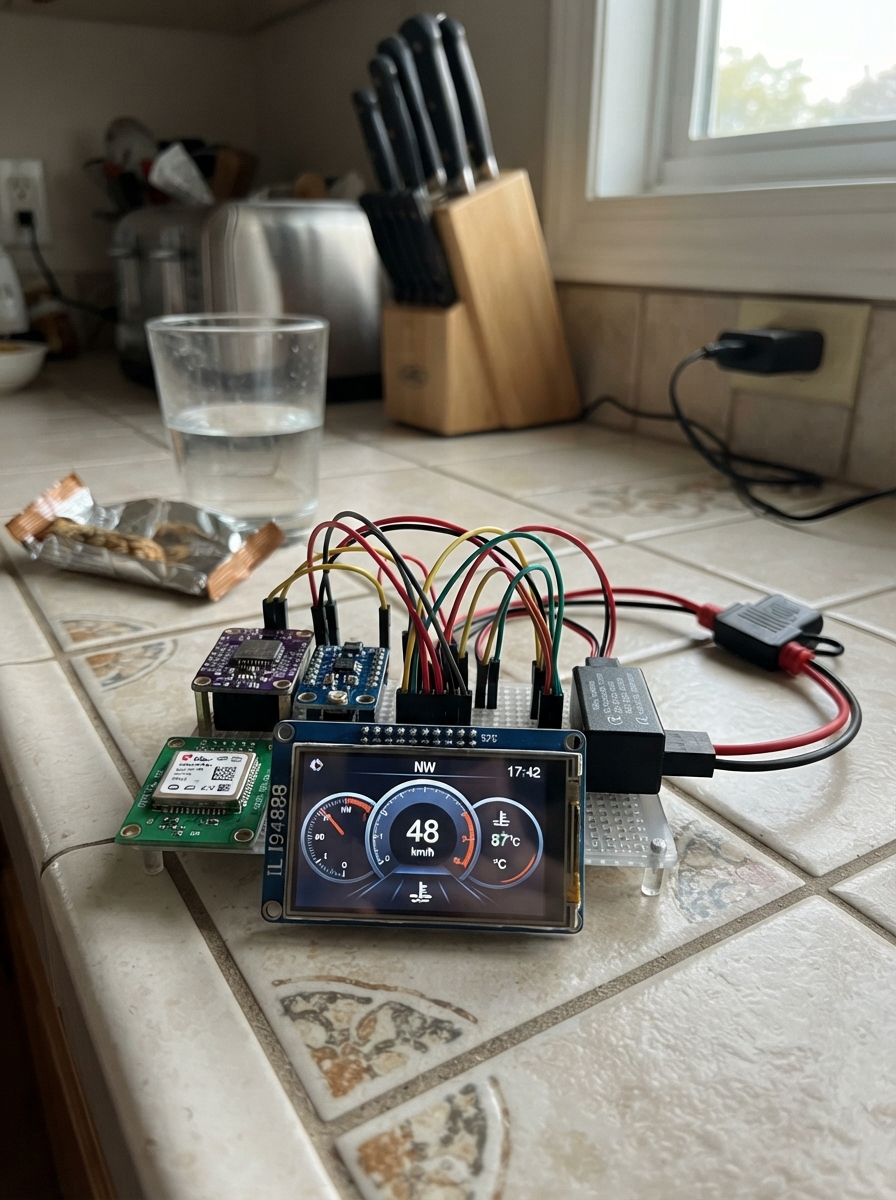
This car display system transforms a Raspberry Pi Pico into a multi-function dashboard that shows GPS position and speed, precise time from an RTC module, and environmental data from a BME280 sensor. The 3.5-inch ILI9488 TFT screen provides a bright, readable interface powered safely from the vehicle's 12 V accessory circuit through a regulated 5 V supply.
The guide includes a complete wiring diagram showing how to connect the display, GPS receiver, real-time clock, and climate sensor to the Pico, a full parts list with automotive-grade power specifications, and the complete firmware with color-coded UI elements. Assembly steps cover creating a safe 5 V power rail from the car's electrical system, bench testing all components before installation, and integrating the display into your vehicle.
Wiring diagram
Gather all the parts
Assemble it in 7 steps
1. Keep the Android unit as its own system
Leave the Android head unit, its Nissan harness, CAN-bus box, camera lead, GPS antenna, and RCA loom connected only to one another. Mount the new Pico dashboard in a separate location where it does not block airbags, vents, or the driver’s view.
- The original 9-inch unit remains responsible for music, CarPlay, Android Auto, camera, and vehicle-radio features.
- Do not connect any Pico wire to the Android unit’s CAN-bus box or unknown radio-harness wire; a wrong connection can damage either unit or interfere with vehicle electronics.
2. Make the safe 5 V car supply
With the car switched off, fit fuse_tap_1 into a verified switched accessory-fuse position, using the correct add-a-fuse orientation and a small fuse sized for the dashboard converter. Connect its ground lead to clean bare vehicle metal. Connect fuse_tap_1 VOUT to converter_1 IN+ (fused 12 V power), and converter_1 IN- to fuse_tap_1 GND (ground).
- Use a car-rated converter with a stable 5 V USB output. A switched accessory position turns the dashboard off when the vehicle is off.
- Never connect 12 V directly to the Pico or display — 12 V can permanently damage them.
- Disconnect the vehicle battery negative terminal before working at the fuse box, and do not use an airbag, braking, steering, or engine-control fuse position.
3. Power the Pico safely
Connect converter_1 OUT+ to the Pico W USB power input or its 5 V supply pin (power), and connect converter_1 OUT- to a Pico GND pin (ground). Check with a multimeter that the converter output is close to 5 V before plugging the Pico in.
- Use a short, good-quality USB lead if your converter has a USB socket; it is the simplest protected way to power the Pico.
- Make sure the converter positive and negative outputs are not swapped — swapped power can damage the Pico and every connected module.
4. Wire the dashboard screen
Connect display_1 VCC to Pico 3V3 (power), GND to Pico GND (ground), CS to GP17 (screen select), SCK to GP18 (screen clock), MOSI to GP19 (screen data), DC to GP20 (screen command/data), and RESET to GP21 (screen reset). Leave the optional MISO, touch, and backlight-control pins unconnected for this first build.
- Use short wires for the screen clock and data connections; this helps the picture stay stable in a vehicle.
- Only use a 3.3 V-compatible ILI9488 screen module. A display board that drives its data pins at 5 V can damage the Pico’s 3.3 V pins.
5. Wire the GPS receiver
Place gps_1 where its small antenna can face the sky, such as high on the dashboard behind non-metal trim. Connect VCC to Pico 3V3 (power), GND to Pico GND (ground), and TX to Pico GP1 (GPS data). Leave RX and PPS unconnected.
- The first satellite lock can take several minutes outdoors; metal, tinted windshields, and garages reduce reception.
- Do not reuse the Android unit’s GPS antenna unless its connector and electrical requirements are proven to match the NEO-M8N module.
6. Wire the clock and climate sensor
Connect rtc_1 VIN to Pico 3V3 (power), GND to Pico GND (ground), SDA to GP4 (shared data), and SCL to GP5 (shared clock). Connect climate_1 VCC to Pico 3V3 (power), GND to Pico GND (ground), SDA to GP4 (shared data), and SCL to GP5 (shared clock). Fit the RTC’s backup coin cell if your board has a holder.
- Keep the BME280 away from direct sun, heater ducts, and the Pico regulator so it measures cabin air rather than hot electronics.
- Make sure VCC and GND are not swapped on either small board — swapped power can damage the sensor or clock module.
7. Test on the bench before fitting it in the car
Power the dashboard from the regulated 5 V output while the modules are still easy to reach. Confirm that the screen shows the dashboard, then take the GPS antenna outdoors and wait for the speed and position area to change from searching to fixed.
- Once GPS time is received, the clock board keeps time while the car is parked, so the dashboard remains useful without any internet connection.
- Secure every module and wire so vibration cannot pull a wire loose or let a bare connection touch vehicle metal.
Review all connections
1. Connections between "display_1" and "Raspberry Pi Pico"
2. Connections between "gps_1" and "Raspberry Pi Pico"
3. Connections between "rtc_1" and "Raspberry Pi Pico"
4. Connections between "climate_1" and "Raspberry Pi Pico"
5. Connections between "fuse_tap_1" and "Raspberry Pi Pico"
6. Connections between "converter_1" and "Raspberry Pi Pico"
Deploy the firmware
#include <Arduino.h>
#include <Wire.h>
#include <TinyGPS++.h>
#include <RTClib.h>
#include <Adafruit_BME280.h>
#include <Arduino_GFX_Library.h>

constexpr int TFT_CS_PIN = 17;
constexpr int TFT_SCK_PIN = 18;
constexpr int TFT_MOSI_PIN = 19;
constexpr int TFT_DC_PIN = 20;
constexpr int TFT_RST_PIN = 21;
constexpr int GPS_RX_PIN = 1;
constexpr int I2C_SDA_PIN = 4;
constexpr int I2C_SCL_PIN = 5;

constexpr uint16_t COLOR_BG = 0x0841;
constexpr uint16_t COLOR_PANEL = 0x18C3;
constexpr uint16_t COLOR_TEXT = 0xFFFF;
constexpr uint16_t COLOR_MUTED = 0xBDF7;
constexpr uint16_t COLOR_ACCENT = 0x07FF;
constexpr uint16_t COLOR_GOOD = 0x07E0;
constexpr uint16_t COLOR_WARN = 0xFD20;

Arduino_DataBus *displayBus = new Arduino_HWSPI(TFT_DC_PIN, TFT_CS_PIN, &SPI, true);
Arduino_GFX *display = new Arduino_ILI9488(displayBus, TFT_RST_PIN, 1, true);
TinyGPSPlus gps;
RTC_DS3231 rtc;
Adafruit_BME280 bme;

bool rtcFound = false;
bool bmeFound = false;
bool rtcSyncedFromGps = false;
unsigned long lastRefreshMs = 0;
unsigned long lastSensorMs = 0;
float temperatureC = NAN;
float humidity = NAN;
float pressureHpa = NAN;
String lastSpeed;
String lastTime;
String lastPosition;
String lastClimate;
String lastFix;

void drawLabel(const char *label, int16_t x, int16_t y) {
  display->setTextSize(1);
  display->setTextColor(COLOR_MUTED);
  display->setCursor(x, y);
  display->print(label);
}

void drawValue(const String &value, int16_t x, int16_t y, uint8_t size, uint16_t color) {
  display->setTextSize(size);
  display->setTextColor(color);
  display->setCursor(x, y);
  display->print(value);
}

void drawFrame() {
  display->fillScreen(COLOR_BG);
  display->fillRect(8, 8, 464, 58, COLOR_PANEL);
  display->fillRect(8, 76, 224, 236, COLOR_PANEL);
  display->fillRect(240, 76, 232, 112, COLOR_PANEL);
  display->fillRect(240, 196, 232, 116, COLOR_PANEL);
  drawLabel("OFFLINE CAR DASHBOARD", 20, 18);
  drawLabel("TIME (UTC)", 20, 39);
  drawLabel("GPS SPEED", 22, 89);
  drawLabel("GPS POSITION", 252, 89);
  drawLabel("CABIN / BAROMETER", 252, 209);
}

String twoDigits(int value) {
  return value < 10 ? "0" + String(value) : String(value);
}

void updateCell(String &previous, const String &next, int16_t x, int16_t y, int16_t w, int16_t h, uint8_t size, uint16_t color) {
  if (previous == next) return;
  display->fillRect(x, y, w, h, COLOR_PANEL);
  drawValue(next, x, y, size, color);
  previous = next;
}

void readGps() {
  while (Serial1.available() > 0) {
    gps.encode(Serial1.read());
  }
}

String clockText() {
  if (gps.time.isValid() && gps.date.isValid()) {
    return twoDigits(gps.time.hour()) + ":" + twoDigits(gps.time.minute()) + ":" + twoDigits(gps.time.second()) + "  " + twoDigits(gps.date.day()) + "/" + twoDigits(gps.date.month()) + "/" + String(gps.date.year());
  }
  if (rtcFound) {
    DateTime now = rtc.now();
    return twoDigits(now.hour()) + ":" + twoDigits(now.minute()) + ":" + twoDigits(now.second()) + "  " + twoDigits(now.day()) + "/" + twoDigits(now.month()) + "/" + String(now.year());
  }
  return "WAITING FOR TIME";
}

void refreshDashboard() {
  String speed = "NO FIX";
  String position = "Waiting for satellites";
  String fix = "GPS: searching";
  if (gps.location.isValid()) {
    speed = String(gps.speed.kmph(), 0) + " km/h";
    position = String(gps.location.lat(), 5) + ", " + String(gps.location.lng(), 5);
    fix = "GPS: fixed  " + String(gps.satellites.isValid() ? gps.satellites.value() : 0) + " sats";
  }
  if (!rtcSyncedFromGps && rtcFound && gps.date.isValid() && gps.time.isValid()) {
    rtc.adjust(DateTime(gps.date.year(), gps.date.month(), gps.date.day(), gps.time.hour(), gps.time.minute(), gps.time.second()));
    rtcSyncedFromGps = true;
  }
  String climate = "Sensor not found";
  if (bmeFound && !isnan(temperatureC)) {
    climate = String(temperatureC, 1) + " C   " + String(humidity, 0) + " %\n" + String(pressureHpa, 0) + " hPa";
  }
  updateCell(lastTime, clockText(), 118, 34, 340, 26, 2, COLOR_TEXT);
  updateCell(lastSpeed, speed, 24, 120, 200, 56, 4, gps.location.isValid() ? COLOR_GOOD : COLOR_WARN);
  updateCell(lastFix, fix, 24, 190, 200, 24, 1, COLOR_MUTED);
  updateCell(lastPosition, position, 252, 117, 212, 52, 2, COLOR_ACCENT);
  if (lastClimate != climate) {
    display->fillRect(252, 236, 212, 65, COLOR_PANEL);
    display->setTextSize(2);
    display->setTextColor(bmeFound ? COLOR_TEXT : COLOR_WARN);
    display->setCursor(252, 236);
    display->print(climate);
    lastClimate = climate;
  }
}

void setup() {
  Wire.setSDA(I2C_SDA_PIN);
  Wire.setSCL(I2C_SCL_PIN);
  Wire.begin();
  Serial1.setRX(GPS_RX_PIN);
  Serial1.begin(9600);
  display->begin();
  display->setRotation(1);
  drawFrame();
  rtcFound = rtc.begin();
  bmeFound = bme.begin(0x77, &Wire);
  refreshDashboard();
}

void loop() {
  readGps();
  unsigned long now = millis();
  if (bmeFound && now - lastSensorMs >= 2000) {
    temperatureC = bme.readTemperature();
    humidity = bme.readHumidity();
    pressureHpa = bme.readPressure() / 100.0F;
    lastSensorMs = now;
  }
  if (now - lastRefreshMs >= 500) {
    refreshDashboard();
    lastRefreshMs = now;
  }
  delay(10);
}
Remix this project
Make it yours in one click
Open a full copy of this project in your own Schematik workspace — diagram, code, parts, and assembly steps included. Swap the sensor, add features, or redesign the whole thing with AI. The author's original stays untouched.