Community project
Kid-Friendly Alarm Clock
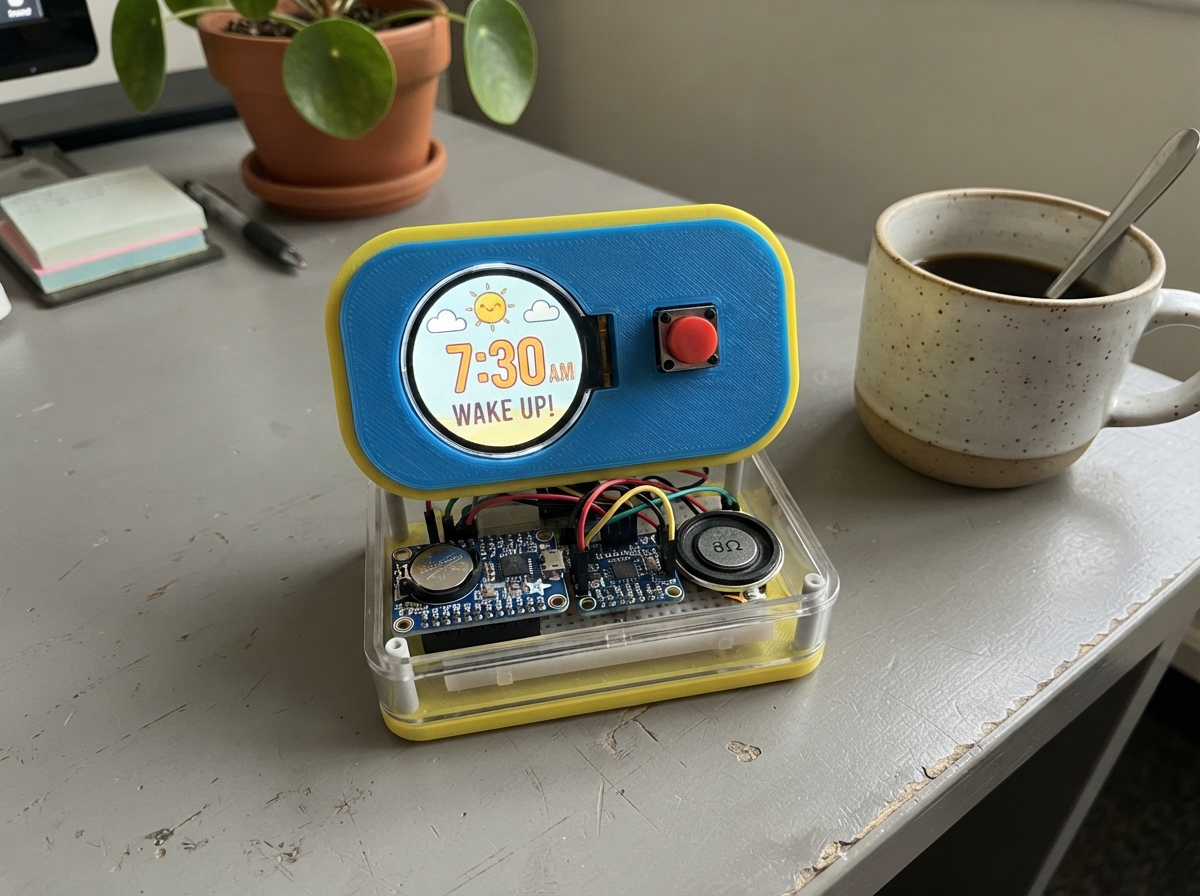
This kid-friendly alarm clock combines a colorful 1.28-inch round display, precise timekeeping, and audio alerts to create an engaging wake-up experience. Built around an ESP32 microcontroller, the clock features a real-time clock module for accurate timekeeping, a Class-D amplifier with speaker for alarm sounds, and four push buttons for easy control.
The guide includes a complete wiring diagram showing all connections between the ESP32, display, RTC module, amplifier, speaker, and buttons. Assembly steps walk through component layout, soldering connections, and firmware deployment. Readers will also get the full Arduino sketch with Wi-Fi configuration, multiple theme options, snooze functionality, and web-based settings to customize alarm times and appearance.
Wiring diagram

Gather all the parts
Assemble it in 6 steps
1. Lay out the parts before applying power
Place the ESP32 DevKit V1, round display, RTC module, MAX98357A amplifier, speaker, and four push buttons on a breadboard. Keep the speaker and display facing outward; they will be the child-facing parts of the clock.
- Use an ESP32 board with the usual two rows of header pins and ESP32-WROOM metal radio can.
- Do not connect the battery or USB-C battery module in this first USB-powered build.
- Do not let bare wires from different rows touch; a short circuit can make the board hot or damage it.
2. Wire the round color screen
Connect display VCC to ESP32 3V3 (power), GND to ESP32 GND (ground), SCK/SCL to GPIO18 (screen clock), MOSI/SDA/DIN to GPIO23 (screen picture data), CS to GPIO4 (screen select), DC to GPIO16 (screen command/data choice), RST to GPIO17 (screen reset), and BL to 3V3 (backlight power).
- Some screen boards print SCL where this guide says SCK, and SDA or DIN where this guide says MOSI; those labels mean the same screen connections here.
- Use 3V3, not the ESP32 5V/VIN pin, for this display's signal supply unless its own board clearly documents a level shifter. Swapped VCC and GND can damage the display.
3. Wire the clock module
Fit the matching backup coin cell in the DS3231 holder with its positive side facing the holder's positive marking. Connect RTC VIN to 3V3 (power), GND to GND (ground), SDA to GPIO21 (time data), and SCL to GPIO22 (time clock).
- The coin cell keeps the time while USB power is unplugged.
- Buy or use the Adafruit-style DS3231 shown in this plan; its I2C pins are safe when VIN is connected to 3V3.
- Do not power an unknown cheap DS3231 board from 5V while its SDA and SCL wires go straight to the ESP32; 5V signals can damage the ESP32.
4. Wire the speaker amplifier and speaker
Connect MAX98357A VIN to 3V3 (power), GND to GND (ground), BCLK to GPIO26 (sound clock), LRC to GPIO25 (sound timing), and DIN to GPIO27 (sound data). Connect the amplifier's SPK+ pin to the speaker POS terminal (speaker positive audio lead) and SPK− to the speaker NEG terminal (speaker negative audio lead).
- An 8-ohm, 0.5–3 W bare speaker is a good safe choice for this small clock.
- Keep the two speaker wires together and short for cleaner sound.
- Never connect either speaker terminal to GND or 3V3. The amplifier drives both speaker wires, and grounding one can damage the amplifier.
5. Add the four control buttons
For each push button, use two legs on opposite sides of the button. Connect one side of the Set button to GPIO13 (signal) and its opposite side to GND (ground). Connect Up to GPIO14 and GND (signal and ground), Down to GPIO32 and GND (signal and ground), and Wi-Fi to GPIO33 and GND (signal and ground).
- The buttons use the ESP32's built-in pull-up resistors, so no separate resistor is needed.
- SET turns the alarm on or off, UP adds five minutes to the alarm, DOWN moves its hour back one, and SET becomes the five-minute snooze button while the alarm is sounding.
- A four-leg tactile button has the two legs on each same side already joined together. Use one leg from each opposite side, otherwise the button will appear permanently pressed.
6. Power, deploy, and use the Wi-Fi settings
Check every 3V3 and GND wire once more, then connect the ESP32 to USB for power. In Schematik press Deploy. Press the Wi-Fi button when the clock is running; connect a phone to the Wi-Fi network named KidsClock using password clock123, then open 192.168.4.1 in the phone browser to set the time, alarm, and theme. Wi-Fi turns itself off after ten minutes or when the Wi-Fi button is pressed again.
- Change the Wi-Fi password in the firmware before giving the finished clock to a child.
- The screen updates only when the visible time or settings change, so it stays responsive without constantly redrawing.
- If the screen remains black, unplug USB immediately and first check that its VCC goes to 3V3 and its GND goes to GND — swapped power can damage the screen.
Review all connections
1. Connections between "round_display" and "ESP32"
2. Connections between "rtc" and "ESP32"
3. Connections between "audio_amp" and "ESP32"
4. Connections between "set_button" and "ESP32"
5. Connections between "up_button" and "ESP32"
6. Connections between "down_button" and "ESP32"
7. Connections between "wifi_button" and "ESP32"
Deploy the firmware
#include <Arduino.h>
#include <SPI.h>
#include <Wire.h>
#include <WiFi.h>
#include <WebServer.h>
#include <Preferences.h>
#include <driver/i2s.h>
#include <Adafruit_GFX.h>
#include <Adafruit_GC9A01A.h>
#include <RTClib.h>

#define TFT_SCK 18
#define TFT_MOSI 23
#define TFT_CS 4
#define TFT_DC 16
#define TFT_RST 17
#define RTC_SDA 21
#define RTC_SCL 22
#define I2S_BCLK 26
#define I2S_LRC 25
#define I2S_DIN 27
#define SET_BUTTON_PIN 13
#define UP_BUTTON_PIN 14
#define DOWN_BUTTON_PIN 32
#define WIFI_BUTTON_PIN 33
const char *AP_NAME="KidsClock", *AP_PASSWORD="clock123";
const uint32_t WIFI_TIMEOUT=600000UL, SNOOZE_TIME=300000UL;
Adafruit_GC9A01A tft(TFT_CS,TFT_DC,TFT_MOSI,TFT_SCK,TFT_RST); RTC_DS3231 rtc; WebServer web(80); Preferences store;
enum Theme { SPACE,OCEAN,SUN }; Theme theme; uint8_t alarmHour,alarmMinute; bool alarmEnabled,wifiOn,ringing; uint32_t wifiSince,snoozeUntil,lastMinute=UINT32_MAX,lastAlarm=UINT32_MAX,lastPress[4]={0};
uint16_t bg(){return theme==SPACE?0x10A4:theme==OCEAN?0x0437:0xFD20;} void save(){store.putUChar("th",theme);store.putUChar("ah",alarmHour);store.putUChar("am",alarmMinute);store.putBool("ae",alarmEnabled);}
void paintTheme(){tft.fillScreen(bg());if(theme==SPACE){for(int i=0;i<16;i++)tft.fillCircle((i*37+9)%230+5,(i*61+7)%220+5,1,GC9A01A_WHITE);tft.fillCircle(191,43,23,GC9A01A_YELLOW);tft.fillCircle(179,174,46,GC9A01A_BLUE);tft.fillCircle(163,159,15,GC9A01A_CYAN);}else if(theme==OCEAN){tft.fillCircle(190,43,23,GC9A01A_YELLOW);tft.fillRoundRect(0,174,240,66,10,GC9A01A_BLUE);for(int x=0;x<240;x+=30)tft.drawLine(x,180,x+15,174,GC9A01A_CYAN);tft.fillTriangle(24,73,65,88,24,103,GC9A01A_YELLOW);tft.fillTriangle(24,73,24,103,7,88,GC9A01A_YELLOW);tft.fillCircle(42,88,3,GC9A01A_BLACK);}else{tft.fillCircle(190,45,28,GC9A01A_YELLOW);tft.fillRoundRect(0,175,240,65,10,0x3660);tft.fillCircle(35,181,28,0x07E0);tft.fillCircle(207,184,35,0x07E0);}}
void draw(bool force=false){DateTime n=rtc.now();uint32_t mk=n.unixtime()/60;if(!force&&mk==lastMinute)return;lastMinute=mk;paintTheme();char tm[6],al[25];snprintf(tm,sizeof(tm),"%02d:%02d",n.hour(),n.minute());snprintf(al,sizeof(al),"ALARM %s %02d:%02d",alarmEnabled?"ON":"OFF",alarmHour,alarmMinute);int16_t x,y;uint16_t w,h;tft.setTextSize(5);tft.getTextBounds(tm,0,0,&x,&y,&w,&h);tft.fillRoundRect((240-w)/2-7,88,w+14,h+14,10,GC9A01A_BLACK);tft.setTextColor(GC9A01A_WHITE);tft.setCursor((240-w)/2,95);tft.print(tm);tft.setTextSize(1);tft.setCursor(62,153);tft.print(al);tft.setCursor(48,165);tft.print(wifiOn?"Wi-Fi settings are ON":"SET: alarm  UP: +5 min  DOWN: -1 hr");}
void audioSetup(){i2s_config_t c={};c.mode=(i2s_mode_t)(I2S_MODE_MASTER|I2S_MODE_TX);c.sample_rate=16000;c.bits_per_sample=I2S_BITS_PER_SAMPLE_16BIT;c.channel_format=I2S_CHANNEL_FMT_RIGHT_LEFT;c.communication_format=I2S_COMM_FORMAT_I2S_MSB;c.dma_buf_count=8;c.dma_buf_len=128;c.tx_desc_auto_clear=true;i2s_pin_config_t p={};p.bck_io_num=I2S_BCLK;p.ws_io_num=I2S_LRC;p.data_out_num=I2S_DIN;p.data_in_num=I2S_PIN_NO_CHANGE;i2s_driver_install(I2S_NUM_0,&c,0,nullptr);i2s_set_pin(I2S_NUM_0,&p);i2s_zero_dma_buffer(I2S_NUM_0);}
void beep(){static uint16_t phase=0;int16_t out[256];for(int i=0;i<128;i++){int16_t v=(phase++%80<40)?8500:-8500;out[i*2]=v;out[i*2+1]=v;}size_t written;i2s_write(I2S_NUM_0,out,sizeof(out),&written,0);}void stopAlarm(){ringing=false;i2s_zero_dma_buffer(I2S_NUM_0);draw(true);}
String page(){String s="<!doctype html><meta name=viewport content='width=device-width,initial-scale=1'><style>body{font-family:sans-serif;max-width:430px;margin:auto;padding:20px;background:#112;color:white}input,select,button{box-sizing:border-box;width:100%;padding:10px;font-size:18px;margin:5px 0}button{background:#28a;color:white;border:0;border-radius:8px}</style><h1>Kids Clock</h1><form action=/save>Theme <select name=th><option value=0";s+=(theme==SPACE?" selected":"");s+=">Space</option><option value=1";s+=(theme==OCEAN?" selected":"");s+=">Ocean</option><option value=2";s+=(theme==SUN?" selected":"");s+=">Sunshine</option></select>Alarm hour <input name=h type=number min=0 max=23 value="+String(alarmHour)+">Alarm minute <input name=m type=number min=0 max=59 value="+String(alarmMinute)+"><label><input name=e type=checkbox ";s+=(alarmEnabled?"checked":"");s+=">Alarm enabled</label><button>Save</button></form><form action=/time><button name=epoch id=time>Set time from phone</button></form><p>Network: <b>KidsClock</b><br>Password: <b>clock123</b><br>Wi-Fi closes after 10 minutes.</p><script>document.getElementById('time').value=Math.floor(Date.now()/1000)</script>";return s;}
void wifiStart(){if(wifiOn)return;WiFi.mode(WIFI_AP);WiFi.softAP(AP_NAME,AP_PASSWORD);web.begin();wifiOn=true;wifiSince=millis();draw(true);}void wifiStop(){if(!wifiOn)return;web.stop();WiFi.softAPdisconnect(true);WiFi.mode(WIFI_OFF);wifiOn=false;draw(true);}bool pressed(uint8_t p,uint8_t i){if(digitalRead(p)!=LOW||millis()-lastPress[i]<250)return false;lastPress[i]=millis();return true;}
void buttons(){if(pressed(WIFI_BUTTON_PIN,3)){if(wifiOn)wifiStop();else wifiStart();}if(pressed(SET_BUTTON_PIN,0)){if(ringing){snoozeUntil=millis()+SNOOZE_TIME;stopAlarm();}else{alarmEnabled=!alarmEnabled;save();draw(true);}}if(!ringing&&pressed(UP_BUTTON_PIN,1)){alarmMinute=(alarmMinute+5)%60;save();draw(true);}if(!ringing&&pressed(DOWN_BUTTON_PIN,2)){alarmHour=(alarmHour+23)%24;save();draw(true);}}
void alarmCheck(){DateTime n=rtc.now();uint32_t mk=n.unixtime()/60;if(alarmEnabled&&n.hour()==alarmHour&&n.minute()==alarmMinute&&mk!=lastAlarm&&millis()>snoozeUntil){lastAlarm=mk;ringing=true;tft.fillScreen(GC9A01A_RED);tft.setTextColor(GC9A01A_WHITE);tft.setTextSize(4);tft.setCursor(33,92);tft.print("WAKE UP!");tft.setTextSize(2);tft.setCursor(38,145);tft.print("Press SET: snooze");}}
void setup(){pinMode(SET_BUTTON_PIN,INPUT_PULLUP);pinMode(UP_BUTTON_PIN,INPUT_PULLUP);pinMode(DOWN_BUTTON_PIN,INPUT_PULLUP);pinMode(WIFI_BUTTON_PIN,INPUT_PULLUP);store.begin("kidsclock",false);theme=(Theme)store.getUChar("th",SPACE);alarmHour=store.getUChar("ah",7);alarmMinute=store.getUChar("am",0);alarmEnabled=store.getBool("ae",true);Wire.begin(RTC_SDA,RTC_SCL);rtc.begin();SPI.begin(TFT_SCK,-1,TFT_MOSI,TFT_CS);tft.begin();tft.setRotation(0);audioSetup();web.on("/",[](){web.send(200,"text/html",page());});web.on("/save",[](){theme=(Theme)constrain(web.arg("th").toInt(),0,2);alarmHour=constrain(web.arg("h").toInt(),0,23);alarmMinute=constrain(web.arg("m").toInt(),0,59);alarmEnabled=web.hasArg("e");save();draw(true);web.sendHeader("Location","/");web.send(303);});web.on("/time",[](){uint32_t e=web.arg("epoch").toInt();if(e>1700000000UL)rtc.adjust(DateTime(e));draw(true);web.sendHeader("Location","/");web.send(303);});draw(true);}
void loop(){buttons();if(wifiOn){web.handleClient();if(millis()-wifiSince>WIFI_TIMEOUT)wifiStop();}alarmCheck();if(ringing){beep();delay(1);return;}draw();delay(20);}
Remix this project
Make it yours in one click
Open a full copy of this project in your own Schematik workspace, diagram, code, parts, and assembly steps included. Swap the sensor, add features, or redesign the whole thing with AI. The author's original stays untouched.