Community project
Kids Drawing Touchscreen Calibration
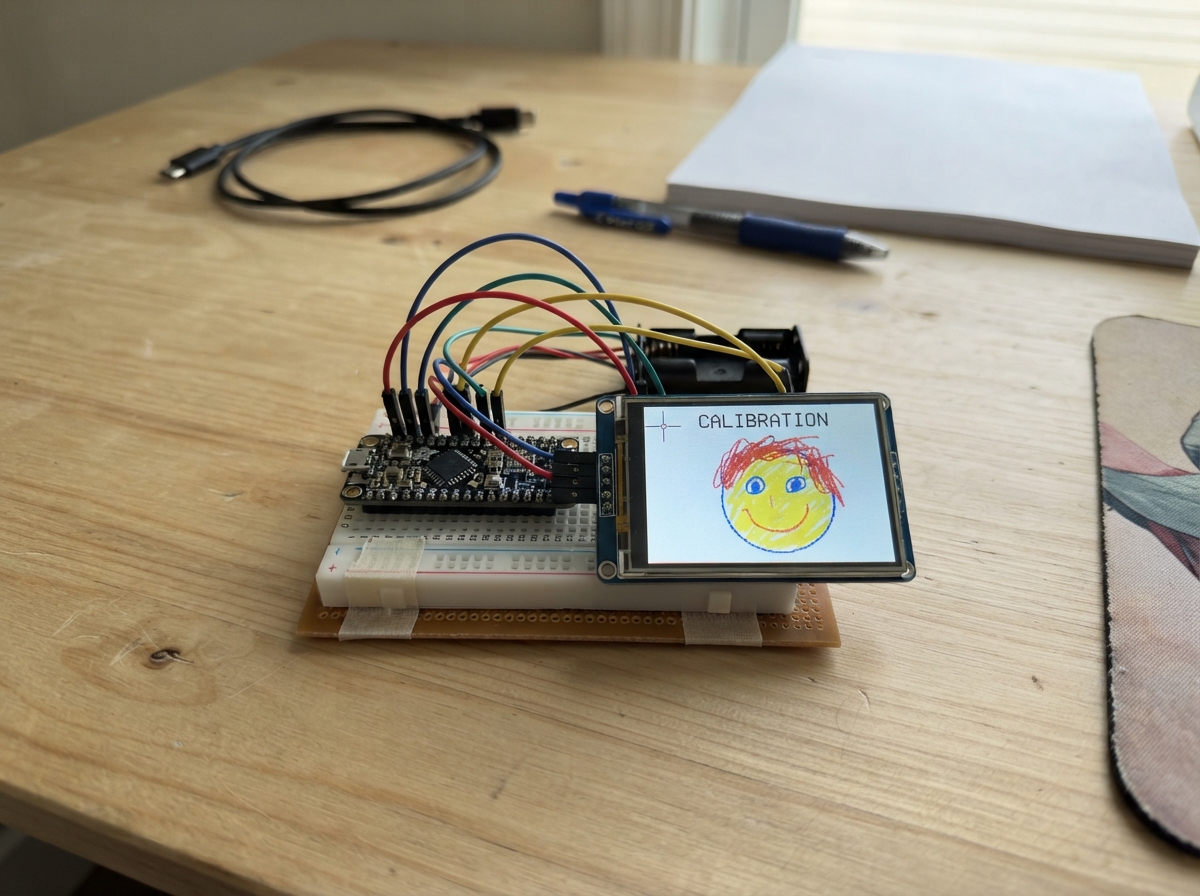
This project turns an ESP32 with a touchscreen display into an interactive drawing canvas for kids. The guide covers building a color-selection drawing app that requires touch calibration to work accurately, using an ILI9341 display and XPT2046 touch controller.
You'll get a complete parts list, wiring diagram showing all SPI connections between the ESP32 and display modules, and firmware with touch calibration routines and drawing functionality. Assembly involves connecting the display board, running the touch alignment procedure, then selecting colors and drawing on the screen.
Wiring diagram
Assemble it in 3 steps
1. Place the display board safely
Put the ESP32 L0496 board on a dry, non-metal surface with the screen facing up. Everything needed for this project is already built into the board, so do not add loose wires to the display or touch pins.
- The touch panel is the clear layer over the color screen; use a clean fingertip or a soft plastic stylus.
- Do not press hard or use a sharp pen on the touch panel because it can scratch or damage the thin clear layer.
2. Start the touch alignment
Plug the board into your computer with a USB data cable. Each time it starts, the screen shows one yellow dot at a time. Tap the middle of each yellow dot once, lifting your finger between taps; this tells the board how your touches line up with the picture.
- Hold the board still while you tap the four dots so the touch positions stay accurate.
- If a tap lands in the wrong place later, restart the board and carefully repeat the four taps.
- Do not unplug the board while the four yellow dots are being tapped because the touch alignment will not finish.
3. Choose a color and draw
After alignment, tap a colored box in the row below the title to choose that color, then draw in the large white area. Tap SMALL to switch between a thin and thick line, and tap CLEAR to erase the drawing and begin again.
- The colored boxes are the color categories: red, orange, yellow, green, blue, purple, pink, and white.
- Only the drawing area below the color row is used for marks, so the buttons stay easy to reach.
- Avoid spilling drinks near the powered board because moisture can damage the electronics.
Deploy the firmware
#include <Arduino.h>
#include <SPI.h>
#include <Adafruit_GFX.h>
#include <Adafruit_ILI9341.h>
#include <XPT2046_Touchscreen.h>

struct Point { float x; float y; };

struct Affine { float ax, bx, cx, ay, by, cy; } calibration;


// Forward declarations
bool solve3x3(float a[3][4], float out[3]);
void makeCalibration(const Point raw[4], const Point screen[4]);
bool rawTouch(Point &raw);
bool screenTouch(Point &out);
void waitForRelease();
void calibrateTouch();
void drawInterface();
void redrawCategories();
void handleTap(const Point &p);

constexpr int TFT_MOSI = 13;
constexpr int TFT_SCK = 14;
constexpr int TFT_CS = 15;
constexpr int TFT_DC = 2;
// This board's ILI9341 reset is tied to the ESP32 reset line, so the library
// must not drive a separate GPIO reset pin.
constexpr int TFT_RST = -1;
// LCD backlight control is active-high on GPIO21.
constexpr int TFT_BACKLIGHT = 21;
constexpr int TOUCH_SCK = 25;
constexpr int TOUCH_MISO = 39;
constexpr int TOUCH_MOSI = 32;
constexpr int TOUCH_CS = 33;
constexpr int TOUCH_IRQ = 36;

constexpr int SCREEN_W = 320;
constexpr int SCREEN_H = 240;
constexpr int TOOLBAR_H = 48;
constexpr int CATEGORY_H = 32;

SPIClass displaySPI(HSPI);
// The SPIClass constructor takes command/data first, then chip select.
Adafruit_ILI9341 tft(&displaySPI, TFT_DC, TFT_CS, TFT_RST);
XPT2046_Touchscreen touch(TOUCH_CS, TOUCH_IRQ);


const uint16_t categoryColors[] = {ILI9341_RED, ILI9341_ORANGE, ILI9341_YELLOW, ILI9341_GREEN, ILI9341_CYAN, ILI9341_BLUE, ILI9341_MAGENTA, ILI9341_WHITE};
const char *categoryNames[] = {"Red", "Orange", "Yellow", "Green", "Blue", "Purple", "Pink", "White"};
constexpr int CATEGORY_COUNT = 8;
uint16_t selectedColor = ILI9341_RED;
int selectedCategory = 0;
int brushSize = 5;
bool wasTouching = false;
Point lastPoint = {0, 0};

bool solve3x3(float a[3][4], float out[3]) {
  for (int col = 0; col < 3; col++) {
    int pivot = col;
    for (int row = col + 1; row < 3; row++) if (fabs(a[row][col]) > fabs(a[pivot][col])) pivot = row;
    if (fabs(a[pivot][col]) < 0.0001f) return false;
    for (int k = col; k < 4; k++) { float temp = a[col][k]; a[col][k] = a[pivot][k]; a[pivot][k] = temp; }
    float divisor = a[col][col];
    for (int k = col; k < 4; k++) a[col][k] /= divisor;
    for (int row = 0; row < 3; row++) {
      if (row == col) continue;
      float factor = a[row][col];
      for (int k = col; k < 4; k++) a[row][k] -= factor * a[col][k];
    }
  }
  for (int i = 0; i < 3; i++) out[i] = a[i][3];
  return true;
}

void makeCalibration(const Point raw[4], const Point screen[4]) {
  float normal[3][3] = {};
  float rhsX[3] = {}, rhsY[3] = {};
  for (int i = 0; i < 4; i++) {
    float v[3] = {raw[i].x, raw[i].y, 1.0f};
    for (int r = 0; r < 3; r++) {
      rhsX[r] += v[r] * screen[i].x;
      rhsY[r] += v[r] * screen[i].y;
      for (int c = 0; c < 3; c++) normal[r][c] += v[r] * v[c];
    }
  }
  float mx[3][4], my[3][4], resultX[3], resultY[3];
  for (int r = 0; r < 3; r++) for (int c = 0; c < 3; c++) { mx[r][c] = normal[r][c]; my[r][c] = normal[r][c]; }
  for (int r = 0; r < 3; r++) { mx[r][3] = rhsX[r]; my[r][3] = rhsY[r]; }
  solve3x3(mx, resultX);
  solve3x3(my, resultY);
  calibration = {resultX[0], resultX[1], resultX[2], resultY[0], resultY[1], resultY[2]};
}

bool rawTouch(Point &raw) {
  if (digitalRead(TOUCH_IRQ) != LOW || !touch.touched()) return false;
  TS_Point p = touch.getPoint();
  raw = {(float)p.x, (float)p.y};
  return true;
}

bool screenTouch(Point &out) {
  Point raw;
  if (!rawTouch(raw)) return false;
  out.x = calibration.ax * raw.x + calibration.bx * raw.y + calibration.cx;
  out.y = calibration.ay * raw.x + calibration.by * raw.y + calibration.cy;
  out.x = constrain((int)lround(out.x), 0, SCREEN_W - 1);
  out.y = constrain((int)lround(out.y), 0, SCREEN_H - 1);
  return true;
}

void waitForRelease() {
  while (digitalRead(TOUCH_IRQ) == LOW) delay(10);
  delay(120);
}

void calibrateTouch() {
  const Point targets[4] = {{25, 25}, {294, 25}, {294, 214}, {25, 214}};
  Point raw[4];
  tft.fillScreen(ILI9341_NAVY);
  tft.setTextColor(ILI9341_WHITE);
  tft.setTextSize(2);
  tft.setCursor(25, 88);
  tft.print("Touch calibration");
  tft.setTextSize(1);
  tft.setCursor(25, 116);
  tft.print("Tap each yellow target once.");
  delay(900);
  for (int i = 0; i < 4; i++) {
    tft.fillScreen(ILI9341_NAVY);
    tft.setTextColor(ILI9341_WHITE);
    tft.setTextSize(2);
    tft.setCursor(26, 92);
    tft.print("Tap the yellow dot");
    tft.fillCircle((int)targets[i].x, (int)targets[i].y, 13, ILI9341_YELLOW);
    tft.drawCircle((int)targets[i].x, (int)targets[i].y, 16, ILI9341_WHITE);
    Point p;
    while (!rawTouch(p)) delay(8);
    raw[i] = p;
    tft.fillCircle((int)targets[i].x, (int)targets[i].y, 13, ILI9341_GREEN);
    waitForRelease();
  }
  makeCalibration(raw, targets);
}

void drawInterface() {
  tft.fillScreen(ILI9341_WHITE);
  tft.fillRect(0, 0, SCREEN_W, TOOLBAR_H, ILI9341_DARKGREY);
  tft.fillRect(0, TOOLBAR_H, SCREEN_W, CATEGORY_H, ILI9341_LIGHTGREY);
  tft.setTextColor(ILI9341_WHITE);
  tft.setTextSize(2);
  tft.setCursor(8, 8);
  tft.print("Kids Color Pad");
  tft.fillRoundRect(207, 6, 50, 34, 5, ILI9341_BLUE);
  tft.setTextSize(1);
  tft.setCursor(214, 19);
  tft.print("SMALL");
  tft.fillRoundRect(262, 6, 50, 34, 5, ILI9341_BLUE);
  tft.setCursor(270, 19);
  tft.print("CLEAR");
  for (int i = 0; i < CATEGORY_COUNT; i++) {
    int x = i * 40;
    tft.fillRect(x + 3, TOOLBAR_H + 5, 34, 22, categoryColors[i]);
    if (i == selectedCategory) tft.drawRect(x + 1, TOOLBAR_H + 3, 38, 26, ILI9341_BLACK);
  }
}

void redrawCategories() {
  for (int i = 0; i < CATEGORY_COUNT; i++) {
    int x = i * 40;
    tft.fillRect(x + 1, TOOLBAR_H + 3, 38, 26, ILI9341_LIGHTGREY);
    tft.fillRect(x + 3, TOOLBAR_H + 5, 34, 22, categoryColors[i]);
    if (i == selectedCategory) tft.drawRect(x + 1, TOOLBAR_H + 3, 38, 26, ILI9341_BLACK);
  }
}

void handleTap(const Point &p) {
  if (p.y >= TOOLBAR_H && p.y < TOOLBAR_H + CATEGORY_H) {
    selectedCategory = constrain((int)(p.x / 40), 0, CATEGORY_COUNT - 1);
    selectedColor = categoryColors[selectedCategory];
    redrawCategories();
  } else if (p.y < TOOLBAR_H && p.x >= 207 && p.x < 257) {
    brushSize = (brushSize == 5) ? 10 : 5;
    tft.fillRoundRect(207, 6, 50, 34, 5, brushSize == 5 ? ILI9341_BLUE : ILI9341_GREEN);
    tft.setTextColor(ILI9341_WHITE); tft.setTextSize(1); tft.setCursor(214, 19); tft.print(brushSize == 5 ? "SMALL" : "LARGE");
  } else if (p.y < TOOLBAR_H && p.x >= 262) {
    tft.fillRect(0, TOOLBAR_H + CATEGORY_H, SCREEN_W, SCREEN_H - TOOLBAR_H - CATEGORY_H, ILI9341_WHITE);
  }
}

void setup() {
  pinMode(TOUCH_IRQ, INPUT);
  // Turn on the display backlight.
  pinMode(TFT_BACKLIGHT, OUTPUT);
  digitalWrite(TFT_BACKLIGHT, HIGH);
  // L0496 TFT bus: SCK=14, MOSI=13, MISO=12, CS=15, DC=2.
  displaySPI.begin(TFT_SCK, 12, TFT_MOSI, TFT_CS);
  // The touch controller remains on the requested separate SPI connection.
  SPI.begin(TOUCH_SCK, TOUCH_MISO, TOUCH_MOSI, TOUCH_CS);
  tft.begin();
  tft.setRotation(1);
  touch.begin();
  calibrateTouch();
  drawInterface();
}

void loop() {
  Point p;
  bool touching = screenTouch(p);
  if (touching) {
    if (!wasTouching) {
      handleTap(p);
      if (p.y >= TOOLBAR_H + CATEGORY_H) { lastPoint = p; tft.fillCircle((int)p.x, (int)p.y, brushSize / 2, selectedColor); }
    } else if (p.y >= TOOLBAR_H + CATEGORY_H && lastPoint.y >= TOOLBAR_H + CATEGORY_H) {
      tft.drawLine((int)lastPoint.x, (int)lastPoint.y, (int)p.x, (int)p.y, selectedColor);
      tft.fillCircle((int)p.x, (int)p.y, brushSize / 2, selectedColor);
      lastPoint = p;
    }
  }
  wasTouching = touching;
  delay(8);
}
Remix this project
Make it yours in one click
Open a full copy of this project in your own Schematik workspace, diagram, code, parts, and assembly steps included. Swap the sensor, add features, or redesign the whole thing with AI. The author's original stays untouched.