Community project
NFL Matchup Scoreboard
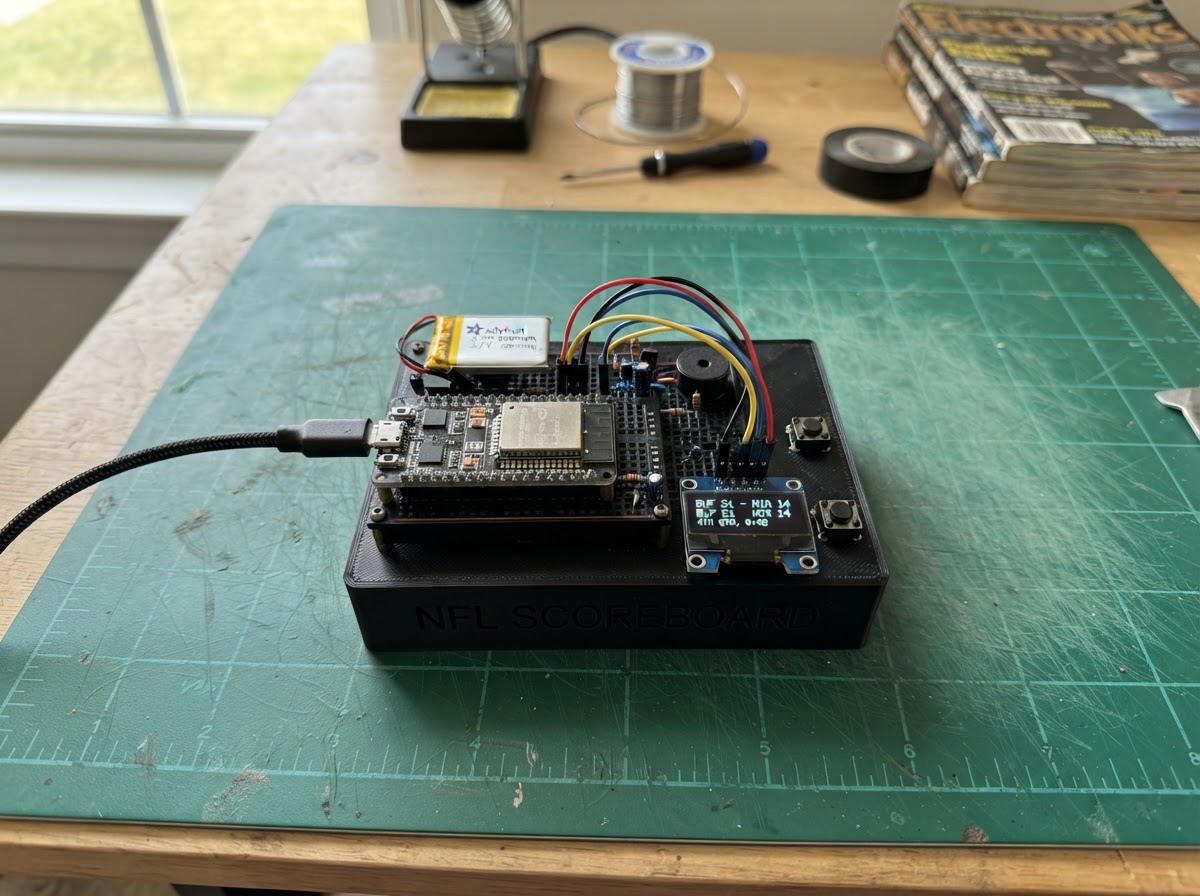
This NFL scoreboard displays live game matchups and scores on a bright 5-inch touchscreen powered by an ESP32-S3. The display automatically fetches current NFL game data from ESPN's API and cycles through each matchup, showing away and home teams with their scores and game status.
The guide includes a complete parts list, wiring diagram for the all-in-one smart display board, and ready-to-deploy firmware. Setup requires only connecting USB-C power and configuring WiFi credentials. Once running, the scoreboard refreshes scores every minute and rotates through active games every 8 seconds.
Wiring diagram
Assemble it in 4 steps
1. Use the all-in-one smart display board
Use a Sunton ESP32-S3-8048S050C N16R8 5-inch smart display board. The ESP32-S3, 800×480 landscape LCD, capacitive touch panel, display electronics, and USB-C connector are already built into one unit; do not add the former external 3.5-inch TFT or an ESP32 DevKit.
- The screen is normally used in its wide 800×480 landscape orientation.
- Touch is built in but is not needed for the automatic scoreboard rotation.
- Buy the N16R8 version: 16 MB flash and 8 MB PSRAM. Similar-looking boards can have a different screen or memory configuration.
2. Place the display safely
Put the board in a stand, frame, or enclosure that supports it by its mounting holes or edges. Keep the LCD face unobstructed and leave space around the back of the board for airflow.
- A slightly upward-facing angle makes weekend scores easier to read across a room.
- Do not press on the LCD surface or place conductive metal against the back of the powered board.
3. Connect only USB-C power
Connect a good-quality USB-C cable from a regulated 5 V USB power adapter or computer USB port to the board's USB-C connector. This one cable powers the ESP32-S3 and its built-in screen.
- Use a supply rated for at least 1 A to allow for display brightness and Wi-Fi activity.
- Use only normal 5 V USB power. Do not connect a 9 V or 12 V supply to the USB-C connector.
4. Deploy and position
Enter the Wi-Fi name and password in the firmware, then use Schematik's Deploy button. After deployment, put the display within range of that Wi-Fi network; it retrieves NFL scoreboard data over Wi-Fi and updates it automatically.
- The display shows a clear connection message until it joins Wi-Fi, then fetches the current scoreboard.
- No external sensor, display, or jumper wiring is required.
- The scoreboard needs an internet-connected Wi-Fi network to obtain live scores.
Deploy the firmware
#include <Arduino.h>
#include <WiFi.h>
#include <WiFiClientSecure.h>
#include <HTTPClient.h>
#include <ArduinoJson.h>
#include <Arduino_GFX_Library.h>

// Enter the Wi-Fi network used by this scoreboard before deploying.

// Hoisted type definitions
struct Game {
  String away;
  String home;
  String awayScore;
  String homeScore;
  String detail;
  String state;
};


// Forward declarations
uint16_t color(uint8_t r, uint8_t g, uint8_t b);
void centered(const String &text, int y, uint8_t size, uint16_t textColor);
void screenMessage(const String &message);
void drawGame(const Game &game);
bool loadScores();

constexpr char WIFI_SSID[] = "YOUR_WIFI_NAME";
constexpr char WIFI_PASSWORD[] = "YOUR_WIFI_PASSWORD";
constexpr char SCOREBOARD_URL[] =
    "https://site.api.espn.com/apis/site/v2/sports/football/nfl/scoreboard";

constexpr uint32_t SCORE_REFRESH_MS = 60000UL;
constexpr uint32_t PAGE_HOLD_MS = 8000UL;
constexpr int MAX_GAMES = 18;
constexpr int SCREEN_W = 800;
constexpr int SCREEN_H = 480;

// Factory-wired RGB interface of the Sunton ESP32-S3-8048S050C panel.
Arduino_DataBus *bus = new Arduino_ESP32RGBPanel(
    45, 48, 47, 21,
    4, 3, 2, 1, 0,
    10, 9, 8, 7, 6, 5,
    15, 14, 13, 12, 11,
    1, 10, 8, 50,
    1, 10, 8, 20);
Arduino_RGB_Display *gfx = new Arduino_RGB_Display(SCREEN_W, SCREEN_H, bus, 0, true);


Game games[MAX_GAMES];
int gameCount = 0;
int currentGame = 0;
bool dataAvailable = false;
uint32_t lastFetch = 0;
uint32_t pageStarted = 0;

uint16_t color(uint8_t r, uint8_t g, uint8_t b) {
  return gfx->color565(r, g, b);
}

void centered(const String &text, int y, uint8_t size, uint16_t textColor) {
  gfx->setTextSize(size);
  gfx->setTextColor(textColor);
  int16_t x1, y1;
  uint16_t width, height;
  gfx->getTextBounds(text, 0, y, &x1, &y1, &width, &height);
  gfx->setCursor((SCREEN_W - width) / 2, y);
  gfx->print(text);
}

void screenMessage(const String &message) {
  const uint16_t navy = color(0, 32, 91);
  gfx->fillScreen(BLACK);
  gfx->fillRect(0, 0, SCREEN_W, 72, navy);
  centered("NFL WEEKEND SCOREBOARD", 22, 3, WHITE);
  centered(message, 220, 2, color(205, 216, 232));
}

void drawGame(const Game &game) {
  const uint16_t navy = color(0, 32, 91);
  const uint16_t panel = color(12, 24, 45);
  const uint16_t outline = color(0, 95, 175);
  const uint16_t light = color(228, 236, 248);
  const uint16_t muted = color(151, 171, 200);
  const uint16_t live = color(239, 70, 63);
  const uint16_t scheduled = color(100, 200, 125);

  gfx->fillScreen(BLACK);
  gfx->fillRect(0, 0, SCREEN_W, 66, navy);
  centered("NFL WEEKEND SCOREBOARD", 18, 3, WHITE);

  gfx->fillRoundRect(28, 92, 744, 286, 18, panel);
  gfx->drawRoundRect(28, 92, 744, 286, 18, outline);

  gfx->setTextColor(muted);
  gfx->setTextSize(2);
  gfx->setCursor(70, 117);
  gfx->print("AWAY");
  gfx->setCursor(70, 255);
  gfx->print("HOME");

  gfx->setTextColor(light);
  gfx->setTextSize(6);
  gfx->setCursor(70, 148);
  gfx->print(game.away);
  gfx->setCursor(70, 286);
  gfx->print(game.home);

  gfx->setTextColor(WHITE);
  gfx->setTextSize(10);
  gfx->setCursor(610, 130);
  gfx->print(game.awayScore);
  gfx->setCursor(610, 268);
  gfx->print(game.homeScore);

  gfx->drawFastHLine(70, 239, 660, color(53, 76, 112));
  centered("AT", 215, 2, muted);
  centered(game.detail, 404, 2, game.state == "in" ? live : scheduled);

  gfx->fillRect(0, 452, SCREEN_W, 28, navy);
  centered(String(currentGame + 1) + " / " + String(gameCount) +
               "     Live scores refresh every 60 seconds",
           459, 1, light);
}

bool loadScores() {
  if (WiFi.status() != WL_CONNECTED) return false;

  WiFiClientSecure client;
  client.setInsecure();  // ESPN's public HTTPS endpoint; certificate is not stored in firmware.
  HTTPClient http;
  http.setTimeout(12000);
  if (!http.begin(client, SCOREBOARD_URL)) return false;

  const int status = http.GET();
  if (status != HTTP_CODE_OK) {
    http.end();
    return false;
  }

  JsonDocument doc;
  const DeserializationError error = deserializeJson(doc, http.getStream());
  http.end();
  if (error) return false;

  int newCount = 0;
  for (JsonObject event : doc["events"].as<JsonArray>()) {
    if (newCount >= MAX_GAMES) break;
    JsonObject competition = event["competitions"][0];
    if (competition.isNull()) continue;

    Game item;
    for (JsonObject competitor : competition["competitors"].as<JsonArray>()) {
      const String abbreviation = competitor["team"]["abbreviation"] | "TBD";
      const String score = competitor["score"] | "0";
      if (competitor["home"] | false) {
        item.home = abbreviation;
        item.homeScore = score;
      } else {
        item.away = abbreviation;
        item.awayScore = score;
      }
    }
    JsonObject statusType = competition["status"]["type"];
    item.detail = statusType["shortDetail"] | "Scheduled";
    item.state = statusType["state"] | "pre";
    games[newCount++] = item;
  }

  if (newCount == 0) return false;
  gameCount = newCount;
  currentGame %= gameCount;
  dataAvailable = true;
  return true;
}

void setup() {
  gfx->begin();
  if (String(WIFI_SSID).startsWith("YOUR_")) {
    screenMessage("Set Wi-Fi name and password in the firmware");
    return;
  }
  WiFi.mode(WIFI_STA);
  WiFi.begin(WIFI_SSID, WIFI_PASSWORD);
  screenMessage("Connecting to Wi-Fi...");
}

void loop() {
  const uint32_t now = millis();
  if (String(WIFI_SSID).startsWith("YOUR_")) return;

  if (WiFi.status() != WL_CONNECTED) {
    if (now - lastFetch >= 15000UL) {
      WiFi.reconnect();
      lastFetch = now;
    }
    return;
  }

  if (lastFetch == 0 || now - lastFetch >= SCORE_REFRESH_MS) {
    lastFetch = now;
    if (loadScores()) {
      pageStarted = now;
      drawGame(games[currentGame]);
    } else if (!dataAvailable) {
      screenMessage("Score service unavailable; retrying...");
    }
  }

  if (dataAvailable && now - pageStarted >= PAGE_HOLD_MS) {
    pageStarted = now;
    currentGame = (currentGame + 1) % gameCount;
    drawGame(games[currentGame]);
  }
}
Remix this project
Make it yours in one click
Open a full copy of this project in your own Schematik workspace, diagram, code, parts, and assembly steps included. Swap the sensor, add features, or redesign the whole thing with AI. The author's original stays untouched.