Community project
OLED Button Shooter
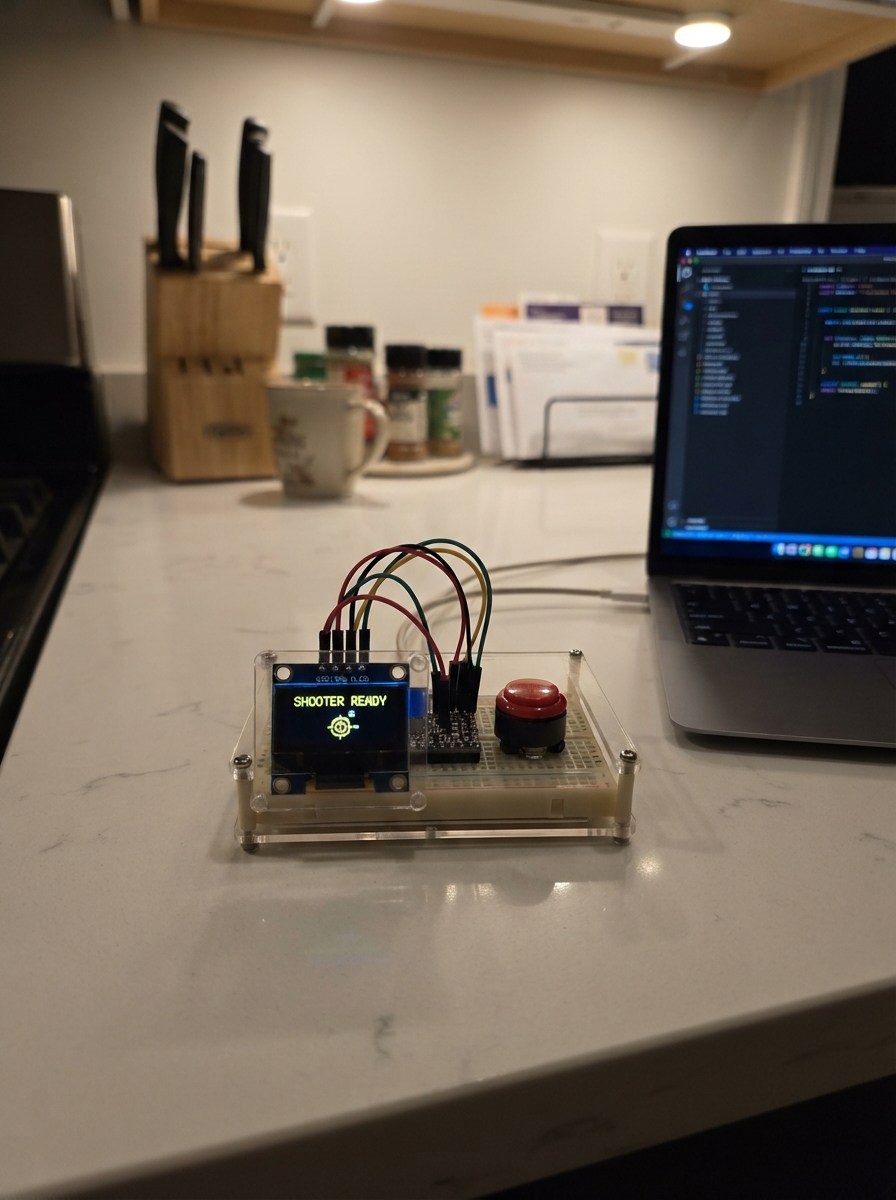
OLED Button Shooter is a simple space-shooter game running on an ESP32 microcontroller with a 128x64 OLED display. The player controls a ship that moves automatically side-to-side and fires bullets at an enemy that bounces across the top of the screen. Hitting the enemy increases the score; letting the enemy reach the bottom ends the game.
This guide provides a complete parts list, wiring diagram, and ready-to-upload firmware. Assembly takes just a few minutes—connect the OLED display via I2C, wire up the fire button, and start playing. Perfect for learning embedded game development on a budget-friendly platform.
Wiring diagram
Gather all the parts
Assemble it in 4 steps
1. Keep the board unplugged
Place the Seeed Studio XIAO ESP32-C6 with its USB-C connector reachable. Leave the USB cable disconnected while you add the screen and button wires.
- The printed D0, D4, and D5 labels are the tiny pin labels along the edges of the XIAO.
- Do not connect power until the screen and button wires have been checked; swapped power can damage the screen.
2. Wire the OLED screen
Connect OLED VCC to the XIAO 3V3 pin (power), OLED GND to a XIAO GND pin (ground), OLED SDA to D4 / GPIO22 (screen data), and OLED SCL to D5 / GPIO23 (screen timing).
- This is the common four-pin SSD1306 OLED marked VCC, GND, SDA, and SCL.
- Make sure VCC and GND are not swapped — swapped power can damage the screen.
3. Wire the fire button
Connect one button terminal to D0 / GPIO0 (signal) and the terminal on the opposite side of the button to GND (ground). The program holds this signal high inside the board and detects it when the button connects it to ground.
- For a four-legged tactile button, use legs on opposite sides of its centre gap; the two legs on either one side are already joined together.
- A press fires one shot; after the game ends, press it again to restart.
- Do not connect the button to 3V3; it must only connect D0 / GPIO0 to GND when pressed.
4. Power and play
Check every wire once more, then connect the XIAO to USB. After you deploy the game, the ship moves side-to-side by itself; press the button to shoot the falling target.
- The score appears at the top-left of the screen.
Review all connections
1. Connections between "oled_1" and "ESP32"
2. Connections between "fire_button_1" and "ESP32"
Deploy the firmware
#include <Arduino.h>
#include <Wire.h>
#include <Adafruit_GFX.h>
#include <Adafruit_SSD1306.h>

#define OLED_SDA_PIN 22
#define OLED_SCL_PIN 23
#define FIRE_BUTTON_PIN 0

constexpr uint8_t SCREEN_WIDTH = 128;
constexpr uint8_t SCREEN_HEIGHT = 64;
constexpr uint8_t OLED_RESET = 255;
constexpr uint8_t PLAYER_Y = 55;
constexpr uint16_t FRAME_MS = 50;

Adafruit_SSD1306 display(SCREEN_WIDTH, SCREEN_HEIGHT, &Wire, OLED_RESET);

int playerX = 58;
int playerDirection = 1;
int enemyX = 20;
int enemyY = 8;
int enemyDirection = 1;
int bulletX = 0;
int bulletY = 0;
bool bulletActive = false;
bool gameOver = false;
uint16_t score = 0;
uint32_t lastFrameAt = 0;
uint32_t lastPressAt = 0;

void startNewGame() {
  playerX = 58;
  playerDirection = 1;
  enemyX = random(8, 112);
  enemyY = 8;
  enemyDirection = random(0, 2) ? 1 : -1;
  bulletActive = false;
  score = 0;
  gameOver = false;
}

bool firePressed() {
  if (digitalRead(FIRE_BUTTON_PIN) != LOW) {
    return false;
  }
  uint32_t now = millis();
  if (now - lastPressAt < 180) {
    return false;
  }
  lastPressAt = now;
  return true;
}

void updateGame() {
  if (gameOver) {
    if (firePressed()) {
      startNewGame();
    }
    return;
  }

  if (firePressed() && !bulletActive) {
    bulletX = playerX + 3;
    bulletY = PLAYER_Y - 2;
    bulletActive = true;
  }

  playerX += playerDirection;
  if (playerX <= 1 || playerX >= 119) {
    playerDirection = -playerDirection;
  }

  enemyX += enemyDirection;
  if (enemyX <= 1 || enemyX >= 119) {
    enemyDirection = -enemyDirection;
  }
  enemyY++;

  if (bulletActive) {
    bulletY -= 4;
    if (bulletY < 0) {
      bulletActive = false;
    }
  }

  if (bulletActive && bulletX >= enemyX - 2 && bulletX <= enemyX + 8 &&
      bulletY >= enemyY - 2 && bulletY <= enemyY + 7) {
    score++;
    bulletActive = false;
    enemyX = random(8, 112);
    enemyY = 8;
    enemyDirection = random(0, 2) ? 1 : -1;
  }

  if (enemyY >= PLAYER_Y - 4) {
    gameOver = true;
  }
}

void drawGame() {
  display.clearDisplay();
  display.setTextColor(SSD1306_WHITE);
  display.setTextSize(1);
  display.setCursor(1, 0);
  display.print(F("SCORE: "));
  display.print(score);

  if (gameOver) {
    display.setCursor(27, 24);
    display.print(F("GAME OVER"));
    display.setCursor(13, 38);
    display.print(F("PRESS TO RESTART"));
    display.display();
    return;
  }

  display.fillTriangle(playerX, PLAYER_Y, playerX + 7, PLAYER_Y, playerX + 3, PLAYER_Y - 6, SSD1306_WHITE);
  display.fillRect(enemyX, enemyY, 7, 5, SSD1306_WHITE);
  display.drawPixel(enemyX + 1, enemyY + 5, SSD1306_WHITE);
  display.drawPixel(enemyX + 5, enemyY + 5, SSD1306_WHITE);
  if (bulletActive) {
    display.drawFastVLine(bulletX, bulletY, 3, SSD1306_WHITE);
  }
  display.display();
}

void setup() {
  pinMode(FIRE_BUTTON_PIN, INPUT_PULLUP);
  Wire.begin(OLED_SDA_PIN, OLED_SCL_PIN);
  if (!display.begin(SSD1306_SWITCHCAPVCC, 0x3C)) {
    while (true) {
      delay(1000);
    }
  }
  randomSeed(micros());
  startNewGame();
  drawGame();
}

void loop() {
  uint32_t now = millis();
  uint32_t elapsed = now - lastFrameAt;
  if (elapsed < FRAME_MS) {
    delay(FRAME_MS - elapsed);
    return;
  }
  lastFrameAt = millis();
  updateGame();
  drawGame();
}
Remix this project
Make it yours in one click
Open a full copy of this project in your own Schematik workspace — diagram, code, parts, and assembly steps included. Swap the sensor, add features, or redesign the whole thing with AI. The author's original stays untouched.