Community project
Zoned Building Alarm System
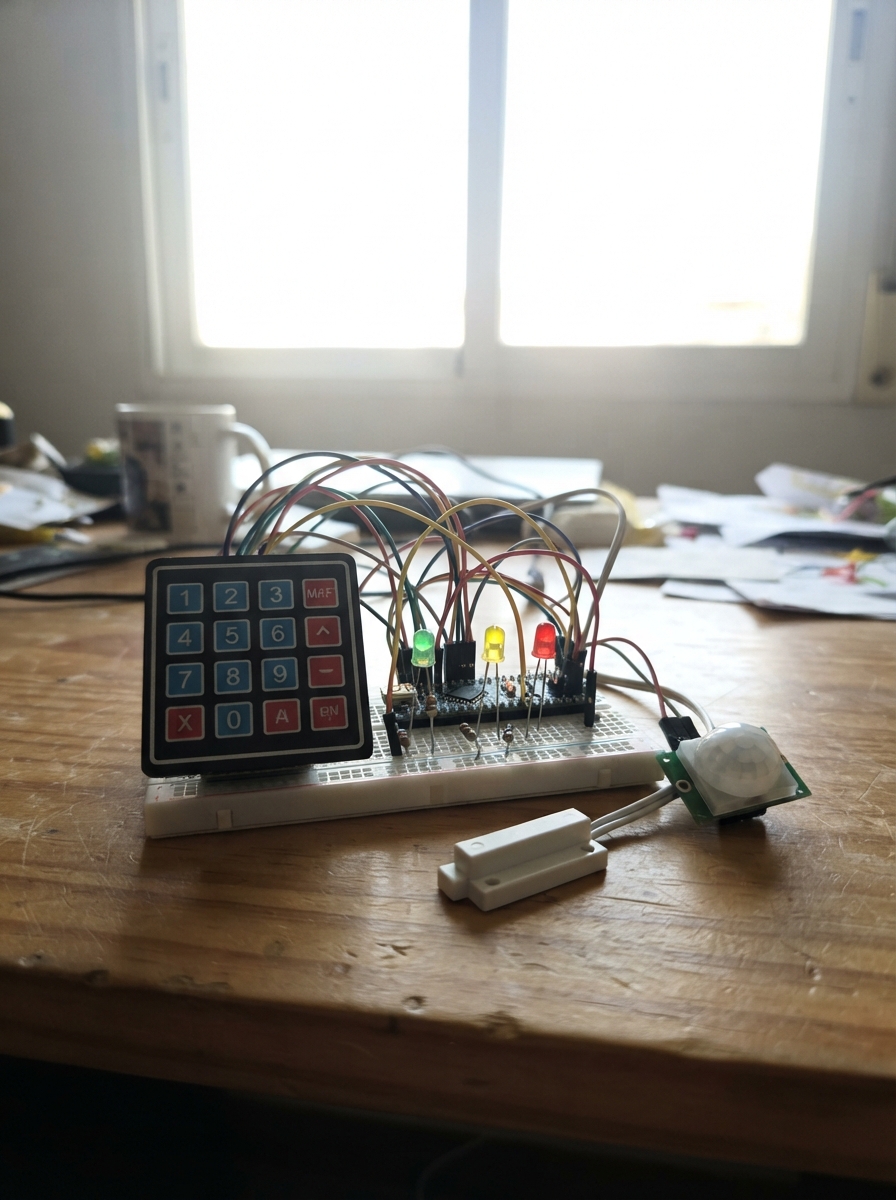
This zoned building alarm system uses an ESP32 microcontroller to monitor multiple entry points and motion detection, with armed/disarmed states controlled via a 4×4 keypad. The system communicates over WiFi and MQTT, allowing remote monitoring and control while providing real-time feedback through status LEDs and an audible siren.
The guide includes a complete wiring diagram showing connections for door and window sensors, motion detector, RGB status indicators, sensitivity adjustment potentiometer, and buzzer alarm. Assembly steps walk through power setup, keypad integration, zone sensor wiring, LED mounting, and firmware configuration—everything needed to deploy a networked multi-zone alarm system.
Wiring diagram
Gather all the parts
Assemble it in 7 steps
1. Prepara el ESP32 y la alimentación
Coloca el ESP32 DevKit v1 sobre la protoboard dejando espacio a ambos lados. Conecta el riel positivo de la protoboard al pin 3V3 del ESP32 y el riel negativo a un pin GND; todos los demás componentes usarán estos dos rieles.
- El ESP32 se alimentará por su conector USB durante las pruebas.
- No conectes 5 V a las filas de señales, al potenciómetro ni al teclado: las entradas del ESP32 trabajan a 3,3 V y 5 V puede dañarlas.
2. Conecta el teclado
Une las cuatro filas del teclado a GPIO13, GPIO14, GPIO16 y GPIO17, en ese orden. Une sus cuatro columnas a GPIO18, GPIO19, GPIO21 y GPIO22, en ese orden; estos ocho cables llevan las teclas al ESP32.
- Mira las etiquetas impresas en tu teclado: algunos modelos enumeran las ocho patillas como R1–R4 y C1–C4.
3. Cablea los pulsadores de zona
Conecta una pata del pulsador de puerta al riel GND y la otra a GPIO32. Conecta una pata del pulsador de movimiento al riel GND y la otra a GPIO33; al pulsarlos simulan puerta abierta y movimiento.
- No hace falta añadir resistencias a estos pulsadores: el ESP32 activa una resistencia interna para leerlos de forma estable.
4. Monta las tres luces de estado
Para cada LED, conecta la pata corta al riel GND. Conecta la pata larga del LED verde a una resistencia de 220 Ω y el otro extremo de esa resistencia a GPIO25; repite con el LED amarillo hacia GPIO26 y el LED rojo hacia GPIO27. Las resistencias limitan la corriente y protegen los LEDs y el ESP32.
- La pata larga es el lado positivo; la pata corta y el borde plano del LED indican el lado que va a GND.
- No conectes un LED directamente a un GPIO: sin su resistencia de 220 Ω se puede dañar el LED o el pin del ESP32.
5. Conecta la perilla de sensibilidad
Conecta un terminal exterior del potenciómetro a 3V3, el otro terminal exterior a GND y el terminal central a GPIO34. La perilla envía al ESP32 el valor de sensibilidad.
- Asegúrate de usar 3V3, no 5 V: una señal superior a 3,3 V en GPIO34 puede dañar el ESP32.
6. Conecta el zumbador
Conecta el pin marcado GND o negativo del zumbador al riel GND y su pin de señal o positivo a GPIO23; el ESP32 lo activa cuando recibe la orden de alarma disparada.
- Si tu zumbador no tiene marcas, revisa su carcasa: el terminal positivo suele llevar un signo +.
7. Revisa y prueba con USB
Revisa que todos los GND estén unidos y que ninguna conexión de señal toque el riel de 5 V. Conecta el ESP32 por USB; después de completar los datos de Wi‑Fi y del servidor MQTT en el firmware, usa Deploy para grabarlo.
- Desconecta el USB antes de mover cables si notas calor, olor extraño o una conexión suelta.
Review all connections
1. Connections between "keypad_1" and "ESP32"
2. Connections between "door_button" and "ESP32"
3. Connections between "motion_button" and "ESP32"
4. Connections between "green_resistor" and "ESP32"
5. Connections between "green_led" and "ESP32"
6. Connections between "yellow_resistor" and "ESP32"
7. Connections between "yellow_led" and "ESP32"
8. Connections between "red_resistor" and "ESP32"
9. Connections between "red_led" and "ESP32"
10. Connections between "sensitivity_pot" and "ESP32"
11. Connections between "siren_buzzer" and "ESP32"
Deploy the firmware
#include <WiFi.h>
#include <PubSubClient.h>
#include <Keypad.h>

const char WIFI_SSID[] = "REEMPLAZAR_WIFI";
const char WIFI_PASSWORD[] = "REEMPLAZAR_CLAVE";
const char MQTT_HOST[] = "192.168.1.100";
const uint16_t MQTT_PORT = 1883;

constexpr uint8_t ROW0_PIN = 13, ROW1_PIN = 14, ROW2_PIN = 16, ROW3_PIN = 17;
constexpr uint8_t COL0_PIN = 18, COL1_PIN = 19, COL2_PIN = 21, COL3_PIN = 22;
constexpr uint8_t DOOR_PIN = 32, MOTION_PIN = 33;
constexpr uint8_t GREEN_LED_PIN = 25, YELLOW_LED_PIN = 26, RED_LED_PIN = 27;
constexpr uint8_t SENSITIVITY_PIN = 34, BUZZER_PIN = 23;
constexpr byte ROWS = 4, COLS = 4;
char keys[ROWS][COLS] = {{'1','2','3','A'}, {'4','5','6','B'}, {'7','8','9','C'}, {'*','0','#','D'}};
byte rowPins[ROWS] = {ROW0_PIN, ROW1_PIN, ROW2_PIN, ROW3_PIN};
byte colPins[COLS] = {COL0_PIN, COL1_PIN, COL2_PIN, COL3_PIN};
Keypad keypad = Keypad(makeKeymap(keys), rowPins, colPins, ROWS, COLS);
WiFiClient wifiClient;
PubSubClient mqttClient(wifiClient);
enum AlarmState { DISARMED, ARMED, TRIGGERED };
AlarmState alarmState = DISARMED;
char enteredCode[7] = "";
uint8_t enteredLength = 0;
int lastSensitivity = -1;
bool lastDoorLevel = HIGH;
unsigned long lastDoorChangeMs = 0, lastMotionMs = 0, lastWifiAttemptMs = 0, lastMqttAttemptMs = 0;
const char *stateName() { return alarmState == ARMED ? "armada" : alarmState == TRIGGERED ? "disparada" : "desarmada"; }
void publishMessage(const char *topic, const String &payload, bool retained = false) { if (mqttClient.connected()) mqttClient.publish(topic, payload.c_str(), retained); }
void showState() { digitalWrite(GREEN_LED_PIN, alarmState == DISARMED); digitalWrite(YELLOW_LED_PIN, alarmState == ARMED); digitalWrite(RED_LED_PIN, alarmState == TRIGGERED); digitalWrite(BUZZER_PIN, alarmState == TRIGGERED); }
void setAlarmState(AlarmState newState) { if (alarmState == newState) return; alarmState = newState; showState(); publishMessage("alarma/estado", String("{\"estado\":\"") + stateName() + "\"}", true); }
void mqttCallback(char *topic, byte *payload, unsigned int length) { if (String(topic) != "alarma/comando") return; String command; for (unsigned int i = 0; i < length; ++i) command += static_cast<char>(payload[i]); command.trim(); command.toUpperCase(); if (command == "ARMAR") setAlarmState(ARMED); else if (command == "DESARMAR") setAlarmState(DISARMED); else if (command == "DISPARAR") setAlarmState(TRIGGERED); else if (command == "SILENCIAR") setAlarmState(ARMED); }
void connectWifiIfNeeded() { if (WiFi.status() == WL_CONNECTED || millis() - lastWifiAttemptMs < 10000UL) return; lastWifiAttemptMs = millis(); WiFi.begin(WIFI_SSID, WIFI_PASSWORD); }
void connectMqttIfNeeded() { if (WiFi.status() != WL_CONNECTED || mqttClient.connected() || millis() - lastMqttAttemptMs < 5000UL) return; lastMqttAttemptMs = millis(); if (mqttClient.connect("alarma-esp32-01")) { mqttClient.subscribe("alarma/comando"); publishMessage("alarma/estado", String("{\"estado\":\"") + stateName() + "\"}", true); } }
void readKeypad() { char key = keypad.getKey(); if (!key) return; if (key == '*') { enteredLength = 0; enteredCode[0] = '\0'; } else if (key == '#') { if (enteredLength == 6) publishMessage("alarma/codigo", String("{\"codigo\":\"") + enteredCode + "\"}"); enteredLength = 0; enteredCode[0] = '\0'; } else if (key >= '0' && key <= '9' && enteredLength < 6) { enteredCode[enteredLength++] = key; enteredCode[enteredLength] = '\0'; } }
void readDoorZone() { bool level = digitalRead(DOOR_PIN); if (level != lastDoorLevel && millis() - lastDoorChangeMs > 35UL) { lastDoorChangeMs = millis(); lastDoorLevel = level; publishMessage("alarma/puerta", level == LOW ? "{\"estado\":\"abierta\"}" : "{\"estado\":\"cerrada\"}"); } }
void readSensitivity() { int sensitivity = map(analogRead(SENSITIVITY_PIN), 0, 4095, 0, 100); if (lastSensitivity < 0 || abs(sensitivity - lastSensitivity) >= 2) { lastSensitivity = sensitivity; publishMessage("alarma/movimiento", String("{\"sensibilidad\":") + sensitivity + "}", true); } }
void readMotionZone() { if (digitalRead(MOTION_PIN) == LOW && millis() - lastMotionMs > 500UL) { lastMotionMs = millis(); publishMessage("alarma/movimiento", String("{\"detectado\":true,\"sensibilidad\":") + lastSensitivity + "}"); } }
void setup() { pinMode(DOOR_PIN, INPUT_PULLUP); pinMode(MOTION_PIN, INPUT_PULLUP); pinMode(GREEN_LED_PIN, OUTPUT); pinMode(YELLOW_LED_PIN, OUTPUT); pinMode(RED_LED_PIN, OUTPUT); pinMode(BUZZER_PIN, OUTPUT); analogReadResolution(12); showState(); lastDoorLevel = digitalRead(DOOR_PIN); mqttClient.setServer(MQTT_HOST, MQTT_PORT); mqttClient.setCallback(mqttCallback); WiFi.mode(WIFI_STA); }
void loop() { connectWifiIfNeeded(); connectMqttIfNeeded(); mqttClient.loop(); readKeypad(); readDoorZone(); readSensitivity(); readMotionZone(); delay(1); }
Remix this project
Make it yours in one click
Open a full copy of this project in your own Schematik workspace — diagram, code, parts, and assembly steps included. Swap the sensor, add features, or redesign the whole thing with AI. The author's original stays untouched.