Community project
Smart Robotic Vacuum Cleaner
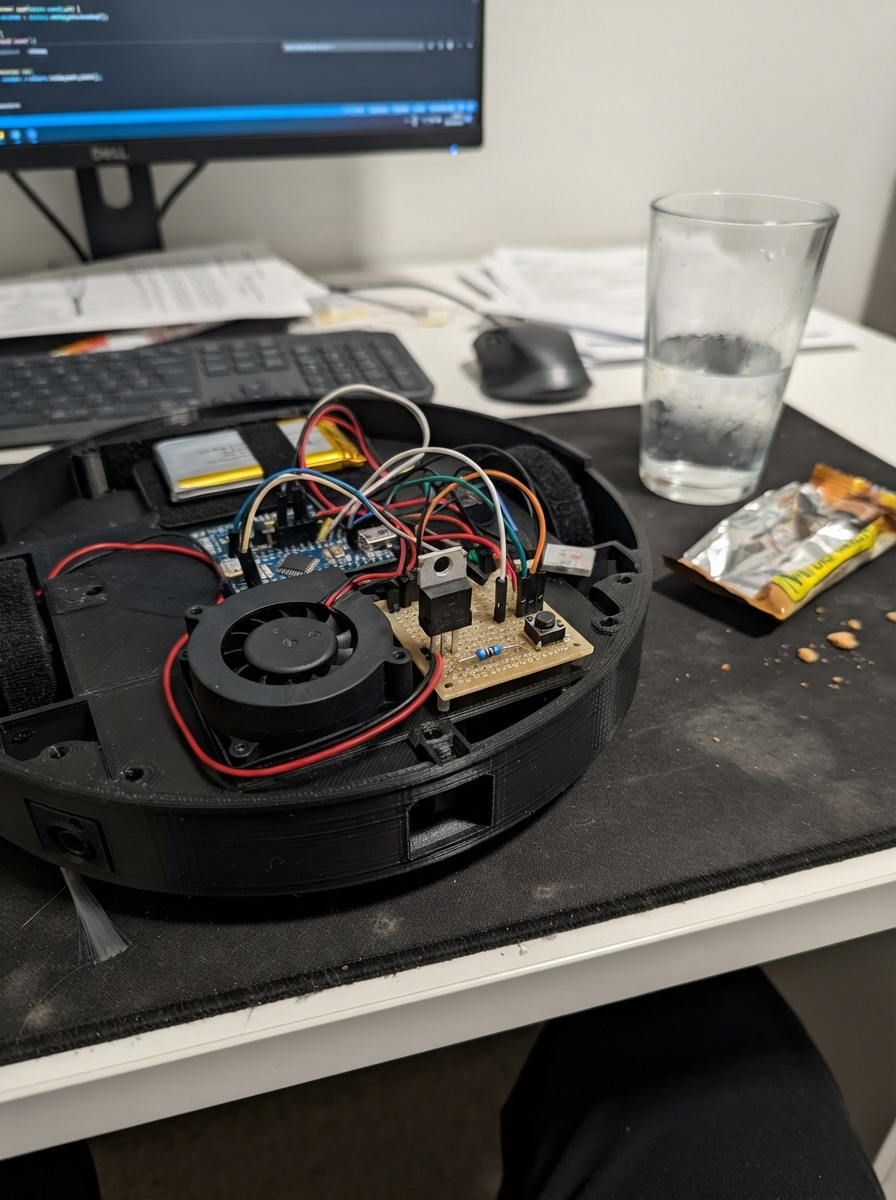
This guide builds a simple push-button controlled blower fan powered by an ESP32 microcontroller. The project uses a 5V centrifugal fan, a logic-level MOSFET to switch power, and a momentary push button for control. It's an ideal introduction to microcontroller-based motor control and debouncing techniques.
Followers will receive a complete wiring diagram showing how to connect the fan, MOSFET, button, and resistor to the ESP32, a full parts list with specifications, ready-to-upload firmware with debounce logic, and step-by-step assembly instructions including airflow body construction and pre-power safety checks.
Wiring diagram
Gather all the parts
Assemble it in 4 steps
1. Make the airflow body
Fit the 5 V blower_1 into a small sealed box with its round intake facing a short nozzle. Put fine mesh or a piece of vacuum-filter material between the nozzle and fan so dust cannot enter the impeller; leave the fan's side outlet open. This is only for crumbs, dust, and similar light dry debris.
- Tape or seal gaps around the blower so air is pulled through the nozzle instead of through holes in the box.
- Do not use this near liquids, hot ash, metal filings, hair near the inlet, or anything that can jam the fan.
2. Connect the fan power switch
With USB unplugged, connect blower_1 red wire to the ESP32 5V/VIN pin (power). Connect blower_1 black wire to the mosfet_1 DRAIN leg (switched fan return). Connect the mosfet_1 SOURCE leg to ESP32 GND (ground). Keep the MOSFET's metal tab and legs from touching other wires.
- Check the lettering on the actual MOSFET package before placing it; the physical leg order must match its datasheet.
- A reversed or shorted connection can overheat the USB supply, board, or wires.
3. Wire the control parts
Connect gate_resistor_1 (220 Ω) between ESP32 GPIO25 and the mosfet_1 GATE leg (fan-control signal). Connect gate_pulldown_1 (10 kΩ) between that same GATE connection and GND (keeps the fan off while starting). Connect button_1 SIGNAL to ESP32 GPIO27 (button signal) and button_1 GND to ESP32 GND (ground).
- The button has no positive side; use the two terminals that become connected only while you press it.
- Do not connect the blower directly to GPIO25 — a board pin cannot power the fan.
4. Inspect before powering
Make sure the blower can spin freely, the filter is ahead of it, and every ground connection joins the ESP32 GND pin. Plug the ESP32 into a USB supply that can provide at least 1 A; press the button once to run the blower and again to stop it.
- If the fan does not start, unplug USB first and check the red/black blower wires and the MOSFET package pin order.
- Keep fingers, loose hair, and small parts away from the inlet and outlet while it is running.
Review all connections
1. Connections between "blower_1" and "ESP32"
2. Connections between "mosfet_1" and "ESP32"
3. Connections between "gate_resistor_1" and "ESP32"
4. Connections between "gate_pulldown_1" and "ESP32"
5. Connections between "button_1" and "ESP32"
Deploy the firmware
// USB desk vacuum: press the button once to run the blower; press again to stop it.
const int BLOWER_GATE_PIN = 25;
const int BUTTON_PIN = 27;

bool blowerOn = false;
bool lastReading = HIGH;
bool stableButtonState = HIGH;
unsigned long lastDebounceTime = 0;
const unsigned long DEBOUNCE_MS = 35;

void setBlower(bool on) {
  blowerOn = on;
  digitalWrite(BLOWER_GATE_PIN, on ? HIGH : LOW);
}

void setup() {
  pinMode(BLOWER_GATE_PIN, OUTPUT);
  digitalWrite(BLOWER_GATE_PIN, LOW); // Keep the fan off while the ESP32 starts.
  pinMode(BUTTON_PIN, INPUT_PULLUP);
}

void loop() {
  const bool reading = digitalRead(BUTTON_PIN);

  if (reading != lastReading) {
    lastDebounceTime = millis();
  }

  if (millis() - lastDebounceTime >= DEBOUNCE_MS && reading != stableButtonState) {
    stableButtonState = reading;
    if (stableButtonState == LOW) { // Button is wired to ground when pressed.
      setBlower(!blowerOn);
    }
  }

  lastReading = reading;
  delay(1);
}
Remix this project
Make it yours in one click
Open a full copy of this project in your own Schematik workspace — diagram, code, parts, and assembly steps included. Swap the sensor, add features, or redesign the whole thing with AI. The author's original stays untouched.