Community project
Portable Mood Companion
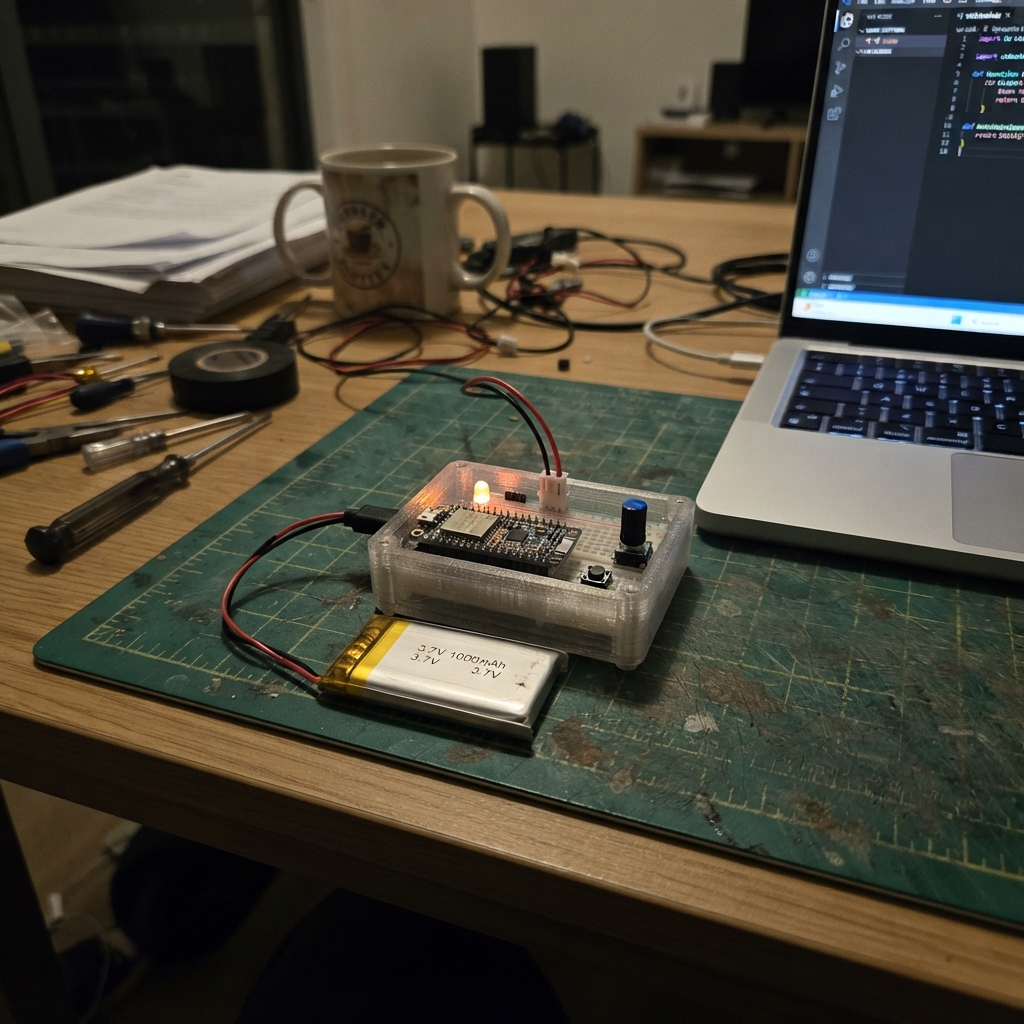
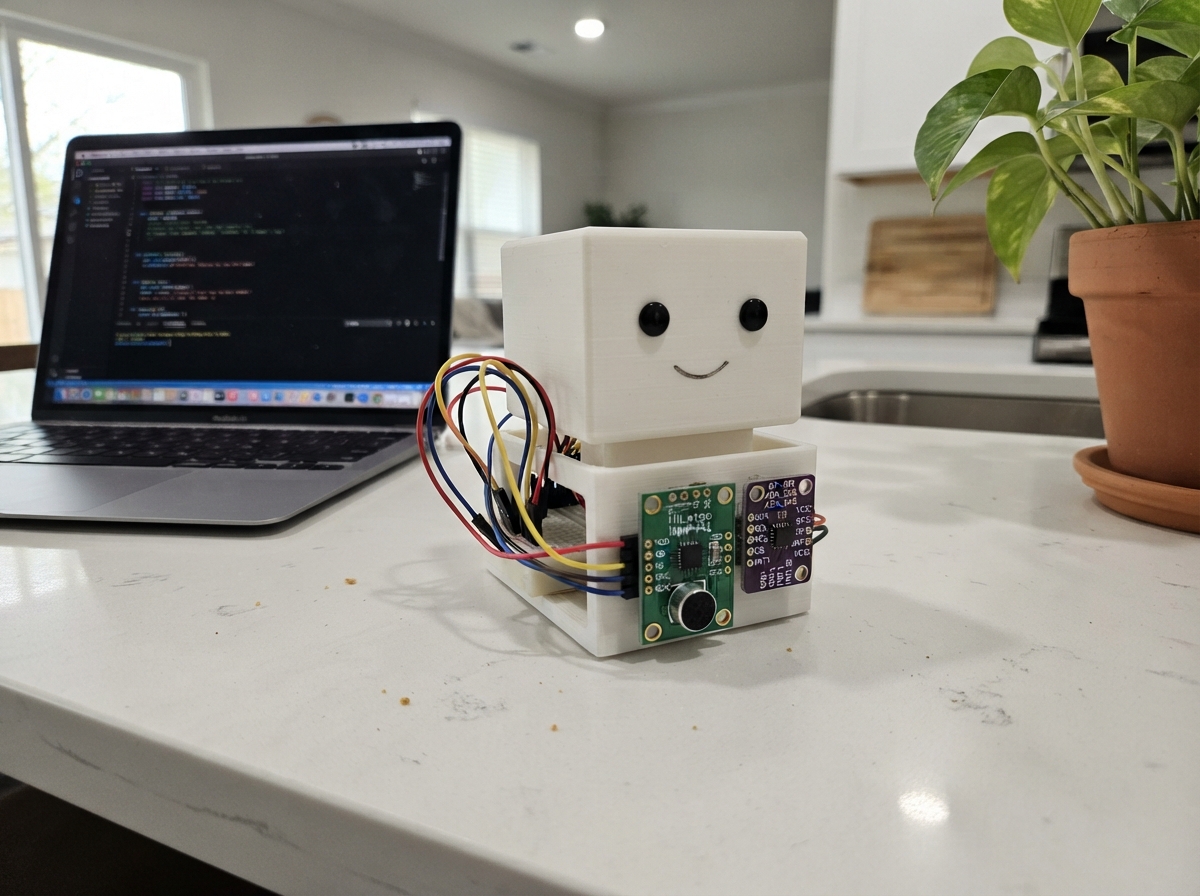
The Portable Mood Companion is an ESP32-based device that tracks your daily tasks and responds to your environment. It reads task status from a Google Sheet via a private Apps Script web app, monitors local weather conditions, and adjusts its behavior based on time of day and temperature thresholds. The companion connects to WiFi, fetches task updates every 15 minutes, and refreshes weather data every 30 minutes to stay aware of your surroundings.
This guide provides a complete parts list, wiring diagram, and step-by-step assembly instructions to build your own mood companion. You'll set up the Google Sheet integration, configure the ESP32 firmware with your WiFi credentials, program NFC tags for task logging, and deploy the device with its rechargeable 1000 mAh LiPo battery. Customize personality rules like sleep hours and temperature sensitivity to match your preferences.
Wiring diagram
Gather all the parts
Assemble it in 7 steps
1. Prepare the board
Place the Waveshare round-display board on a clean non-metal surface with the screen facing up. Do not add loose wires to the built-in screen, touch surface, speaker, microphone, clock, or card slot; they are already connected inside the board.
- Keep the clear protective film on the round screen until the enclosure is ready.
- Do not press hard on the round screen or touch panel; the glass can crack.
2. Insert the note card
With USB power unplugged, slide a FAT-formatted microSD card into the built-in card slot until it clicks. This card keeps a local copy of notes when Wi-Fi is unavailable.
- A small 8 GB to 32 GB card is plenty for text notes and feed summaries.
- Do not remove the card while the buddy is saving a note; that can corrupt the stored notes.
3. Connect the rechargeable battery
With the USB-C cable unplugged, locate the board's small two-hole battery socket marked for the LiPo battery. Plug the 3.7 V protected LiPo battery's MX1.25 two-pin plug straight into it without forcing it: red BAT+ goes to the socket's positive contact (power), and black BAT- goes to the socket's negative contact (ground).
- The connector is keyed and should slide in gently. Secure the flat battery inside the case with foam tape or a battery holder so it cannot pull on its wires.
- The board charges this battery through USB-C; do not add a TP4056 or another charger.
- Do not use a 7.4 V battery, a bare/unprotected cell, or a battery with a larger JST-PH 2.0 mm plug — it can damage the board or not fit.
- If the battery's red and black wires are reversed for this connector, do not plug it in. Verify red is positive before connecting; reversed battery power can permanently damage the board.
- Stop using the battery if it becomes swollen, hot, punctured, or smells unusual.
4. Set up the Google Sheet task list
Make one Google Sheets tab for each task, such as Medication or Exercise. In each tab, enter the completion date in column A whenever you do that task; today’s date can be written as 2026-09-28 or entered as a normal date. The companion reads every visible tab as one task and shows whether it has a row dated today.
- Use the spreadsheet’s time zone set to London so the companion and sheet agree on what counts as today.
- Hide a tab or start its name with an underscore, such as _Settings, if it should not appear as a task.
- The companion only reads the task list. It does not mark a task complete, so keep entering each completion in the sheet.
5. Connect the task dashboard and NFC logger
In Schematik, open src/google_sheets_task_webhook.gs and paste that code into Extensions > Apps Script inside your task spreadsheet. Set a long random TASK_TOKEN in Apps Script Script Properties and deploy it as a Web app. Paste its /exec address and the matching token into include/secrets.h, along with your Wi-Fi details. The companion reads task status from this private link.
- The supplied script ignores hidden tabs and reads dates from column A only.
- The buddy refreshes the task page every 15 minutes and only while connected to Wi-Fi; opening the Tasks page requests a refresh too.
- Keep the web-app address and TASK_TOKEN private. Anyone with both could read the task status returned by this dashboard.
6. Write each Android NFC tag
Install NFC Tools on your Android phone. For each task tab, write a URL record to one NFC tag in this form: YOUR_WEB_APP_EXEC_URL?action=complete&task=Medication&token=YOUR_TASK_TOKEN. Replace Medication with the matching sheet-tab name, keeping spaces as %20, then scan the tag once to log that task for today.
- Example for a tab named Take medication: use task=Take%20medication.
- Scanning the same tag again on the same day will not add a duplicate date.
- Label each physical tag with its task name so you know what it logs.
- The full link, including its token, is stored on the tag as readable text. Anyone who scans it can mark that task complete, so do not use these tags for security-sensitive records.
7. Charge, power, and deploy
Connect the board's USB-C connector to a normal 5 V USB power source using a data-capable USB-C cable. The USB cable powers the buddy, recharges the connected battery through the board, and lets Schematik flash the firmware.
- Use a short good-quality cable if the display restarts or flickers.
- Never charge a damaged, swollen, wet, or hot LiPo battery. Charge it on a non-flammable surface and do not leave it unattended.
Review all connections
1. Connections between "lipo_1000mah_mx125" and "ESP32"
Deploy the firmware
#include <Arduino.h>
#include <WiFi.h>
#include <HTTPClient.h>
#include <ArduinoJson.h>
#include <time.h>
#include "secrets.h"
// This companion reads a Google Sheet through your private Google Apps Script web app.
// Each visible spreadsheet tab is one task. A task is complete when that tab has a row
// dated today in column A. The Apps Script returns the status as JSON.
// Hoisted type definitions
struct DailyTask {
String name;
bool complete;
};
// Forward declarations
bool wifiIsConfigured();
bool sheetsIsConfigured();
String urlEncode(const String &value);
void connectWiFi();
bool sleepingHours(const tm &local);
void applyAutomaticMode();
void updateWeather();
void refreshDailyTasks();
uint8_t getDailyTaskCount();
void onTouchGesture(const String &gesture);
void onRecognisedSpeech(String phrase);
constexpr char TIME_ZONE[] = "GMT0BST,M3.5.0/1,M10.5.0/2";
constexpr float KINGSTON_LAT = 51.4123F;
constexpr float KINGSTON_LON = -0.3007F;
// PERSONALITY RULES: change these values to suit the companion.
constexpr uint8_t SLEEP_START_HOUR = 22;
constexpr uint8_t SLEEP_END_HOUR = 7;
constexpr float COLD_TEMPERATURE_C = 8.0F;
constexpr float HOT_TEMPERATURE_C = 25.0F;
constexpr uint32_t WEATHER_REFRESH_MS = 30UL * 60UL * 1000UL;
constexpr uint32_t TASK_REFRESH_MS = 15UL * 60UL * 1000UL;
constexpr uint8_t MAX_DAILY_TASKS = 20;
bool silentMode = false;
String activeAnimation = "idle";
String weatherText = "Waiting for Wi-Fi";
float temperatureC = NAN;
DailyTask dailyTasks[MAX_DAILY_TASKS];
uint8_t dailyTaskCount = 0;
String taskStatusText = "Set up Google Sheets to see daily tasks";
uint32_t lastTaskRefresh = 0;
uint32_t lastWeatherRefresh = 0;
bool wifiIsConfigured() {
return String(WIFI_SSID) != "YOUR_WIFI_NAME" && String(WIFI_PASSWORD) != "YOUR_WIFI_PASSWORD";
}
bool sheetsIsConfigured() {
return String(GOOGLE_SHEETS_WEB_APP_URL).startsWith("https://") &&
String(GOOGLE_SHEETS_SHARED_TOKEN).length() >= 16 &&
String(GOOGLE_SHEETS_SHARED_TOKEN) != "CHANGE_THIS_TO_A_LONG_RANDOM_SECRET";
}
String urlEncode(const String &value) {
const char *hex = "0123456789ABCDEF";
String result;
for (size_t i = 0; i < value.length(); ++i) {
uint8_t c = value[i];
if (isalnum(c) || c == '-' || c == '_' || c == '.') result += (char)c;
else { result += '%'; result += hex[c >> 4]; result += hex[c & 15]; }
}
return result;
}
void connectWiFi() {
if (!wifiIsConfigured() || WiFi.status() == WL_CONNECTED) return;
WiFi.mode(WIFI_STA);
WiFi.begin(WIFI_SSID, WIFI_PASSWORD);
uint32_t started = millis();
while (WiFi.status() != WL_CONNECTED && millis() - started < 12000) delay(100);
}
bool sleepingHours(const tm &local) {
return SLEEP_START_HOUR > SLEEP_END_HOUR
? local.tm_hour >= SLEEP_START_HOUR || local.tm_hour < SLEEP_END_HOUR
: local.tm_hour >= SLEEP_START_HOUR && local.tm_hour < SLEEP_END_HOUR;
}
void applyAutomaticMode() {
time_t now = time(nullptr);
tm local{};
localtime_r(&now, &local);
if (now > 1700000000 && sleepingHours(local)) activeAnimation = "sleeping";
else if (!isnan(temperatureC) && temperatureC <= COLD_TEMPERATURE_C) activeAnimation = "cold";
else if (!isnan(temperatureC) && temperatureC >= HOT_TEMPERATURE_C) activeAnimation = "hot";
else activeAnimation = "idle";
}
void updateWeather() {
if (WiFi.status() != WL_CONNECTED) return;
HTTPClient http;
String url = "https://api.open-meteo.com/v1/forecast?latitude=" + String(KINGSTON_LAT, 4) +
"&longitude=" + String(KINGSTON_LON, 4) + "¤t=temperature_2m&timezone=Europe%2FLondon";
if (!http.begin(url)) return;
if (http.GET() == HTTP_CODE_OK) {
JsonDocument json;
if (deserializeJson(json, http.getString()) == DeserializationError::Ok) {
temperatureC = json["current"]["temperature_2m"] | NAN;
weatherText = String(temperatureC, 1) + " C";
applyAutomaticMode();
}
}
http.end();
}
void refreshDailyTasks() {
if (!sheetsIsConfigured() || WiFi.status() != WL_CONNECTED) return;
HTTPClient http;
String url = String(GOOGLE_SHEETS_WEB_APP_URL) + "?token=" +
urlEncode(GOOGLE_SHEETS_SHARED_TOKEN) + "&action=today";
http.setTimeout(12000);
if (!http.begin(url)) {
taskStatusText = "Could not contact task list";
return;
}
int status = http.GET();
if (status != HTTP_CODE_OK) {
taskStatusText = "Task list unavailable (HTTP " + String(status) + ")";
http.end();
return;
}
JsonDocument json;
DeserializationError error = deserializeJson(json, http.getString());
http.end();
if (error != DeserializationError::Ok || !(json["ok"] | false)) {
taskStatusText = json["message"] | "Task list reply was invalid";
return;
}
dailyTaskCount = 0;
uint8_t completedCount = 0;
for (JsonObject task : json["tasks"].as<JsonArray>()) {
if (dailyTaskCount >= MAX_DAILY_TASKS) break;
dailyTasks[dailyTaskCount].name = String(task["name"] | "Unnamed task");
dailyTasks[dailyTaskCount].complete = task["complete"] | false;
if (dailyTasks[dailyTaskCount].complete) completedCount++;
dailyTaskCount++;
}
taskStatusText = String(completedCount) + "/" + String(dailyTaskCount) + " tasks done today";
Serial.println(taskStatusText);
for (uint8_t i = 0; i < dailyTaskCount; ++i) {
Serial.printf("%s: %s\n", dailyTasks[i].name.c_str(), dailyTasks[i].complete ? "done" : "not done");
}
}
// The display page calls this to obtain the task names and their done/not-done state.
// Swipe to the Tasks page in the display layer; this data is refreshed only on Wi-Fi.
uint8_t getDailyTaskCount() { return dailyTaskCount; }
const DailyTask &getDailyTask(uint8_t index) { return dailyTasks[index]; }
void onTouchGesture(const String &gesture) {
if (gesture == "tap") activeAnimation = "happy";
else if (gesture == "long-press") silentMode = !silentMode;
else if (gesture == "tasks-page") refreshDailyTasks();
}
void onRecognisedSpeech(String phrase) {
phrase.toLowerCase();
if (phrase.indexOf("hello") >= 0) activeAnimation = "happy";
if (phrase.indexOf("silent") >= 0 || phrase.indexOf("be quiet") >= 0) silentMode = true;
if (phrase.indexOf("sound on") >= 0 || phrase.indexOf("make noise") >= 0) silentMode = false;
}
void setup() {
Serial.begin(115200);
delay(250);
connectWiFi();
configTzTime(TIME_ZONE, "pool.ntp.org", "time.google.com");
}
void loop() {
connectWiFi();
if (WiFi.status() == WL_CONNECTED && (lastWeatherRefresh == 0 || millis() - lastWeatherRefresh >= WEATHER_REFRESH_MS)) {
lastWeatherRefresh = millis();
updateWeather();
}
if (WiFi.status() == WL_CONNECTED && sheetsIsConfigured() &&
(lastTaskRefresh == 0 || millis() - lastTaskRefresh >= TASK_REFRESH_MS)) {
lastTaskRefresh = millis();
refreshDailyTasks();
}
applyAutomaticMode();
delay(20);
}Remix this project
Make it yours in one click
Open a full copy of this project in your own Schematik workspace — diagram, code, parts, and assembly steps included. Swap the sensor, add features, or redesign the whole thing with AI. The author's original stays untouched.