Community project
Presence And Environment Monitor
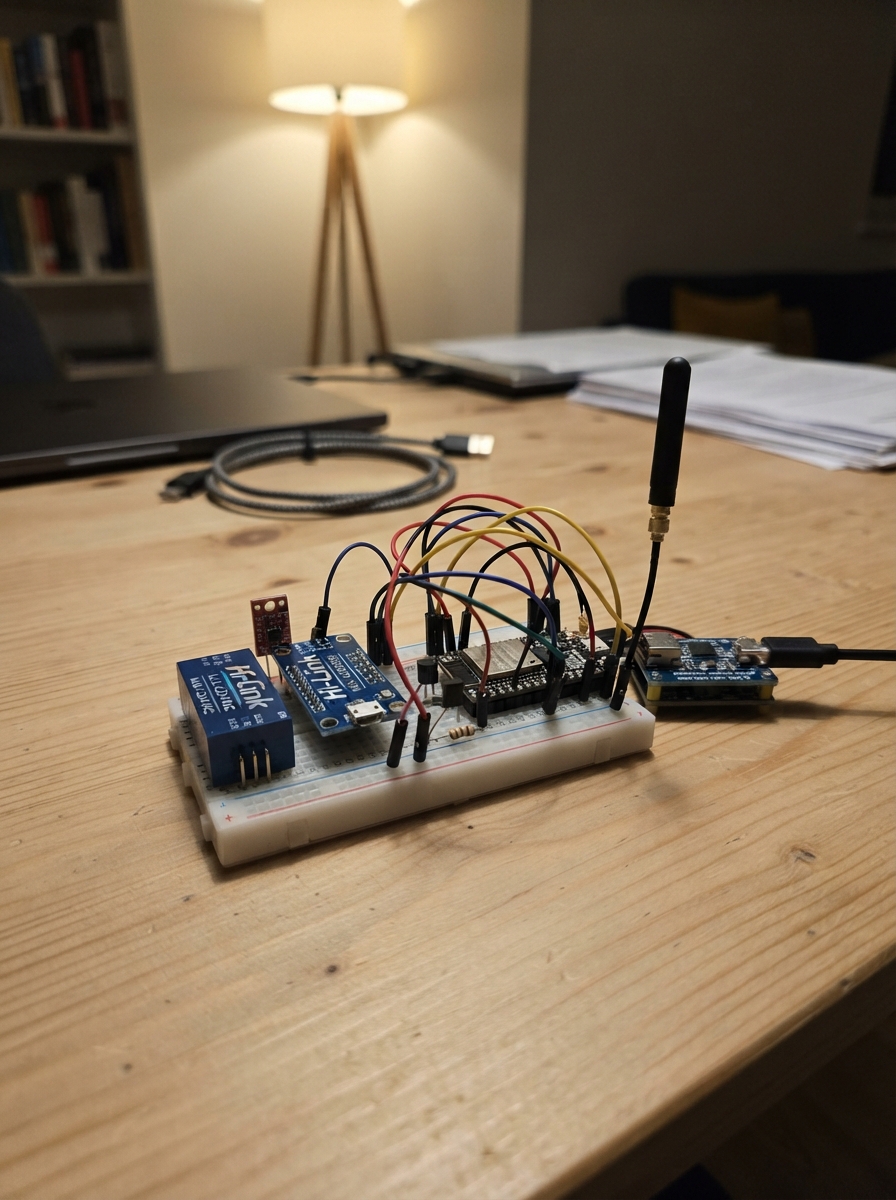
This guide builds a dual-radar presence and environment monitor using an ESP32-S3 that detects occupancy and motion in a room while measuring light and temperature. The project combines two Hi-Link radar modules—the LD2410 for still-target detection and the LD2450 for tracking—with environmental sensors to create a comprehensive room awareness system. The result integrates seamlessly with Home Assistant for automation and monitoring.
The guide provides a complete parts list, wiring diagram showing all sensor connections, step-by-step assembly instructions, and pre-configured ESPHome firmware ready to deploy. Builders will learn how to wire multiple UART devices and I2C sensors to a single microcontroller, calibrate the radar modules for their space, and set up the web interface and Home Assistant integration for real-time presence and environmental data.
Wiring diagram

Gather all the parts
Assemble it in 7 steps
1. Gather the modules and disconnect power
Use a standard Seeed XIAO ESP32-S3 (8MB flash / 8MB PSRAM), an original 5V HLK-LD2410, an HLK-LD2450, a BH1750 breakout, a genuine DS18B20+ TO-92 temperature sensor, a 4.7 kΩ resistor and a certified enclosed regulated 5V 2A USB wall adapter and USB-C cable. Use suitable jumper cables. The DS18B20 replaces the BME280 and does not measure humidity. The original LD2410 needs a matching 1.27mm connector cable or careful soldering.
- Unplug USB and the wall adapter before wiring. Never work on mains wiring; power enters only through USB-C. This design is not for the 3.3V LD2410S or newer 115200-baud variants.
2. Distribute USB power with everything unplugged
The only power input is the XIAO USB-C socket. Connect its 5V output pad to LD2410 VCC, LD2450 5V and DS18B20 VDD. Connect all sensor grounds to XIAO GND. Do not wire the adapter directly to the 5V pad; its positive and negative connections in the circuit diagram represent the USB cable. Use the regulated 5V 2A USB adapter for normal operation. Connect the XIAO supplied external antenna before powering up.
- Never connect 5V to 3V3 or a GPIO. Do not connect a second external power supply or a battery. Check voltage under radar load and stop if the connector gets warm or the board resets; adapter current capacity does not guarantee board passthrough capacity.
3. Connect each radar's data wires
LD2410 TX → D1 (GPIO2) (readings into ESP32), RX → D0 (GPIO1) (commands from ESP32). Leave OUT disconnected. LD2450 TX → D9 (GPIO8) (readings into ESP32), RX → D10 (GPIO9) (commands from ESP32). Both use the factory 256000 baud setting.
4. Connect light and temperature sensors
BH1750 VCC → ESP32 3V3 (power), GND → GND, SDA → D4 (GPIO5) (data), SCL → D5 (GPIO6) (clock), ADDR → GND for address 0x23. DS18B20 VDD (pin 3) → USB-derived 5V, GND (pin 1) → common GND, DQ (pin 2) → D3 (GPIO4) (temperature data). Connect one end of the 4.7 kΩ resistor to DQ and the other to ESP32 3V3. For the TO-92 sensor, identify pins from its package pin diagram; do not use probe wire colors as pin identification. Keep the data cable short for this build.
- The DS18B20 gets 5V power, but its resistor must pull data to 3.3V, never 5V. Use the bare three-pin sensor, not a module with a built-in pull-up to 5V. The BH1750 remains at 3.3V; do not move its VCC to 5V.
5. Position the sensors and test the room
Face both radar antenna surfaces toward the room, with the LD2450 upright per its manufacturer orientation. Start with the radars separated rather than touching; compare each radar's readings alone and together, then adjust spacing or direction if simultaneous operation causes false detections. Keep metal away from their antenna faces. Place the light sensor where it sees room light and the temperature sensor away from the ESP32 and warm radar modules, with airflow.
- Allow about 30 seconds to settle after power-on. Test walking, sitting still and leaving the room. Fans, curtains, walls and adjacent rooms can cause false detections; tune detection range and sensitivity using the radar maker's tools if needed.
- Occupancy turns on when either radar reports presence, then holds for 10 seconds after both report clear (in addition to radar timeouts). Radar states can remain stale if a module is disconnected; Device Online refers only to the ESP32 connection. LD2450 target slots are not a guaranteed people count. The LD2450 needs firmware V2.02.23090617 or later; update it with the maker's HLKRadarTool app if needed.
6. Deploy ESPHome and connect to Home Assistant
With power unplugged, check wiring. Plug the XIAO into the computer using a USB data cable and press Deploy. Use a port capable of powering the whole circuit or temporarily disconnect radar power while deploying. For normal operation move that cable to the 5V USB wall adapter. Join Presence-Sensor using password RoomSense42, open http://192.168.4.1 and enter home Wi-Fi details. Add the discovered Room Presence device using Home Assistant ESPHome integration.
- The native API encryption key is in src/device.yaml under api.encryption.key; copy it into Home Assistant if prompted. The web readings use username admin and password RoomSense42 at the device's home-network address. The old custom /api endpoint is replaced by ESPHome entities.
- Wireless ESPHome updates use password RoomSenseUpdate42. These are starter passwords and a project-visible API key; change them and the key in src/device.yaml before deploying on an untrusted network. No cloud account is needed.
- Only one DS18B20 is configured, so ESPHome finds it automatically. Wi-Fi credentials entered through setup are saved on the ESP32, not in this project.
7. Print and fit-check the compact enclosure
Open data/enclosure/presence_case.scad in OpenSCAD and follow data/enclosure/README.md. Print the lid-fit and board-clip tests before the 120 × 100 × 34 mm base and lid. This revision fits the standard XIAO ESP32-S3, not the old DevKit. The radars and light board clip into the lid; the XIAO and temperature sensor fit into the base. Measure populated boards and inspect edge clearances first. No rendered STL or physical fit validation is supplied.
- Test all printed retainers before wall mounting; adjust loose clips and the antenna guides. Keep all screw heads, wires and clips clear of antennas and components. Keep USB cable slack and secure the cable externally.
- Indoor use only. Test detection with lid off and on and compare temperature after warm-up. The temperature bay reduces direct heating but is not thermally isolated.
Review all connections
1. Connections between "still_radar" and "ESP32"
2. Connections between "tracking_radar" and "ESP32"
3. Connections between "light" and "ESP32"
4. Connections between "climate" and "ESP32"
5. Connections between "temp_pullup" and "ESP32"
6. Connections between "supply" and "ESP32"
7. Connections between "antenna" and "ESP32"
Deploy the firmware
esphome:
  name: presence-sensor
  friendly_name: Room Presence

esp32:
  variant: esp32s3
  flash_size: 8MB
  framework:
    type: arduino

logger:
  baud_rate: 0

# Join the setup network to enter your home Wi-Fi details.
wifi:
  ap:
    ssid: Presence-Sensor
    password: RoomSense42

captive_portal:

api:
  reboot_timeout: 0s
  encryption:
    key: "A91dH3Twq8l+CZpOvKxj2eUX6rMY0bIa5QhsNGf7S4c="

ota:
  - platform: esphome
    password: RoomSenseUpdate42

web_server:
  port: 80
  version: 2
  local: true
  auth:
    username: admin
    password: RoomSense42

i2c:
  sda: GPIO5
  scl: GPIO6
  scan: true
  frequency: 100kHz

one_wire:
  - platform: gpio
    pin: GPIO4
    id: temperature_bus

uart:
  - id: still_uart
    rx_pin: GPIO2
    tx_pin: GPIO1
    baud_rate: 256000
    parity: NONE
    stop_bits: 1
  - id: tracking_uart
    rx_pin: GPIO8
    tx_pin: GPIO9
    baud_rate: 256000
    parity: NONE
    stop_bits: 1

ld2410:
  id: still_radar
  uart_id: still_uart

ld2450:
  id: tracking_radar
  uart_id: tracking_uart

binary_sensor:
  - platform: ld2410
    ld2410_id: still_radar
    has_target:
      id: still_presence
      name: LD2410 Presence
      filters: []
    has_moving_target:
      name: LD2410 Moving Target
    has_still_target:
      name: LD2410 Still Target
  - platform: ld2450
    ld2450_id: tracking_radar
    has_target:
      id: tracking_presence
      name: LD2450 Presence
      filters: []
    has_moving_target:
      name: LD2450 Moving Target
    has_still_target:
      name: LD2450 Still Target
  - platform: template
    id: room_presence
    name: Occupancy
    device_class: occupancy
    lambda: |-
      if ((id(still_presence).has_state() && id(still_presence).state) ||
          (id(tracking_presence).has_state() && id(tracking_presence).state)) {
        return true;
      }
      if (!id(still_presence).has_state() || !id(tracking_presence).has_state()) {
        return {};
      }
      return false;
    filters:
      - delayed_off: 10s
  - platform: status
    name: Device Online

sensor:
  - platform: bh1750
    name: Illuminance
    address: 0x23
    update_interval: 2s
  - platform: dallas_temp
    one_wire_id: temperature_bus
    name: Temperature
    resolution: 12
    update_interval: 10s
  - platform: ld2410
    ld2410_id: still_radar
    detection_distance:
      name: LD2410 Detection Distance
    moving_distance:
      name: LD2410 Moving Distance
    still_distance:
      name: LD2410 Still Distance
  - platform: ld2450
    ld2450_id: tracking_radar
    target_count:
      name: LD2450 Target Count
    target_1:
      x:
        name: Target 1 X
      y:
        name: Target 1 Y
      speed:
        name: Target 1 Speed
    target_2:
      x:
        name: Target 2 X
      y:
        name: Target 2 Y
      speed:
        name: Target 2 Speed
    target_3:
      x:
        name: Target 3 X
      y:
        name: Target 3 Y
      speed:
        name: Target 3 Speed

switch:
  - platform: ld2450
    ld2450_id: tracking_radar
    multi_target:
      name: LD2450 Multi Target Tracking

text_sensor:
  - platform: ld2450
    ld2450_id: tracking_radar
    version:
      name: LD2450 Firmware

button:
  - platform: restart
    name: Restart Device
Remix this project
Make it yours in one click
Open a full copy of this project in your own Schematik workspace — diagram, code, parts, and assembly steps included. Swap the sensor, add features, or redesign the whole thing with AI. The author's original stays untouched.