Community project
Rotary Window Switching
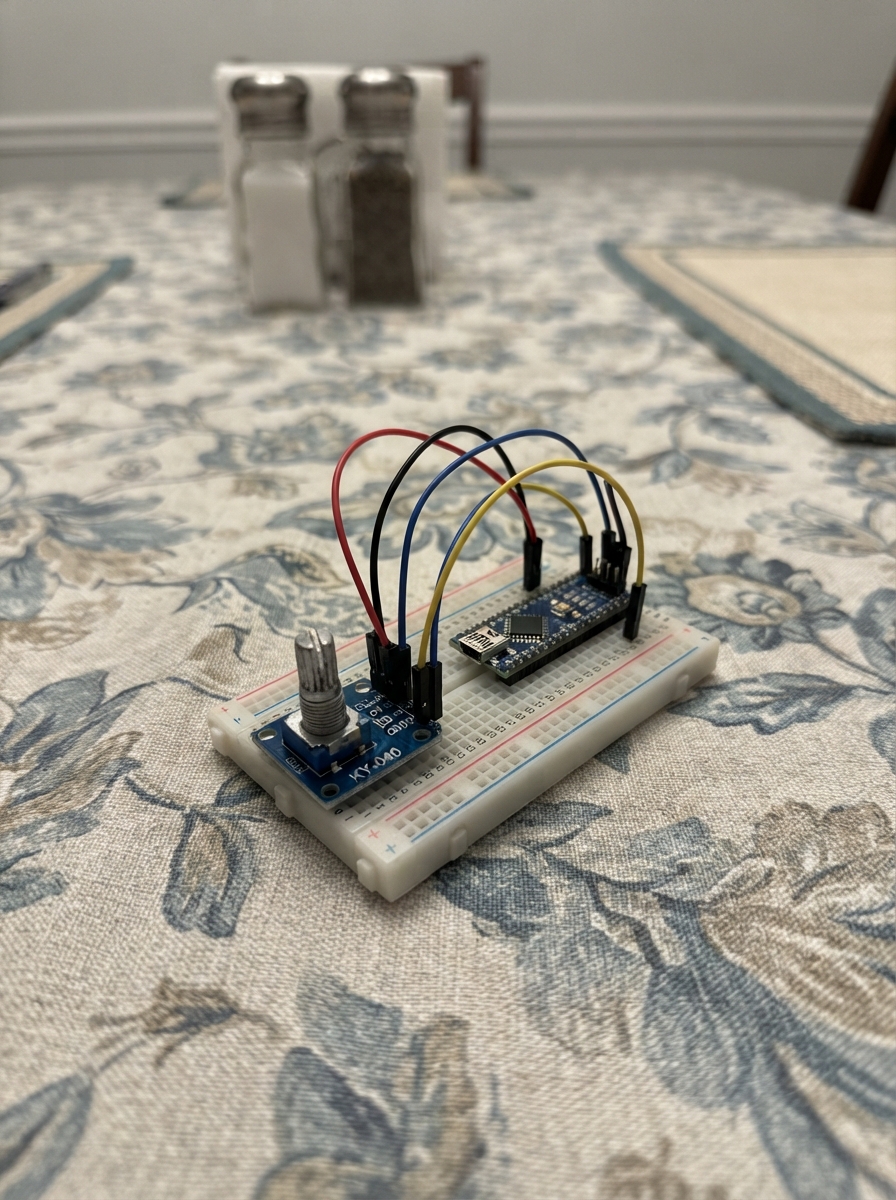
This project transforms a KY-040 rotary encoder into a wireless window switcher using an ESP32 and Bluetooth. Rotating the encoder sends Alt+Tab commands to switch between open windows on a paired computer, while pressing the encoder button triggers Alt+F4 to close the active window. The guide includes a wiring diagram showing how to connect the encoder's CLK, DT, and SW pins to the ESP32, a complete parts list, and firmware that handles quadrature decoding and Bluetooth HID keyboard emulation.
Builders will learn how to set up Bluetooth Low Energy communication on the ESP32, implement debouncing for reliable button detection, and decode rotary encoder signals using a quadrature lookup table. The assembly process takes just a few minutes and requires only basic soldering skills. Once programmed and paired with a computer, the rotary encoder becomes a convenient one-handed control for window management.
Wiring diagram
Gather all the parts
Assemble it in 5 steps
1. Unplug the ESP32 before wiring
Unplug the ESP32 from USB, then place the ESP32 CP2102 board and the KY-040 encoder module where you can read the labels on both boards. This prevents an accidental short while you add jumper wires.
- Use five female-to-female jumper wires if both boards have header pins.
- Do not connect or move wires while USB power is attached; a misplaced wire can short the board.
2. Connect power and ground
Connect the KY-040 VCC pin to the ESP32 3V3 pin (power). Connect the KY-040 GND pin to an ESP32 GND pin (ground).
- Use a red wire for 3V3 and a black wire for GND so the two important connections are easy to recheck.
- Make sure VCC goes to 3V3, not 5V — this keeps the encoder signals at a safe voltage for the ESP32. Swapped VCC and GND can damage the module.
3. Connect the turning signals
Connect KY-040 CLK to ESP32 GPIO18 (first turning signal). Connect KY-040 DT to ESP32 GPIO19 (second turning signal). These two wires tell the ESP32 which way the knob moved.
- The CLK and DT labels are printed next to the encoder pins. If the knob later moves through apps in the direction you do not prefer, swap only these two wires.
- Keep these wires away from the 3V3 and GND pins; putting a signal wire on a power pin can stop the knob from working.
4. Connect the push switch
Connect KY-040 SW to ESP32 GPIO21 (switch signal). The firmware reserves this built-in button for a later feature; turning the knob is what changes applications now.
- The SW pin is separate from CLK and DT, even though all three are on the same small module.
- Do not connect the SW pin to 3V3 or GND directly; pressing the encoder would then create a short.
5. Inspect before powering it
Check all five connections one more time: VCC to 3V3 (power), GND to GND (ground), CLK to GPIO18 (first turning signal), DT to GPIO19 (second turning signal), and SW to GPIO21 (button signal). Then plug the ESP32 into your Windows PC using its USB cable.
- The USB cable powers the board and is used to put the firmware on it.
- Some USB cables only charge and do not carry data. If Deploy cannot find the board later, try another known data-capable cable.
Review all connections
1. Connections between "rotary_encoder_1" and "ESP32"
Deploy the firmware
#include <Arduino.h>
#include <BLEDevice.h>
#include <BLEHIDDevice.h>
#include <BLEServer.h>
#include <BLEUtils.h>

constexpr int ENCODER_CLK_PIN = 18;
constexpr int ENCODER_DT_PIN = 19;
constexpr int ENCODER_SW_PIN = 21;

BLEHIDDevice *hidDevice = nullptr;
BLECharacteristic *keyboardInput = nullptr;
volatile bool bluetoothConnected = false;
uint8_t previousEncoderState = 0;
int8_t encoderSteps = 0;
bool buttonStableState = HIGH;
bool buttonLastReading = HIGH;
unsigned long buttonLastChangeMs = 0;

const int8_t QUADRATURE_TABLE[16] = {
   0, -1,  1,  0,  1,  0,  0, -1,
  -1,  0,  0,  1,  0,  1, -1,  0
};

const uint8_t KEYBOARD_REPORT_MAP[] = {
  0x05, 0x01, 0x09, 0x06, 0xA1, 0x01, 0x85, 0x01,
  0x05, 0x07, 0x19, 0xE0, 0x29, 0xE7, 0x15, 0x00,
  0x25, 0x01, 0x75, 0x01, 0x95, 0x08, 0x81, 0x02,
  0x95, 0x01, 0x75, 0x08, 0x81, 0x01, 0x95, 0x06,
  0x75, 0x08, 0x15, 0x00, 0x25, 0x65, 0x05, 0x07,
  0x19, 0x00, 0x29, 0x65, 0x81, 0x00, 0xC0
};

class KeyboardConnectionCallbacks : public BLEServerCallbacks {
  void onConnect(BLEServer *) override { bluetoothConnected = true; }
  void onDisconnect(BLEServer *server) override {
    bluetoothConnected = false;
    server->startAdvertising();
  }
};

void sendKeyboardReport(uint8_t modifier, uint8_t key) {
  if (!bluetoothConnected || keyboardInput == nullptr) return;
  uint8_t report[8] = {modifier, 0, key, 0, 0, 0, 0, 0};
  keyboardInput->setValue(report, sizeof(report));
  keyboardInput->notify();
}

void sendKey(uint8_t modifier, uint8_t key) {
  sendKeyboardReport(modifier, key);
  delay(12);
  sendKeyboardReport(0, 0);
}

constexpr uint8_t MODIFIER_LEFT_CTRL = 0x01;
constexpr uint8_t MODIFIER_LEFT_SHIFT = 0x02;
constexpr uint8_t MODIFIER_LEFT_ALT = 0x04;
constexpr uint8_t MODIFIER_LEFT_GUI = 0x08;
constexpr uint8_t KEY_ESCAPE = 0x29;
constexpr uint8_t KEY_TAB = 0x2B;

void switchApplication(bool forward) {
  // Alt+Esc switches immediately through recently used application windows.
  // Shift reverses the direction without leaving the app-switcher on screen.
  const uint8_t modifiers = forward
      ? MODIFIER_LEFT_ALT
      : (MODIFIER_LEFT_ALT | MODIFIER_LEFT_SHIFT);
  sendKey(modifiers, KEY_ESCAPE);
}

void switchToMostRecentApplication() {
  // A normal Alt+Tab press immediately returns to the most recently used app.
  // Repeating it alternates between the two most recently used applications.
  sendKey(MODIFIER_LEFT_ALT, KEY_TAB);
}

void readButton() {
  const bool reading = digitalRead(ENCODER_SW_PIN);
  if (reading != buttonLastReading) {
    buttonLastChangeMs = millis();
    buttonLastReading = reading;
  }

  // A press is counted once after the switch contacts have settled.
  if ((millis() - buttonLastChangeMs) >= 35 && reading != buttonStableState) {
    buttonStableState = reading;
    if (buttonStableState == LOW) {
      switchToMostRecentApplication();
    }
  }
}

void readEncoder() {
  const uint8_t currentState =
      (static_cast<uint8_t>(digitalRead(ENCODER_CLK_PIN)) << 1) |
      static_cast<uint8_t>(digitalRead(ENCODER_DT_PIN));
  const int8_t movement = QUADRATURE_TABLE[(previousEncoderState << 2) | currentState];
  previousEncoderState = currentState;
  if (movement == 0) return;
  encoderSteps += movement;
  if (encoderSteps >= 4) {
    encoderSteps = 0;
    switchApplication(true);
  } else if (encoderSteps <= -4) {
    encoderSteps = 0;
    switchApplication(false);
  }
}

void setup() {
  pinMode(ENCODER_CLK_PIN, INPUT_PULLUP);
  pinMode(ENCODER_DT_PIN, INPUT_PULLUP);
  pinMode(ENCODER_SW_PIN, INPUT_PULLUP);
  previousEncoderState =
      (static_cast<uint8_t>(digitalRead(ENCODER_CLK_PIN)) << 1) |
      static_cast<uint8_t>(digitalRead(ENCODER_DT_PIN));
  buttonStableState = digitalRead(ENCODER_SW_PIN);
  buttonLastReading = buttonStableState;

  BLEDevice::init("ESP32 App Knob");
  BLEServer *server = BLEDevice::createServer();
  server->setCallbacks(new KeyboardConnectionCallbacks());
  hidDevice = new BLEHIDDevice(server);
  keyboardInput = hidDevice->inputReport(1);
  hidDevice->manufacturer()->setValue("Schematik");
  hidDevice->pnp(0x02, 0xE502, 0xA111, 0x0210);
  hidDevice->hidInfo(0x00, 0x01);
  hidDevice->reportMap(const_cast<uint8_t *>(KEYBOARD_REPORT_MAP), sizeof(KEYBOARD_REPORT_MAP));
  hidDevice->startServices();
  hidDevice->setBatteryLevel(100);

  BLEAdvertising *advertising = server->getAdvertising();
  advertising->setAppearance(0x03C1);
  advertising->addServiceUUID(hidDevice->hidService()->getUUID());
  advertising->start();
}

void loop() {
  readEncoder();
  readButton();
  delay(1);
}
Remix this project
Make it yours in one click
Open a full copy of this project in your own Schematik workspace — diagram, code, parts, and assembly steps included. Swap the sensor, add features, or redesign the whole thing with AI. The author's original stays untouched.