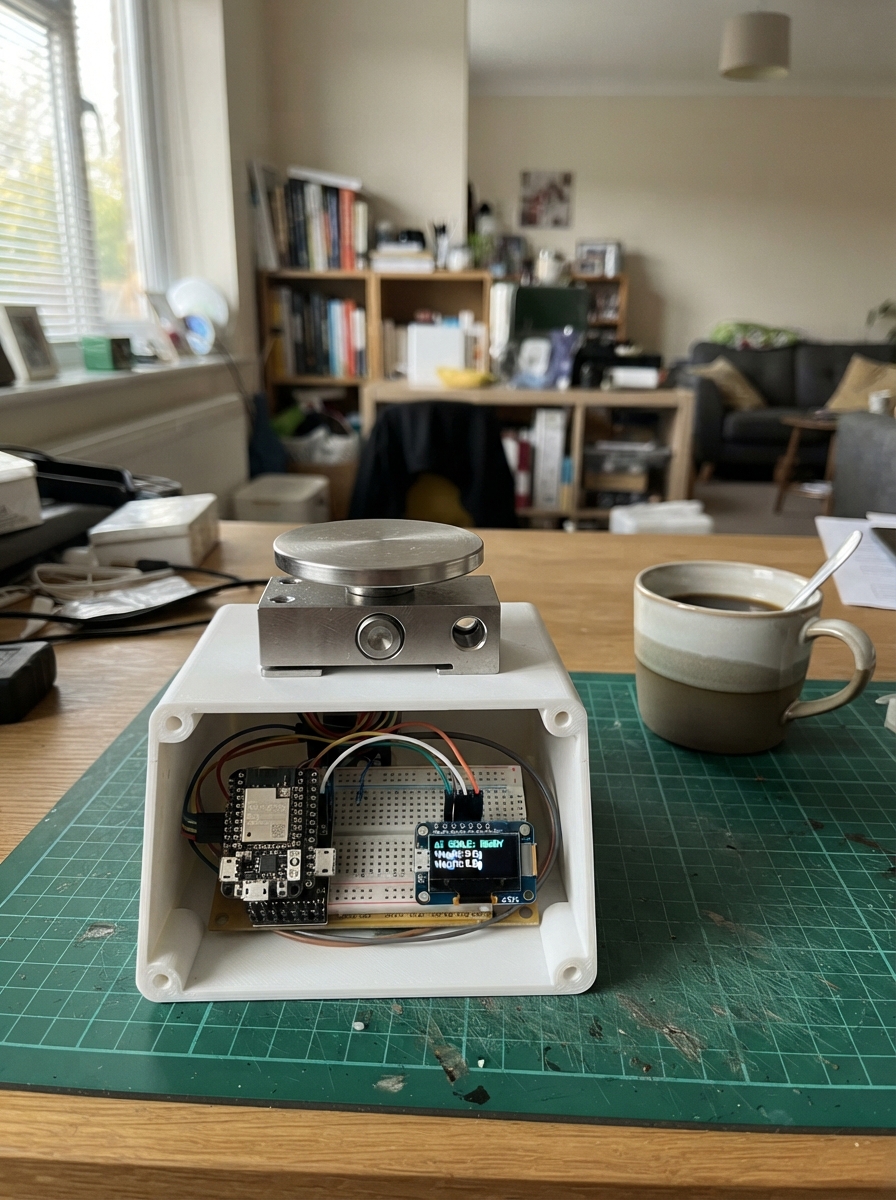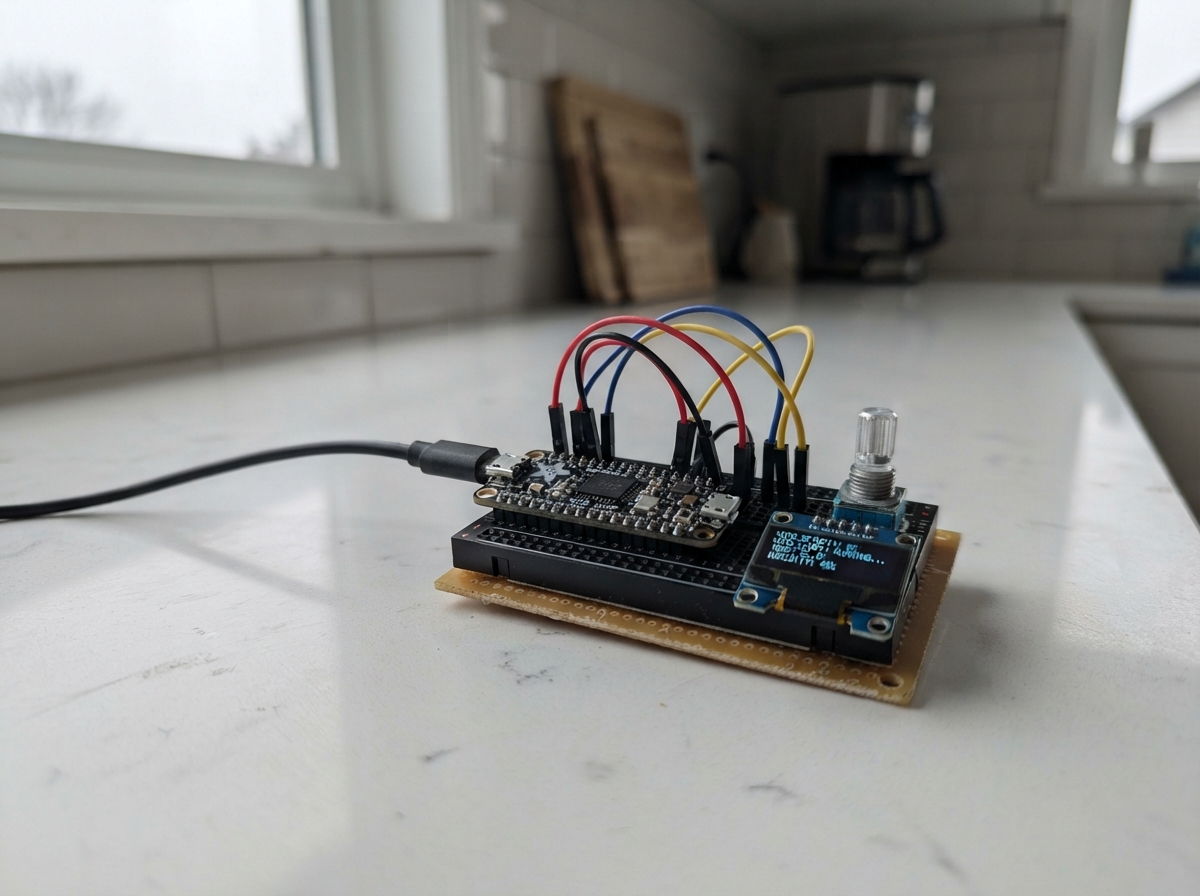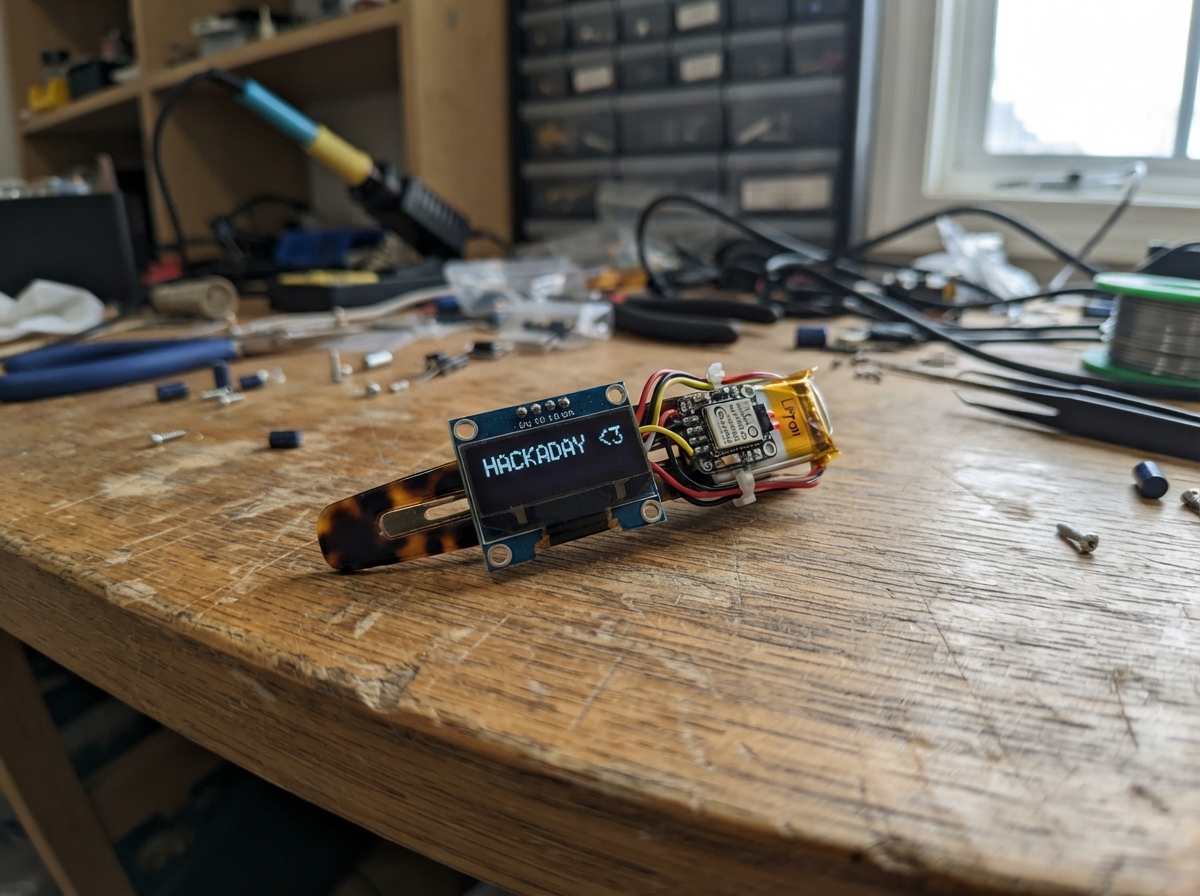
This WiFi-editable hairclip display combines an ESP32 microcontroller with a small SSD1306 OLED screen to create a wearable message board. Connect wirelessly from any device to upload text or images, which appear instantly on the clip and persist even after power cycles.
The guide provides a complete wiring diagram showing how to connect the OLED display to the ESP32, a full parts list, ready-to-upload firmware with a web interface, and step-by-step assembly instructions for creating a safe, wearable clip. No soldering or advanced skills required—just wire, program, and customize.
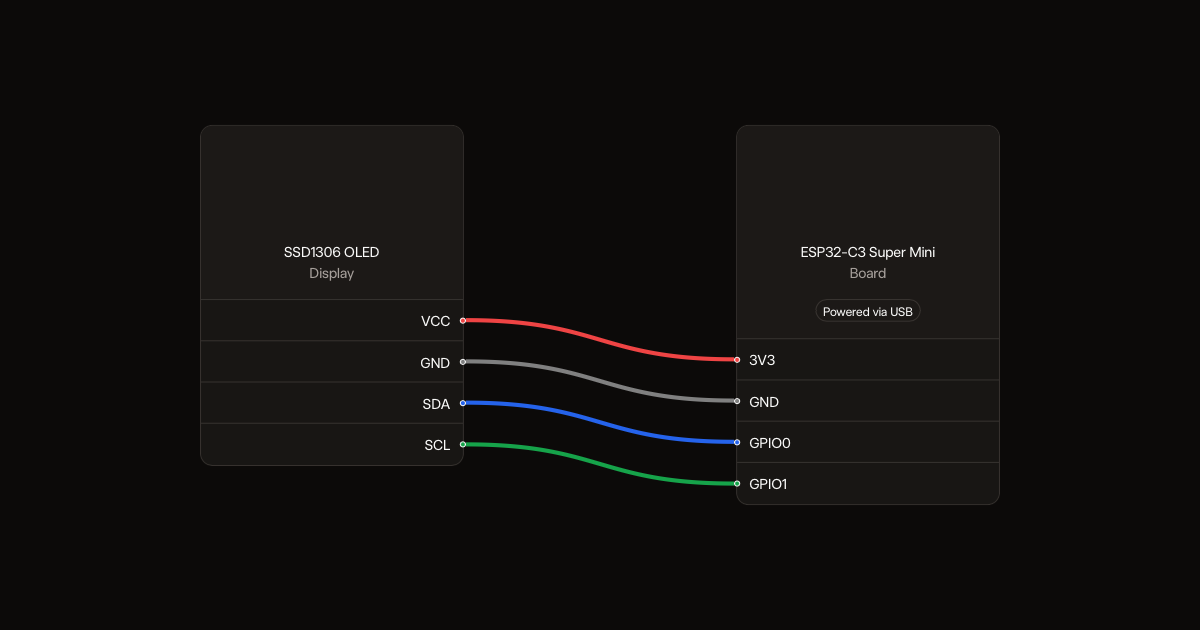
Wiring diagram
Gather all the parts
Assemble it in 3 steps
1. Connect the screen
With USB unplugged, connect VCC to 3V3 (screen power), GND to GND (power return), SDA to GPIO0 (data), and SCL to GPIO1 (clock). Use short insulated wires. Solder for the final wearable rather than using a breadboard.
- Check the labels on your screen: some modules swap VCC and GND. Reversed power can destroy it.
2. Make the clip safe to wear
Mount the screen facing out on a plain hairclip, with the board behind it. Cover solder joints and the board in a light insulating enclosure. Keep metal clip surfaces away from all electronics. Secure wires so a gentle tug cannot pull solder joints loose.
- Do not wear exposed wiring or sharp headers. Keep it dry, and remove it if it becomes warm.
3. Supply USB power
Use the board's USB connector with a certified enclosed 5 V USB power bank carried in a pocket. Keep the cable loose and routed away from your neck; do not wrap it around your neck. Test on a table before wearing. This design does not charge or accept a bare battery.
- Some power banks switch off at low current. Check that yours stays on while the clip is running.
Review all connections
1. Connections between "screen" and "ESP32"
Deploy the firmware
#include <Arduino.h>
#include <Wire.h>
#include <WiFi.h>
#include <WebServer.h>
#include <Preferences.h>
#include <Adafruit_GFX.h>
#include <Adafruit_SSD1306.h>
Adafruit_SSD1306 oled(128,64,&Wire,-1);
WebServer server(80);
Preferences prefs;
bool screenOK=false;
uint8_t picture[1024];
const char page[] PROGMEM=R"HTML(<!doctype html><html><meta name="viewport" content="width=device-width,initial-scale=1"><title>Hairclip</title><style>body{font:18px sans-serif;max-width:420px;margin:24px auto;padding:12px}button,input,textarea,select{font:inherit;margin:8px 0;max-width:100%}canvas{width:100%;image-rendering:pixelated;background:black}</style><h1>Hairclip editor</h1><p>Text uses basic English letters and symbols. Images become black and white.</p><textarea id="text" maxlength="80" placeholder="Your text"></textarea><br><select id="size"><option value="1">Small text</option><option value="2" selected>Large text</option></select><button onclick="sendText()">Show text</button><hr><input type="file" id="file" accept="image/*"><p>Image preview (whole image fitted):</p><canvas id="preview" width="128" height="64"></canvas><br><label>Threshold <input id="threshold" type="range" min="0" max="255" value="128"></label><label><input type="checkbox" id="invert">Invert</label><button onclick="sendImage()">Show image</button><p id="status"></p><p>Last design is saved when power is unplugged. No internet on this Wi-Fi.</p><script>
const c=document.getElementById('preview'),ctx=c.getContext('2d');let img=null,bytes=new Uint8Array(1024);
async function post(path,body){try{let r=await fetch(path,{method:'POST',headers:{'Content-Type':'application/x-www-form-urlencoded'},body});document.getElementById('status').textContent=await r.text()}catch(e){document.getElementById('status').textContent='Connection lost. Rejoin Hairclip Wi-Fi.'}}
function sendText(){post('/text',new URLSearchParams({text:document.getElementById('text').value,size:document.getElementById('size').value}))}
function render(){if(!img)return;ctx.fillStyle='black';ctx.fillRect(0,0,128,64);let s=Math.min(128/img.width,64/img.height);ctx.drawImage(img,(128-img.width*s)/2,(64-img.height*s)/2,img.width*s,img.height*s);let d=ctx.getImageData(0,0,128,64);bytes.fill(0);let t=+document.getElementById('threshold').value,inv=document.getElementById('invert').checked;for(let y=0;y<64;y++)for(let x=0;x<128;x++){let k=(y*128+x)*4,on=(0.299*d.data[k]+0.587*d.data[k+1]+0.114*d.data[k+2]>=t);if(inv)on=!on;if(on)bytes[y*16+(x>>3)]|=128>>(x&7);d.data[k]=d.data[k+1]=d.data[k+2]=on?255:0;d.data[k+3]=255}ctx.putImageData(d,0,0)}
document.getElementById('file').onchange=e=>{let f=e.target.files[0];if(!f)return;let u=URL.createObjectURL(f);img=new Image();img.onload=()=>{render();URL.revokeObjectURL(u)};img.src=u};document.getElementById('threshold').oninput=render;document.getElementById('invert').onchange=render;
function sendImage(){if(!img)return;post('/image',new URLSearchParams({hex:Array.from(bytes,b=>b.toString(16).padStart(2,'0')).join('')}))}
</script></html>)HTML";
void showText(String text,int size){if(!screenOK)return;oled.clearDisplay();oled.setTextSize(size);oled.setTextColor(SSD1306_WHITE);oled.setCursor(0,0);oled.print(text);oled.display();}
void showImage(){if(!screenOK)return;oled.clearDisplay();oled.drawBitmap(0,0,picture,128,64,SSD1306_WHITE);oled.display();}
int digit(char c){if(c>='0'&&c<='9')return c-'0';if(c>='a'&&c<='f')return c-'a'+10;if(c>='A'&&c<='F')return c-'A'+10;return -1;}
void setup(){
 Wire.begin(0,1);screenOK=oled.begin(SSD1306_SWITCHCAPVCC,0x3C,true,false);
 prefs.begin("hairclip",false);
 if(prefs.getBool("image",false)&&prefs.getBytesLength("pixels")==1024){prefs.getBytes("pixels",picture,1024);showImage();}else showText(prefs.getString("text","Hello!"),prefs.getInt("size",2));
 WiFi.mode(WIFI_AP);WiFi.softAP("Hairclip","clipedit123");
 server.on("/",HTTP_GET,[]{server.send_P(200,"text/html",page);});
 server.on("/text",HTTP_POST,[]{String t=server.arg("text");int s=server.arg("size").toInt();if(t.length()>80||(s!=1&&s!=2)){server.send(400,"text/plain","Use up to 80 characters and size 1 or 2.");return;}for(unsigned i=0;i<t.length();i++){if((uint8_t)t[i]>126||((uint8_t)t[i]<32&&t[i]!='\n'&&t[i]!='\r')){server.send(400,"text/plain","Use basic English letters and symbols.");return;}}prefs.putString("text",t);prefs.putInt("size",s);prefs.putBool("image",false);showText(t,s);server.send(200,"text/plain","Text saved. Keep text short so it fits the screen.");});
 server.on("/image",HTTP_POST,[]{String h=server.arg("hex");if(h.length()!=2048){server.send(400,"text/plain","Invalid image size");return;}for(unsigned i=0;i<h.length();i++)if(digit(h[i])<0){server.send(400,"text/plain","Invalid image");return;}for(int i=0;i<1024;i++)picture[i]=(digit(h[i*2])<<4)|digit(h[i*2+1]);prefs.putBytes("pixels",picture,1024);prefs.putBool("image",true);showImage();server.send(200,"text/plain","Image saved.");});
 server.onNotFound([]{server.send(404,"text/plain","Open http://192.168.4.1");});server.begin();
}
void loop(){server.handleClient();delay(2);}
Remix this project
Make it yours in one click
Open a full copy of this project in your own Schematik workspace, diagram, code, parts, and assembly steps included. Swap the sensor, add features, or redesign the whole thing with AI. The author's original stays untouched.