Community project
WiFi Remote Alert Button
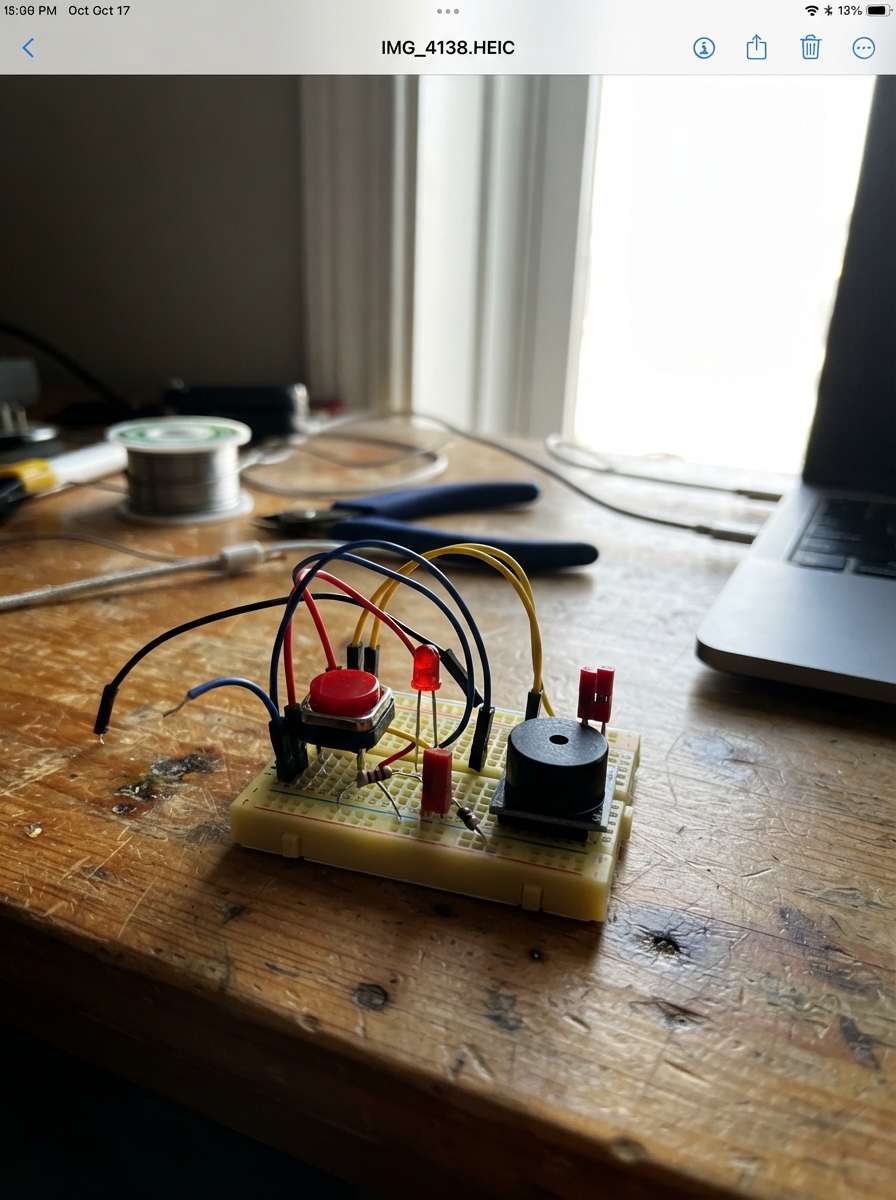
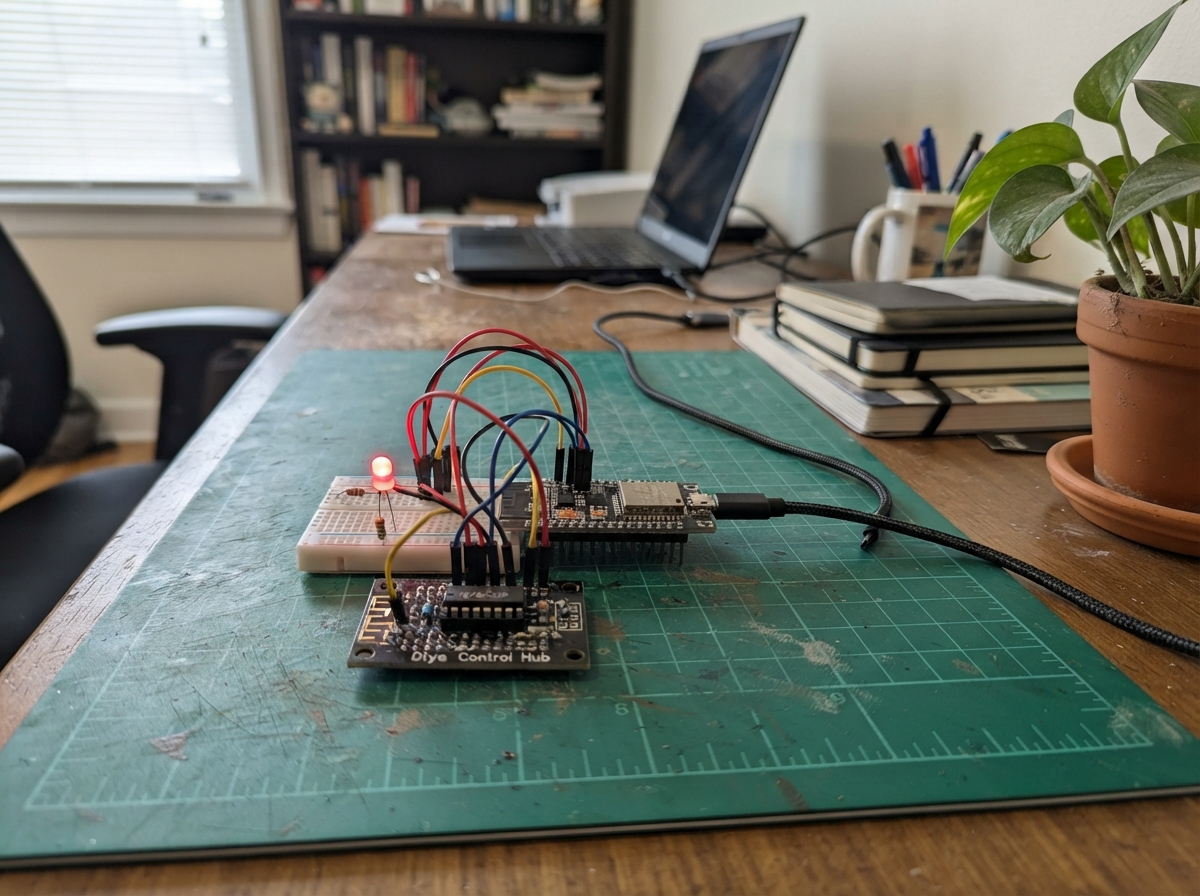
This project creates a wireless two-way alert system using two ESP32 boards communicating over WiFi Direct (ESP-NOW). One board acts as a bedroom call button sender, while the other in the office receives the alert and triggers both a visual LED indicator and an audible buzzer notification. The sender and receiver roles are configured via a jumper header, making it easy to swap functionality between the two units.
The guide provides a complete wiring diagram showing how to connect the push button, LED, resistor, and piezo buzzer module to each ESP32, along with the full firmware code that handles debouncing, message validation, and wireless communication. Assembly steps walk through preparing both boards, configuring their roles, and testing the alert system to ensure reliable wireless transmission between rooms.
Wiring diagram

Gather all the parts
Assemble it in 7 steps
1. Prepare the two Nano boards
Place the two Arduino Nano ESP32 boards where they will be used: one beside the bed and one in the office. Use a separate USB cable and USB power source for each board; the two boards do not need any wire running between rooms.
- Mark one board “bedroom” and the other “office” with tape so they do not get mixed up.
- Do not connect the two boards’ 3.3 V pins or GND pins together across rooms; they communicate by radio.
2. Wire the bedroom call button
On the bedroom board, connect one leg of one call_button to D2 / GPIO5 (signal) and the other leg to GND (ground). If you use a four-leg tactile switch, use two legs on opposite sides of the switch, not two legs that are already joined on the same side.
- The button works even if the two wires are swapped.
3. Make the bedroom board the sender
On the bedroom board, connect the two pins of role_jumper to D5 / GPIO8 (role signal) and GND (ground), then fit the small jumper cap across those two pins. The cap tells this board that pressing its button should send a call.
- Leave the cap fitted whenever this is the bedroom unit.
- Do not place the cap on any other pair of pins; it must only join GPIO8 to GND.
4. Wire the office acknowledge button
On the office board, connect one leg of the second call_button to D2 / GPIO5 (signal) and the other leg to GND (ground). Pressing this button stops an active office alert.
- Do not add the role jumper to the office board; its unused GPIO8 pin is safely held high inside the board.
5. Wire the office light
Connect D3 / GPIO6 to one lead of led_resistor (signal). Connect the resistor’s other lead to the long leg of call_led (LED positive). Connect the LED’s short leg, the flat-side leg, to GND (ground). The resistor limits current so the LED is not damaged.
- If the LED does not light during a test, unplug USB and turn the LED around; LEDs only work in one direction.
- Never connect the LED directly from GPIO6 to GND without the 220 Ω resistor; that can damage the LED or board pin.
6. Wire the office buzzer
On active_buzzer, connect VCC to 3V3 (power), GND to GND (ground), and SIG to D4 / GPIO7 (signal). Use a 3.3 V active buzzer module, not a bare speaker or a 5 V-only buzzer.
- The labels are usually printed on the small buzzer board.
- Make sure VCC and GND are not swapped — swapped power can damage the buzzer module.
7. Power and test the pair
Connect each Nano board to USB power. Flash the same project firmware to both boards. With the jumper cap fitted only on the bedroom board, press the bedroom button: the office LED should stay on and the office buzzer should pulse. Press the office button to stop the alert.
- Keep the boards a few metres apart for the first test, then move them to the bedroom and office.
- This is a local radio call button, not an emergency or life-safety alarm; keep a reliable backup way to request urgent help.
Review all connections
1. Connections between "call_button" and "ESP32"
2. Connections between "led_resistor" and "ESP32"
3. Connections between "call_led" and "ESP32"
4. Connections between "active_buzzer" and "ESP32"
5. Connections between "role_jumper" and "ESP32"
Deploy the firmware
#include <Arduino.h>
#include <WiFi.h>
#include <esp_now.h>
#include <esp_arduino_version.h>

constexpr uint8_t BUTTON_PIN = 5;
constexpr uint8_t LED_PIN = 6;
constexpr uint8_t BUZZER_PIN = 7;
constexpr uint8_t ROLE_PIN = 8;
constexpr uint32_t MESSAGE_MAGIC = 0xCA11BEEFUL;
constexpr uint16_t GROUP_ID = 0x0421;

struct CallMessage {
  uint32_t magic;
  uint16_t group;
  uint16_t sequence;
};

const uint8_t BROADCAST_ADDRESS[] = {0xFF, 0xFF, 0xFF, 0xFF, 0xFF, 0xFF};

bool senderRole = false;
bool alertActive = false;
bool lastBuzzerState = false;
bool lastRawButton = HIGH;
bool stableButton = HIGH;
uint32_t lastDebounceAt = 0;
uint16_t nextSequence = 1;

void setBuzzer(bool on) {
  if (on != lastBuzzerState) {
    digitalWrite(BUZZER_PIN, on ? HIGH : LOW);
    lastBuzzerState = on;
  }
}

void sendCall() {
  CallMessage message = {MESSAGE_MAGIC, GROUP_ID, nextSequence++};
  esp_now_send(BROADCAST_ADDRESS, reinterpret_cast<const uint8_t *>(&message), sizeof(message));
}

void processReceivedMessage(const uint8_t *data, int length) {
  if (length != static_cast<int>(sizeof(CallMessage))) {
    return;
  }

  CallMessage message;
  memcpy(&message, data, sizeof(message));
  if (message.magic == MESSAGE_MAGIC && message.group == GROUP_ID) {
    alertActive = true;
  }
}

#if ESP_ARDUINO_VERSION_MAJOR >= 3
void onDataReceived(const esp_now_recv_info_t *info, const uint8_t *data, int length) {
  (void)info;
  processReceivedMessage(data, length);
}
#else
void onDataReceived(const uint8_t *mac, const uint8_t *data, int length) {
  (void)mac;
  processReceivedMessage(data, length);
}
#endif

void setupEspNow() {
  WiFi.mode(WIFI_STA);
  WiFi.disconnect();

  if (esp_now_init() != ESP_OK) {
    return;
  }

  esp_now_peer_info_t peerInfo = {};
  memcpy(peerInfo.peer_addr, BROADCAST_ADDRESS, sizeof(BROADCAST_ADDRESS));
  peerInfo.channel = 0;
  peerInfo.encrypt = false;
  esp_now_add_peer(&peerInfo);

  if (!senderRole) {
    esp_now_register_recv_cb(onDataReceived);
  }
}

void setup() {
  pinMode(BUTTON_PIN, INPUT_PULLUP);
  pinMode(ROLE_PIN, INPUT_PULLUP);
  pinMode(LED_PIN, OUTPUT);
  pinMode(BUZZER_PIN, OUTPUT);
  digitalWrite(LED_PIN, LOW);
  digitalWrite(BUZZER_PIN, LOW);

  senderRole = (digitalRead(ROLE_PIN) == LOW);
  lastRawButton = digitalRead(BUTTON_PIN);
  stableButton = lastRawButton;
  setupEspNow();
}

void loop() {
  const uint32_t now = millis();
  const bool rawButton = digitalRead(BUTTON_PIN);

  if (rawButton != lastRawButton) {
    lastRawButton = rawButton;
    lastDebounceAt = now;
  }

  if ((now - lastDebounceAt) >= 30 && rawButton != stableButton) {
    stableButton = rawButton;
    if (stableButton == LOW) {
      if (senderRole) {
        sendCall();
      } else {
        alertActive = false;
      }
    }
  }

  if (senderRole) {
    digitalWrite(LED_PIN, LOW);
    setBuzzer(false);
  } else if (alertActive) {
    digitalWrite(LED_PIN, HIGH);
    setBuzzer(((now / 300) % 2) == 0);
  } else {
    digitalWrite(LED_PIN, LOW);
    setBuzzer(false);
  }

  delay(5);
}
Remix this project
Make it yours in one click
Open a full copy of this project in your own Schematik workspace — diagram, code, parts, and assembly steps included. Swap the sensor, add features, or redesign the whole thing with AI. The author's original stays untouched.