Community project
AI Smart Scale
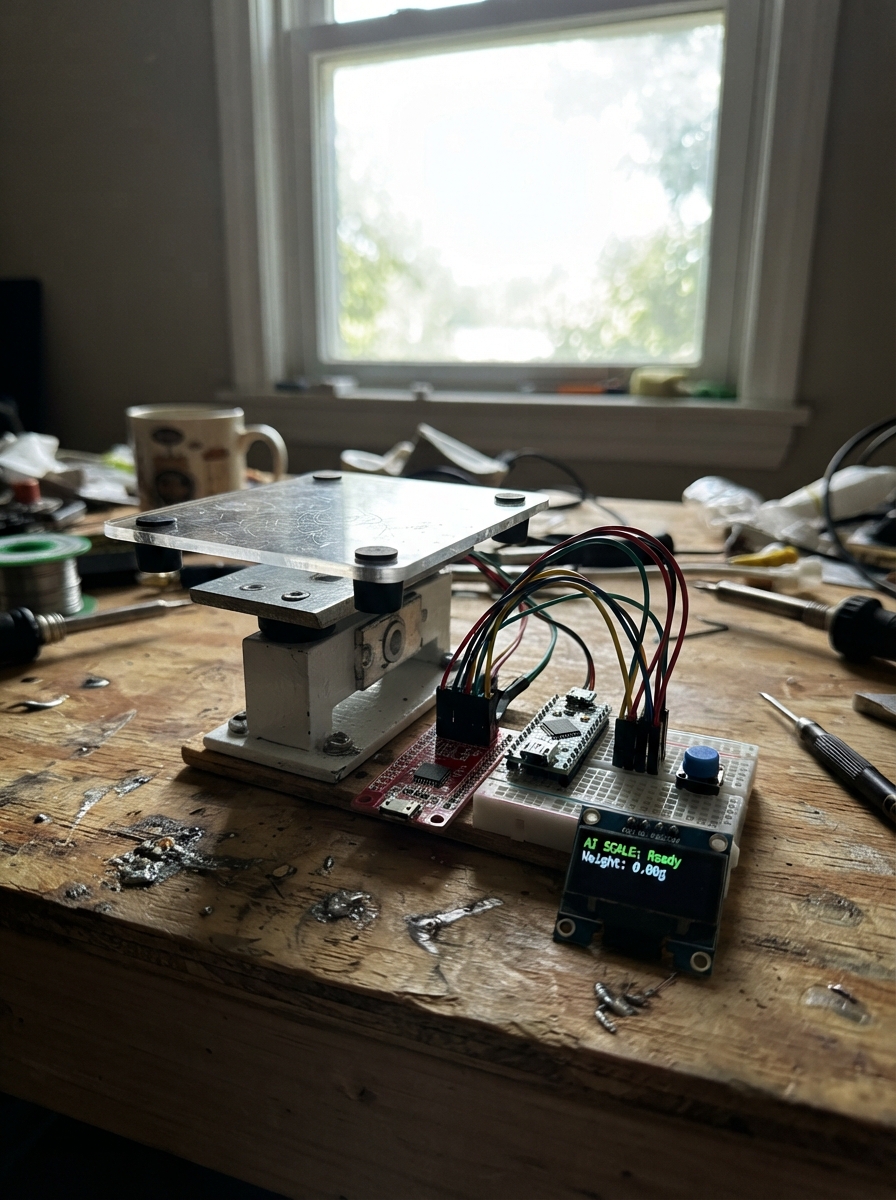
Build a WiFi-enabled smart scale that measures weight with precision using a load cell and HX711 amplifier. The ESP32 microcontroller reads sensor data, displays measurements on an OLED screen, and serves a web interface for remote monitoring. This guide includes a complete wiring diagram, parts list, calibration procedure, and firmware with WiFi connectivity and persistent storage.
The project combines analog weight sensing with digital display and network access, making it suitable for kitchen use, lab work, or any application requiring accurate mass measurement. Assembly involves mounting the load cell platform, wiring the HX711 to the ESP32, connecting the OLED display and tare button, then calibrating the scale before taking measurements. All code and configuration steps are provided.
Wiring diagram

Gather all the parts
Assemble it in 5 steps
1. Mount the load cell and platform
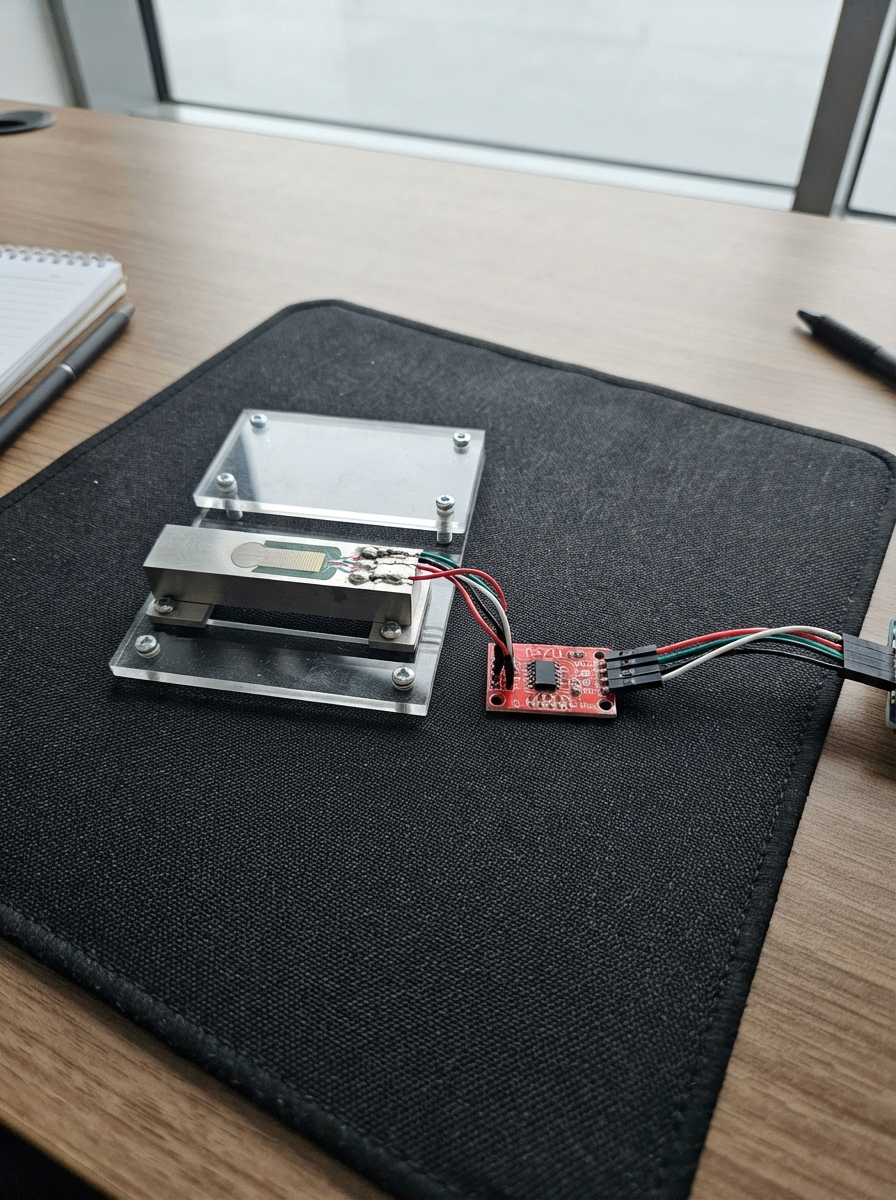
Bolt one end of load_cell_1 firmly to a rigid base and bolt the weighing platform to the other end. Leave a small gap so the metal bar can bend slightly when an object is placed on the platform; nothing except the two mounting ends should press against it.
- The platform must push straight down and must not rub on the base, or the reading will drift.
- Do not exceed 5 kg or bend the metal bar by hand — overload can permanently change its readings.
2. Connect the weight sensor to its reader
Connect the four labelled wires from load_cell_1 to the matching labelled terminals on hx711_1: E+ → E+ (bridge power), E- → E- (bridge ground), A+ → A+ (weight signal), and A- → A- (weight signal). Keep these four wires away from USB and power leads where possible.
- Wire colours differ between load-cell makers, so follow the labels or its supplied wire chart rather than guessing from colour.
- Do not connect a load-cell wire to an ESP32 pin — the HX711 board is the required reader between them.
3. Wire the HX711 board
With the ESP32 unplugged, connect hx711_1 VCC → ESP32 3V3 (power), GND → ESP32 GND (ground), DT → GPIO32 (weight data), and SCK → GPIO33 (clock signal).
- Use the ESP32 pin labels printed on the board; GPIO32 and GPIO33 are often printed as 32 and 33.
- Use 3V3, not VIN or 5V, for the HX711 so its data signal is safe for the ESP32.
4. Wire the display and tare button
Connect oled_1 VCC → ESP32 3V3 (power), GND → ESP32 GND (ground), SDA → GPIO21 (data), and SCL → GPIO22 (clock). Connect tare_button_1 GND → ESP32 GND (ground) and SIGNAL → GPIO4 (button signal).
- The OLED and HX711 may share the ESP32's 3V3 and GND pins using a breadboard power rail.
- The button has no plus or minus; its two labelled connections are the only ones needed.
- Make sure VCC and GND are not swapped on the OLED — swapped power can damage the screen.
5. Calibrate before weighing
After the firmware is deployed, remove everything from the platform and press the tare button once. On a phone or computer, join the Wi-Fi network named SmartScale using password scale-setup, open 192.168.4.1, place one object with a known mass on the platform, enter that mass in grams, and press Calibrate.
- A sealed 1 litre bottle of water is close to 1000 g and makes a practical calibration object.
- The calibration number is saved inside the ESP32, so it remains after normal power-off.
- Do not calibrate with an object that can move or touch the base — the stored calibration would be inaccurate.
Review all connections
1. Connections between "hx711_1" and "ESP32"
2. Connections between "load_cell_1" and "ESP32"
3. Connections between "oled_1" and "ESP32"
4. Connections between "tare_button_1" and "ESP32"
Deploy the firmware
#include <Arduino.h>
#include <Wire.h>
#include <WiFi.h>
#include <WebServer.h>
#include <Preferences.h>
#include <HX711.h>
#include <Adafruit_GFX.h>
#include <Adafruit_SSD1306.h>

#define HX711_DT_PIN 32
#define HX711_SCK_PIN 33
#define TARE_BUTTON_PIN 4
#define OLED_SDA_PIN 21
#define OLED_SCL_PIN 22

constexpr uint8_t SCREEN_WIDTH = 128;
constexpr uint8_t SCREEN_HEIGHT = 64;
constexpr uint8_t OLED_ADDRESS = 0x3C;
constexpr char AP_NAME[] = "SmartScale";
constexpr char AP_PASSWORD[] = "scale-setup";

HX711 scale;
Adafruit_SSD1306 display(SCREEN_WIDTH, SCREEN_HEIGHT, &Wire, -1);
WebServer server(80);
Preferences preferences;

float calibrationFactor = 0.0f;
float shownGrams = NAN;
bool calibrationMode = true;
unsigned long lastSampleMs = 0;
unsigned long lastButtonMs = 0;

void drawScreen(float grams, bool force) {
  if (!force && ((isnan(grams) && isnan(shownGrams)) || (!isnan(grams) && !isnan(shownGrams) && fabsf(grams - shownGrams) < 1.0f))) {
    return;
  }
  shownGrams = grams;
  display.clearDisplay();
  display.setTextColor(SSD1306_WHITE);
  display.setTextSize(1);
  display.setCursor(0, 0);
  display.print("AI SMART SCALE");
  display.drawLine(0, 11, 127, 11, SSD1306_WHITE);
  display.setTextSize(3);
  display.setCursor(0, 22);
  if (calibrationMode) {
    display.print("CAL");
  } else {
    display.print(grams, 0);
    display.setTextSize(1);
    display.print(" g");
  }
  display.setTextSize(1);
  display.setCursor(0, 54);
  if (calibrationMode) {
    display.print("Open 192.168.4.1 to calibrate");
  } else {
    display.print("Button: tare");
  }
  display.display();
}

String pageHtml() {
  String body = "<!doctype html><html><head><meta name='viewport' content='width=device-width,initial-scale=1'>";
  body += "<style>body{font-family:sans-serif;max-width:34rem;margin:2rem auto;padding:1rem}input,button{font-size:1.1rem;padding:.5rem;margin:.3rem 0;width:100%}</style></head><body>";
  body += "<h1>Smart Scale</h1>";
  if (calibrationMode) {
    body += "<p>The scale needs calibration. Put a known weight on the platform, enter its mass in grams, then press Calibrate.</p>";
  } else {
    body += "<p>Live weight: <b>" + String(scale.get_units(5), 0) + " g</b></p>";
  }
  body += "<form action='/calibrate'><label>Known weight in grams</label><input name='g' type='number' min='1' required><button>Calibrate</button></form>";
  body += "<p>Remove everything first, then use the physical button to tare at any time.</p></body></html>";
  return body;
}

void handleHome() {
  server.send(200, "text/html", pageHtml());
}

void handleCalibrate() {
  if (!server.hasArg("g")) {
    server.send(400, "text/plain", "Missing g parameter");
    return;
  }
  const float knownGrams = server.arg("g").toFloat();
  if (knownGrams <= 0.0f) {
    server.send(400, "text/plain", "Enter a mass greater than zero");
    return;
  }
  const long rawValue = scale.get_value(20);
  if (rawValue == 0) {
    server.send(409, "text/plain", "No usable sensor reading. Check the load-cell wires.");
    return;
  }
  calibrationFactor = static_cast<float>(rawValue) / knownGrams;
  scale.set_scale(calibrationFactor);
  preferences.putFloat("factor", calibrationFactor);
  calibrationMode = false;
  shownGrams = NAN;
  drawScreen(scale.get_units(10), true);
  server.sendHeader("Location", "/");
  server.send(303);
}

void tareScale() {
  scale.tare(20);
  shownGrams = NAN;
  drawScreen(calibrationMode ? NAN : scale.get_units(5), true);
}

void setup() {
  Serial.begin(115200);
  pinMode(TARE_BUTTON_PIN, INPUT_PULLUP);
  Wire.begin(OLED_SDA_PIN, OLED_SCL_PIN);
  display.begin(SSD1306_SWITCHCAPVCC, OLED_ADDRESS);
  display.clearDisplay();
  display.display();

  scale.begin(HX711_DT_PIN, HX711_SCK_PIN);
  scale.set_scale(1.0f);
  delay(300);
  tareScale();

  preferences.begin("smartscale", false);
  calibrationFactor = preferences.getFloat("factor", 0.0f);
  if (calibrationFactor != 0.0f) {
    scale.set_scale(calibrationFactor);
    calibrationMode = false;
  }

  WiFi.mode(WIFI_AP);
  WiFi.softAP(AP_NAME, AP_PASSWORD);
  server.on("/", HTTP_GET, handleHome);
  server.on("/calibrate", HTTP_GET, handleCalibrate);
  server.begin();
  drawScreen(calibrationMode ? NAN : scale.get_units(10), true);
}

void loop() {
  server.handleClient();
  const unsigned long now = millis();

  if (digitalRead(TARE_BUTTON_PIN) == LOW && now - lastButtonMs > 350) {
    lastButtonMs = now;
    tareScale();
  }

  if (now - lastSampleMs >= 250) {
    lastSampleMs = now;
    if (!calibrationMode && scale.is_ready()) {
      drawScreen(scale.get_units(5), false);
    }
  }
  delay(10);
}
Remix this project
Make it yours in one click
Open a full copy of this project in your own Schematik workspace — diagram, code, parts, and assembly steps included. Swap the sensor, add features, or redesign the whole thing with AI. The author's original stays untouched.