Community project
DHT11 Serial Monitor Logger
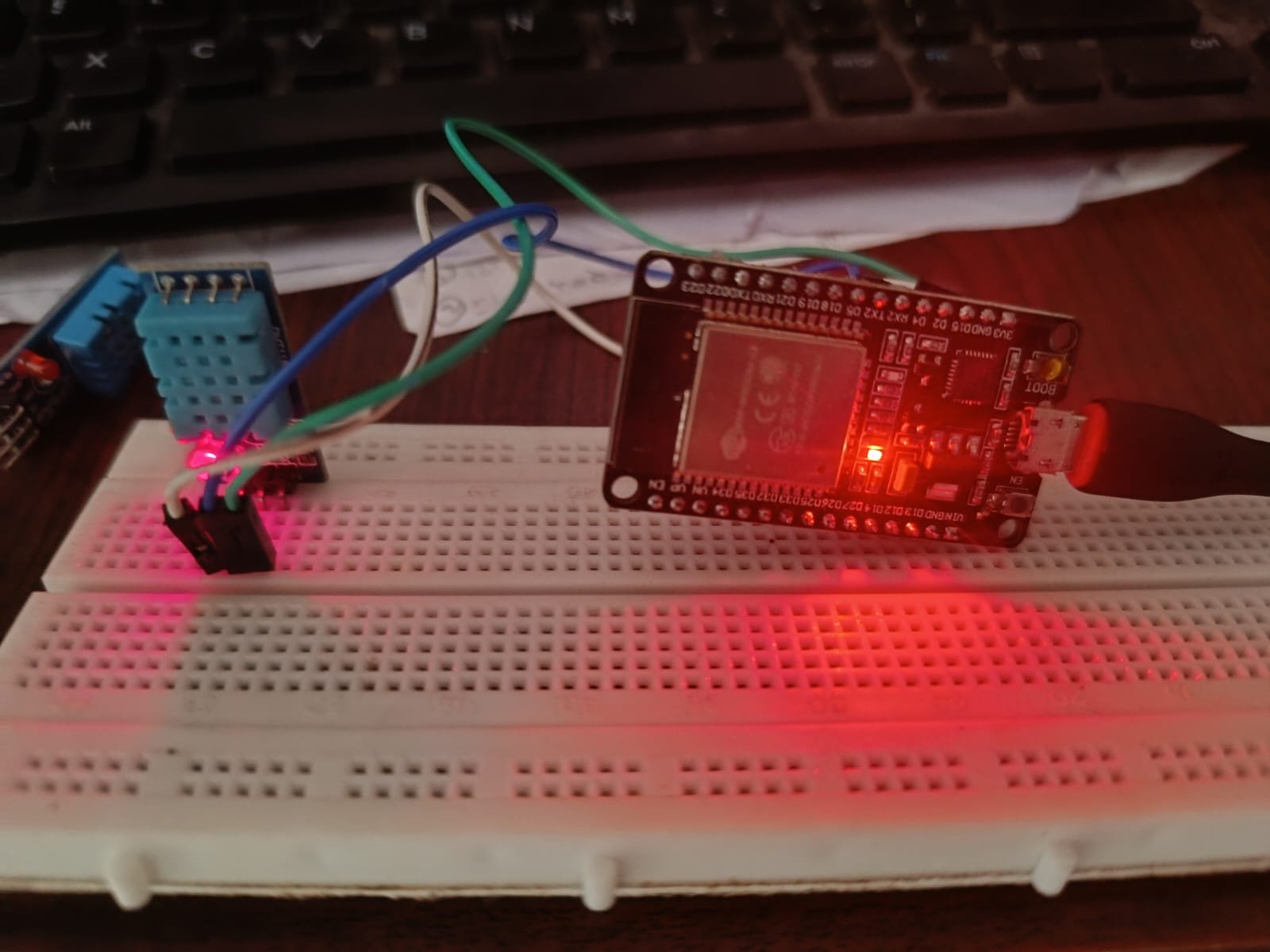
This project turns an ESP32 into a WiFi-connected weather station that reads temperature and humidity from a DHT11 sensor and displays the data on a web dashboard. The sensor connects to the ESP32 with just three wires, and the board serves a responsive web page showing live readings over the local network.
The guide includes a complete wiring diagram, parts list, and ready-to-use firmware with web server functionality. Assembly takes minutes: connect power, ground, and the sensor data line, then upload the code and access the dashboard from any device on the network to monitor indoor conditions in real time.
Wiring diagram

Gather all the parts
Assemble it in 4 steps
1. Keep the ESP32 unplugged while wiring
Place the ESP32 and DHT11 where you can read the labels. Leave the ESP32 unplugged from USB until all three sensor wires are in place.
- A DHT11 breakout board normally labels its pins VCC, GND, and DATA. If you have the bare four-legged blue sensor rather than a breakout board, use a 10 kΩ resistor between VCC and DATA.
- Do not connect the DHT11 VCC pin to the ESP32 5V pin; the ESP32 data pins use 3.3 V and 5 V on the data wire can damage them.
2. Connect power and ground
Run a red jumper from DHT11 VCC to the ESP32 3V3 pin (power). Run a black jumper from DHT11 GND to an ESP32 GND pin (ground).
- Follow the printed labels rather than relying on the order of pins, because breakout boards can be arranged differently.
- Make sure VCC and GND are not swapped — swapped power can damage the sensor.
3. Connect the sensor data wire
Run a third jumper from DHT11 DATA to ESP32 GPIO4 (signal). This is the wire that carries both temperature and humidity readings.
- Keep the three wires short and firmly seated so a loose data wire does not cause missing readings.
4. Power the board and view readings
Plug the ESP32 into USB. After using Schematik’s Deploy button, open its serial monitor at 115200 baud to see temperature in degrees C and humidity in percent every two seconds.
- Give the sensor a few seconds after power-up before judging its first reading.
Review all connections
1. Connections between "dht11_1" and "ESP32"
Deploy the firmware
#include <Arduino.h>
#include <WiFi.h>
#include <WebServer.h>
#include <ESPmDNS.h>
#include <DHT.h>
#define DHT_PIN 4
#define DHT_TYPE DHT11
const char *WIFI_SSID = "asdfghjkl";
const char *WIFI_PASSWORD = "1234567890";
DHT dht(DHT_PIN, DHT_TYPE);
WebServer server(80);
float humidity = NAN;
float temperatureC = NAN;
unsigned long lastReadingMs = 0;
unsigned long lastWifiAttemptMs = 0;
bool wifiWasConnected = false;
bool mdnsStarted = false;
unsigned long lastWifiStatusMs = 0;
const char PAGE[] PROGMEM = R"rawliteral(
<!doctype html><html><head><meta name="viewport" content="width=device-width,initial-scale=1"><title>ESP32 Weather</title><style>body{margin:0;min-height:100vh;display:grid;place-items:center;background:#10233b;color:#f4f8ff;font-family:Arial,sans-serif}main{width:min(88vw,480px);text-align:center}.status{display:inline-block;border-radius:18px;padding:7px 13px;font-size:.9rem;background:#164d38;color:#c7ffe2}.offline{background:#5a3b14;color:#ffdf9b}.sub{color:#b6c9e4;margin:10px 0 24px}.cards{display:flex;gap:16px}.card{flex:1;background:#193755;border-radius:18px;padding:25px 10px;box-shadow:0 8px 22px #081523}.label{color:#b6c9e4;font-size:.95rem}.value{font-size:2.6rem;font-weight:bold;margin:9px 0}.unit{color:#77d5ff}.foot{color:#b6c9e4;font-size:.85rem;margin-top:20px}#state{min-height:1.2em;color:#ffcf70}</style></head><body><main><h1>ESP32 Weather</h1><p id="wifi" class="status">● Checking home Wi-Fi...</p><p class="sub">DHT11 indoor readings</p><section class="cards"><div class="card"><div class="label">Temperature</div><div class="value"><span id="temp">--</span><span class="unit">°C</span></div><div><span id="fahr">--</span> °F</div></div><div class="card"><div class="label">Humidity</div><div class="value"><span id="hum">--</span><span class="unit">%</span></div></div></section><p id="state"></p><p class="foot">Updates automatically every 2 seconds</p></main><script>async function update(){try{let r=await fetch('/readings');let d=await r.json();wifi.textContent=d.wifi?'● Home Wi-Fi connected: '+d.ip:'● Home Wi-Fi reconnecting...';wifi.className=d.wifi?'status':'status offline';if(d.ok){temp.textContent=d.c.toFixed(1);fahr.textContent=d.f.toFixed(1);hum.textContent=d.h.toFixed(1);state.textContent='';}else state.textContent='Waiting for a DHT11 reading...';}catch(e){wifi.textContent='● Dashboard connection lost';wifi.className='status offline';state.textContent='Refresh this page after the ESP32 reconnects.';}}update();setInterval(update,2000);</script></body></html>
)rawliteral";
void handleReadings() {
bool connected = WiFi.status() == WL_CONNECTED;
String json = "{\"wifi\":" + String(connected ? "true" : "false") + ",\"ip\":\"" + (connected ? WiFi.localIP().toString() : "not connected") + "\"";
if (isnan(humidity) || isnan(temperatureC)) {
json += ",\"ok\":false}";
server.send(200, "application/json", json);
return;
}
float temperatureF = temperatureC * 9.0f / 5.0f + 32.0f;
json += ",\"ok\":true,\"c\":" + String(temperatureC, 1) + ",\"f\":" + String(temperatureF, 1) + ",\"h\":" + String(humidity, 1) + "}";
server.send(200, "application/json", json);
}
void readSensor() {
humidity = dht.readHumidity();
temperatureC = dht.readTemperature();
if (isnan(humidity) || isnan(temperatureC)) {
Serial.println("Could not read the DHT11. Check its DATA, 3V3, and GND wires.");
return;
}
float temperatureF = temperatureC * 9.0f / 5.0f + 32.0f;
Serial.printf("Temperature: %.1f C / %.1f F Humidity: %.1f %%\n", temperatureC, temperatureF, humidity);
}
const char *wifiStatusText(wl_status_t status) {
switch (status) {
case WL_CONNECTED: return "CONNECTED";
case WL_NO_SSID_AVAIL: return "NETWORK NAME NOT FOUND";
case WL_CONNECT_FAILED: return "PASSWORD OR ROUTER REJECTED CONNECTION";
case WL_CONNECTION_LOST: return "CONNECTION LOST";
case WL_IDLE_STATUS: return "WAITING FOR ROUTER";
default: return "CONNECTING";
}
}
void printWifiStatus() {
wl_status_t status = WiFi.status();
Serial.print("Wi-Fi status: ");
Serial.println(wifiStatusText(status));
if (status != WL_CONNECTED) {
Serial.println("Dashboard is waiting for the home Wi-Fi connection.");
Serial.println("The ESP32 needs a 2.4 GHz Wi-Fi network; it cannot join a 5 GHz-only network.");
}
}
void connectToHomeWifi() {
Serial.print("Wi-Fi status: connecting to ");
Serial.println(WIFI_SSID);
WiFi.begin(WIFI_SSID, WIFI_PASSWORD);
lastWifiAttemptMs = millis();
}
void setup() {
Serial.begin(115200);
delay(200);
Serial.println();
Serial.println("=== ESP32 WEATHER DASHBOARD POWERED ON ===");
Serial.println("Wi-Fi status: POWER ON — preparing home Wi-Fi connection");
dht.begin();
WiFi.mode(WIFI_STA);
WiFi.setAutoReconnect(true);
WiFi.setHostname("esp32-weather");
server.on("/", HTTP_GET, []() { server.send_P(200, "text/html", PAGE); });
server.on("/readings", HTTP_GET, handleReadings);
server.begin();
connectToHomeWifi();
readSensor();
lastReadingMs = millis();
}
void loop() {
server.handleClient();
bool connected = WiFi.status() == WL_CONNECTED;
if (connected && !wifiWasConnected) {
wifiWasConnected = true;
Serial.println("Wi-Fi status: CONNECTED");
Serial.print("Dashboard ready on home Wi-Fi: http://");
Serial.println(WiFi.localIP());
if (!mdnsStarted && MDNS.begin("esp32-weather")) {
mdnsStarted = true;
Serial.println("You can also try: http://esp32-weather.local");
}
} else if (!connected && wifiWasConnected) {
wifiWasConnected = false;
Serial.println("Wi-Fi status: DISCONNECTED — reconnecting");
connectToHomeWifi();
} else if (!connected && millis() - lastWifiAttemptMs >= 15000) {
Serial.println("Wi-Fi status: still not connected — retrying");
connectToHomeWifi();
}
if (!connected && millis() - lastWifiStatusMs >= 5000) {
lastWifiStatusMs = millis();
printWifiStatus();
}
if (millis() - lastReadingMs >= 2000) {
lastReadingMs = millis();
readSensor();
}
delay(1);
}Remix this project
Make it yours in one click
Open a full copy of this project in your own Schematik workspace — diagram, code, parts, and assembly steps included. Swap the sensor, add features, or redesign the whole thing with AI. The author's original stays untouched.