Community project
Passive RF Reconnaissance Tool
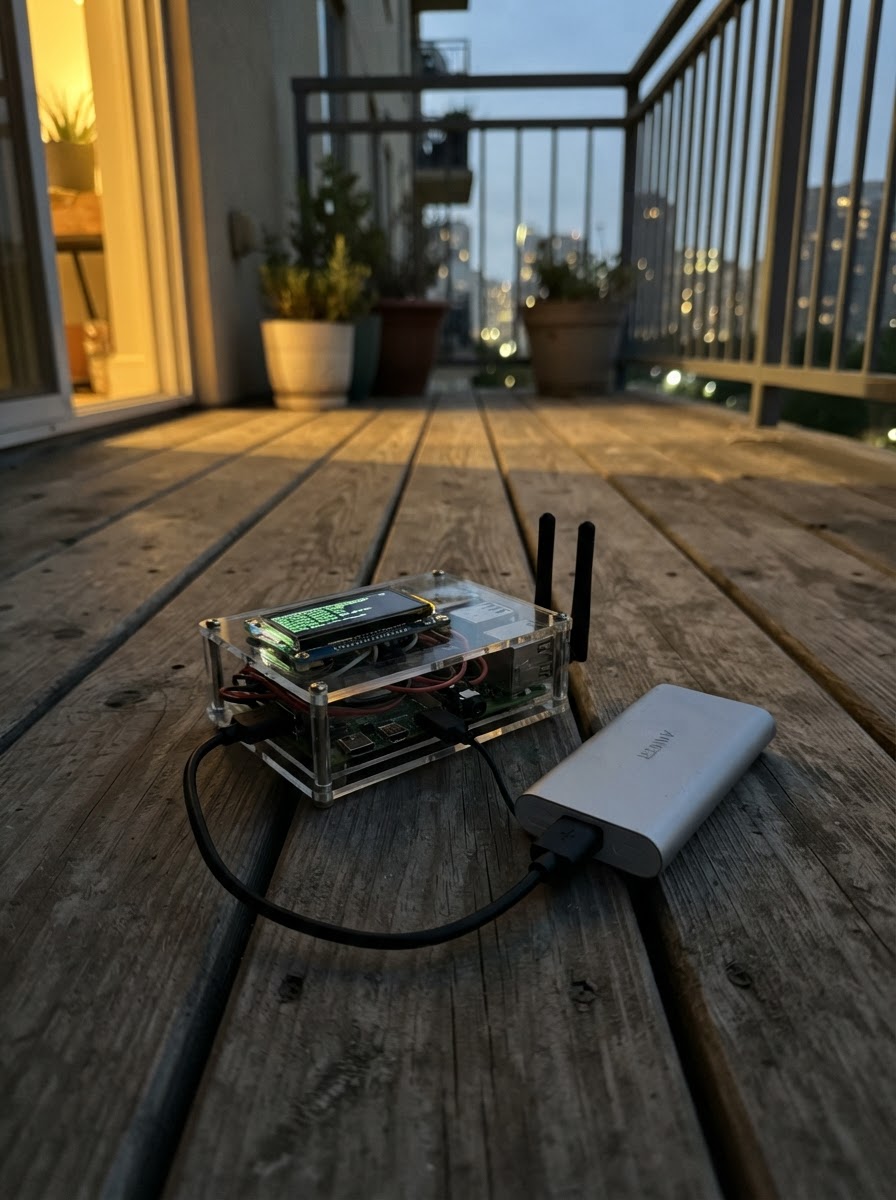
This project turns an ESP32 into a passive RF reconnaissance tool that scans and displays nearby Wi-Fi networks without connecting to them. The device creates its own access point that you can join from your phone to view a live dashboard showing network names, channels, encryption types, and signal strength.
The guide provides a complete parts list, wiring diagram for connecting the ESP32 via USB, and ready-to-flash firmware with a web-based dashboard. Simply power the device, connect your phone to the RF-Awareness network, and start monitoring the RF environment around you.
Wiring diagram
Gather all the parts
Assemble it in 2 steps
1. Place the ESP32 where you can reach its USB socket
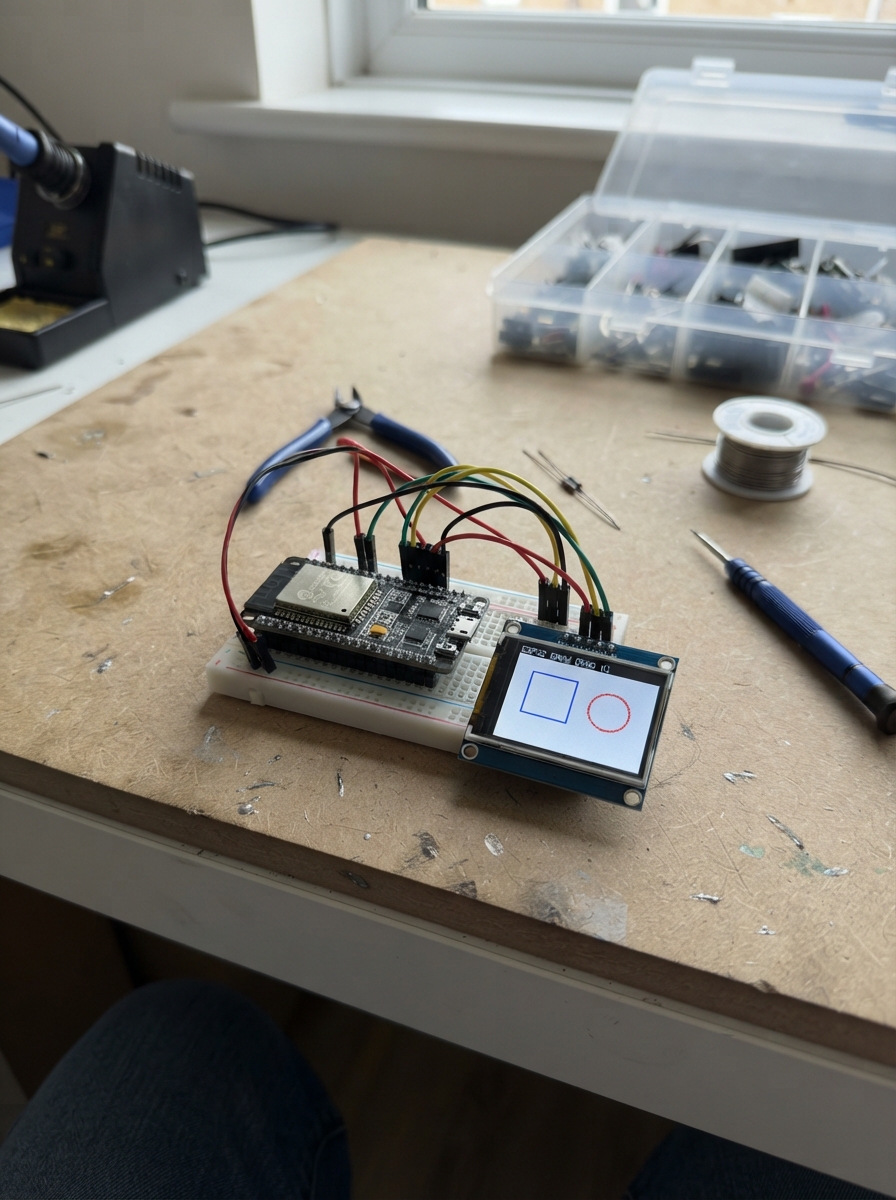
Put the ESP32-WROOM-32D development board on a non-metal table or a breadboard, with its USB socket reachable. No extra sensor wires are needed because the board’s own Wi-Fi radio listens for nearby Wi-Fi broadcasts.
- Keep the small metal antenna end of the board clear of metal objects and your hand while scanning; this gives more consistent signal readings.
- Do not power the board from more than one source at the same time; use only its USB connection for this project.
2. Connect your phone to the local dashboard
After deploying the firmware, plug the USB cable into the ESP32 and your computer. On your Android phone, open Wi-Fi settings and join the network named RF-Awareness using the password change-me. Then open a web browser and go to http://192.168.4.1 to see nearby Wi-Fi names, channels, security labels, and signal levels.
- Change the AP_PASSWORD text in the firmware before deploying if you will use the dashboard around other people.
- The displayed signal level is a rough received-strength reading; closer access points normally have a number nearer to zero, such as -45 dBm rather than -80 dBm.
- Only use the results for your own network planning and authorized site surveys. This build only listens for public Wi-Fi beacon broadcasts and does not join, jam, or capture traffic from other networks.
Review all connections
1. Connections between "usb_cable_1" and "ESP32"
Deploy the firmware
#include <Arduino.h>
#include <WiFi.h>
#include <WebServer.h>

// Receive-only awareness dashboard: scan nearby Wi-Fi access points and show
// their broadcast names, channels, encryption type, and received signal level.

// Forward declarations
String jsonEscape(const String &text);
void performScan();
void handleRoot();
void handleScan();

const char *AP_NAME = "RF-Awareness";
const char *AP_PASSWORD = "change-me";  // Change before use; at least 8 characters.

WebServer server(80);
String lastScanJson = "[]";
unsigned long lastScanAt = 0;
const unsigned long SCAN_INTERVAL_MS = 10000;

String jsonEscape(const String &text) {
  String result;
  for (size_t i = 0; i < text.length(); ++i) {
    char c = text[i];
    if (c == '\\' || c == '\"') result += '\\';
    if (c == '\n') result += "\\n";
    else if (c == '\r') result += "\\r";
    else if (c == '\t') result += "\\t";
    else result += c;
  }
  return result;
}

// The browser simulator has a smaller Wi-Fi API. Keep full ESP32 labels on
// hardware, while giving its placeholder scan a safe generic label.
#if defined(ESP32)
const char *encryptionName(wifi_auth_mode_t type) {
  switch (type) {
    case WIFI_AUTH_OPEN: return "Open";
    case WIFI_AUTH_WEP: return "WEP";
    case WIFI_AUTH_WPA_PSK: return "WPA";
    case WIFI_AUTH_WPA2_PSK: return "WPA2";
    case WIFI_AUTH_WPA_WPA2_PSK: return "WPA/WPA2";
    case WIFI_AUTH_WPA2_ENTERPRISE: return "WPA2 Enterprise";
    case WIFI_AUTH_WPA3_PSK: return "WPA3";
    case WIFI_AUTH_WPA2_WPA3_PSK: return "WPA2/WPA3";
    default: return "Other";
  }
}
#else
const char *encryptionName(int) { return "Not simulated"; }
#endif

void performScan() {
  int count = WiFi.scanNetworks(false, true);
  String json = "[";
  for (int i = 0; i < count; ++i) {
    if (i > 0) json += ',';
    json += "{\"ssid\":\"" + jsonEscape(WiFi.SSID(i)) + "\",";
    json += "\"rssi\":" + String(WiFi.RSSI(i)) + ",";
#if defined(ESP32)
    json += "\"channel\":" + String(WiFi.channel(i)) + ",";
    json += "\"security\":\"" + String(encryptionName(WiFi.encryptionType(i))) + "\"}";
#else
    json += "\"channel\":" + String(WiFi.channel()) + ",";
    json += "\"security\":\"" + String(encryptionName(0)) + "\"}";
#endif
  }
  json += "]";
  lastScanJson = json;
#if defined(ESP32)
  WiFi.scanDelete();
#endif
  lastScanAt = millis();
}

void handleRoot() {
  const char page[] PROGMEM = R"HTML(<!doctype html><html><head><meta name="viewport" content="width=device-width,initial-scale=1"><title>RF Awareness</title><style>body{font:16px Arial;margin:20px;background:#10151c;color:#e9eef5}button{padding:11px 16px;font-size:16px;background:#35a6ff;color:#07111a;border:0;border-radius:6px}table{border-collapse:collapse;width:100%;margin-top:16px}th,td{padding:9px;text-align:left;border-bottom:1px solid #344}small{color:#aab}</style></head><body><h2>Nearby Wi-Fi</h2><p><small>Receive-only awareness view. This tool does not join networks or capture their traffic.</small></p><button onclick="load()">Scan now</button><span id="status"></span><table><thead><tr><th>Name</th><th>Signal</th><th>Ch.</th><th>Security</th></tr></thead><tbody id="rows"></tbody></table><script>function load(){document.getElementById('status').textContent=' Scanning…';fetch('/scan').then(r=>r.json()).then(a=>{a.sort((x,y)=>y.rssi-x.rssi);document.getElementById('rows').innerHTML=a.map(x=>'<tr><td>'+safe(x.ssid||'(hidden)')+'</td><td>'+x.rssi+' dBm</td><td>'+x.channel+'</td><td>'+x.security+'</td></tr>').join('');document.getElementById('status').textContent=' '+a.length+' found';}).catch(()=>document.getElementById('status').textContent=' Scan failed');}function safe(s){const d=document.createElement('div');d.textContent=s;return d.innerHTML;}load();</script></body></html>)HTML";
  server.send(200, "text/html", page);
}

void handleScan() {
  if (millis() - lastScanAt > SCAN_INTERVAL_MS || lastScanJson == "[]") performScan();
  server.sendHeader("Cache-Control", "no-store");
  server.send(200, "application/json", lastScanJson);
}

void setup() {
  Serial.begin(115200);
  WiFi.mode(WIFI_AP_STA);
  WiFi.softAP(AP_NAME, AP_PASSWORD);
  server.on("/", HTTP_GET, handleRoot);
  server.on("/scan", HTTP_GET, handleScan);
  server.begin();
  performScan();
  Serial.print("Dashboard address: http://");
  Serial.println(WiFi.softAPIP());
}

void loop() {
  server.handleClient();
}
Remix this project
Make it yours in one click
Open a full copy of this project in your own Schematik workspace — diagram, code, parts, and assembly steps included. Swap the sensor, add features, or redesign the whole thing with AI. The author's original stays untouched.