Community project
Live Flight Radar Scanner
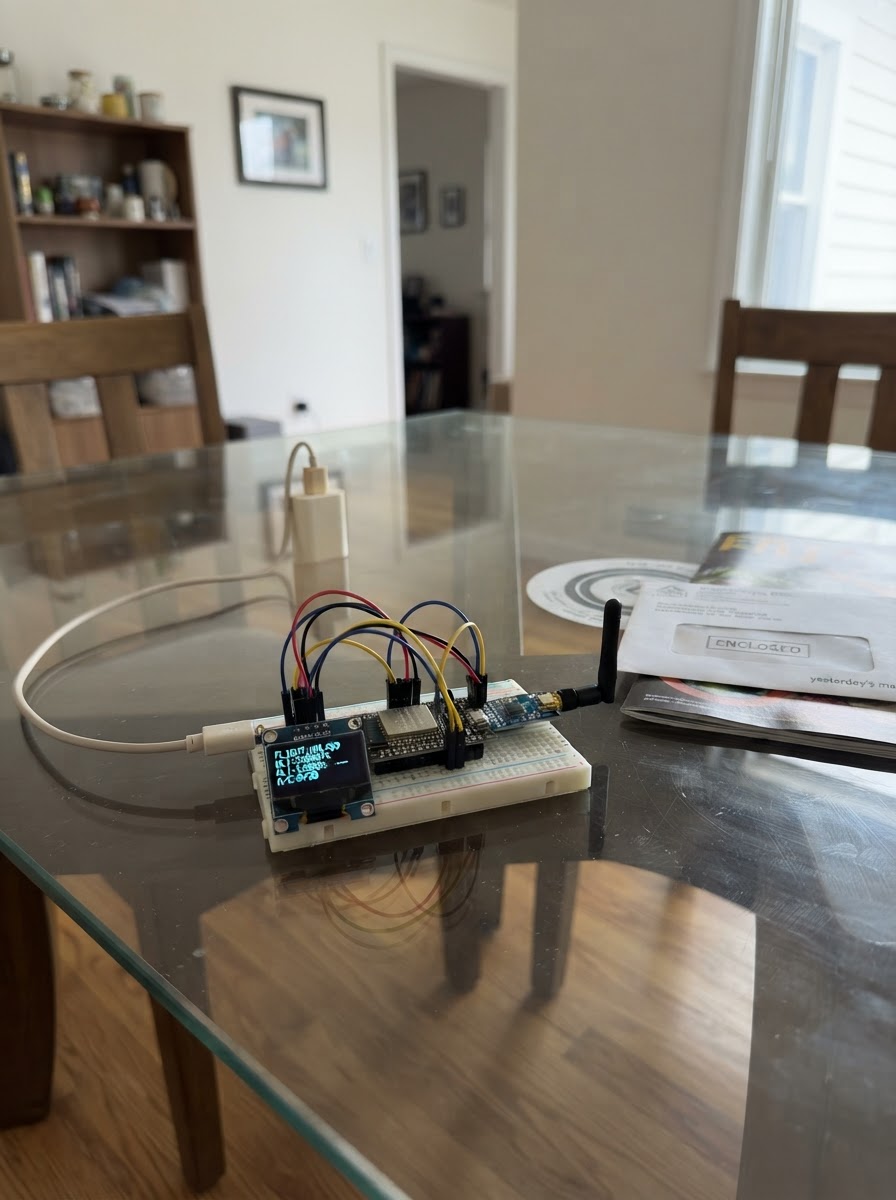
This project turns an M5Stack Core Basic into a live flight radar scanner that displays aircraft in your area. The ESP32-powered device connects to Wi-Fi and fetches real-time aircraft data, showing callsigns, altitudes, speeds, distances, and bearings on the built-in display.
The guide includes a complete parts list, wiring diagram for the M5Stack's ILI9342C display, Wi-Fi configuration steps, and firmware with aircraft tracking logic. Assembly takes minutes—just power the M5Stack via USB, enter your Wi-Fi credentials and scan location, and watch aircraft appear on the flight screen as they pass overhead.
Wiring diagram
Assemble it in 4 steps
1. Check the M5Stack
Use an original M5Stack Core Basic with its screen, three front buttons, and Wi-Fi antenna already built in. This project does not need a separate sensor, receiver, or any jumper wires.
- The whole flight display is inside the M5Stack case, so leave the Grove socket empty for this project.
- Do not connect loose wires to the screen pins inside the case — they are already connected and an incorrect connection can damage the device.
2. Give it USB power
Plug a USB-C cable from the M5Stack into your computer or a normal 5 V USB power supply. The cable powers the device and lets Schematik place the program on it.
- Use a cable that carries data as well as power when you are ready to press Deploy.
- Do not use a damaged cable or a power supply with an unknown voltage — the M5Stack expects normal 5 V USB power.
3. Set your Wi-Fi and scan location
Before deploying, replace YOUR_WIFI_NAME and YOUR_WIFI_PASSWORD near the top of the program with your home Wi-Fi details. Replace the central London latitude and longitude numbers with the place you want the radar circle centered on.
- A phone map can show the latitude and longitude for your home, airport, or another place you want to scan around.
- Use a 2.4 GHz Wi-Fi network: the original M5Stack cannot join a 5 GHz-only network.
4. Use the flight screen
After deploying, wait for the M5Stack to join Wi-Fi and download the first aircraft list. Press the left front button marked A whenever you want to request an early update; otherwise it updates about once a minute.
- Yellow dots on the green circle are aircraft positions. The list at the right shows their call signs, distance, altitude, and speed.
- This is a public internet data display, not navigation equipment. Do not use it to make safety or flight decisions.
Deploy the firmware
#define TFT_DC 27
#define TFT_RST 33
#define TFT_BL 32
// Browser builds use this empty entry point. The physical M5Stack Core Basic
// uses the ESP32 branch below, including its built-in ILI9342C display and buttons.
#if !defined(ESP32)

struct Aircraft { char callsign[12]; float latitude, longitude, altitudeM, speedMps, headingDeg, distanceKm, bearingDeg; };


// Forward declarations
void cmd(uint8_t c);
void data(uint8_t d);
void window(int x0,int y0,int x1,int y1);
void fillRect(int x,int y,int w,int h,uint16_t color);
void pixel(int x,int y,uint16_t c);
void lineH(int x,int y,int w,uint16_t c);
void circle(int cx,int cy,int r,uint16_t c,bool solid);
uint8_t seg(char ch);
void glyph(int x,int y,char ch,uint16_t c,int s);
void text(int x,int y,const String &s,uint16_t c,int size);
void displayBegin();
float degreesToRadians(float d);
float distanceKm(float a,float b,float c,float d);
float bearing(float a,float b,float c,float d);
void drawScreen();
void connectWiFi();
void fetchAircraft();

void setup() {}
void loop() {}
#else
#include <Arduino.h>
#include <SPI.h>
#include <WiFi.h>
#include <WiFiClientSecure.h>
#include <HTTPClient.h>
#include <ArduinoJson.h>
#include <math.h>

// M5Stack Core Basic (original Core) built-in hardware pins.
const int TFT_CS = 14, TFT_DC = 27, TFT_RST = 33, TFT_BL = 32;
const int BUTTON_A = 39;
const char *WIFI_SSID = "YOUR_WIFI_NAME";
const char *WIFI_PASSWORD = "YOUR_WIFI_PASSWORD";
const float SCAN_LATITUDE = 51.5074f;
const float SCAN_LONGITUDE = -0.1278f;
const float SCAN_RADIUS_KM = 80.0f;
const unsigned long REFRESH_INTERVAL_MS = 60000UL;
const int MAX_AIRCRAFT = 12;

const uint16_t BLACK=0x0000, WHITE=0xFFFF, CYAN=0x07FF, GREEN=0x07E0;
const uint16_t DARK_GREEN=0x03E0, YELLOW=0xFFE0, GREY=0x7BEF, RED=0xF800;

Aircraft aircraft[MAX_AIRCRAFT];
int aircraftCount = 0;
unsigned long lastRefresh = 0;
String statusLine = "Starting...";
bool previousButton = true;

void cmd(uint8_t c) { digitalWrite(TFT_DC, LOW); digitalWrite(TFT_CS, LOW); SPI.transfer(c); digitalWrite(TFT_CS, HIGH); }
void data(uint8_t d) { digitalWrite(TFT_DC, HIGH); digitalWrite(TFT_CS, LOW); SPI.transfer(d); digitalWrite(TFT_CS, HIGH); }
void window(int x0,int y0,int x1,int y1) { cmd(0x2A); data(x0>>8);data(x0);data(x1>>8);data(x1); cmd(0x2B);data(y0>>8);data(y0);data(y1>>8);data(y1);cmd(0x2C); }
void fillRect(int x,int y,int w,int h,uint16_t color) { if(x<0){w+=x;x=0;} if(y<0){h+=y;y=0;} if(x+w>320)w=320-x; if(y+h>240)h=240-y; if(w<=0||h<=0)return; window(x,y,x+w-1,y+h-1); digitalWrite(TFT_DC,HIGH);digitalWrite(TFT_CS,LOW); for(long i=0;i<(long)w*h;i++){SPI.transfer(color>>8);SPI.transfer(color);} digitalWrite(TFT_CS,HIGH); }
void pixel(int x,int y,uint16_t c){fillRect(x,y,1,1,c);}
void lineH(int x,int y,int w,uint16_t c){fillRect(x,y,w,1,c);} void lineV(int x,int y,int h,uint16_t c){fillRect(x,y,1,h,c);}
void circle(int cx,int cy,int r,uint16_t c,bool solid=false) { int x=r,y=0,e=1-r; while(x>=y){ if(solid){lineH(cx-x,cy+y,2*x+1,c);lineH(cx-x,cy-y,2*x+1,c);lineH(cx-y,cy+x,2*y+1,c);lineH(cx-y,cy-x,2*y+1,c);}else{pixel(cx+x,cy+y,c);pixel(cx+y,cy+x,c);pixel(cx-y,cy+x,c);pixel(cx-x,cy+y,c);pixel(cx-x,cy-y,c);pixel(cx-y,cy-x,c);pixel(cx+y,cy-x,c);pixel(cx+x,cy-y,c);} y++; if(e<0)e+=2*y+1;else{x--;e+=2*(y-x)+1;} } }

// Compact seven-segment-like text is sufficient for labels and live call signs.
uint8_t seg(char ch){ if(ch>='0'&&ch<='9') return (const uint8_t[]){0x3f,0x06,0x5b,0x4f,0x66,0x6d,0x7d,0x07,0x7f,0x6f}[ch-'0']; if(ch>='A'&&ch<='Z'){ const char* letters="A B C D E F G H I J L N O P R S T U Y"; const uint8_t vals[]={0x77,0x7c,0x39,0x5e,0x79,0x71,0x3d,0x76,0x06,0x1e,0x38,0x54,0x3f,0x73,0x50,0x6d,0x78,0x3e,0x6e}; int n=0; for(int i=0;letters[i];i++){if(letters[i]==' '){n++;continue;}if(letters[i]==ch)return vals[n];} } return ch=='-'?0x40:0; }
void glyph(int x,int y,char ch,uint16_t c,int s){ if(ch==' '){return;} if(ch=='.'){fillRect(x+2*s,y+6*s,s,s,c);return;} uint8_t v=seg(ch); if(!v)return; int t=s; if(v&1)fillRect(x+t,y,3*s,t,c);if(v&2)fillRect(x+4*s,y+t,t,3*s,c);if(v&4)fillRect(x+4*s,y+5*s,t,3*s,c);if(v&8)fillRect(x+t,y+8*s,3*s,t,c);if(v&16)fillRect(x,y+5*s,t,3*s,c);if(v&32)fillRect(x,y+t,t,3*s,c);if(v&64)fillRect(x+t,y+4*s,3*s,t,c); }
void text(int x,int y,const String &s,uint16_t c,int size=1){for(unsigned i=0;i<s.length();i++){glyph(x+i*6*size,y,s[i],c,size);}}
void displayBegin(){ pinMode(TFT_CS,OUTPUT);pinMode(TFT_DC,OUTPUT);pinMode(TFT_RST,OUTPUT);pinMode(TFT_BL,OUTPUT);digitalWrite(TFT_BL,HIGH); SPI.begin(18,19,23,TFT_CS); digitalWrite(TFT_RST,LOW);delay(20);digitalWrite(TFT_RST,HIGH);delay(120); cmd(0x01);delay(150);cmd(0x3A);data(0x55);cmd(0x36);data(0x28);cmd(0x11);delay(120);cmd(0x29); }
float degreesToRadians(float d){return d*PI/180.0f;}
float distanceKm(float a,float b,float c,float d){float dl=degreesToRadians(c-a),dn=degreesToRadians(d-b),q=sinf(dl/2)*sinf(dl/2)+cosf(degreesToRadians(a))*cosf(degreesToRadians(c))*sinf(dn/2)*sinf(dn/2);return 12742.0f*atan2f(sqrtf(q),sqrtf(1-q));}
float bearing(float a,float b,float c,float d){float n=degreesToRadians(d-b),y=sinf(n)*cosf(degreesToRadians(c)),x=cosf(degreesToRadians(a))*sinf(degreesToRadians(c))-sinf(degreesToRadians(a))*cosf(degreesToRadians(c))*cosf(n);float r=atan2f(y,x)*180.0f/PI;return r<0?r+360:r;}
void drawScreen(){ fillRect(0,0,320,240,BLACK);text(8,5,"LIVE FLIGHT RADAR",CYAN,2);lineH(0,27,320,GREY);const int cx=85,cy=137,r=75;circle(cx,cy,r,DARK_GREEN);circle(cx,cy,r/2,DARK_GREEN);lineH(cx-r,cy,2*r,DARK_GREEN);lineV(cx,cy-r,2*r,DARK_GREEN);circle(cx,cy,3,WHITE,true);text(cx-3,cy-r-11,"N",GREEN);text(4,216,"RANGE "+String((int)SCAN_RADIUS_KM)+" KM",GREEN);for(int i=0;i<aircraftCount;i++){float a=degreesToRadians(aircraft[i].bearingDeg-90),p=min(aircraft[i].distanceKm/SCAN_RADIUS_KM,1.0f)*r;circle(cx+(int)(cosf(a)*p),cy+(int)(sinf(a)*p),3,YELLOW,true);}text(170,38,"FOUND "+String(aircraftCount),WHITE);for(int i=0;i<aircraftCount&&i<7;i++){int y=54+i*22;text(170,y,String(aircraft[i].callsign),YELLOW);text(170,y+10,String((int)roundf(aircraft[i].distanceKm))+"KM "+String((int)roundf(aircraft[i].altitudeM))+"M",WHITE);}lineH(0,229,320,GREY);text(3,233,statusLine,WiFi.status()==WL_CONNECTED?GREEN:RED); }
void connectWiFi(){if(String(WIFI_SSID)=="YOUR_WIFI_NAME"){statusLine="SET WIFI NAME PASSWORD";return;}statusLine="CONNECTING WIFI";drawScreen();WiFi.mode(WIFI_STA);WiFi.begin(WIFI_SSID,WIFI_PASSWORD);unsigned long start=millis();while(WiFi.status()!=WL_CONNECTED&&millis()-start<15000)delay(250);statusLine=WiFi.status()==WL_CONNECTED?"WIFI CONNECTED":"WIFI FAILED";}
void fetchAircraft(){if(WiFi.status()!=WL_CONNECTED)connectWiFi();if(WiFi.status()!=WL_CONNECTED)return;float ls=SCAN_RADIUS_KM/111.0f,os=SCAN_RADIUS_KM/(111.0f*cosf(degreesToRadians(SCAN_LATITUDE)));String url="https://opensky-network.org/api/states/all?lamin="+String(SCAN_LATITUDE-ls,4)+"&lomin="+String(SCAN_LONGITUDE-os,4)+"&lamax="+String(SCAN_LATITUDE+ls,4)+"&lomax="+String(SCAN_LONGITUDE+os,4);statusLine="GETTING FLIGHT DATA";drawScreen();WiFiClientSecure client;client.setInsecure();HTTPClient http;http.setTimeout(12000);http.begin(client,url);int rc=http.GET();if(rc!=HTTP_CODE_OK){statusLine="DATA ERROR "+String(rc);http.end();return;}DynamicJsonDocument filter(256);filter["states"][0][1]=true;filter["states"][0][5]=true;filter["states"][0][6]=true;filter["states"][0][7]=true;filter["states"][0][9]=true;DynamicJsonDocument doc(12288);DeserializationError e=deserializeJson(doc,http.getStream(),DeserializationOption::Filter(filter));http.end();if(e){statusLine="COULD NOT READ DATA";return;}aircraftCount=0;for(JsonVariant st:doc["states"].as<JsonArray>()){if(aircraftCount>=MAX_AIRCRAFT)break;if(st[5].isNull()||st[6].isNull())continue;Aircraft &v=aircraft[aircraftCount];String n=st[1]|"UNKNOWN";n.trim();n.substring(0,11).toCharArray(v.callsign,sizeof(v.callsign));v.longitude=st[5];v.latitude=st[6];v.altitudeM=st[7]|0.0f;v.speedMps=st[9]|0.0f;v.distanceKm=distanceKm(SCAN_LATITUDE,SCAN_LONGITUDE,v.latitude,v.longitude);v.bearingDeg=bearing(SCAN_LATITUDE,SCAN_LONGITUDE,v.latitude,v.longitude);if(v.distanceKm<=SCAN_RADIUS_KM)aircraftCount++;}statusLine="UPDATED "+String(aircraftCount)+" AIRCRAFT";}
void setup(){pinMode(BUTTON_A,INPUT_PULLUP);displayBegin();drawScreen();connectWiFi();fetchAircraft();drawScreen();lastRefresh=millis();}
void loop(){bool now=digitalRead(BUTTON_A);if(previousButton&&!now){fetchAircraft();drawScreen();lastRefresh=millis();}previousButton=now;if(millis()-lastRefresh>=REFRESH_INTERVAL_MS){fetchAircraft();drawScreen();lastRefresh=millis();}delay(25);}
#endif
Remix this project
Make it yours in one click
Open a full copy of this project in your own Schematik workspace — diagram, code, parts, and assembly steps included. Swap the sensor, add features, or redesign the whole thing with AI. The author's original stays untouched.