Schematik build
Retro E-Ink iPod
The click-wheel ritual, rebuilt in e-paper. A Spotify remote and six pocket games on one PaperMono.
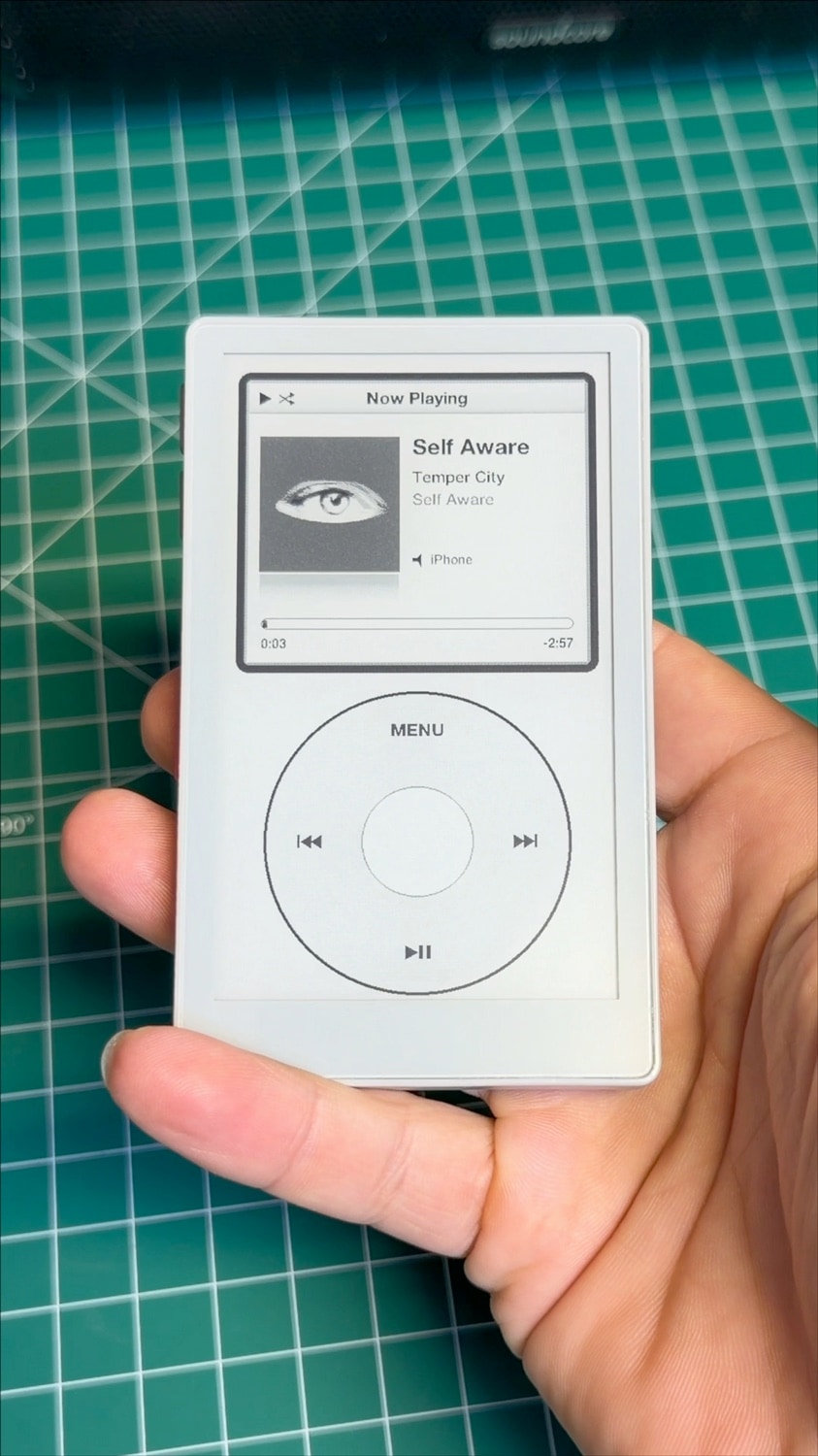
Circle your thumb around the wheel. Hear the click. Watch the selection move. Retro E-Ink iPod brings that familiar iPod ritual to the M5Stack PaperMono, with a paper-like display and a Spotify library behind it. The firmware is called PaperPod, the name you'll see when it boots.
Everything lives on one board: the e-paper display, touch controls, buzzer, front light and battery. You only need a PaperMono C153 and a USB-C data cable. There is no external wiring or soldering.
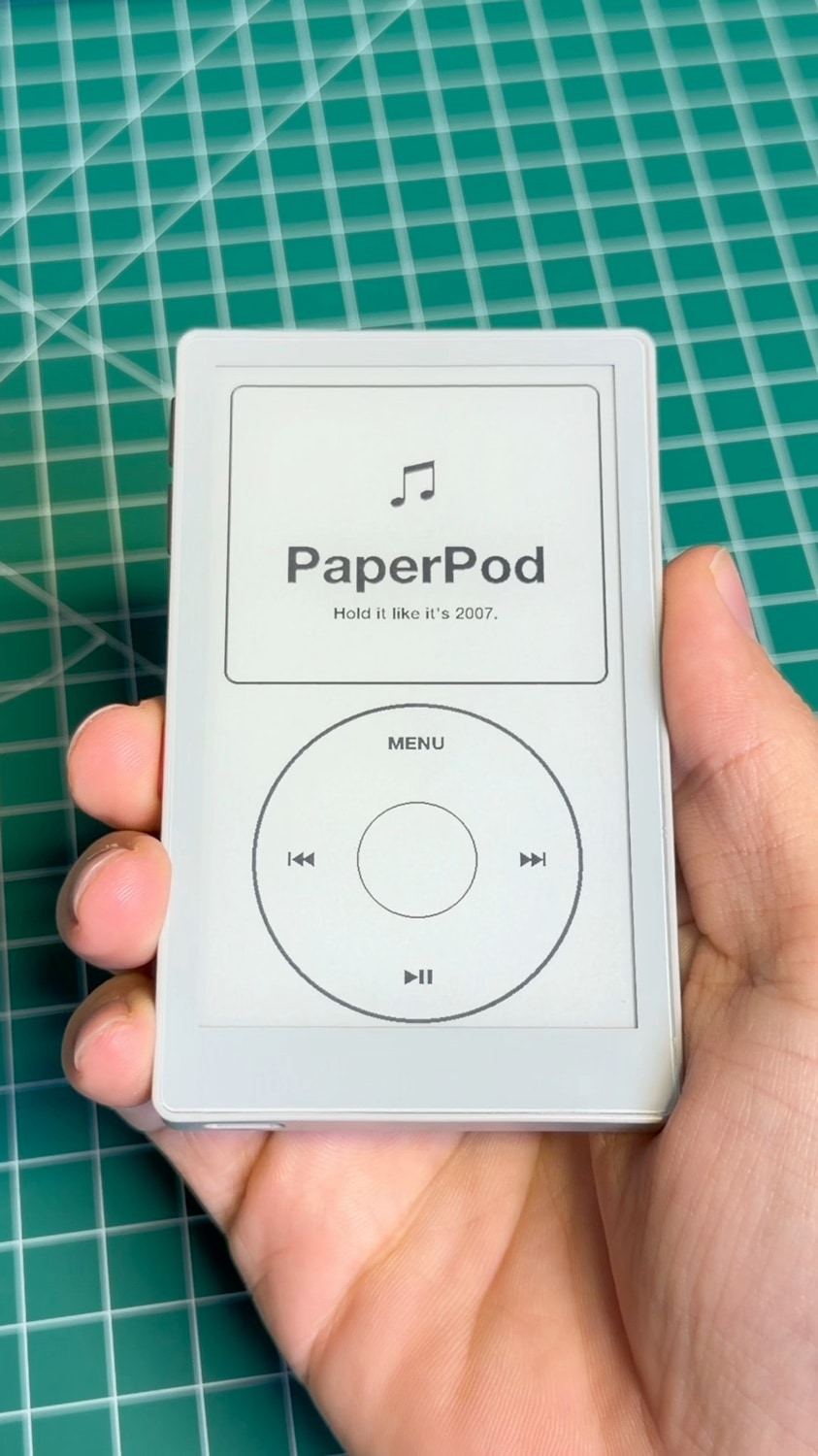
From a white screen to the PaperPod welcome screen. Still from the original hardware demonstration.
A familiar wheel, a different kind of screen
The lower half of the display is a touch click wheel. Circle a finger to scroll, tap the center to select, and tap MENU to go back. Faster spins move through lists faster. In Now Playing, the wheel adjusts volume and the center button opens scrubbing.
The split main menu pairs your options with album art. Cover Flow arranges albums in perspective with reflections; Now Playing brings together the cover, track details and progress bar. Live Cover Flow uses your playlist named PaperPod, or falls back to your first owned playlist.
The display is built around e-paper's strengths: fast black-and-white updates while you interact, followed by a four-gray refresh after navigation settles. Occasional refresh flashes are part of that process.
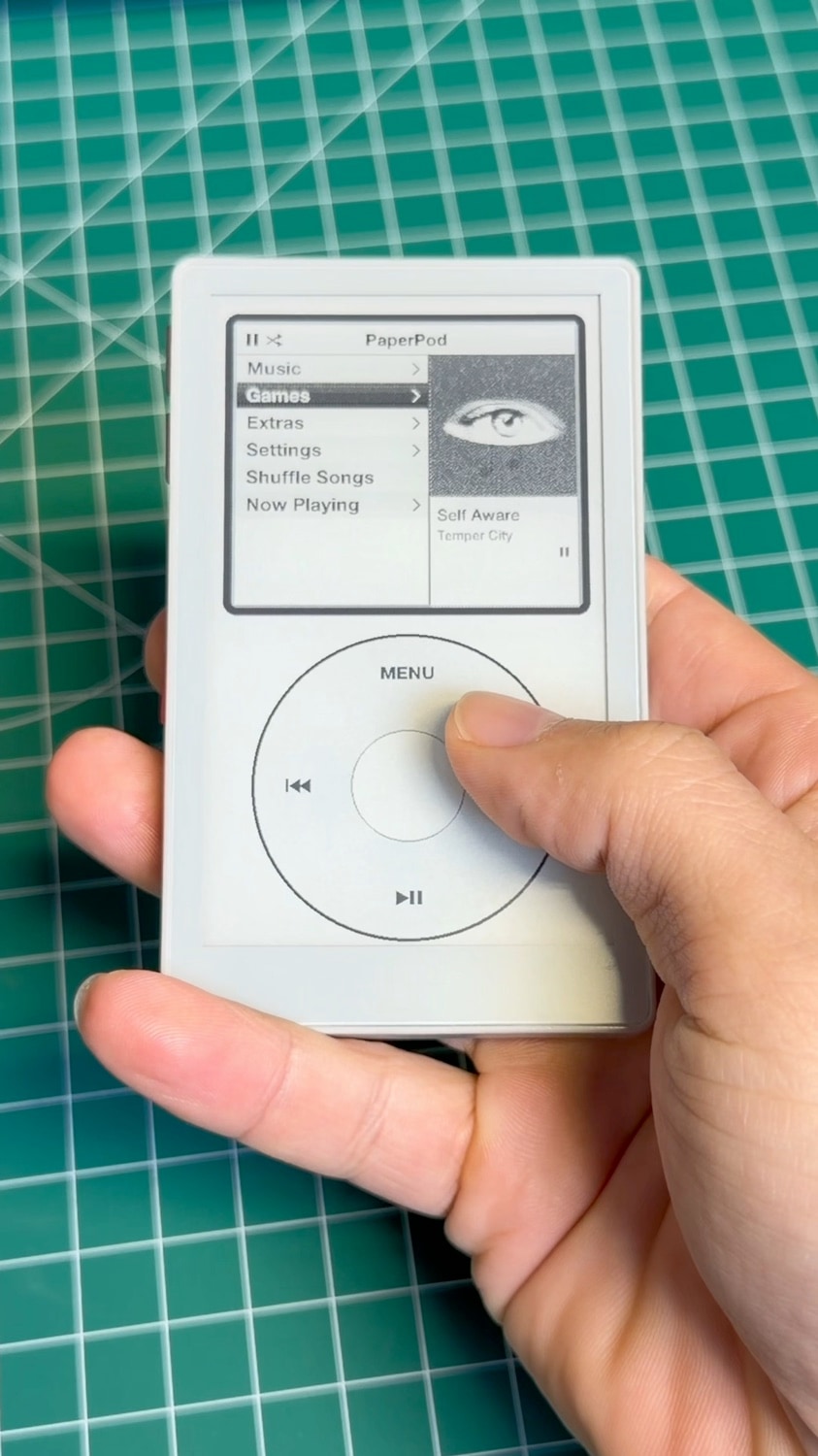
The wheel is drawn on the touch screen. No rotary encoder or extra controller is needed.
Spotify on your desk, games in your hand
PaperPod browses and controls Spotify on your phone, computer or speaker. Music plays on that other device; the onboard buzzer provides wheel clicks and short game effects. Playlists, Recently Played, device selection and Top 50 Global are available alongside Cover Flow.
There are also six games: Brick, Parachute, Vortex, Blocks, Solitaire and Sudoku, plus a Stopwatch. Demo browsing and games work without a Spotify account.
Hold Play/Pause for two seconds to turn the device off and wipe the panel white. The physical power button brings back the boot animation. The second side button from the top toggles the front light, and the setting is remembered.
Make it yours
Install the firmware through Schematik, then try the wheel and games in demo mode. For live music control, join your own 2.4 GHz network under Settings → Wi-Fi, then follow Settings → Spotify → Set Up on Your Phone. You supply your own Spotify developer app Client ID and account; no shared Wi-Fi credentials or Spotify tokens are bundled with the project. Check Spotify's current developer and playback requirements before setting it up.
About this community build
This version uses a smaller Inter font set to fit the Schematik build. Chinese, Japanese and Korean text is not supported, and emoji are skipped. Top 50 Global relies on the external chart mirror kworb.net, so that list can fail independently of Spotify. The battery indicator is currently disabled.
The photos on this page are real frames from the original PaperPod demonstration video. They show the original hardware build; they are not verification of the adapted Schematik firmware. That version has compiled, but its hardware behavior and phone login flow still need an end-to-end check.
Wiring diagram
Assemble it in 3 steps
1. Get the PaperMono ready
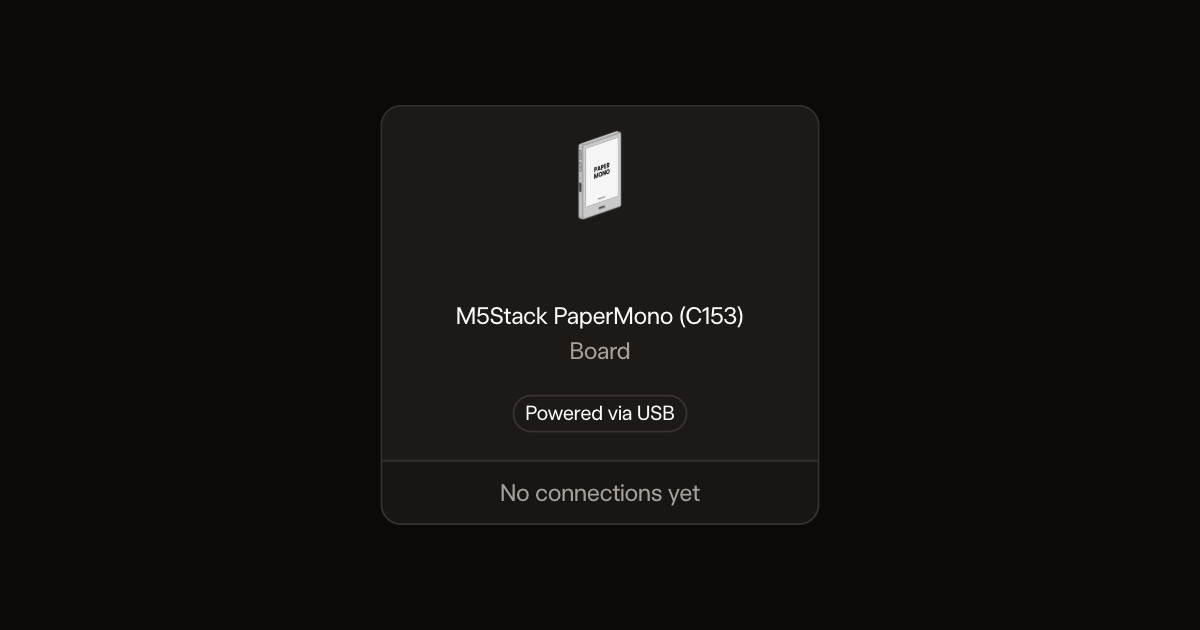
PaperPod runs on the M5Stack PaperMono (C153) by itself: screen, touch wheel, buzzer, front light and battery are all built in. There is nothing to wire. Charge it, and hold it upright with the USB port at the bottom.
- The lower half of the screen is the touch click wheel: spin your finger around the ring to scroll.
2. Connect it to your computer
Plug a USB-C data cable into the port at the bottom of the PaperMono and into your computer. Press the side power button briefly if the screen stays blank.
- Some USB-C cables only charge; use one that carries data or the computer won't see the board.
3. Install and try it
Press Deploy. After the PaperPod boot animation the main menu opens in demo mode: circle a finger around the lower half to scroll, tap the center to select. To use Spotify later, connect Wi-Fi under Settings, then follow Settings → Spotify → Set Up on Your Phone.
- Chinese, Japanese and Korean characters show as small boxes in this build.
- Spotify needs Premium and your own Client ID from developer.spotify.com; PaperPod is a remote, music plays on another device.
Deploy the firmware
Remix this project
Make it yours in one click
Open a full copy of this project in your own Schematik workspace, diagram, code, parts, and assembly steps included. Swap the sensor, add features, or redesign the whole thing with AI. The author's original stays untouched.